Compare commits
1 Commits
v0.9.9
...
test/i18n-
| Author | SHA1 | Date | |
|---|---|---|---|

|
9a15762705 |
3
.gitignore
vendored
3
.gitignore
vendored
@@ -1,5 +1,7 @@
|
|||||||
.env
|
.env
|
||||||
__pycache__/
|
__pycache__/
|
||||||
|
.agents/
|
||||||
|
.codex/
|
||||||
*.pyc
|
*.pyc
|
||||||
build/
|
build/
|
||||||
dist/
|
dist/
|
||||||
@@ -7,3 +9,4 @@ dist/
|
|||||||
releases/*/kx-bridge
|
releases/*/kx-bridge
|
||||||
releases/*/extract_credentials
|
releases/*/extract_credentials
|
||||||
releases/*/extract_credentials.exe
|
releases/*/extract_credentials.exe
|
||||||
|
config/config.ini
|
||||||
|
|||||||
@@ -1,60 +1,21 @@
|
|||||||
# Changelog
|
# Changelog
|
||||||
|
|
||||||
## [0.9.9] – 2026-05-14
|
## [0.9.6.1] – 2026-05-02
|
||||||
|
|
||||||
### Fixes
|
### Fixes
|
||||||
- **„Failed to fetch"-Schleife in der UI (Issue #21):** Wenn die Web-UI über die LAN-IP geöffnet wurde, lieferte `/kx/printers` `bridge_url: http://localhost:7125` zurück. Der Browser machte daraufhin Cross-Origin-Requests von der LAN-IP nach `localhost` — die wurden vom Browser blockiert und produzierten eine Flut aus `TypeError: Failed to fetch`-Poll-Fehlern. Die Bridge liefert jetzt im Einzel-Drucker-Modus eine leere `bridge_url`, sodass das Frontend relative Pfade gegen dieselbe Origin wie die UI nutzt. Im Multi-Printer-Modus werden `localhost`/`127.0.0.1` als Bridge-Hosts herausgefiltert.
|
- **Upload-Banner:** Banner wird nach Stopp/Abbruch nicht mehr erneut angezeigt — `file_ready` und Thumbnail werden jetzt gecleared wenn der Drucker `stoped` oder `canceled` meldet
|
||||||
- **Windows-EXE crasht beim Start (Issue #21):** Die v0.9.8-`kx-bridge.exe` wurde mit einer veralteten `config_loader.py` aus einem früheren Release gebaut und stürzte mit `AttributeError: module 'config_loader' has no attribute 'list_printers'` ab. `release.sh` synct jetzt `config_loader.py` zusammen mit den anderen Quellen ins Windows-Build-Repository.
|
|
||||||
|
|
||||||
---
|
|
||||||
|
|
||||||
## [0.9.8] – 2026-05-12
|
|
||||||
|
|
||||||
### Neu
|
|
||||||
- **Multi-Printer in einer Bridge-Instanz:** Ein Prozess verwaltet jetzt mehrere Drucker gleichzeitig — N MQTT-Verbindungen + N HTTP-Listener (Ports 7125, 7126, …), geteilte SQLite + GCode-Store. Konfiguration über `[printer_1]`-, `[printer_2]`-… Sektionen in `config.ini`. Einzel-Modus (`[connection]`) funktioniert unverändert weiter. `docker-compose.yml` exposed einen Port-Range `7125-7130`.
|
|
||||||
- **Drucker per UI hinzufügen:** „+ Drucker hinzufügen"-Button im Drucker-Tab — nur die IP eingeben, Zugangsdaten (Username, Passwort, Device-ID) werden automatisch vom Drucker geholt und entschlüsselt. Weitere Drucker bekommen den nächsten freien Port (7126, 7127, …).
|
|
||||||
- **Drucker per UI entfernen:** „✕"-Button auf jeder Drucker-Karte mit Bestätigung — entfernt die `[printer_N]`-Sektion und nummeriert die übrigen um. Beim Entfernen des letzten Druckers wird auch `[connection]` geleert (leerer Zustand).
|
|
||||||
- **GCode Store:** Hochgeladene Dateien werden in SQLite gespeichert, inkl. Thumbnail-Extraktion. Neue `/kx/files`-API.
|
|
||||||
- **Browser-Tab:** Grid-Ansicht aller hochgeladenen Dateien — Thumbnail, Status-Badge (✓/✗), letzte Druckdauer, plus Suche, Filter und Sortierung.
|
|
||||||
- **Druckhistorie:** Druckaufträge (Start/Ende/Status) werden in SQLite protokolliert, Status pro Datei im Browser-Tab sichtbar.
|
|
||||||
- **Filament-Dialog:** Per-Kanal-Remapping vor dem Druckstart — jeder GCode-Farbkanal wird einem physischen AMS-Slot zugewiesen (wie im Anycubic Slicer). Verfügbar im Browser-Tab und im Upload-Banner.
|
|
||||||
- **MMU-Emulation:** `GET /printer/objects/query?mmu` liefert eine Happy-Hare-kompatible Struktur, damit OrcaSlicers Filament-Sync die AMS-Slots erkennt.
|
|
||||||
- **Drucker-Tab:** Live-Status aller Drucker-Instanzen, IP auf jeder Karte, „Wechseln →"-Button.
|
|
||||||
- **Editierbarer Drucker-Name:** Eigener Name in den Einstellungen (gespeichert in `[bridge] printer_name`, hat Vorrang vor dem vom Drucker gemeldeten Namen).
|
|
||||||
- **Standalone-tauglich:** Linux-Binary / Windows-EXE laufen ohne Docker — `config/` und `data/` liegen neben dem Programm (portabel). Erststart ohne konfigurierten Drucker zeigt den Drucker-Tab mit „+ Drucker hinzufügen" statt des Einstellungs-Dialogs.
|
|
||||||
- **i18n:** Alle neuen UI-Elemente auf Deutsch und Englisch.
|
|
||||||
|
|
||||||
### Fixes
|
|
||||||
- **CORS:** CORS-Middleware auf allen Endpunkten — Cross-Instance-Fetches in der Multi-Printer-UI funktionieren zuverlässig.
|
|
||||||
- **Einstellungen / Update-Check** zeigen im Multi-Printer-Modus jetzt die aktive Bridge-Instanz (via `_apiUrl`).
|
|
||||||
- **Bridge-Neustart:** Config-abhängige Umgebungsvariablen werden vor einem Neustart gelöscht (der Config-Loader cachte sie, wodurch Config-Änderungen erst nach einem Kaltstart sichtbar wurden). Der Neustart ist jetzt plattformabhängig: Docker/systemd → Prozess-Exit (Supervisor startet neu), Linux standalone → `os.execv`, Windows → detachter Subprozess.
|
|
||||||
- **`--data-dir`-Default** ist jetzt plattformabhängig — der `/app/data`-Default greift nur in Docker (per `ENV` gesetzt), Standalone-Binaries nutzen `<exe-dir>/data`. Behebt einen Startup-Crash beim Ausführen ohne Docker.
|
|
||||||
|
|
||||||
---
|
|
||||||
|
|
||||||
## [0.9.7] – 2026-05-08
|
|
||||||
|
|
||||||
### Neu
|
|
||||||
- **fetch_credentials-Tool:** Ruft MQTT-Credentials direkt vom Drucker per HTTP ab — kein laufender Anycubic Slicer nötig, nur die Drucker-IP. Linux-Binary und Windows-EXE im Release enthalten. (Beitrag von bebu, PR #19)
|
|
||||||
|
|
||||||
### Fixes
|
|
||||||
- **Upload großer GCode-Dateien:** Dateien >1 MB wurden mit HTTP 413 abgelehnt — aiohttp `client_max_size` auf 256 MB erhöht
|
|
||||||
- **Upload-Timeout:** Socket-Timeout nach GCode-Upload von 10s auf 120s erhöht — große Dateien führten zu einem Absturz der Bridge mit leerer Antwort während der Drucker noch verarbeitete
|
|
||||||
|
|
||||||
---
|
---
|
||||||
|
|
||||||
## [0.9.6] – 2026-05-02
|
## [0.9.6] – 2026-05-02
|
||||||
|
|
||||||
### Neu
|
### Neu
|
||||||
- **Licht-Status-Synchronisierung:** Ein/Aus-Zustand und Helligkeit des Druckerlichts werden jetzt live über `light/report` MQTT gelesen — der Licht-Toggle in der UI spiegelt den echten Druckerstatus wider
|
- **Fortschritts-Karte:** Verstrichen / Slicer-Schätzung / Restzeit als Mini-Cards (gleicher Stil wie Temperaturkarten)
|
||||||
- **Zeit-Minicards:** Fortschritts-Panel zeigt jetzt drei Karten — Verstrichen, Restzeit und Slicer-Schätzung — sowie einen Layer-Badge neben dem Fortschrittsbalken
|
- **Layer-Mini-Card:** Layerzahl als Mini-Card neben der Fortschrittsleiste
|
||||||
- **Slicer-Schätzzeit aus GCode:** Geschätzte Druckzeit wird direkt aus der hochgeladenen GCode-Datei gelesen (OrcaSlicer: `; total estimated time:` am Dateiende, PrusaSlicer: `; estimated printing time` im Header)
|
|
||||||
- **Erweiterte Druckerstatus-Strings:** `pausing`, `paused`, `resuming`, `resumed`, `stopping`, `stopped` hinzugefügt — fehlten bisher und ließen die UI rohe Status-Codes bei Pause/Fortsetzen/Stopp anzeigen
|
|
||||||
|
|
||||||
### Fixes
|
### Fixes
|
||||||
- **file_ready-Banner:** Upload-Banner wird nach Stopp oder Abbruch eines Drucks nicht mehr angezeigt
|
- **Slicer-Schätzzeit:** OrcaSlicer schreibt die geschätzte Zeit ans Ende der GCode-Datei — Bridge liest jetzt auch die letzten 64 KB (vorher nur die ersten 16 KB)
|
||||||
- **Zeitanzeige bei Stopp/Abbruch:** Verstrichen-, Restzeit- und Slicer-Schätzung werden auf null zurückgesetzt wenn ein Druck gestoppt oder abgebrochen wird
|
- **start.sh:** `config/`-Verzeichnis wird jetzt automatisch erstellt und `config.ini.example` wird beim ersten Start hineinkopiert (Issue #15)
|
||||||
- **start.sh:** `config/`-Verzeichnis und `config.ini.example` werden beim ersten Start automatisch angelegt wenn sie fehlen (Issue #15)
|
|
||||||
|
|
||||||
---
|
---
|
||||||
|
|
||||||
|
|||||||
51
CHANGELOG.md
51
CHANGELOG.md
@@ -1,60 +1,21 @@
|
|||||||
# Changelog
|
# Changelog
|
||||||
|
|
||||||
## [0.9.9] – 2026-05-14
|
## [0.9.6.1] – 2026-05-02
|
||||||
|
|
||||||
### Fixes
|
### Fixes
|
||||||
- **"Failed to fetch" loop in the UI (Issue #21):** When the web UI was opened via the LAN IP, `/kx/printers` was returning `bridge_url: http://localhost:7125`, which caused the browser to fire cross-origin requests from the LAN IP to `localhost` — these were silently blocked, producing a flood of `TypeError: Failed to fetch` poll errors. The bridge now sends an empty `bridge_url` in single-printer mode so the frontend uses relative paths against the same origin as the UI. In multi-printer mode, `localhost`/`127.0.0.1` are filtered out as bridge hosts.
|
- **Upload banner:** Banner is no longer shown again after print stop/cancel — `file_ready` and thumbnail are now cleared when the printer reports `stoped` or `canceled`
|
||||||
- **Windows EXE startup crash (Issue #21):** The v0.9.8 `kx-bridge.exe` was built with a stale `config_loader.py` from an earlier release and crashed on startup with `AttributeError: module 'config_loader' has no attribute 'list_printers'`. `release.sh` now syncs `config_loader.py` into the Windows build repository together with the other source files.
|
|
||||||
|
|
||||||
---
|
|
||||||
|
|
||||||
## [0.9.8] – 2026-05-12
|
|
||||||
|
|
||||||
### New
|
|
||||||
- **Multi-printer in a single bridge instance:** One process now manages multiple printers — N MQTT connections + N HTTP listeners (ports 7125, 7126, …), shared SQLite + GCode store. Configure via `[printer_1]`, `[printer_2]` … sections in `config.ini`. Single-printer mode (`[connection]` only) keeps working unchanged. `docker-compose.yml` exposes a port range `7125-7130`.
|
|
||||||
- **Add printer from the UI:** "+ Add printer" button in the Printers tab — just enter the printer IP, the credentials (username, password, device ID) are fetched and decrypted from the printer automatically. Adding more printers assigns the next free port (7126, 7127, …).
|
|
||||||
- **Remove printer from the UI:** "✕" button on each printer card with a confirmation dialog — removes the `[printer_N]` section and renumbers the rest. Removing the last printer clears `[connection]` too, leaving an empty state.
|
|
||||||
- **GCode Store:** Uploaded files are persisted in SQLite with thumbnail extraction. New `/kx/files` API.
|
|
||||||
- **Browser tab:** Grid view of all uploaded files — thumbnail, status badge (✓/✗), last print duration, plus search, filter and sort.
|
|
||||||
- **Print history:** Print jobs (start/end/status) are recorded in SQLite, status shown per file in the Browser tab.
|
|
||||||
- **Filament dialog:** Per-channel remapping before print start — assign each GCode color channel to a physical AMS slot (like the Anycubic Slicer does). Available in the Browser tab and the upload banner.
|
|
||||||
- **MMU emulation:** `GET /printer/objects/query?mmu` returns a Happy-Hare-compatible structure so OrcaSlicer's filament sync detects the AMS slots.
|
|
||||||
- **Printers tab:** Live status of all printer instances, IP shown on each card, "Switch →" button.
|
|
||||||
- **Editable printer name:** Set a custom name in Settings (stored in `[bridge] printer_name`, takes precedence over the MQTT-reported name).
|
|
||||||
- **Standalone friendly:** Linux binary / Windows EXE run without Docker — `config/` and `data/` are placed next to the executable (portable). First start with no printer configured shows the Printers tab with "+ Add printer" instead of the settings modal.
|
|
||||||
- **i18n:** All new UI elements available in German and English.
|
|
||||||
|
|
||||||
### Fixes
|
|
||||||
- **CORS:** CORS middleware added to all endpoints — cross-instance fetches in the multi-printer UI work reliably.
|
|
||||||
- **Settings / update check** now reflect the active bridge instance in multi-printer mode (via `_apiUrl`).
|
|
||||||
- **Bridge restart:** Config-dependent environment variables are cleared before a restart (the config loader cached them, which made config changes invisible until the next cold start). Restart is now platform-aware: Docker/systemd → process exit (supervisor restarts), Linux standalone → `os.execv`, Windows → detached subprocess.
|
|
||||||
- **`--data-dir` default** is now platform-dependent — the `/app/data` default only applies inside Docker (set via `ENV`), standalone binaries use `<exe-dir>/data`. Fixes a startup crash when running the binary without Docker.
|
|
||||||
|
|
||||||
---
|
|
||||||
|
|
||||||
## [0.9.7] – 2026-05-08
|
|
||||||
|
|
||||||
### New
|
|
||||||
- **fetch_credentials tool:** Fetches and decrypts MQTT credentials directly from the printer via HTTP — no running Anycubic Slicer required, only the printer IP needed. Linux binary and Windows EXE included in release. (Contributed by bebu, PR #19)
|
|
||||||
|
|
||||||
### Fixes
|
|
||||||
- **Large GCode upload:** Files >1 MB were rejected with HTTP 413 — aiohttp `client_max_size` raised to 256 MB
|
|
||||||
- **Upload timeout:** Socket timeout after GCode upload raised from 10s to 120s — large files caused the bridge to crash with an empty response while the printer was still processing
|
|
||||||
|
|
||||||
---
|
---
|
||||||
|
|
||||||
## [0.9.6] – 2026-05-02
|
## [0.9.6] – 2026-05-02
|
||||||
|
|
||||||
### New
|
### New
|
||||||
- **Light status sync:** Light on/off state and brightness are now read live from the printer via `light/report` MQTT message — the light toggle in the UI reflects the actual printer state
|
- **Progress card:** Elapsed / Slicer estimate / Remaining time shown as mini-cards (same style as temperature cards)
|
||||||
- **Time mini-cards:** Progress panel now shows three cards — Elapsed, Remaining and Slicer estimate — with a layer counter badge next to the progress bar
|
- **Layer mini-card:** Layer count displayed as mini-card next to the progress bar
|
||||||
- **Slicer estimate from GCode:** Estimated print time is parsed directly from the uploaded GCode file (OrcaSlicer: `; total estimated time:` at end of file, PrusaSlicer: `; estimated printing time` in header)
|
|
||||||
- **Extended printer status strings:** Added `pausing`, `paused`, `resuming`, `resumed`, `stopping`, `stopped` states — previously missing, causing the UI to show raw status codes during pause/resume/stop transitions
|
|
||||||
|
|
||||||
### Fixes
|
### Fixes
|
||||||
- **file_ready banner:** Upload banner is no longer shown after print stop or cancel
|
- **Slicer estimate time:** OrcaSlicer writes the estimated time at the end of the GCode file — bridge now also scans the last 64 KB (previously only the first 16 KB were checked)
|
||||||
- **Timers on stop/cancel:** Elapsed, remaining and slicer estimate times are reset to zero when a print is stopped or cancelled
|
- **start.sh:** `config/` directory is now created automatically and `config.ini.example` is copied into it on first run (Issue #15)
|
||||||
- **start.sh:** `config/` directory and `config.ini.example` are now created automatically on first run if missing (Issue #15)
|
|
||||||
|
|
||||||
---
|
---
|
||||||
|
|
||||||
|
|||||||
@@ -16,12 +16,7 @@ COPY config/config.ini.example /app/config/config.ini.example
|
|||||||
|
|
||||||
# config/ ist ein Volume-Mountpoint – beim Start wird config.ini aus .env migriert
|
# config/ ist ein Volume-Mountpoint – beim Start wird config.ini aus .env migriert
|
||||||
# falls noch keine config.ini vorhanden ist.
|
# falls noch keine config.ini vorhanden ist.
|
||||||
RUN mkdir -p /app/config && mkdir -p /app/data
|
RUN mkdir -p /app/config
|
||||||
|
|
||||||
# Daten-Verzeichnis fest auf /app/data (sonst würde der Binary-Default <exe-dir>/data greifen)
|
|
||||||
# und Container-Erkennung für den Bridge-Restart (Supervisor startet neu statt subprocess).
|
|
||||||
ENV KX_DATA_DIR=/app/data
|
|
||||||
ENV KX_IN_DOCKER=1
|
|
||||||
|
|
||||||
EXPOSE 7125
|
EXPOSE 7125
|
||||||
|
|
||||||
|
|||||||
231
README.de.md
231
README.de.md
@@ -1,182 +1,143 @@
|
|||||||
<div align="center">
|
<p align="center"><img src="knlogo.png" alt="KX-Bridge Logo" width="180"/></p>
|
||||||
|
|
||||||
<img src="knlogo.png" alt="KX-Bridge" width="160"/>
|
# KX-Bridge – Anycubic Kobra X
|
||||||
|
|
||||||
# KX-Bridge
|
**Version:** 0.9.6.1
|
||||||
|
|
||||||
**Steuere deinen Anycubic Kobra X mit OrcaSlicer — ohne Klipper, ohne Raspberry Pi.**
|
Steuere deinen **Anycubic Kobra X** mit OrcaSlicer — ohne Klipper, ohne Raspberry Pi.
|
||||||
|
KX-Bridge ist eine Moonraker-kompatible Bridge die direkt mit dem Drucker kommuniziert.
|
||||||
Eine Moonraker-kompatible Bridge, die direkt mit dem Drucker spricht.
|
|
||||||
|
|
||||||
<sub>🇬🇧 <a href="README.md">English version</a></sub>
|
|
||||||
|
|
||||||
<br>
|
|
||||||
|
|
||||||
[](https://ko-fi.com/viewitde)
|
|
||||||
|
|
||||||
[](https://gitea.it-drui.de/viewit/KX-Bridge-Release/releases)
|
|
||||||
|
|
||||||
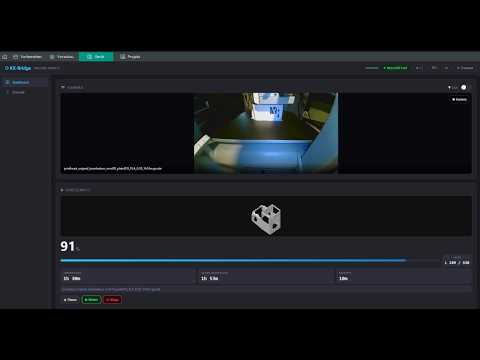
[](https://www.youtube.com/watch?v=1Ql4wfH27fM)
|
|
||||||
|
|
||||||
<sub>Gefällt dir KX-Bridge? Ein Kaffee auf <a href="https://ko-fi.com/viewitde">Ko-fi</a> hält das Projekt am Leben. ☕</sub>
|
|
||||||
|
|
||||||
</div>
|
|
||||||
|
|
||||||
---
|
---
|
||||||
|
|
||||||
## ✨ Was kann KX-Bridge?
|
## Schnellstart in 3 Schritten
|
||||||
|
|
||||||
| | Feature |
|
### Schritt 1 – Drucker vorbereiten
|
||||||
|---|---|
|
|
||||||
| 🖨️ | **Druckersteuerung** — Start, Pause, Resume, Abbruch, Temperaturen, Druckgeschwindigkeit |
|
Den Kobra X in den LAN-Modus versetzen:
|
||||||
| 📊 | **Live-Status** — Temperatur, Fortschritt, Layer, Restzeit, Kamera-Stream |
|
**Drucker-Display → Einstellungen → LAN-Modus einschalten**
|
||||||
| 🎨 | **AMS / Multicolor** — Filament-Slots, Per-Kanal-Remapping, MMU-Emulation für OrcaSlicer Filament-Sync |
|
|
||||||
| 🗂️ | **GCode-Browser** — hochgeladene Dateien mit Thumbnail, Druckhistorie, Suche & Filter |
|
### Schritt 2 – Credentials holen
|
||||||
| 🧩 | **Multi-Printer** — mehrere Drucker in **einer** Bridge-Instanz, Umschalten per Dropdown |
|
|
||||||
| ➕ | **Drucker hinzufügen per Klick** — nur die IP eingeben, Zugangsdaten werden automatisch importiert |
|
Die MQTT-Zugangsdaten sind druckerspezifisch. So holst du sie:
|
||||||
| 🔄 | **Self-Update** — neue Versionen direkt im Browser installieren |
|
|
||||||
| 🌐 | **OrcaSlicer** — volles Moonraker-Protokoll (HTTP + WebSocket), DE/EN UI |
|
1. **AnycubicSlicerNext** öffnen und Drucker verbinden (bis Status angezeigt wird)
|
||||||
|
2. **`extract_credentials.exe`** (Windows) oder **`extract_credentials`** (Linux) ausführen — gibt Username, Password, Device-ID und Drucker-IP aus
|
||||||
|
3. Werte merken / kopieren
|
||||||
|
|
||||||
|
> **Download:** [gitea.it-drui.de/viewit/KX-Bridge-Release/releases](https://gitea.it-drui.de/viewit/KX-Bridge-Release/releases) → `extract_credentials.exe` (Windows) / `extract_credentials` (Linux) im jeweiligen Release-Asset
|
||||||
|
|
||||||
|
### Schritt 3 – Bridge starten
|
||||||
|
|
||||||
|
```bash
|
||||||
|
./start.sh
|
||||||
|
```
|
||||||
|
|
||||||
|
Das Skript baut das Docker-Image automatisch beim ersten Aufruf.
|
||||||
|
|
||||||
|
**Web-UI öffnen:** `http://BRIDGE-IP:7125`
|
||||||
|
→ Das ⚙-Menü öffnet sich beim ersten Start automatisch
|
||||||
|
→ Credentials aus Schritt 2 eintragen → **Speichern & Neustart**
|
||||||
|
|
||||||
|
**OrcaSlicer verbinden:**
|
||||||
|
Drucker → Verbindungstyp **Moonraker** → Host: `http://BRIDGE-IP:7125`
|
||||||
|
|
||||||
|
> **Wichtig:** Verbindungstyp muss **Moonraker** sein (nicht „Bambu" oder „Klipper").
|
||||||
|
> Im Host-Feld vollständige URL mit `http://` und Port `:7125` angeben.
|
||||||
|
|
||||||
---
|
---
|
||||||
|
|
||||||
## 🚀 Schnellstart
|
## 📺 Video Tutorial
|
||||||
|
|
||||||
### 1. Drucker vorbereiten
|
[](https://www.youtube.com/watch?v=1Ql4wfH27fM)
|
||||||
|
|
||||||
LAN-Modus am Kobra X aktivieren:
|
---
|
||||||
**Drucker-Display → Einstellungen → LAN-Modus aktivieren**
|
|
||||||
|
|
||||||
### 2. Bridge starten
|
## ⚠️ Update von 0.9.1 oder älter
|
||||||
|
|
||||||
**Docker (empfohlen):**
|
Ab **0.9.2** speichert KX-Bridge Einstellungen in `config/config.ini` statt in `.env`.
|
||||||
|
|
||||||
|
**Migration erfolgt automatisch** — keine manuelle Aktion nötig:
|
||||||
|
- Beim ersten Start nach dem Update liest die Bridge die vorhandene `.env` und erstellt `config/config.ini` automatisch
|
||||||
|
- Einstellungen bleiben ab sofort nach `docker-compose restart` und zukünftigen Updates erhalten
|
||||||
|
- Die `.env`-Datei bleibt read-only gemountet als Migrationsquelle — kann liegen bleiben
|
||||||
|
- Zum manuellen Anlegen einer `config.ini`: Vorlage unter `config/config.ini.example` kopieren
|
||||||
|
|
||||||
|
---
|
||||||
|
|
||||||
|
## Was wird unterstützt?
|
||||||
|
|
||||||
|
| Funktion | Details |
|
||||||
|
|----------|---------|
|
||||||
|
| Druckerstatus | Temperatur, Fortschritt, Zustand, Restzeit |
|
||||||
|
| Drucksteuerung | Start, Pause, Fortsetzen, Abbrechen |
|
||||||
|
| Temperaturregelung | Nozzle und Bett während des Drucks |
|
||||||
|
| Druckgeschwindigkeit | Leise / Normal / Sport |
|
||||||
|
| AMS-Farbwechsel | Filament einziehen / ausziehen |
|
||||||
|
| Licht & Lüfter | Drucklicht und Lüfterdrehzahl |
|
||||||
|
| Web-UI | Dashboard, Achsensteuerung, Kameraansicht |
|
||||||
|
| Self-Update | Neue Versionen direkt im Browser installieren |
|
||||||
|
| OrcaSlicer | Moonraker-Protokoll (HTTP + WebSocket) |
|
||||||
|
|
||||||
|
---
|
||||||
|
|
||||||
|
## Alternativen zu Docker
|
||||||
|
|
||||||
|
**Linux Binary** (kein Docker nötig):
|
||||||
```bash
|
```bash
|
||||||
docker compose up -d
|
chmod +x kx-bridge
|
||||||
|
./kx-bridge
|
||||||
```
|
```
|
||||||
|
|
||||||
**Linux-Binary (kein Docker):**
|
|
||||||
```bash
|
|
||||||
chmod +x kx-bridge && ./kx-bridge
|
|
||||||
```
|
|
||||||
|
|
||||||
**Windows-EXE (kein Docker):**
|
|
||||||
```
|
|
||||||
kx-bridge.exe
|
|
||||||
```
|
|
||||||
> `config\` und `data\` werden neben der EXE angelegt — portabel.
|
|
||||||
|
|
||||||
> Bei Linux- und Windows-Binary liegen `config/` und `data/` (Einstellungen, SQLite,
|
|
||||||
> GCode-Store) jeweils neben dem Programm. Einfach den ganzen Ordner kopieren = umziehen.
|
|
||||||
|
|
||||||
**Python direkt:**
|
**Python direkt:**
|
||||||
```bash
|
```bash
|
||||||
pip install -r bridge/requirements.txt
|
pip install aiohttp
|
||||||
python bridge/kobrax_moonraker_bridge.py
|
python bridge/kobrax_moonraker_bridge.py
|
||||||
```
|
```
|
||||||
|
|
||||||
### 3. Drucker einrichten
|
Web-UI jeweils unter `http://localhost:7125` — ⚙-Menü führt durch die Erstkonfiguration.
|
||||||
|
|
||||||
Web-UI öffnen: **`http://BRIDGE-IP:7125`**
|
|
||||||
|
|
||||||
Beim Erststart erscheint der **Drucker-Tab** mit *„+ Drucker hinzufügen"* — einfach die
|
|
||||||
IP-Adresse des Druckers eingeben, der Rest (Username, Passwort, Device-ID) wird automatisch
|
|
||||||
vom Drucker geholt und entschlüsselt. Fertig.
|
|
||||||
|
|
||||||
> Mehrere Drucker? Einfach mehrfach *„+ Drucker hinzufügen"* — jeder bekommt seinen eigenen
|
|
||||||
> Port (7125, 7126, …) und ist im Header-Dropdown auswählbar.
|
|
||||||
|
|
||||||
### 4. OrcaSlicer verbinden
|
|
||||||
|
|
||||||
Drucker → Verbindungstyp **Moonraker** → Host: `http://BRIDGE-IP:7125`
|
|
||||||
|
|
||||||
> ⚠️ Verbindungstyp muss **Moonraker** sein (nicht „Bambu" oder „Klipper").
|
|
||||||
> Vollständige URL inkl. `http://` und Port `:7125` im Host-Feld eintragen.
|
|
||||||
|
|
||||||
---
|
---
|
||||||
|
|
||||||
## 📺 Video-Tutorial
|
## Nützliche Befehle
|
||||||
|
|
||||||
[](https://www.youtube.com/watch?v=1Ql4wfH27fM)
|
|
||||||
|
|
||||||
---
|
|
||||||
|
|
||||||
## 🔧 Zugangsdaten manuell ermitteln
|
|
||||||
|
|
||||||
Normalerweise nicht nötig — *„+ Drucker hinzufügen"* macht das automatisch. Falls doch:
|
|
||||||
|
|
||||||
```bash
|
```bash
|
||||||
fetch_credentials --ip 192.168.x.x --write-config
|
# Logs anzeigen
|
||||||
```
|
docker-compose logs -f
|
||||||
Holt die Zugangsdaten per HTTP direkt vom Drucker und schreibt sie in `config/config.ini`.
|
|
||||||
Nur die Drucker-IP nötig, kein Slicer.
|
|
||||||
|
|
||||||
Alternativ (wenn die IP unbekannt ist): AnycubicSlicerNext öffnen, Drucker verbinden,
|
# Bridge stoppen
|
||||||
dann `extract_credentials` ausführen → gibt Username, Passwort, Device-ID und IP aus.
|
docker-compose down
|
||||||
|
|
||||||
> **Downloads:** [Releases](https://gitea.it-drui.de/viewit/KX-Bridge-Release/releases) → `fetch_credentials` / `extract_credentials` (Linux & Windows)
|
# Bridge neu starten (nach Update)
|
||||||
|
./start.sh
|
||||||
---
|
|
||||||
|
|
||||||
## ⚙️ Nützliche Befehle
|
|
||||||
|
|
||||||
```bash
|
|
||||||
docker compose logs -f # Logs anzeigen
|
|
||||||
docker compose down # Bridge stoppen
|
|
||||||
docker compose up -d --build # Bridge neu bauen & starten (nach Update)
|
|
||||||
```
|
```
|
||||||
|
|
||||||
---
|
---
|
||||||
|
|
||||||
## 🩹 Troubleshooting
|
## Fehlerbehebung
|
||||||
|
|
||||||
<details>
|
**„Falsche MQTT-Zugangsdaten"** beim Start:
|
||||||
<summary><b>"Falsche MQTT-Zugangsdaten" beim Start</b></summary>
|
- AnycubicSlicerNext neu starten, Drucker verbinden, `extract_credentials` erneut ausführen
|
||||||
|
- Nur die IP-Adresse ins Feld eintragen, keinen Port (✗ `192.168.1.102:9883` → ✓ `192.168.1.102`)
|
||||||
|
|
||||||
- Drucker über *„+ Drucker hinzufügen"* erneut hinzufügen, oder
|
**Drucker nicht gefunden / kein LAN-Modus:**
|
||||||
`fetch_credentials --ip <ip> --write-config` ausführen und Bridge neu starten
|
- Am Drucker-Display: Einstellungen → LAN-Modus einschalten
|
||||||
- Nur die IP-Adresse eingeben, ohne Port (✗ `192.168.1.102:9883` → ✓ `192.168.1.102`)
|
|
||||||
</details>
|
|
||||||
|
|
||||||
<details>
|
|
||||||
<summary><b>Drucker nicht gefunden / kein LAN-Modus</b></summary>
|
|
||||||
|
|
||||||
- Am Drucker-Display: Einstellungen → LAN-Modus aktivieren
|
|
||||||
- Drucker und Bridge müssen im selben Netzwerk sein
|
- Drucker und Bridge müssen im selben Netzwerk sein
|
||||||
</details>
|
|
||||||
|
|
||||||
<details>
|
|
||||||
<summary><b>Docker: Permission denied</b></summary>
|
|
||||||
|
|
||||||
|
**Docker: Permission denied:**
|
||||||
```bash
|
```bash
|
||||||
sudo usermod -aG docker $USER # danach aus- und wieder einloggen
|
sudo usermod -aG docker $USER # dann neu einloggen
|
||||||
```
|
```
|
||||||
</details>
|
|
||||||
|
|
||||||
<details>
|
|
||||||
<summary><b>Upgrade von 0.9.1 oder älter</b></summary>
|
|
||||||
|
|
||||||
Ab 0.9.2 speichert KX-Bridge die Einstellungen in `config/config.ini` statt `.env`.
|
|
||||||
Die Migration läuft automatisch beim ersten Start nach dem Upgrade — keine Aktion nötig.
|
|
||||||
</details>
|
|
||||||
|
|
||||||
---
|
---
|
||||||
|
|
||||||
## 🔒 Sicherheit
|
## Sicherheitshinweise
|
||||||
|
|
||||||
- Die Bridge ist im lokalen Netzwerk unter `http://<host-IP>:7125` erreichbar — **nicht** ins Internet exposen
|
- Die Bridge ist im lokalen Netzwerk erreichbar unter `http://<Host-IP>:7125` — nicht ins Internet freigeben
|
||||||
- `config/config.ini` enthält Drucker-Zugangsdaten — nicht öffentlich teilen
|
- `config/config.ini` enthält Drucker-Credentials — nicht öffentlich teilen
|
||||||
- Die Zugangsdaten geben **keinen** Zugriff auf Anycubic-Cloud-Dienste
|
- Credentials haben keinen Zugang zu Anycubic-Cloud-Diensten
|
||||||
|
|
||||||
---
|
---
|
||||||
|
|
||||||
## 📄 Lizenz
|
## Lizenz & Rechtliches
|
||||||
|
|
||||||
Interoperabilitätsforschung gem. §69e UrhG — private, nicht-kommerzielle Nutzung.
|
Interoperabilitätsforschung gem. §69e UrhG — ausschließlich private, nicht-kommerzielle Nutzung.
|
||||||
|
|
||||||
<div align="center">
|
|
||||||
<br>
|
|
||||||
|
|
||||||
**Wenn dir KX-Bridge hilft, freut sich das Projekt über Unterstützung:**
|
|
||||||
|
|
||||||
[](https://ko-fi.com/viewitde)
|
|
||||||
|
|
||||||
</div>
|
|
||||||
|
|||||||
209
README.md
209
README.md
@@ -1,94 +1,47 @@
|
|||||||
<div align="center">
|
<p align="center"><img src="knlogo.png" alt="KX-Bridge Logo" width="180"/></p>
|
||||||
|
|
||||||
<img src="knlogo.png" alt="KX-Bridge" width="160"/>
|
# KX-Bridge – Anycubic Kobra X
|
||||||
|
|
||||||
# KX-Bridge
|
**Version:** 0.9.6.1
|
||||||
|
|
||||||
**Control your Anycubic Kobra X with OrcaSlicer — no Klipper, no Raspberry Pi.**
|
Control your **Anycubic Kobra X** with OrcaSlicer — no Klipper, no Raspberry Pi.
|
||||||
|
KX-Bridge is a Moonraker-compatible bridge that communicates directly with the printer.
|
||||||
A Moonraker-compatible bridge that talks directly to the printer.
|
|
||||||
|
|
||||||
<sub>🇩🇪 <a href="README.de.md">Deutsche Version</a></sub>
|
|
||||||
|
|
||||||
<br>
|
|
||||||
|
|
||||||
[](https://ko-fi.com/viewitde)
|
|
||||||
|
|
||||||
[](https://gitea.it-drui.de/viewit/KX-Bridge-Release/releases)
|
|
||||||
|
|
||||||
[](https://www.youtube.com/watch?v=1Ql4wfH27fM)
|
|
||||||
|
|
||||||
<sub>Like KX-Bridge? A coffee on <a href="https://ko-fi.com/viewitde">Ko-fi</a> keeps the project alive. ☕</sub>
|
|
||||||
|
|
||||||
</div>
|
|
||||||
|
|
||||||
---
|
---
|
||||||
|
|
||||||
## ✨ Features
|
## Quick Start in 3 Steps
|
||||||
|
|
||||||
| | |
|
### Step 1 – Prepare the printer
|
||||||
|---|---|
|
|
||||||
| 🖨️ | **Printer control** — start, pause, resume, cancel, temperatures, print speed |
|
|
||||||
| 📊 | **Live status** — temperature, progress, layers, remaining time, camera stream |
|
|
||||||
| 🎨 | **AMS / multicolor** — filament slots, per-channel remapping, MMU emulation for OrcaSlicer filament sync |
|
|
||||||
| 🗂️ | **GCode browser** — uploaded files with thumbnails, print history, search & filter |
|
|
||||||
| 🧩 | **Multi-printer** — multiple printers in **one** bridge instance, switch via dropdown |
|
|
||||||
| ➕ | **Add a printer with one click** — just enter the IP, credentials are imported automatically |
|
|
||||||
| 🔄 | **Self-update** — install new versions directly in the browser |
|
|
||||||
| 🌐 | **OrcaSlicer** — full Moonraker protocol (HTTP + WebSocket), EN/DE UI |
|
|
||||||
|
|
||||||
---
|
|
||||||
|
|
||||||
## 🚀 Quick Start
|
|
||||||
|
|
||||||
### 1. Prepare the printer
|
|
||||||
|
|
||||||
Enable LAN mode on the Kobra X:
|
Enable LAN mode on the Kobra X:
|
||||||
**Printer display → Settings → Enable LAN mode**
|
**Printer display → Settings → Enable LAN mode**
|
||||||
|
|
||||||
### 2. Start the bridge
|
### Step 2 – Get credentials
|
||||||
|
|
||||||
|
The MQTT credentials are printer-specific. Here's how to get them:
|
||||||
|
|
||||||
|
1. Open **AnycubicSlicerNext** and connect the printer (wait until status is shown)
|
||||||
|
2. Run **`extract_credentials.exe`** (Windows) or **`extract_credentials`** (Linux) — outputs Username, Password, Device ID and printer IP
|
||||||
|
3. Note / copy the values
|
||||||
|
|
||||||
|
> **Download:** [gitea.it-drui.de/viewit/KX-Bridge-Release/releases](https://gitea.it-drui.de/viewit/KX-Bridge-Release/releases) → `extract_credentials.exe` (Windows) / `extract_credentials` (Linux) in the release assets
|
||||||
|
|
||||||
|
### Step 3 – Start the bridge
|
||||||
|
|
||||||
**Docker (recommended):**
|
|
||||||
```bash
|
```bash
|
||||||
docker compose up -d
|
./start.sh
|
||||||
```
|
```
|
||||||
|
|
||||||
**Linux binary (no Docker):**
|
The script builds the Docker image automatically on first run.
|
||||||
```bash
|
|
||||||
chmod +x kx-bridge && ./kx-bridge
|
|
||||||
```
|
|
||||||
|
|
||||||
**Windows EXE (no Docker):**
|
**Open Web-UI:** `http://BRIDGE-IP:7125`
|
||||||
```
|
→ The ⚙ menu opens automatically on first start
|
||||||
kx-bridge.exe
|
→ Enter credentials from Step 2 → **Save & Restart**
|
||||||
```
|
|
||||||
> `config\` and `data\` are created next to the EXE — portable.
|
|
||||||
|
|
||||||
> With the Linux and Windows binaries, `config/` and `data/` (settings, SQLite, GCode store)
|
|
||||||
> live next to the program. Copy the whole folder = move the installation.
|
|
||||||
|
|
||||||
**Python directly:**
|
|
||||||
```bash
|
|
||||||
pip install -r bridge/requirements.txt
|
|
||||||
python bridge/kobrax_moonraker_bridge.py
|
|
||||||
```
|
|
||||||
|
|
||||||
### 3. Set up the printer
|
|
||||||
|
|
||||||
Open the Web UI: **`http://BRIDGE-IP:7125`**
|
|
||||||
|
|
||||||
On first start the **Printers tab** shows *"+ Add printer"* — just enter the printer's IP
|
|
||||||
address, the rest (username, password, device ID) is fetched from the printer and decrypted
|
|
||||||
automatically. Done.
|
|
||||||
|
|
||||||
> More than one printer? Just click *"+ Add printer"* again — each gets its own port
|
|
||||||
> (7125, 7126, …) and is selectable from the header dropdown.
|
|
||||||
|
|
||||||
### 4. Connect OrcaSlicer
|
|
||||||
|
|
||||||
|
**Connect OrcaSlicer:**
|
||||||
Printer → Connection type **Moonraker** → Host: `http://BRIDGE-IP:7125`
|
Printer → Connection type **Moonraker** → Host: `http://BRIDGE-IP:7125`
|
||||||
|
|
||||||
> ⚠️ Connection type must be **Moonraker** (not "Bambu" or "Klipper").
|
> **Important:** Connection type must be **Moonraker** (not "Bambu" or "Klipper").
|
||||||
> Enter the full URL including `http://` and port `:7125` in the host field.
|
> Enter the full URL including `http://` and port `:7125` in the host field.
|
||||||
|
|
||||||
---
|
---
|
||||||
@@ -99,84 +52,92 @@ Printer → Connection type **Moonraker** → Host: `http://BRIDGE-IP:7125`
|
|||||||
|
|
||||||
---
|
---
|
||||||
|
|
||||||
## 🔧 Getting credentials manually
|
## ⚠️ Upgrading from 0.9.1 or earlier
|
||||||
|
|
||||||
Normally not needed — *"+ Add printer"* does this automatically. If you do need it:
|
Starting with **0.9.2**, KX-Bridge stores settings in `config/config.ini` instead of `.env`.
|
||||||
|
|
||||||
```bash
|
**Migration is automatic** — no manual action required:
|
||||||
fetch_credentials --ip 192.168.x.x --write-config
|
- On first start after upgrade, the bridge reads your existing `.env` and creates `config/config.ini` automatically
|
||||||
```
|
- Settings now survive `docker-compose restart` and future updates
|
||||||
Fetches the credentials directly from the printer via HTTP and writes them to `config/config.ini`.
|
- The `.env` file stays mounted read-only as a migration source — you can keep it in place
|
||||||
Only the printer IP is required, no slicer.
|
- If you want to create a `config.ini` manually: copy `config/config.ini.example`
|
||||||
|
|
||||||
Alternatively (if the IP is unknown): open AnycubicSlicerNext, connect the printer, then run
|
|
||||||
`extract_credentials` → outputs username, password, device ID and the printer IP.
|
|
||||||
|
|
||||||
> **Downloads:** [Releases](https://gitea.it-drui.de/viewit/KX-Bridge-Release/releases) → `fetch_credentials` / `extract_credentials` (Linux & Windows)
|
|
||||||
|
|
||||||
---
|
---
|
||||||
|
|
||||||
## ⚙️ Useful commands
|
## What's supported?
|
||||||
|
|
||||||
|
| Feature | Details |
|
||||||
|
|---------|---------|
|
||||||
|
| Printer status | Temperature, progress, state, remaining time |
|
||||||
|
| Print control | Start, pause, resume, cancel |
|
||||||
|
| Temperature control | Nozzle and bed during print |
|
||||||
|
| Print speed | Silent / Normal / Sport |
|
||||||
|
| AMS filament change | Load / unload filament |
|
||||||
|
| Light & fan | Print light and fan speed |
|
||||||
|
| Web-UI | Dashboard, motion control, camera view |
|
||||||
|
| Self-update | Install new versions directly in the browser |
|
||||||
|
| OrcaSlicer | Moonraker protocol (HTTP + WebSocket) |
|
||||||
|
|
||||||
|
---
|
||||||
|
|
||||||
|
## Alternatives to Docker
|
||||||
|
|
||||||
|
**Linux binary** (no Docker needed):
|
||||||
|
```bash
|
||||||
|
chmod +x kx-bridge
|
||||||
|
./kx-bridge
|
||||||
|
```
|
||||||
|
|
||||||
|
**Python directly:**
|
||||||
|
```bash
|
||||||
|
pip install aiohttp
|
||||||
|
python bridge/kobrax_moonraker_bridge.py
|
||||||
|
```
|
||||||
|
|
||||||
|
Web-UI available at `http://localhost:7125` — the ⚙ menu guides through initial setup.
|
||||||
|
|
||||||
|
---
|
||||||
|
|
||||||
|
## Useful commands
|
||||||
|
|
||||||
```bash
|
```bash
|
||||||
docker compose logs -f # show logs
|
# Show logs
|
||||||
docker compose down # stop the bridge
|
docker-compose logs -f
|
||||||
docker compose up -d --build # rebuild & start (after an update)
|
|
||||||
|
# Stop bridge
|
||||||
|
docker-compose down
|
||||||
|
|
||||||
|
# Restart bridge (after update)
|
||||||
|
./start.sh
|
||||||
```
|
```
|
||||||
|
|
||||||
---
|
---
|
||||||
|
|
||||||
## 🩹 Troubleshooting
|
## Troubleshooting
|
||||||
|
|
||||||
<details>
|
**"Wrong MQTT credentials"** on start:
|
||||||
<summary><b>"Wrong MQTT credentials" on start</b></summary>
|
- Restart AnycubicSlicerNext, reconnect the printer, run `extract_credentials` again
|
||||||
|
|
||||||
- Re-add the printer via *"+ Add printer"*, or run
|
|
||||||
`fetch_credentials --ip <ip> --write-config` and restart the bridge
|
|
||||||
- Enter only the IP address, no port (✗ `192.168.1.102:9883` → ✓ `192.168.1.102`)
|
- Enter only the IP address, no port (✗ `192.168.1.102:9883` → ✓ `192.168.1.102`)
|
||||||
</details>
|
|
||||||
|
|
||||||
<details>
|
|
||||||
<summary><b>Printer not found / no LAN mode</b></summary>
|
|
||||||
|
|
||||||
|
**Printer not found / no LAN mode:**
|
||||||
- On the printer display: Settings → Enable LAN mode
|
- On the printer display: Settings → Enable LAN mode
|
||||||
- Printer and bridge must be on the same network
|
- Printer and bridge must be on the same network
|
||||||
</details>
|
|
||||||
|
|
||||||
<details>
|
|
||||||
<summary><b>Docker: Permission denied</b></summary>
|
|
||||||
|
|
||||||
|
**Docker: Permission denied:**
|
||||||
```bash
|
```bash
|
||||||
sudo usermod -aG docker $USER # then log out and back in
|
sudo usermod -aG docker $USER # then log out and back in
|
||||||
```
|
```
|
||||||
</details>
|
|
||||||
|
|
||||||
<details>
|
|
||||||
<summary><b>Upgrading from 0.9.1 or earlier</b></summary>
|
|
||||||
|
|
||||||
Starting with 0.9.2, KX-Bridge stores settings in `config/config.ini` instead of `.env`.
|
|
||||||
Migration runs automatically on first start after the upgrade — no action required.
|
|
||||||
</details>
|
|
||||||
|
|
||||||
---
|
---
|
||||||
|
|
||||||
## 🔒 Security
|
## Security
|
||||||
|
|
||||||
- The bridge is reachable on the local network at `http://<host-IP>:7125` — **do not** expose it to the internet
|
- The bridge is accessible on the local network at `http://<host-IP>:7125` — do not expose to the internet
|
||||||
- `config/config.ini` contains printer credentials — do not share publicly
|
- `config/config.ini` contains printer credentials — do not share publicly
|
||||||
- The credentials do **not** grant access to Anycubic cloud services
|
- Credentials do not grant access to Anycubic cloud services
|
||||||
|
|
||||||
---
|
---
|
||||||
|
|
||||||
## 📄 License
|
## License
|
||||||
|
|
||||||
Interoperability research under §69e UrhG — private, non-commercial use only.
|
Interoperability research under §69e UrhG — private, non-commercial use only.
|
||||||
|
|
||||||
<div align="center">
|
|
||||||
<br>
|
|
||||||
|
|
||||||
**If KX-Bridge helps you, the project appreciates your support:**
|
|
||||||
|
|
||||||
[](https://ko-fi.com/viewitde)
|
|
||||||
|
|
||||||
</div>
|
|
||||||
|
|||||||
@@ -2,7 +2,7 @@
|
|||||||
# Bridge-Manager: start | stop | restart | status | log
|
# Bridge-Manager: start | stop | restart | status | log
|
||||||
SCRIPT="$(dirname "$0")/kobrax_moonraker_bridge.py"
|
SCRIPT="$(dirname "$0")/kobrax_moonraker_bridge.py"
|
||||||
LOGFILE="/tmp/bridge.log"
|
LOGFILE="/tmp/bridge.log"
|
||||||
PRINTER_IP="192.168.178.94"
|
PRINTER_IP="${PRINTER_IP:-}"
|
||||||
|
|
||||||
case "${1:-restart}" in
|
case "${1:-restart}" in
|
||||||
start)
|
start)
|
||||||
@@ -11,7 +11,11 @@ case "${1:-restart}" in
|
|||||||
fuser -k 7125/tcp 2>/dev/null || pkill -f kobrax_moonraker_bridge 2>/dev/null
|
fuser -k 7125/tcp 2>/dev/null || pkill -f kobrax_moonraker_bridge 2>/dev/null
|
||||||
sleep 1
|
sleep 1
|
||||||
fi
|
fi
|
||||||
nohup python3 "$SCRIPT" --printer-ip "$PRINTER_IP" > "$LOGFILE" 2>&1 &
|
CMD=(python3 "$SCRIPT")
|
||||||
|
if [[ -n "$PRINTER_IP" ]]; then
|
||||||
|
CMD+=(--printer-ip "$PRINTER_IP")
|
||||||
|
fi
|
||||||
|
nohup "${CMD[@]}" > "$LOGFILE" 2>&1 &
|
||||||
echo "Bridge gestartet PID=$!"
|
echo "Bridge gestartet PID=$!"
|
||||||
sleep 2; tail -3 "$LOGFILE"
|
sleep 2; tail -3 "$LOGFILE"
|
||||||
;;
|
;;
|
||||||
|
|||||||
@@ -1,36 +0,0 @@
|
|||||||
# KX-Bridge Konfigurationsdatei
|
|
||||||
# Kopiere diese Datei nach config.ini und trage deine Werte ein:
|
|
||||||
# cp config.ini.example config.ini
|
|
||||||
#
|
|
||||||
# Credentials automatisch eintragen:
|
|
||||||
# python3 tools/fetch_credentials.py --ip 192.168.x.x --write-config
|
|
||||||
# Alternativ (Windows, ohne Drucker-IP bekannt):
|
|
||||||
# extract_credentials.exe --write-env (liest aus laufendem AnycubicSlicerNext)
|
|
||||||
|
|
||||||
[connection]
|
|
||||||
# IP-Adresse des Druckers im lokalen Netzwerk
|
|
||||||
printer_ip = 192.168.x.x
|
|
||||||
|
|
||||||
# MQTT-Port (Anycubic Kobra X Standard: 9883)
|
|
||||||
mqtt_port = 9883
|
|
||||||
|
|
||||||
# MQTT-Zugangsdaten (druckerspezifisch, beginnt mit "user")
|
|
||||||
username = userXXXXXXXXXX
|
|
||||||
password = XXXXXXXXXXXXXXX
|
|
||||||
|
|
||||||
# Geräte-ID (32-stelliger Hex-String, druckerspezifisch)
|
|
||||||
device_id = xxxxxxxxxxxxxxxxxxxxxxxxxxxxxxxx
|
|
||||||
|
|
||||||
# Modell-ID (Kobra X Standard: 20030)
|
|
||||||
mode_id = 20030
|
|
||||||
|
|
||||||
[print]
|
|
||||||
# Standard-AMS-Slot für Einfarbdruck (auto = alle belegten Slots, 0-3 = fixer Slot)
|
|
||||||
default_ams_slot = auto
|
|
||||||
|
|
||||||
# Auto-Leveling vor jedem Druck (1 = an, 0 = aus)
|
|
||||||
auto_leveling = 1
|
|
||||||
|
|
||||||
[bridge]
|
|
||||||
# Poll-Intervall in Sekunden
|
|
||||||
poll_interval = 3
|
|
||||||
@@ -57,9 +57,8 @@ def _load_config_file(path: pathlib.Path):
|
|||||||
"MQTT_PASSWORD": (CONFIG_SECTION_CONNECTION, "password"),
|
"MQTT_PASSWORD": (CONFIG_SECTION_CONNECTION, "password"),
|
||||||
"MODE_ID": (CONFIG_SECTION_CONNECTION, "mode_id"),
|
"MODE_ID": (CONFIG_SECTION_CONNECTION, "mode_id"),
|
||||||
"DEVICE_ID": (CONFIG_SECTION_CONNECTION, "device_id"),
|
"DEVICE_ID": (CONFIG_SECTION_CONNECTION, "device_id"),
|
||||||
"DEFAULT_AMS_SLOT": (CONFIG_SECTION_PRINT, "default_ams_slot"),
|
"DEFAULT_AMS_SLOT": (CONFIG_SECTION_PRINT, "default_ams_slot"),
|
||||||
"AUTO_LEVELING": (CONFIG_SECTION_PRINT, "auto_leveling"),
|
"AUTO_LEVELING": (CONFIG_SECTION_PRINT, "auto_leveling"),
|
||||||
"BRIDGE_PRINTER_NAME": (CONFIG_SECTION_BRIDGE, "printer_name"),
|
|
||||||
}
|
}
|
||||||
for env_key, (section, option) in mapping.items():
|
for env_key, (section, option) in mapping.items():
|
||||||
if env_key not in os.environ:
|
if env_key not in os.environ:
|
||||||
@@ -129,39 +128,6 @@ elif _env_path:
|
|||||||
_config_path = _target
|
_config_path = _target
|
||||||
|
|
||||||
|
|
||||||
def list_printers() -> list[dict]:
|
|
||||||
"""Liest alle [printer_N]-Sektionen aus config.ini.
|
|
||||||
|
|
||||||
Jede Sektion kann folgende Keys haben:
|
|
||||||
name, printer_ip, mqtt_port, username, password, mode_id, device_id,
|
|
||||||
bridge_url, default_ams_slot, auto_leveling
|
|
||||||
|
|
||||||
Gibt eine leere Liste zurück wenn keine [printer_N]-Sektionen vorhanden sind
|
|
||||||
(Single-Printer-Betrieb via [connection]).
|
|
||||||
"""
|
|
||||||
path = _find_config_file()
|
|
||||||
if not path:
|
|
||||||
return []
|
|
||||||
cfg = configparser.ConfigParser()
|
|
||||||
cfg.read(path, encoding="utf-8")
|
|
||||||
printers: list[dict] = []
|
|
||||||
idx = 1
|
|
||||||
while True:
|
|
||||||
section = f"printer_{idx}"
|
|
||||||
if not cfg.has_section(section):
|
|
||||||
break
|
|
||||||
p = dict(cfg[section])
|
|
||||||
p.setdefault("id", str(idx))
|
|
||||||
if "mqtt_port" in p:
|
|
||||||
try:
|
|
||||||
p["mqtt_port"] = int(p["mqtt_port"])
|
|
||||||
except ValueError:
|
|
||||||
p["mqtt_port"] = 9883
|
|
||||||
printers.append(p)
|
|
||||||
idx += 1
|
|
||||||
return printers
|
|
||||||
|
|
||||||
|
|
||||||
def get(key: str, default: str = "") -> str:
|
def get(key: str, default: str = "") -> str:
|
||||||
return os.environ.get(key, default)
|
return os.environ.get(key, default)
|
||||||
|
|
||||||
|
|||||||
@@ -4,10 +4,9 @@ services:
|
|||||||
build: .
|
build: .
|
||||||
volumes:
|
volumes:
|
||||||
- ./config:/app/config
|
- ./config:/app/config
|
||||||
- ./data:/app/data
|
|
||||||
- ./.env:/app/.env:ro
|
- ./.env:/app/.env:ro
|
||||||
ports:
|
ports:
|
||||||
- "7125-7130:7125-7130"
|
- "7125:7125"
|
||||||
restart: unless-stopped
|
restart: unless-stopped
|
||||||
logging:
|
logging:
|
||||||
driver: json-file
|
driver: json-file
|
||||||
|
|||||||
@@ -1,397 +0,0 @@
|
|||||||
#!/usr/bin/env python3
|
|
||||||
"""
|
|
||||||
fetch_credentials.py – Fetches and decrypts Anycubic Kobra X credentials via HTTP API.
|
|
||||||
|
|
||||||
Original approach by bebu (PR #19, KX-Bridge-Release).
|
|
||||||
Reverse engineered from the Vue project embedded in libWorkbench.so (Anycubic Slicer Next).
|
|
||||||
No running slicer required — only the printer IP in LAN.
|
|
||||||
|
|
||||||
Algorithm: AES-256-CBC
|
|
||||||
Key: token[16:32] from /info response
|
|
||||||
IV: response token from /ctrl response
|
|
||||||
|
|
||||||
Usage:
|
|
||||||
python3 fetch_credentials.py --ip 192.168.x.x
|
|
||||||
python3 fetch_credentials.py --ip 192.168.x.x --write-config
|
|
||||||
python3 fetch_credentials.py --ip 192.168.x.x --write-config --config-file ../config/config.ini
|
|
||||||
python3 fetch_credentials.py --ctrl ctrl.json --info info.json
|
|
||||||
"""
|
|
||||||
|
|
||||||
import json
|
|
||||||
import sys
|
|
||||||
import base64
|
|
||||||
import hashlib
|
|
||||||
import argparse
|
|
||||||
import os
|
|
||||||
import time
|
|
||||||
import random
|
|
||||||
import string
|
|
||||||
import requests
|
|
||||||
from pathlib import Path
|
|
||||||
from Crypto.Cipher import AES
|
|
||||||
from Crypto.Util.Padding import unpad
|
|
||||||
|
|
||||||
|
|
||||||
def evp_bytes_to_key(password, salt, key_len, iv_len):
|
|
||||||
"""
|
|
||||||
Derive key and IV from password and salt using OpenSSL EVP_BytesToKey
|
|
||||||
This mimics the CryptoJS default key derivation
|
|
||||||
"""
|
|
||||||
m = []
|
|
||||||
i = 0
|
|
||||||
while len(b''.join(m)) < (key_len + iv_len):
|
|
||||||
md5 = hashlib.md5()
|
|
||||||
data = password + salt
|
|
||||||
if i > 0:
|
|
||||||
data = m[i - 1] + password + salt
|
|
||||||
md5.update(data)
|
|
||||||
m.append(md5.digest())
|
|
||||||
i += 1
|
|
||||||
ms = b''.join(m)
|
|
||||||
return ms[:key_len], ms[key_len:key_len + iv_len]
|
|
||||||
|
|
||||||
|
|
||||||
def generate_signature(token, ts, nonce):
|
|
||||||
"""
|
|
||||||
Generate MD5 signature for /ctrl endpoint
|
|
||||||
Signature = md5(md5(token[0:16]) + ts + nonce)
|
|
||||||
"""
|
|
||||||
# First MD5: token.slice(0, 16)
|
|
||||||
first_md5 = hashlib.md5(token[:16].encode('utf-8')).hexdigest()
|
|
||||||
# Second MD5: first_md5 + ts + nonce
|
|
||||||
signature_data = first_md5 + str(ts) + nonce
|
|
||||||
signature = hashlib.md5(signature_data.encode('utf-8')).hexdigest()
|
|
||||||
return signature
|
|
||||||
|
|
||||||
|
|
||||||
def generate_nonce(length=6):
|
|
||||||
"""Generate a random alphanumeric nonce"""
|
|
||||||
chars = string.ascii_letters + string.digits
|
|
||||||
return ''.join(random.choice(chars) for _ in range(length))
|
|
||||||
|
|
||||||
|
|
||||||
def fetch_from_http(ip, port, endpoint, token=None, did="random", verbose=False):
|
|
||||||
"""
|
|
||||||
Fetch data from HTTP endpoint on the printer
|
|
||||||
|
|
||||||
Args:
|
|
||||||
ip (str): IP address of the printer
|
|
||||||
port (int): Port number (default 18910)
|
|
||||||
endpoint (str): Either 'info' or 'ctrl'
|
|
||||||
token (str): Device token (required for /ctrl endpoint)
|
|
||||||
did (str): Device ID (required for /ctrl endpoint)
|
|
||||||
verbose (bool): Print debug information
|
|
||||||
|
|
||||||
Returns:
|
|
||||||
dict: JSON response data
|
|
||||||
"""
|
|
||||||
try:
|
|
||||||
if endpoint == 'info':
|
|
||||||
url = f"http://{ip}:{port}/info"
|
|
||||||
if verbose:
|
|
||||||
print(f"Fetching: {url}")
|
|
||||||
response = requests.get(url, timeout=10)
|
|
||||||
response.raise_for_status()
|
|
||||||
return response.json()
|
|
||||||
|
|
||||||
elif endpoint == 'ctrl':
|
|
||||||
if not token:
|
|
||||||
raise ValueError("Token is required for /ctrl endpoint")
|
|
||||||
|
|
||||||
# Generate signature parameters
|
|
||||||
ts = int(time.time() * 1000) # Current timestamp in ms
|
|
||||||
nonce = generate_nonce(6)
|
|
||||||
signature = generate_signature(token, ts, nonce)
|
|
||||||
|
|
||||||
url = f"http://{ip}:{port}/ctrl"
|
|
||||||
params = {
|
|
||||||
'ts': ts,
|
|
||||||
'nonce': nonce,
|
|
||||||
'sign': signature,
|
|
||||||
'did': did
|
|
||||||
}
|
|
||||||
|
|
||||||
if verbose:
|
|
||||||
print(f"Fetching: {url}")
|
|
||||||
print(f" Parameters:")
|
|
||||||
print(f" ts: {ts}")
|
|
||||||
print(f" nonce: {nonce}")
|
|
||||||
print(f" sign: {signature}")
|
|
||||||
print(f" did: {did}")
|
|
||||||
|
|
||||||
response = requests.post(url, params=params, timeout=10)
|
|
||||||
response.raise_for_status()
|
|
||||||
return response.json()
|
|
||||||
|
|
||||||
else:
|
|
||||||
raise ValueError(f"Unknown endpoint: {endpoint}")
|
|
||||||
|
|
||||||
except requests.exceptions.RequestException as e:
|
|
||||||
raise Exception(f"HTTP request failed for {endpoint}: {e}")
|
|
||||||
except json.JSONDecodeError as e:
|
|
||||||
raise Exception(f"Invalid JSON response from {endpoint}: {e}")
|
|
||||||
|
|
||||||
|
|
||||||
def decrypt_text(encrypted_data, key, iv):
|
|
||||||
"""
|
|
||||||
Decrypt data using AES-256-CBC
|
|
||||||
Handles CryptoJS-style encrypted data (OpenSSL format with salt)
|
|
||||||
|
|
||||||
Args:
|
|
||||||
encrypted_data (str): Encrypted data string (CryptoJS format)
|
|
||||||
key (str): Decryption key string
|
|
||||||
iv (str): Initialization vector string
|
|
||||||
|
|
||||||
Returns:
|
|
||||||
dict: Decrypted JSON data
|
|
||||||
"""
|
|
||||||
try:
|
|
||||||
# Convert key and IV to bytes
|
|
||||||
key_bytes = key.encode('utf-8')
|
|
||||||
iv_bytes = iv.encode('utf-8')
|
|
||||||
|
|
||||||
# Decrypt using direct key and IV (as per the original code)
|
|
||||||
cipher = AES.new(key_bytes, AES.MODE_CBC, iv_bytes)
|
|
||||||
|
|
||||||
# The encrypted_data might be base64 or hex encoded
|
|
||||||
# Try base64 first
|
|
||||||
try:
|
|
||||||
encrypted_bytes = base64.b64decode(encrypted_data)
|
|
||||||
except:
|
|
||||||
try:
|
|
||||||
# Try as hex
|
|
||||||
encrypted_bytes = bytes.fromhex(encrypted_data)
|
|
||||||
except:
|
|
||||||
# If all else fails, encode as UTF-8
|
|
||||||
encrypted_bytes = encrypted_data.encode('utf-8')
|
|
||||||
|
|
||||||
# Decrypt
|
|
||||||
decrypted = cipher.decrypt(encrypted_bytes)
|
|
||||||
|
|
||||||
# Try to unpad
|
|
||||||
try:
|
|
||||||
unpadded = unpad(decrypted, AES.block_size)
|
|
||||||
except ValueError:
|
|
||||||
# If unpadding fails, use as-is
|
|
||||||
unpadded = decrypted
|
|
||||||
|
|
||||||
plaintext = unpadded.decode('utf-8')
|
|
||||||
|
|
||||||
# Parse JSON
|
|
||||||
return json.loads(plaintext)
|
|
||||||
|
|
||||||
except Exception as e:
|
|
||||||
return {"error": str(e), "error_type": type(e).__name__}
|
|
||||||
|
|
||||||
|
|
||||||
def main():
|
|
||||||
"""Main function to decrypt printer data"""
|
|
||||||
|
|
||||||
# Parse command-line arguments
|
|
||||||
parser = argparse.ArgumentParser(
|
|
||||||
description='Fetch and decrypt Anycubic Kobra X credentials via HTTP API',
|
|
||||||
)
|
|
||||||
# HTTP mode
|
|
||||||
parser.add_argument('--ip', help='IP address of the printer')
|
|
||||||
parser.add_argument('--port', type=int, default=18910, help='Printer HTTP port (default: 18910)')
|
|
||||||
|
|
||||||
# File mode
|
|
||||||
parser.add_argument('--ctrl', default='ctrl.json', help='Path to ctrl.json (default: ctrl.json)')
|
|
||||||
parser.add_argument('--info', default='info.json', help='Path to info.json (default: info.json)')
|
|
||||||
|
|
||||||
# Output
|
|
||||||
parser.add_argument('--output', default=None, help='Save raw decrypted JSON to file (optional)')
|
|
||||||
parser.add_argument('--write-config', action='store_true',
|
|
||||||
help='Write credentials to config.ini')
|
|
||||||
parser.add_argument('--config-file', default=None,
|
|
||||||
help='Path to config.ini (default: ../config/config.ini relative to this script)')
|
|
||||||
parser.add_argument('--verbose', '-v', action='store_true', help='Verbose output')
|
|
||||||
|
|
||||||
args = parser.parse_args()
|
|
||||||
|
|
||||||
# Determine mode: HTTP or file
|
|
||||||
if args.ip:
|
|
||||||
# HTTP mode: fetch from printer
|
|
||||||
if args.verbose:
|
|
||||||
print("=" * 70)
|
|
||||||
print("Fetching configuration from printer via HTTP")
|
|
||||||
print("=" * 70)
|
|
||||||
print(f"Printer IP: {args.ip}:{args.port}")
|
|
||||||
print()
|
|
||||||
|
|
||||||
try:
|
|
||||||
# Fetch info.json
|
|
||||||
if args.verbose:
|
|
||||||
print("Step 1: Fetching device info...")
|
|
||||||
info = fetch_from_http(args.ip, args.port, 'info', verbose=args.verbose)
|
|
||||||
|
|
||||||
# Get token from info
|
|
||||||
token = info.get('token')
|
|
||||||
if not token:
|
|
||||||
print("Error: No token found in /info response", file=sys.stderr)
|
|
||||||
return 1
|
|
||||||
|
|
||||||
# Fetch data.json (encrypted config) from /ctrl endpoint
|
|
||||||
if args.verbose:
|
|
||||||
print("\nStep 2: Fetching encrypted configuration from /ctrl...")
|
|
||||||
data = fetch_from_http(args.ip, args.port, 'ctrl', token=token, verbose=args.verbose)
|
|
||||||
|
|
||||||
if args.verbose:
|
|
||||||
print("\nData fetched successfully!")
|
|
||||||
|
|
||||||
except Exception as e:
|
|
||||||
print(f"Error: {e}", file=sys.stderr)
|
|
||||||
return 1
|
|
||||||
|
|
||||||
else:
|
|
||||||
# File mode: load from disk
|
|
||||||
if args.verbose:
|
|
||||||
print("=" * 70)
|
|
||||||
print("Loading configuration from files")
|
|
||||||
print("=" * 70)
|
|
||||||
|
|
||||||
# Check if input files exist
|
|
||||||
if not Path(args.ctrl).exists():
|
|
||||||
print(f"Error: {args.ctrl} not found", file=sys.stderr)
|
|
||||||
return 1
|
|
||||||
if not Path(args.info).exists():
|
|
||||||
print(f"Error: {args.info} not found", file=sys.stderr)
|
|
||||||
return 1
|
|
||||||
|
|
||||||
# Read ctrl.json
|
|
||||||
try:
|
|
||||||
with open(args.ctrl, 'r') as f:
|
|
||||||
data = json.load(f)
|
|
||||||
except json.JSONDecodeError as e:
|
|
||||||
print(f"Error reading {args.ctrl}: {e}", file=sys.stderr)
|
|
||||||
return 1
|
|
||||||
except Exception as e:
|
|
||||||
print(f"Error reading {args.ctrl}: {e}", file=sys.stderr)
|
|
||||||
return 1
|
|
||||||
|
|
||||||
# Read info.json
|
|
||||||
try:
|
|
||||||
with open(args.info, 'r') as f:
|
|
||||||
info = json.load(f)
|
|
||||||
except json.JSONDecodeError as e:
|
|
||||||
print(f"Error reading {args.info}: {e}", file=sys.stderr)
|
|
||||||
return 1
|
|
||||||
except Exception as e:
|
|
||||||
print(f"Error reading {args.info}: {e}", file=sys.stderr)
|
|
||||||
return 1
|
|
||||||
|
|
||||||
# Extract values
|
|
||||||
try:
|
|
||||||
encrypted_info = data['data']['info']
|
|
||||||
response_token = data['data']['token']
|
|
||||||
full_token = info['token']
|
|
||||||
except KeyError as e:
|
|
||||||
print(f"Error: Missing required key {e}", file=sys.stderr)
|
|
||||||
return 1
|
|
||||||
|
|
||||||
# Generate decryption key and IV
|
|
||||||
key_part = full_token[16:32]
|
|
||||||
|
|
||||||
if args.verbose:
|
|
||||||
print("=" * 70)
|
|
||||||
print("Printer Configuration Decryption")
|
|
||||||
print("=" * 70)
|
|
||||||
print(f"Input data file: {args.ctrl}")
|
|
||||||
print(f"Input info file: {args.info}")
|
|
||||||
print(f"Output file: {args.output}")
|
|
||||||
print()
|
|
||||||
print("Decryption Parameters:")
|
|
||||||
print(f" Encrypted data length: {len(encrypted_info)} bytes")
|
|
||||||
print(f" Full token: {full_token}")
|
|
||||||
print(f" Full token length: {len(full_token)} characters")
|
|
||||||
print(f" Response token (IV): {response_token}")
|
|
||||||
print(f" Decryption key: {key_part}")
|
|
||||||
print(f" Key length: {len(key_part)} characters")
|
|
||||||
print(f" IV length: {len(response_token)} characters")
|
|
||||||
print()
|
|
||||||
|
|
||||||
# Decrypt
|
|
||||||
if args.verbose:
|
|
||||||
print("Decrypting...")
|
|
||||||
|
|
||||||
result = decrypt_text(encrypted_info, key_part, response_token)
|
|
||||||
|
|
||||||
if 'error' in result:
|
|
||||||
print(f"Error during decryption: {result.get('error')}", file=sys.stderr)
|
|
||||||
return 1
|
|
||||||
|
|
||||||
# Show result
|
|
||||||
print()
|
|
||||||
print("=" * 55)
|
|
||||||
print(" CREDENTIALS")
|
|
||||||
print("=" * 55)
|
|
||||||
print(f" {'Printer IP':12s} {result.get('ip', 'n/a')}")
|
|
||||||
print(f" {'Username':12s} {result.get('username', 'n/a')}")
|
|
||||||
print(f" {'Password':12s} {result.get('password', 'n/a')}")
|
|
||||||
print(f" {'Device-ID':12s} {result.get('deviceId', 'n/a')}")
|
|
||||||
print(f" {'Mode-ID':12s} {result.get('modeId', 'n/a')}")
|
|
||||||
print(f" {'Model':12s} {result.get('modelName', 'n/a')}")
|
|
||||||
print(f" {'Broker':12s} {result.get('broker', 'n/a')}")
|
|
||||||
print("=" * 55)
|
|
||||||
|
|
||||||
if args.verbose:
|
|
||||||
print()
|
|
||||||
print("Full decrypted config:")
|
|
||||||
# Strip certs/keys from verbose output to avoid cluttering terminal
|
|
||||||
display = {k: v for k, v in result.items() if k not in ('devicecrt', 'devicepk')}
|
|
||||||
print(json.dumps(display, indent=2))
|
|
||||||
|
|
||||||
# Optionally save raw JSON
|
|
||||||
if args.output:
|
|
||||||
try:
|
|
||||||
with open(args.output, 'w') as f:
|
|
||||||
json.dump(result, f, indent=2)
|
|
||||||
print(f"\nRaw config saved to: {args.output}")
|
|
||||||
except Exception as e:
|
|
||||||
print(f"Error writing to {args.output}: {e}", file=sys.stderr)
|
|
||||||
return 1
|
|
||||||
|
|
||||||
# Write config.ini
|
|
||||||
if args.write_config:
|
|
||||||
if args.config_file:
|
|
||||||
config_path = args.config_file
|
|
||||||
else:
|
|
||||||
config_path = os.path.join(os.path.dirname(os.path.abspath(__file__)),
|
|
||||||
'..', 'config', 'config.ini')
|
|
||||||
config_path = os.path.normpath(config_path)
|
|
||||||
|
|
||||||
_write_config_ini(result, config_path)
|
|
||||||
else:
|
|
||||||
print(f"\nTip: pass --write-config to write credentials directly to config.ini")
|
|
||||||
|
|
||||||
return 0
|
|
||||||
|
|
||||||
|
|
||||||
def _write_config_ini(result: dict, config_path: str):
|
|
||||||
"""Write fetched credentials into config.ini, preserving existing non-credential keys."""
|
|
||||||
import configparser
|
|
||||||
|
|
||||||
cfg = configparser.ConfigParser()
|
|
||||||
|
|
||||||
if os.path.isfile(config_path):
|
|
||||||
cfg.read(config_path)
|
|
||||||
|
|
||||||
if not cfg.has_section('connection'):
|
|
||||||
cfg.add_section('connection')
|
|
||||||
|
|
||||||
cfg.set('connection', 'printer_ip', result.get('ip', ''))
|
|
||||||
cfg.set('connection', 'mqtt_port', '9883')
|
|
||||||
cfg.set('connection', 'username', result.get('username', ''))
|
|
||||||
cfg.set('connection', 'password', result.get('password', ''))
|
|
||||||
cfg.set('connection', 'device_id', result.get('deviceId', ''))
|
|
||||||
cfg.set('connection', 'mode_id', result.get('modeId', '20030'))
|
|
||||||
|
|
||||||
os.makedirs(os.path.dirname(config_path), exist_ok=True)
|
|
||||||
with open(config_path, 'w') as f:
|
|
||||||
cfg.write(f)
|
|
||||||
|
|
||||||
print(f"\n✓ Credentials written to '{config_path}'.")
|
|
||||||
|
|
||||||
|
|
||||||
if __name__ == '__main__':
|
|
||||||
sys.exit(main())
|
|
||||||
@@ -523,7 +523,7 @@ class KobraXClient:
|
|||||||
|
|
||||||
sock = socket.create_connection((self.host, 18910), timeout=30)
|
sock = socket.create_connection((self.host, 18910), timeout=30)
|
||||||
sock.sendall(headers + body)
|
sock.sendall(headers + body)
|
||||||
sock.settimeout(120) # große GCode-Dateien brauchen Zeit bis der Drucker antwortet
|
sock.settimeout(10)
|
||||||
response = b""
|
response = b""
|
||||||
try:
|
try:
|
||||||
while True:
|
while True:
|
||||||
|
|||||||
File diff suppressed because it is too large
Load Diff
@@ -1,4 +1,2 @@
|
|||||||
aiohttp>=3.9
|
aiohttp>=3.9
|
||||||
imageio-ffmpeg>=0.4.9
|
imageio-ffmpeg>=0.4.9
|
||||||
requests>=2.30.0
|
|
||||||
pycryptodome>=3.20.0
|
|
||||||
|
|||||||
Reference in New Issue
Block a user