
# KX-Bridge
**Control your Anycubic Kobra X with OrcaSlicer — no Klipper, no Raspberry Pi.**
A Moonraker-compatible bridge that talks directly to the printer.
🇩🇪 Deutsche Version
[](https://ko-fi.com/viewitde)
[](https://gitea.it-drui.de/viewit/KX-Bridge-Release/releases)
[](https://www.youtube.com/watch?v=1Ql4wfH27fM)
Like KX-Bridge? A coffee on Ko-fi keeps the project alive. ☕
---
## ✨ Features
| | |
|---|---|
| 🖨️ | **Printer control** — start, pause, resume, cancel, temperatures, print speed |
| 📊 | **Live status** — temperature, progress, layers, remaining time, camera stream |
| 🎨 | **AMS / multicolor** — filament slots, per-channel remapping, MMU emulation for OrcaSlicer filament sync |
| 🗂️ | **GCode browser** — uploaded files with thumbnails, print history, search & filter |
| 🧩 | **Multi-printer** — multiple printers in **one** bridge instance, switch via dropdown |
| ➕ | **Add a printer with one click** — just enter the IP, credentials are imported automatically |
| 🔄 | **Self-update** — install new versions directly in the browser |
| 🌐 | **OrcaSlicer** — full Moonraker protocol (HTTP + WebSocket), EN/DE UI |
---
## 🚀 Quick Start
### 1. Prepare the printer
Enable LAN mode on the Kobra X:
**Printer display → Settings → Enable LAN mode**
### 2. Start the bridge
**Docker (recommended):**
```bash
docker compose up -d
```
**Linux binary (no Docker):**
```bash
chmod +x kx-bridge && ./kx-bridge
```
**Windows EXE (no Docker):**
```
kx-bridge.exe
```
> `config\` and `data\` are created next to the EXE — portable.
> With the Linux and Windows binaries, `config/` and `data/` (settings, SQLite, GCode store)
> live next to the program. Copy the whole folder = move the installation.
**Python directly:**
```bash
pip install -r bridge/requirements.txt
python bridge/kobrax_moonraker_bridge.py
```
### 3. Set up the printer
Open the Web UI: **`http://BRIDGE-IP:7125`**
On first start the **Printers tab** shows *"+ Add printer"* — just enter the printer's IP
address, the rest (username, password, device ID) is fetched from the printer and decrypted
automatically. Done.
> More than one printer? Just click *"+ Add printer"* again — each gets its own port
> (7125, 7126, …) and is selectable from the header dropdown.
### 4. Connect OrcaSlicer
Printer → Connection type **Moonraker** → Host: `http://BRIDGE-IP:7125`
> ⚠️ Connection type must be **Moonraker** (not "Bambu" or "Klipper").
> Enter the full URL including `http://` and port `:7125` in the host field.
---
## 📺 Video Tutorial
[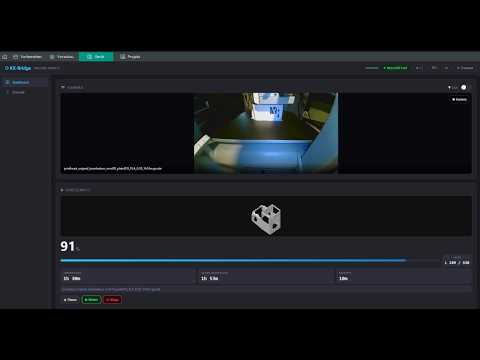](https://www.youtube.com/watch?v=1Ql4wfH27fM)
---
## 🔧 Getting credentials manually
Normally not needed — *"+ Add printer"* does this automatically. If you do need it:
```bash
fetch_credentials --ip 192.168.x.x --write-config
```
Fetches the credentials directly from the printer via HTTP and writes them to `config/config.ini`.
Only the printer IP is required, no slicer.
Alternatively (if the IP is unknown): open AnycubicSlicerNext, connect the printer, then run
`extract_credentials` → outputs username, password, device ID and the printer IP.
> **Downloads:** [Releases](https://gitea.it-drui.de/viewit/KX-Bridge-Release/releases) → `fetch_credentials` / `extract_credentials` (Linux & Windows)
---
## ⚙️ Useful commands
```bash
docker compose logs -f # show logs
docker compose down # stop the bridge
docker compose up -d --build # rebuild & start (after an update)
```
---
## 🩹 Troubleshooting