forked from viewit/KX-Bridge-Release

144 lines
4.0 KiB
Markdown
144 lines
4.0 KiB
Markdown
<p align="center"><img src="knlogo.png" alt="KX-Bridge Logo" width="180"/></p>
|
||
|
||
# KX-Bridge – Anycubic Kobra X
|
||
|
||
**Version:** 0.9.6.1
|
||
|
||
Control your **Anycubic Kobra X** with OrcaSlicer — no Klipper, no Raspberry Pi.
|
||
KX-Bridge is a Moonraker-compatible bridge that communicates directly with the printer.
|
||
|
||
---
|
||
|
||
## Quick Start in 3 Steps
|
||
|
||
### Step 1 – Prepare the printer
|
||
|
||
Enable LAN mode on the Kobra X:
|
||
**Printer display → Settings → Enable LAN mode**
|
||
|
||
### Step 2 – Get credentials
|
||
|
||
The MQTT credentials are printer-specific. Here's how to get them:
|
||
|
||
1. Open **AnycubicSlicerNext** and connect the printer (wait until status is shown)
|
||
2. Run **`extract_credentials.exe`** (Windows) or **`extract_credentials`** (Linux) — outputs Username, Password, Device ID and printer IP
|
||
3. Note / copy the values
|
||
|
||
> **Download:** [gitea.it-drui.de/viewit/KX-Bridge-Release/releases](https://gitea.it-drui.de/viewit/KX-Bridge-Release/releases) → `extract_credentials.exe` (Windows) / `extract_credentials` (Linux) in the release assets
|
||
|
||
### Step 3 – Start the bridge
|
||
|
||
```bash
|
||
./start.sh
|
||
```
|
||
|
||
The script builds the Docker image automatically on first run.
|
||
|
||
**Open Web-UI:** `http://BRIDGE-IP:7125`
|
||
→ The ⚙ menu opens automatically on first start
|
||
→ Enter credentials from Step 2 → **Save & Restart**
|
||
|
||
**Connect OrcaSlicer:**
|
||
Printer → Connection type **Moonraker** → Host: `http://BRIDGE-IP:7125`
|
||
|
||
> **Important:** Connection type must be **Moonraker** (not "Bambu" or "Klipper").
|
||
> Enter the full URL including `http://` and port `:7125` in the host field.
|
||
|
||
---
|
||
|
||
## 📺 Video Tutorial
|
||
|
||
[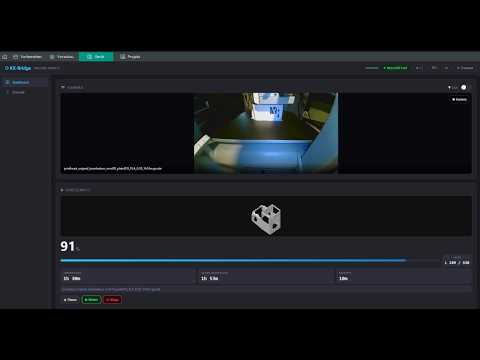](https://www.youtube.com/watch?v=1Ql4wfH27fM)
|
||
|
||
---
|
||
|
||
## ⚠️ Upgrading from 0.9.1 or earlier
|
||
|
||
Starting with **0.9.2**, KX-Bridge stores settings in `config/config.ini` instead of `.env`.
|
||
|
||
**Migration is automatic** — no manual action required:
|
||
- On first start after upgrade, the bridge reads your existing `.env` and creates `config/config.ini` automatically
|
||
- Settings now survive `docker-compose restart` and future updates
|
||
- The `.env` file stays mounted read-only as a migration source — you can keep it in place
|
||
- If you want to create a `config.ini` manually: copy `config/config.ini.example`
|
||
|
||
---
|
||
|
||
## What's supported?
|
||
|
||
| Feature | Details |
|
||
|---------|---------|
|
||
| Printer status | Temperature, progress, state, remaining time |
|
||
| Print control | Start, pause, resume, cancel |
|
||
| Temperature control | Nozzle and bed during print |
|
||
| Print speed | Silent / Normal / Sport |
|
||
| AMS filament change | Load / unload filament |
|
||
| Light & fan | Print light and fan speed |
|
||
| Web-UI | Dashboard, motion control, camera view |
|
||
| Self-update | Install new versions directly in the browser |
|
||
| OrcaSlicer | Moonraker protocol (HTTP + WebSocket) |
|
||
|
||
---
|
||
|
||
## Alternatives to Docker
|
||
|
||
**Linux binary** (no Docker needed):
|
||
```bash
|
||
chmod +x kx-bridge
|
||
./kx-bridge
|
||
```
|
||
|
||
**Python directly:**
|
||
```bash
|
||
pip install aiohttp
|
||
python bridge/kobrax_moonraker_bridge.py
|
||
```
|
||
|
||
Web-UI available at `http://localhost:7125` — the ⚙ menu guides through initial setup.
|
||
|
||
---
|
||
|
||
## Useful commands
|
||
|
||
```bash
|
||
# Show logs
|
||
docker-compose logs -f
|
||
|
||
# Stop bridge
|
||
docker-compose down
|
||
|
||
# Restart bridge (after update)
|
||
./start.sh
|
||
```
|
||
|
||
---
|
||
|
||
## Troubleshooting
|
||
|
||
**"Wrong MQTT credentials"** on start:
|
||
- Restart AnycubicSlicerNext, reconnect the printer, run `extract_credentials` again
|
||
- Enter only the IP address, no port (✗ `192.168.1.102:9883` → ✓ `192.168.1.102`)
|
||
|
||
**Printer not found / no LAN mode:**
|
||
- On the printer display: Settings → Enable LAN mode
|
||
- Printer and bridge must be on the same network
|
||
|
||
**Docker: Permission denied:**
|
||
```bash
|
||
sudo usermod -aG docker $USER # then log out and back in
|
||
```
|
||
|
||
---
|
||
|
||
## Security
|
||
|
||
- The bridge is accessible on the local network at `http://<host-IP>:7125` — do not expose to the internet
|
||
- `config/config.ini` contains printer credentials — do not share publicly
|
||
- Credentials do not grant access to Anycubic cloud services
|
||
|
||
---
|
||
|
||
## License
|
||
|
||
Interoperability research under §69e UrhG — private, non-commercial use only.
|