 viewit
1645de4cad
viewit
1645de4cad
Nach Squash-Merge von #32 die Reviews-Anpassungen nachgereicht, die im
Dev-Repo (viewit/KX-Bridge@7c834bc) bereits enthalten waren:

- Content-Disposition mit RFC5987 filename*=UTF-8 + ASCII-Fallback
- DE-Strings im Verify-Dialog übersetzt (msg/confirm/abort)

KX-Bridge
Control your Anycubic Kobra X with OrcaSlicer — no Klipper, no Raspberry Pi.
A Moonraker-compatible bridge that talks directly to the printer.




Like KX-Bridge? A coffee on Ko-fi keeps the project alive. ☕
✨ Features
| 🖨️ | Printer control — start, pause, resume, cancel, temperatures, print speed |
| 📊 | Live status — temperature, progress, layers, remaining time, camera stream |
| 🎨 | AMS / multicolor — filament slots, per-channel remapping, MMU emulation for OrcaSlicer filament sync |
| 🗂️ | GCode browser — uploaded files with thumbnails, print history, search & filter |
| 🧩 | Multi-printer — multiple printers in one bridge instance, switch via dropdown |
| ➕ | Add a printer with one click — just enter the IP, credentials are imported automatically |
| 🔄 | Self-update — install new versions directly in the browser |
| 🌐 | OrcaSlicer — full Moonraker protocol (HTTP + WebSocket), EN/DE UI |
🚀 Quick Start
1. Prepare the printer
Enable LAN mode on the Kobra X: Printer display → Settings → Enable LAN mode
2. Start the bridge
Docker (recommended):
docker compose up -d
Linux binary (no Docker):
chmod +x kx-bridge && ./kx-bridge
Windows EXE (no Docker):
kx-bridge.exe
config\anddata\are created next to the EXE — portable.
With the Linux and Windows binaries,
config/anddata/(settings, SQLite, GCode store) live next to the program. Copy the whole folder = move the installation.
Python directly:
pip install -r bridge/requirements.txt
python bridge/kobrax_moonraker_bridge.py
3. Set up the printer
Open the Web UI: http://BRIDGE-IP:7125
On first start the Printers tab shows "+ Add printer" — just enter the printer's IP address, the rest (username, password, device ID) is fetched from the printer and decrypted automatically. Done.
More than one printer? Just click "+ Add printer" again — each gets its own port (7125, 7126, …) and is selectable from the header dropdown.
4. Connect OrcaSlicer
Printer → Connection type Moonraker → Host: http://BRIDGE-IP:7125
⚠️ Connection type must be Moonraker (not "Bambu" or "Klipper"). Enter the full URL including
http://and port:7125in the host field.
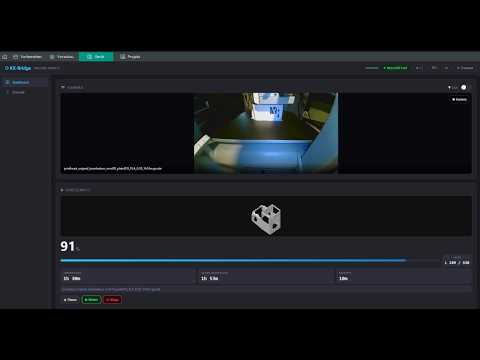
📺 Video Tutorial
🎨 Recommended Slicer
For the best KX-Bridge experience we offer a patched OrcaSlicer build that bundles three open SoftFever/OrcaSlicer PRs: the Anycubic Kobra X printer profile, a multicolor G-code fix and — most importantly — a Moonraker/Happy-Hare filament-sync fix that keeps AMS slot positions intact even with an empty slot.
→ OrcaSlicer-KX releases (Linux AppImage + Windows ZIP)
Standard OrcaSlicer also works; the patched build mainly improves AMS handling. It's a build of OrcaSlicer (AGPL-3.0); source is available via the linked PRs.
🏠 Community & Integrations
- Home Assistant integration by @gangoke — exposes sensors, print controls, light, camera and the GCode thumbnail as native Home Assistant entities.
These are community projects, not maintained or supported by KX-Bridge. For questions or issues, please use the linked repository.
🔧 Getting credentials manually
Normally not needed — "+ Add printer" does this automatically. If you do need it:
fetch_credentials --ip 192.168.x.x --write-config
Fetches the credentials directly from the printer via HTTP and writes them to config/config.ini.
Only the printer IP is required, no slicer.
Alternatively (if the IP is unknown): open AnycubicSlicerNext, connect the printer, then run
extract_credentials → outputs username, password, device ID and the printer IP.
Downloads: Releases →
fetch_credentials/extract_credentials(Linux & Windows)
⚙️ Useful commands
docker compose logs -f                 # show logs
docker compose down                    # stop the bridge
docker compose pull && docker compose up -d   # update to the latest published image
docker compose up -d --build           # rebuild locally (instead of pulling)
🩹 Troubleshooting
"Wrong MQTT credentials" on start
- Re-add the printer via "+ Add printer", or run
fetch_credentials --ip <ip> --write-configand restart the bridge - Enter only the IP address, no port (✗
192.168.1.102:9883→ ✓192.168.1.102)
Printer not found / no LAN mode
- On the printer display: Settings → Enable LAN mode
- Printer and bridge must be on the same network
Docker: Permission denied
sudo usermod -aG docker $USER # then log out and back in
Upgrading from 0.9.1 or earlier
Starting with 0.9.2, KX-Bridge stores settings in config/config.ini instead of .env.
Migration runs automatically on first start after the upgrade — no action required.
🔒 Security
- The bridge is reachable on the local network at
http://<host-IP>:7125— do not expose it to the internet config/config.inicontains printer credentials — do not share publicly- The credentials do not grant access to Anycubic cloud services
📄 License

KX-Bridge is released under the GNU General Public License v3.0. See LICENSE for the full text. Forks and modifications must remain under GPLv3 if redistributed.
The MQTT protocol implementation is the result of independent reverse-engineering for interoperability purposes (§69e UrhG / EU Software Directive Art. 6). Third-party material in the repository (Anycubic TLS certificates) is not covered by GPLv3 and is included solely to enable authentication against printers the end-user already owns. See NOTICE.md for details and disclaimer.
This project is independent and not affiliated with Anycubic.
If KX-Bridge helps you, the project appreciates your support:
