Compare commits
97 Commits
| Author | SHA1 | Date | |
|---|---|---|---|
| efde35130b | |||
| a31e01d28c | |||
| 7a43698ecc | |||
| 6b12bfb321 | |||
| 823cbfe1a9 | |||
| ce416f3b9a | |||
| 67c013f4ff | |||
| 40f85b1eb6 | |||
| 54ce101f99 | |||
| 3531cad0ef | |||
| f192a9943d | |||
| eb7fd44f68 | |||
| e5b2a19192 | |||
| 2f59a2b02b | |||
| bc9bfb58ea | |||
| ac309d5d3d | |||
| 38d98666c4 | |||
| e7c978a067 | |||
| d7c2dccef5 | |||
| e59550b5a0 | |||
| 5871e851da | |||
| e70e9c82d7 | |||
| be110fd766 | |||
| 77fce988d7 | |||
| fe1815c76f | |||
| 29a4262a2a | |||
| e753bcdb03 | |||
| 73ecb1e618 | |||
| 08d9a7ab0f | |||
| 93f72f0be9 | |||
| 812936d90d | |||
| 326453e2fd | |||
| ffd8ed09d5 | |||
| dc7e92688b | |||
| 3e1ba9df4b | |||
| 41f4700b24 | |||
| 216b2de2c0 | |||
| 394b0e69ab | |||
| 877cddb1ba | |||
| c9043e9630 | |||
| 6165a7f62a | |||
| fa8e0c1491 | |||
| 282c02ae0a | |||
| 72f77d92af | |||
| 3595cf839c | |||
| 2b39cc1a78 | |||
| d20308cf2c | |||
| 710c4831c2 | |||
| 5bff7adad0 | |||
| eea570052f | |||
| 303297bfbf | |||
| 6b9ad9d426 | |||
| ed30568092 | |||
| 1f300589d1 | |||
| 930e3774af | |||
| 636889bdbc | |||
| 3f6ea269e6 | |||
| 3fff6e25f0 | |||
| 0f5a8cbc72 | |||
| a40f14af8e | |||
| 466b8c518d | |||
| 1c5396b37d | |||
| c23deebde5 | |||
| 76738e5961 | |||
| 9c82073540 | |||
| 031e34d8ea | |||

|
fc89dfffa5 | ||
| ac695ecf36 | |||
| 23b8a69065 | |||
| 22dc58258c | |||
| e4b4d091f3 | |||
| ba209827ce | |||
| d26b37b332 | |||
| 6f269833d2 | |||
| d808cd3ea8 | |||
|
|
ecd444525a | ||
|
|
d4bb79a68f | ||
|
|
cdaf74985c | ||
|
|
8383c59b39 | ||
| 1645de4cad | |||
|
|
42898c385c | ||
| 6c5dd14dbd | |||
| c2d16270bc | |||
| fd4b9b1254 | |||
| 21cd356757 | |||
| 40a27a47fc | |||
| 7815c66a82 | |||
| 312b4083d2 | |||
| 534ea41816 | |||
| f1bfab969c | |||
| 81729c37a5 | |||
| fe1ed4b096 | |||
| 33fffa0fc0 | |||
| d040475a62 | |||
| 9f6b6a8518 | |||
| 5eda8a241f | |||
| 2aaaa5bbbe |


31
.claude/agents/changelog.md
Normal file
31
.claude/agents/changelog.md
Normal file
@@ -0,0 +1,31 @@
|
||||
---
|
||||
name: KX-Bridge Changelog
|
||||
description: Generiert einen CHANGELOG.md Eintrag aus Git-Commits seit dem letzten Tag.
|
||||
tools:
|
||||
- run_command
|
||||
- read_file
|
||||
- write_file
|
||||
---
|
||||
|
||||
Du generierst CHANGELOG.md Einträge für KX-Bridge.
|
||||
|
||||
Vorgehen:
|
||||
1. Führe aus: `git log $(git describe --tags --abbrev=0)..HEAD --oneline`
|
||||
2. Gruppiere Commits nach Präfix: feat → Neu, fix → Behoben, chore/refactor/docs → Geändert
|
||||
3. Frage nach der Versionsnummer (SemVer: feat→MINOR, fix→PATCH, breaking→MAJOR)
|
||||
4. Schreibe den Abschnitt im Format:
|
||||
|
||||
```
|
||||
## [VERSION] - DATUM
|
||||
|
||||
### Neu
|
||||
- ...
|
||||
|
||||
### Behoben
|
||||
- ...
|
||||
|
||||
### Geändert
|
||||
- ...
|
||||
```
|
||||
|
||||
5. Füge den Abschnitt am Anfang der bestehenden CHANGELOG.md ein, ohne vorhandene Einträge zu ändern.
|
||||
32
.claude/agents/docker-check.md
Normal file
32
.claude/agents/docker-check.md
Normal file
@@ -0,0 +1,32 @@
|
||||
---
|
||||
name: KX-Bridge Docker Check
|
||||
description: Prüft Dockerfile, docker-compose und das gebaute Image auf häufige Probleme.
|
||||
tools:
|
||||
- read_file
|
||||
- run_command
|
||||
- search_files
|
||||
---
|
||||
|
||||
Du prüfst die Docker-Konfiguration von KX-Bridge.
|
||||
|
||||
**Dockerfile:**
|
||||
- Base-Image aktuell? (`python:3.11-slim` oder neuer)
|
||||
- `.dockerignore` vorhanden und vollständig?
|
||||
- Keine Secrets oder Zertifikate im Image (`anycubic_slicer.crt/.key` darf NICHT eingebettet sein)
|
||||
- Healthcheck vorhanden?
|
||||
- Kein `COPY . .` ohne `.dockerignore`
|
||||
|
||||
**docker-compose.yml:**
|
||||
- Port 7125 korrekt gemappt
|
||||
- Config-Volume gemountet (`/app/config`)
|
||||
- `restart: unless-stopped` gesetzt
|
||||
- Logging-Limits konfiguriert (`max-size`, `max-file`)
|
||||
|
||||
**Image-Check (falls lokal vorhanden):**
|
||||
```bash
|
||||
docker image inspect gitea.it-drui.de/viewit/kx-bridge:nightly
|
||||
```
|
||||
- Image-Größe sinnvoll (< 500MB)?
|
||||
- Keine privaten Keys eingebettet: `docker history --no-trunc`
|
||||
|
||||
Berichte nach Schweregrad: Kritisch / Warnung / Hinweis.
|
||||
23
.claude/agents/moonraker-debug.md
Normal file
23
.claude/agents/moonraker-debug.md
Normal file
@@ -0,0 +1,23 @@
|
||||
---
|
||||
name: KX-Bridge Moonraker Debug
|
||||
description: Analysiert Moonraker/Klipper Logs und KX-Bridge Ausgaben auf Fehlerursachen.
|
||||
tools:
|
||||
- read_file
|
||||
- search_files
|
||||
---
|
||||
|
||||
Du analysierst Logs für KX-Bridge im Kontext Moonraker/Klipper/AFC.
|
||||
|
||||
**Bekannte Problemquellen:**
|
||||
- AFC lane_data Indizierung: korrekt ist `lane1`–`lane4` (flat), nicht Slot 0–3
|
||||
- `filament_id` muss als String übertragen werden, nicht als Integer
|
||||
- Moonraker WebSocket trennt bei Inaktivität → keep-alive prüfen
|
||||
- OrcaSlicer sendet Bambu MQTT Format → KX-Bridge muss übersetzen
|
||||
- ACE 2 Pro meldet Fehler wenn Lane leer aber als belegt markiert ist
|
||||
- MQTT mTLS: Zertifikat muss neben dem Binary liegen (`anycubic_slicer.crt/.key`)
|
||||
|
||||
**Bei einem Log:**
|
||||
1. Identifiziere den **ersten** Fehler (nicht den letzten Symptom)
|
||||
2. Zeige den relevanten Log-Kontext (±10 Zeilen um den Fehler)
|
||||
3. Nenne die wahrscheinliche Ursache
|
||||
4. Schlage einen konkreten Fix vor (Datei + Funktion wenn möglich)
|
||||
25
.claude/agents/nightly-prep.md
Normal file
25
.claude/agents/nightly-prep.md
Normal file
@@ -0,0 +1,25 @@
|
||||
---
|
||||
name: KX-Bridge Nightly Prep
|
||||
description: Bereitet den PR von nightly nach main vor. Prüft ob alle Voraussetzungen für ein Stable Release erfüllt sind.
|
||||
tools:
|
||||
- run_command
|
||||
- read_file
|
||||
---
|
||||
|
||||
Du bereitest einen nightly → main Merge für KX-Bridge vor.
|
||||
|
||||
Führe folgende Checks aus und berichte:
|
||||
|
||||
1. `git log main..nightly --oneline` → alle Commits die noch nicht in main sind
|
||||
2. `git diff main..nightly -- CHANGELOG.md` → ist CHANGELOG.md für alle Änderungen aktualisiert?
|
||||
3. Prüfe ob `tests/` alle geänderten Module abdeckt
|
||||
4. Prüfe ob Dockerfile ein aktuelles Base-Image verwendet
|
||||
5. Schlage eine SemVer-Versionsnummer vor:
|
||||
- `feat:` Commits → MINOR erhöhen
|
||||
- `fix:` Commits → PATCH erhöhen
|
||||
- Breaking Change im Commit-Body → MAJOR erhöhen
|
||||
|
||||
Abschlussbericht:
|
||||
- ✅ Bereit für Release
|
||||
- ⚠️ Offen: [Liste]
|
||||
- ❌ Blockiert durch: [Grund]
|
||||
24
.claude/agents/reviewer.md
Normal file
24
.claude/agents/reviewer.md
Normal file
@@ -0,0 +1,24 @@
|
||||
---
|
||||
name: KX-Bridge Reviewer
|
||||
description: Reviewt geänderte Dateien vor einem PR auf nightly. Prüft Logik, Fehlerbehandlung, Moonraker-Kompatibilität und Stil.
|
||||
tools:
|
||||
- read_file
|
||||
- list_directory
|
||||
- search_files
|
||||
---
|
||||
|
||||
Du bist Code-Reviewer für KX-Bridge — eine Python-Bridge zwischen OrcaSlicer und Moonraker/Klipper für den Anycubic Kobra X.
|
||||
|
||||
Beim Review prüfst du:
|
||||
- Korrekte Fehlerbehandlung bei Moonraker HTTP/MQTT Calls (keine unbehandelten Exceptions)
|
||||
- Keine hardcodierten IPs oder Ports (müssen aus config.ini kommen)
|
||||
- Thread-Sicherheit bei parallelen Moonraker-Abfragen (asyncio korrekt verwendet)
|
||||
- AFC lane_data Struktur: flache Indizierung lane1–lane4, kein Slot-Mapping 0–3
|
||||
- Kein `print()` statt `logging` (außer in CLI-Hilfsfunktionen)
|
||||
- Typ-Annotationen vorhanden, Python 3.8+ kompatibel (kein `X | Y` Syntax)
|
||||
- Tests für neue öffentliche Funktionen vorhanden
|
||||
|
||||
Ausgabeformat:
|
||||
1. **Kritische Fehler** — blockieren den Merge
|
||||
2. **Warnungen** — sollten vor Merge behoben werden
|
||||
3. **Hinweise** — optional, für zukünftige Verbesserungen
|
||||
26
.claude/agents/test-writer.md
Normal file
26
.claude/agents/test-writer.md
Normal file
@@ -0,0 +1,26 @@
|
||||
---
|
||||
name: KX-Bridge Test Writer
|
||||
description: Leitet pytest-Tests aus geänderten oder neuen Python-Dateien ab.
|
||||
tools:
|
||||
- read_file
|
||||
- write_file
|
||||
- list_directory
|
||||
- search_files
|
||||
---
|
||||
|
||||
Du schreibst pytest-Tests für KX-Bridge.
|
||||
|
||||
Kontext:
|
||||
- Moonraker API läuft auf Port 7125 (HTTP + WebSocket)
|
||||
- AFC lane_data: flache Indizierung lane1–lane4
|
||||
- Externe HTTP-Calls zu Moonraker werden mit `unittest.mock` gemockt
|
||||
- Python 3.8+ Kompatibilität (kein `X | Y` Union-Syntax)
|
||||
|
||||
Für jede zu testende Funktion schreibst du:
|
||||
1. Happy Path (Normalfall mit validen Eingaben)
|
||||
2. Fehlerfall (Moonraker nicht erreichbar, Timeout, falsche Antwort)
|
||||
3. Grenzwerte (leere lane_data, ungültige filament_id, None-Werte)
|
||||
|
||||
Dateiname: `tests/test_<modulname>.py`
|
||||
Verwende pytest-Fixtures für Moonraker-Mock-Responses.
|
||||
Keine echten Netzwerkaufrufe in Tests.
|
||||
12
.claude/settings.json
Normal file
12
.claude/settings.json
Normal file
@@ -0,0 +1,12 @@
|
||||
{
|
||||
"project": "KX-Bridge",
|
||||
"language": "de",
|
||||
"defaultAgent": "reviewer",
|
||||
"context": {
|
||||
"repoBase": "gitea.it-drui.de/viewit/KX-Bridge-Release",
|
||||
"defaultBranch": "nightly",
|
||||
"stableBranch": "main",
|
||||
"registry": "gitea.it-drui.de/viewit/kx-bridge",
|
||||
"moonrakerPort": 7125
|
||||
}
|
||||
}
|
||||
29
.gitea/ISSUE_TEMPLATE/bug_report.md
Normal file
29
.gitea/ISSUE_TEMPLATE/bug_report.md
Normal file
@@ -0,0 +1,29 @@
|
||||
---
|
||||
name: Bug Report
|
||||
about: Report a bug in KX-Bridge
|
||||
labels: bug
|
||||
---
|
||||
|
||||
## Description
|
||||
<!-- What is happening? -->
|
||||
|
||||
## Steps to Reproduce
|
||||
1.
|
||||
2.
|
||||
3.
|
||||
|
||||
## Expected Behavior
|
||||
|
||||
## Actual Behavior
|
||||
|
||||
## Environment
|
||||
- KX-Bridge Version:
|
||||
- OrcaSlicer Version:
|
||||
- Moonraker/Klipper Version:
|
||||
- Operating System:
|
||||
- Installation: Docker / Binary
|
||||
|
||||
## Logs
|
||||
```
|
||||
<!-- docker logs kx-bridge --tail 50 -->
|
||||
```
|
||||
14
.gitea/ISSUE_TEMPLATE/feature_request.md
Normal file
14
.gitea/ISSUE_TEMPLATE/feature_request.md
Normal file
@@ -0,0 +1,14 @@
|
||||
---
|
||||
name: Feature Request
|
||||
about: Suggest a new feature or improvement
|
||||
labels: enhancement
|
||||
---
|
||||
|
||||
## Description
|
||||
<!-- What should be added or improved? -->
|
||||
|
||||
## Motivation
|
||||
<!-- Why is this useful? What problem does it solve? -->
|
||||
|
||||
## Proposed Implementation
|
||||
<!-- Optional: How could this be implemented technically? -->
|
||||
21
.gitea/pull_request_template.md
Normal file
21
.gitea/pull_request_template.md
Normal file
@@ -0,0 +1,21 @@
|
||||
## Description
|
||||
<!-- What does this PR change? -->
|
||||
|
||||
## Related Issue
|
||||
Closes #
|
||||
|
||||
## Type
|
||||
- [ ] Bug fix
|
||||
- [ ] Feature
|
||||
- [ ] Documentation
|
||||
- [ ] Refactoring
|
||||
|
||||
## Tested with
|
||||
- OrcaSlicer Version:
|
||||
- Printer:
|
||||
- Moonraker/Klipper Version:
|
||||
|
||||
## Checklist
|
||||
- [ ] Tests added/updated
|
||||
- [ ] CHANGELOG.md updated
|
||||
- [ ] No debug code included
|
||||
132
.gitea/workflows/nightly.yml
Normal file
132
.gitea/workflows/nightly.yml
Normal file
@@ -0,0 +1,132 @@
|
||||
name: Nightly Build
|
||||
|
||||
on:
|
||||
push:
|
||||
branches:
|
||||
- nightly
|
||||
paths:
|
||||
- '**.py'
|
||||
- 'Dockerfile'
|
||||
- 'requirements.txt'
|
||||
- 'web/**'
|
||||
- 'data/**'
|
||||
schedule:
|
||||
- cron: '0 2 * * *'
|
||||
workflow_dispatch:
|
||||
|
||||
jobs:
|
||||
build:
|
||||
runs-on: server-runner
|
||||
steps:
|
||||
- name: Checkout
|
||||
run: |
|
||||
if [ -d .git ]; then
|
||||
git fetch origin nightly
|
||||
git reset --hard origin/nightly
|
||||
git clean -fd
|
||||
else
|
||||
git clone --depth=1 --branch nightly https://gitea.it-drui.de/viewit/KX-Bridge-Release.git .
|
||||
fi
|
||||
|
||||
- name: Install Docker CLI
|
||||
run: |
|
||||
if ! command -v docker >/dev/null 2>&1; then
|
||||
ARCH=$(uname -m)
|
||||
if [ "$ARCH" = "x86_64" ]; then
|
||||
DARCH="x86_64"
|
||||
BARCH="amd64"
|
||||
else
|
||||
DARCH="aarch64"
|
||||
BARCH="arm64"
|
||||
fi
|
||||
wget -qO- "https://download.docker.com/linux/static/stable/${DARCH}/docker-27.5.1.tgz" \
|
||||
| tar xz --strip-components=1 -C /usr/local/bin docker/docker
|
||||
chmod +x /usr/local/bin/docker
|
||||
mkdir -p /usr/local/lib/docker/cli-plugins
|
||||
wget -qO /usr/local/lib/docker/cli-plugins/docker-buildx \
|
||||
"https://github.com/docker/buildx/releases/download/v0.23.0/buildx-v0.23.0.linux-${BARCH}"
|
||||
chmod +x /usr/local/lib/docker/cli-plugins/docker-buildx
|
||||
fi
|
||||
docker version --format '{{.Client.Version}}'
|
||||
|
||||
- name: Set up QEMU
|
||||
run: |
|
||||
docker run --rm --privileged tonistiigi/binfmt:latest --install all
|
||||
|
||||
- name: Set up buildx
|
||||
run: |
|
||||
docker buildx inspect kxbuilder 2>/dev/null || \
|
||||
docker buildx create --name kxbuilder --use
|
||||
docker buildx use kxbuilder
|
||||
|
||||
- name: Login to Gitea registry
|
||||
run: |
|
||||
echo "${{ secrets.REGISTRY_TOKEN }}" | \
|
||||
docker login gitea.it-drui.de -u "${{ secrets.REGISTRY_USER }}" --password-stdin
|
||||
|
||||
- name: Build & push (amd64 + arm64)
|
||||
run: |
|
||||
VERSION=$(cat VERSION)
|
||||
docker buildx build \
|
||||
--platform linux/amd64,linux/arm64 \
|
||||
--push \
|
||||
--provenance=false \
|
||||
--no-cache \
|
||||
-t "gitea.it-drui.de/viewit/kx-bridge:nightly" \
|
||||
-t "gitea.it-drui.de/viewit/kx-bridge:nightly-${VERSION}" \
|
||||
.
|
||||
|
||||
- name: Create Gitea Nightly Release
|
||||
env:
|
||||
GITEA_TOKEN: ${{ secrets.RELEASE_TOKEN }}
|
||||
run: |
|
||||
VERSION=$(cat VERSION)
|
||||
TAG="nightly-${VERSION}"
|
||||
git config user.name "gitea-actions"
|
||||
git config user.email "actions@it-drui.de"
|
||||
|
||||
# Changelog aus CHANGES.md lesen (wird von release.sh aus dem Dev-Repo generiert)
|
||||
BODY_FILE=$(mktemp)
|
||||
if [ -f CHANGES.md ]; then
|
||||
cat CHANGES.md > "$BODY_FILE"
|
||||
else
|
||||
# Fallback falls CHANGES.md fehlt
|
||||
printf '## KX-Bridge %s -- Nightly Build\n\n' "$VERSION" > "$BODY_FILE"
|
||||
printf '[experimentell] Ungetestete Features, nur fuer Tester geeignet.\n\n' >> "$BODY_FILE"
|
||||
printf '- Automatischer Nightly-Build\n\n---\n\n' >> "$BODY_FILE"
|
||||
printf '### Docker-Image aktualisieren\n\n```bash\ndocker compose pull && docker compose up -d\n```\n\n' >> "$BODY_FILE"
|
||||
printf 'Image-Tag: `gitea.it-drui.de/viewit/kx-bridge:nightly`\n' >> "$BODY_FILE"
|
||||
fi
|
||||
|
||||
# Tag setzen
|
||||
git tag -f "$TAG"
|
||||
git push https://gitea-actions:${GITEA_TOKEN}@gitea.it-drui.de/viewit/KX-Bridge-Release.git "$TAG" --force
|
||||
|
||||
# curl installieren (BusyBox wget kann kein DELETE/POST mit Headers)
|
||||
if ! command -v curl >/dev/null 2>&1; then
|
||||
if ! apk add --no-cache curl 2>/dev/null; then
|
||||
wget -qO /usr/local/bin/curl \
|
||||
"https://github.com/moparisthebest/static-curl/releases/download/v8.6.0/curl-amd64"
|
||||
chmod +x /usr/local/bin/curl
|
||||
fi
|
||||
fi
|
||||
|
||||
# Altes Release loeschen falls vorhanden
|
||||
curl -s -X DELETE \
|
||||
-H "Authorization: token ${GITEA_TOKEN}" \
|
||||
"https://gitea.it-drui.de/api/v1/repos/viewit/KX-Bridge-Release/releases/tags/${TAG}" \
|
||||
2>/dev/null || true
|
||||
|
||||
# Release erstellen (JSON-Body via awk escapen)
|
||||
BODY_JSON=$(awk '{
|
||||
gsub(/\\/, "\\\\"); gsub(/"/, "\\\""); gsub(/\t/, "\\t");
|
||||
printf "%s\\n", $0
|
||||
}' "$BODY_FILE" | awk 'BEGIN{printf "\""} {printf "%s", $0} END{printf "\""}')
|
||||
JSON_PAYLOAD="{\"tag_name\":\"${TAG}\",\"name\":\"KX-Bridge ${VERSION} Nightly\",\"body\":${BODY_JSON},\"draft\":false,\"prerelease\":true}"
|
||||
printf '%s' "$JSON_PAYLOAD" > /tmp/release_body.json
|
||||
curl -s -X POST \
|
||||
-H "Authorization: token ${GITEA_TOKEN}" \
|
||||
-H "Content-Type: application/json" \
|
||||
--data-binary @/tmp/release_body.json \
|
||||
"https://gitea.it-drui.de/api/v1/repos/viewit/KX-Bridge-Release/releases"
|
||||
rm -f "$BODY_FILE" /tmp/release_body.json
|
||||
34
.gitea/workflows/pr-check.yml
Normal file
34
.gitea/workflows/pr-check.yml
Normal file
@@ -0,0 +1,34 @@
|
||||
name: PR Check
|
||||
|
||||
on:
|
||||
pull_request:
|
||||
branches:
|
||||
- nightly
|
||||
|
||||
jobs:
|
||||
lint-and-test:
|
||||
runs-on: server-runner
|
||||
steps:
|
||||
- name: Checkout
|
||||
run: |
|
||||
if [ -d .git ]; then
|
||||
git fetch origin
|
||||
git reset --hard origin/nightly
|
||||
git clean -fd
|
||||
else
|
||||
git clone --depth=1 --branch nightly https://gitea.it-drui.de/viewit/KX-Bridge-Release.git .
|
||||
fi
|
||||
|
||||
- name: Dependencies installieren
|
||||
run: pip3 install -r requirements.txt
|
||||
|
||||
- name: Lint
|
||||
run: |
|
||||
pip3 install flake8
|
||||
flake8 *.py --max-line-length=120 --extend-ignore=E501
|
||||
|
||||
- name: Tests
|
||||
run: |
|
||||
pip3 install pytest
|
||||
pytest tests/ -v
|
||||
if: ${{ hashFiles('tests/') != '' }}
|
||||
74
.gitea/workflows/release.yml
Normal file
74
.gitea/workflows/release.yml
Normal file
@@ -0,0 +1,74 @@
|
||||
name: Stable Release
|
||||
|
||||
on:
|
||||
push:
|
||||
tags:
|
||||
- 'v*'
|
||||
|
||||
jobs:
|
||||
release:
|
||||
runs-on: server-runner
|
||||
steps:
|
||||
- name: Checkout
|
||||
run: |
|
||||
TAG="${GITHUB_REF#refs/tags/}"
|
||||
if [ -d .git ]; then
|
||||
git fetch --tags origin
|
||||
git checkout "$TAG"
|
||||
git clean -fd
|
||||
else
|
||||
git clone --depth=1 --branch "$TAG" https://gitea.it-drui.de/viewit/KX-Bridge-Release.git .
|
||||
fi
|
||||
|
||||
- name: Install Docker CLI
|
||||
run: |
|
||||
if ! command -v docker >/dev/null 2>&1; then
|
||||
ARCH=$(uname -m)
|
||||
if [ "$ARCH" = "x86_64" ]; then
|
||||
DARCH="x86_64"
|
||||
BARCH="amd64"
|
||||
else
|
||||
DARCH="aarch64"
|
||||
BARCH="arm64"
|
||||
fi
|
||||
wget -qO- "https://download.docker.com/linux/static/stable/${DARCH}/docker-27.5.1.tgz" \
|
||||
| tar xz --strip-components=1 -C /usr/local/bin docker/docker
|
||||
chmod +x /usr/local/bin/docker
|
||||
mkdir -p /usr/local/lib/docker/cli-plugins
|
||||
wget -qO /usr/local/lib/docker/cli-plugins/docker-buildx \
|
||||
"https://github.com/docker/buildx/releases/download/v0.23.0/buildx-v0.23.0.linux-${BARCH}"
|
||||
chmod +x /usr/local/lib/docker/cli-plugins/docker-buildx
|
||||
fi
|
||||
docker version --format '{{.Client.Version}}'
|
||||
|
||||
- name: Set up QEMU
|
||||
run: |
|
||||
docker run --rm --privileged tonistiigi/binfmt:latest --install all
|
||||
|
||||
- name: Set up buildx
|
||||
run: |
|
||||
docker buildx inspect kxbuilder 2>/dev/null || \
|
||||
docker buildx create --name kxbuilder --use
|
||||
docker buildx use kxbuilder
|
||||
|
||||
- name: Login to Gitea registry
|
||||
run: |
|
||||
echo "${{ secrets.REGISTRY_TOKEN }}" | \
|
||||
docker login gitea.it-drui.de -u "${{ secrets.REGISTRY_USER }}" --password-stdin
|
||||
|
||||
# Strip fuehrendes 'v' fuer den Image-Tag (VERSION-Datei hat kein 'v').
|
||||
- name: Build & push (amd64 + arm64)
|
||||
run: |
|
||||
VERSION="${GITHUB_REF#refs/tags/v}"
|
||||
docker buildx build \
|
||||
--platform linux/amd64,linux/arm64 \
|
||||
--push \
|
||||
--provenance=false \
|
||||
--no-cache \
|
||||
-t "gitea.it-drui.de/viewit/kx-bridge:latest" \
|
||||
-t "gitea.it-drui.de/viewit/kx-bridge:${VERSION}" \
|
||||
.
|
||||
|
||||
# Hinweis: Das Gitea-Release (inkl. englischem Auto-Changelog + Binaries als
|
||||
# Assets) erstellt release.sh synchron, da es die lokal via CodeBuilder
|
||||
# gebauten Binaries direkt hochlaedt. Dieser Workflow baut nur das Docker-Image.
|
||||
15
.gitignore
vendored
15
.gitignore
vendored
@@ -7,3 +7,18 @@ dist/
|
||||
releases/*/kx-bridge
|
||||
releases/*/extract_credentials
|
||||
releases/*/extract_credentials.exe
|
||||
|
||||
!kx-bridge.spec
|
||||
|
||||
# Laufzeit-Daten und Drucker-Credentials — nie committen
|
||||
config/config.ini
|
||||
config/*.ini
|
||||
!config/config.ini.example
|
||||
data/
|
||||
|
||||
!data/orca_filaments.json
|
||||
.runner-token
|
||||
|
||||
# Dev-only Dateien — nicht ins öffentliche Repo
|
||||
CLAUDE.md
|
||||
release.sh
|
||||
|
||||
515
CHANGELOG.de.md
515
CHANGELOG.de.md
@@ -1,5 +1,520 @@
|
||||
# Changelog
|
||||
|
||||
## [0.9.26] – 2026-06-21
|
||||
|
||||
### Neu
|
||||
- **Italienische Sprachunterstützung** (PR #66, @Alex_M). Die Bridge-UI ist jetzt vollständig auf Italienisch verfügbar.
|
||||
|
||||
### Behoben
|
||||
- **Kamera startete immer beim Druckbeginn** (Issue #50). `camera_on_print` fehlte in der `/api/state`-Antwort — JavaScript las `undefined` und startete die Kamera unabhängig vom Setting. Jetzt korrekt im State enthalten.
|
||||
- **Auto-Leveling-Setting wurde im Moonraker-Druckpfad ignoriert** (Issue #57). `handle_print_start` las den Wert nur aus den Bridge-Args, nicht aus dem Request-Body — Dialog-Checkbox und Per-Print-Override hatten keine Wirkung. Verhält sich jetzt identisch zum direkten Druckpfad.
|
||||
- **Filament-Mapping: Freitext-Felder durch Dropdowns ersetzt** (Issue #57). Falsch getippte Vendor/Name-Kombination brach das Profil-Matching ohne Fehlermeldung; Felder sind jetzt Dropdowns (Vendor → Profil, vendor-gefiltert), sodass nur gültige Kombinationen gespeichert werden können.
|
||||
- **Dashboard zeigte generischen Materialtyp statt Profilname** (Issue #57). AMS-Slot-Karten zeigen jetzt den gemappten Profilnamen (z.B. „eSUN PLA-Basic") statt nur „PLA". Fallback auf generischen Typ wenn kein Profil gemappt ist.
|
||||
- **Ghost-Profil auf leerem Slot** (Issue #57). Verwaiste Mappings für leere Slots wurden weiterhin angezeigt; leere Slots zeigen jetzt korrekt „–".
|
||||
- **Skip-Objects-Panel fehlte im Orca-Upload-Flow** (Issue #57). Panel erscheint jetzt in allen Druckflows; bei frischem Upload fragt die Bridge `fileDetails` beim Drucker nach und pollt die Objektliste bis zu 6 Sekunden nach.
|
||||
- **Banner und Dialog erschienen gleichzeitig** (Issue #57). Settings-Save setzt jetzt den Dialog-Cancel-State zurück, sodass der Slot-Mapper nach Wechsel des Start-Print-Verhaltens zuverlässig öffnet.
|
||||
- **„Leeren" lud idle-Datei beim nächsten Poll nach** (Issue #57). Leeren setzt jetzt den lokalen State sofort zurück (`file_ready`, `filename`, `thumbnail`) und löscht alle Dialog-Sperren — Vorschaubild und Aktions-Buttons verschwinden sofort und kommen nicht zurück.
|
||||
- **Material-Matching für „PLA Silk", „Matte PLA" etc.** (PR #64, @p2l). Modifier+Basis-Muster in beliebiger Wortreihenfolge werden jetzt auf den Basis-Typ normalisiert; Dash-Varianten (PLA-CF) bleiben weiterhin korrekt inkompatibel mit ihrem Basis-Typ.
|
||||
|
||||
## [0.9.25] – 2026-06-17
|
||||
|
||||
### Behoben
|
||||
- **Zufällige Abstürze / Container-Restarts — Segfault in `libcrypto.so.3`
|
||||
(Issue #53).** Der MQTT-über-TLS-Client teilte einen einzelnen SSL-Socket
|
||||
zwischen dem Reader-Thread (`recv`) und den Sender-Threads (`sendall`), ohne sie
|
||||
zu serialisieren. CPythons `ssl`-Modul erlaubt kein gleichzeitiges Lesen und
|
||||
Schreiben auf demselben Socket — die Überlappung korrumpierte den internen
|
||||
OpenSSL-Zustand und löste eine Heap-Corruption + Segfault aus, die auf manchen
|
||||
Hosts timing-bedingt zuverlässig auftrat. Sämtliche Socket-Zugriffe (recv /
|
||||
sendall / close / reconnect) werden nun unter einem einzigen Lock serialisiert;
|
||||
der Reader prüft die Bereitschaft mit `select()` außerhalb des Locks, damit die
|
||||
Sender nie ausgehungert werden. Reconnect und Disconnect tauschen den Socket
|
||||
jetzt atomar. Dank an @BasK für den detaillierten Fault-Handler-Trace.
|
||||
- **File-Browser akzeptierte Nicht-GCode-Uploads (Issue #59).** Drag & Drop umging
|
||||
den `accept`-Filter des Dateidialogs, sodass z.B. ein JPG hochgeladen werden
|
||||
konnte. Uploads werden jetzt client- und serverseitig validiert; nur `.gcode`,
|
||||
`.gcode.3mf`, `.3mf` und `.bgcode` werden akzeptiert. Dank an @gangoke.
|
||||
|
||||
## [0.9.24] – 2026-06-16
|
||||
|
||||
### Neu
|
||||
- **Objekte überspringen in jedem Druck-Flow (Issue #57).** Der „Objekte
|
||||
überspringen"-Bereich im Slot-Mapper erschien bisher nur beim Druck aus dem
|
||||
Browser-Tab. Er ist jetzt in allen Flows verfügbar (inkl. Upload / Print-Leiste),
|
||||
standardmäßig eingeklappt hinter einem `✂ Objekte überspringen (N)`-Header, damit
|
||||
der Dialog kompakt bleibt — Klick klappt Vorschau + Checkliste auf.
|
||||
- **Slot-Mapper zeigt konkreten Profilnamen (Issue #57).** Jeder Slot zeigt nun das
|
||||
zugeordnete Filament-Profil (z.B. „PolyTerra PLA — Polymaker") in den Dropdown-
|
||||
Optionen und als Hover-Tooltip am Slot-Marker, statt nur des generischen Typs.
|
||||
Fällt auf den generischen Typ zurück, wenn kein Profil gemappt ist.
|
||||
|
||||
## [0.9.23] – 2026-06-16
|
||||
|
||||
### Neu
|
||||
- **Druckdialog nach Upload automatisch öffnen.** Eine neue Einstellung
|
||||
`print_start_dialog` (Einstellungen → Drucker → „Druckstart-Verhalten") steuert,
|
||||
was nach einem Upload bei leerlaufendem Drucker passiert: „Print-Dialog" öffnet
|
||||
den Slot-Zuordnungs-Dialog automatisch, „Print-Leiste" behält das bisherige
|
||||
Banner. Basiert auf PR #56 von @gangoke.
|
||||
- **Auto-Leveling-Schalter pro Druck.** Der Druckdialog hat jetzt eine eigene
|
||||
Auto-Leveling-Checkbox, die den globalen Standard für einen einzelnen Druck
|
||||
überschreibt.
|
||||
|
||||
### Behoben
|
||||
- **Objekt-Skip wurde beim Druckstart still ignoriert (PR #56, @gangoke).** Der
|
||||
Skip-Befehl wurde gesendet, *bevor* der Drucker im `printing`-Status war, und
|
||||
daher verworfen. Der Skip wird nun in einer Retry-Schleife erneut angewendet,
|
||||
sobald der Druck bestätigt läuft — mit einer Pending-Sperre, damit die UI den
|
||||
Skip-Status nicht vorzeitig zurücksetzt.
|
||||
- **Upload während eines laufenden Drucks überschrieb die Vorschau des laufenden
|
||||
Auftrags.** Ein neuer Upload während des Drucks ersetzt nicht mehr Thumbnail /
|
||||
file_ready des Auftrags auf dem Druckbett.
|
||||
|
||||
## [0.9.22] – 2026-06-16
|
||||
|
||||
### Neu
|
||||
- **Neu strukturiertes Einstellungs-Panel.** Das Einstellungs-Modal wurde durch
|
||||
ein dauerhaftes Master-Detail-Panel mit fünf Kategorien ersetzt: Verbindung,
|
||||
Drucker, Darstellung, Filament und System. Das Poll-Intervall ist nun live
|
||||
einstellbar.
|
||||
- **Vendor-Sichtbarkeitsfilter (Issue #41).** Eine neue Checkliste in den
|
||||
Filament-Einstellungen beschränkt das Slot-Profil-Dropdown auf bestimmte
|
||||
Hersteller. „Generic" und eigene importierte Profile sind immer sichtbar.
|
||||
- **Idle-Datei-Aktionen in der Fortschritts-Karte (Issue #55).** Nach einem
|
||||
Upload bei leerlaufendem Drucker erscheinen drei Schnellaktionen direkt in der
|
||||
Fortschritts-Karte: ▶ Drucken, ⚙ Slots zuordnen und ✕ Leeren.
|
||||
|
||||
### Behoben
|
||||
- **Mobileraker-Kompatibilität (Issue #48).** Absturz in `ConfigExtruder.fromJson`
|
||||
(leeres `configfile.config`), Hänger beim Refresh (Metadata-Endlosschleife) und
|
||||
fehlende ETA/Restzeit behoben.
|
||||
|
||||
## [0.9.21] – 2026-06-14
|
||||
|
||||
### Behoben
|
||||
- **Kamera-Stream auf Android (Chrome / Firefox) nicht sichtbar.** Android-Browser
|
||||
unterstützen `multipart/x-mixed-replace` (MJPEG) nicht. Die UI erkennt Android
|
||||
jetzt automatisch und fällt auf Snapshot-Polling mit 5 fps zurück
|
||||
(`/api/camera/snapshot` alle 200 ms) — keine Server-Änderung nötig.
|
||||
|
||||
### Geändert
|
||||
- Docker-Image auf **Debian 12 (Bookworm)** gepinnt (`python:3.11-slim-bookworm`),
|
||||
um Kompatibilitätsprobleme mit glibc 2.41 zu vermeiden, die das aktuell von
|
||||
`python:3.11-slim` gezogene Debian 13 Basis-Image mitbringt.
|
||||
- MQTT- und HTTP-Verbindungen erzwingen jetzt **IPv4** (`AF_INET`), um
|
||||
Verbindungsfehler auf Hosts zu verhindern, bei denen der Drucker nur über IPv4
|
||||
erreichbar ist, das OS aber IPv6 bevorzugt.
|
||||
- Extruder-Stub in der Moonraker-`configfile`-Antwort enthält jetzt `sensor_type`
|
||||
und `filament_diameter` — behebt einen Mobileraker-Absturz
|
||||
(`Null is not a subtype of Object`, Issue #48).
|
||||
|
||||
## [0.9.20] – 2026-06-08
|
||||
|
||||
### Neu
|
||||
- **Französische Sprachunterstützung (PR #45 von @Nathacks)**
|
||||
- **Z-Höhe in der Print-UI (PR #49 von @Nathacks).** Zeigt die aktuelle
|
||||
Z-Position in mm unterhalb des Layer-Zählers.
|
||||
|
||||
### Behoben
|
||||
- **Kamera-Autostart ignorierte das "Kamera bei Druckstart einschalten"-
|
||||
Setting nach einem Bridge-Restart (Issue #50).** Das Setting wurde in
|
||||
der Prozessumgebung gecacht — nach dem Speichern in der UI überlebte
|
||||
der alte Wert den Restart und der neue Wert aus `config.ini` wurde
|
||||
nicht gelesen.
|
||||
- **Kamera startete nach manuellem Stopp während eines Drucks automatisch
|
||||
neu (Issue #50).** Ein neues `_camera_user_stopped`-Flag unterdrückt
|
||||
den Autostart für die aktuelle Drucksitzung. Es wird beim Druckende
|
||||
zurückgesetzt.
|
||||
- **Falscher "Stream nicht verfügbar"-Fehler-Toast beim manuellen
|
||||
Kamera-Stopp.** Der Bild-Fehler-Handler war noch registriert als
|
||||
`img.src` geleert wurde.
|
||||
- **JS-Fehler (`ReferenceError: br is not defined`) beim Licht-Toggle.**
|
||||
Variable wurde aus dem falschen Scope referenziert.
|
||||
- Webcam-URLs sind jetzt absolut, damit Mobileraker/Obico-Clients sie
|
||||
erreichen können.
|
||||
|
||||
## [0.9.19.1] – 2026-06-04
|
||||
|
||||
### Behoben
|
||||
- Standalone-Binaries (Linux/Windows) zeigten `vunknown` als Version.
|
||||
Die `VERSION`-Datei ist jetzt ins PyInstaller-Onefile eingebettet.
|
||||
- Bei fehlenden TLS-Zertifikaten (`anycubic_slicer.crt`/`.key`) gab
|
||||
es nur den rohen Fehler `[Errno 2] No such file or directory`. Die
|
||||
Bridge meldet jetzt klar, wo die Dateien hingelegt werden müssen
|
||||
und dass `anycubic-certs.zip` aus dem Gitea-Release stammt.
|
||||
|
||||
### Geändert
|
||||
- Filament-Profil-Liste neu kuratiert: 209 statt 399 Einträge.
|
||||
Profile die nur für drucker-spezifische Vendor-Bundles existieren
|
||||
(z.B. Eryone Thinker X400, Artillery M1 Pro, WonderMaker ZR,
|
||||
Tiertime, Cubicon, CoLiDo, Afinia, Snapmaker) sind rausgeflogen
|
||||
— OrcaSlicer hätte sie im Standard-Kobra-X-Setup beim Sync
|
||||
ohnehin nicht gefunden, weil die jeweiligen Vendor-Bundles nur
|
||||
bei aktivem Drucker-Vendor geladen werden. Für solche Filamente
|
||||
bleibt der Custom-Profile-Import (Issue #41) der Weg.
|
||||
|
||||
## [0.9.19] – 2026-06-02
|
||||
|
||||
### Neu
|
||||
- **🎯 Filament-Sync mit OrcaSlicer matched jetzt das richtige Preset**
|
||||
statt immer auf „Generic PLA" zu landen. Voraussetzung: ein
|
||||
OrcaSlicer-Build mit dem
|
||||
[PR #13719](https://github.com/SoftFever/OrcaSlicer/pull/13719)
|
||||
Empfangs-Patch (im OrcaSlicer-KX-Build dabei). Die Bridge sendet pro
|
||||
AMS-Slot jetzt `name` + `vendor_name` im Lane-Pfad UND
|
||||
`gate_filament_name` im Happy-Hare-MMU-Pfad (OrcaSlicer wechselt bei
|
||||
AMS-Setups automatisch auf den HH-Pfad).
|
||||
- **Eigene OrcaSlicer-Profile in die Bridge importieren (Issue #41).**
|
||||
Settings-Tab → „OrcaSlicer-Profile" oder direkt im Slot-Edit-Dialog
|
||||
(„★ Eigene Profile importieren…") lädst du deine `.json`-Files aus
|
||||
`~/.config/OrcaSlicer/user/<id>/filament/` hoch — einzeln oder als
|
||||
ZIP. Erscheint dann im Slot-Dropdown unter „★ Eigene Profile" und
|
||||
wird beim Sync an Orca als User-Match weitergegeben. Funktioniert
|
||||
über HTTP, also auch wenn die Bridge im Docker auf Raspi/NAS läuft
|
||||
und OrcaSlicer auf dem Desktop. Auch reine Override-Profile mit nur
|
||||
`inherits: "Generic PLA @System"` + ein paar Tweaks werden korrekt
|
||||
erkannt — die Bridge resolved die vererbten Felder aus dem
|
||||
System-Parent.
|
||||
|
||||
### Fixes
|
||||
- **AMS-Sync landete hartnäckig auf „Generic PLA":** das Orca-
|
||||
Datenmodell hat 68 duplikate `filament_id`-Werte (`OGFL99` allein
|
||||
136 mal), und die Bridge wählte oft eine ID die für den Kobra X
|
||||
nicht `is_compatible` war (z.B. `GFL92` aus dem Kobra-2-Profil →
|
||||
Orca verwarf es). Generator priorisiert jetzt Kobra-X-Varianten und
|
||||
filtert Phantom-Profile (Cross-Vendor-Overrides) raus —
|
||||
`orca_filaments.json` von 1035 → 400 saubere Profile.
|
||||
- **Slot ohne expliziten Override sendet jetzt `Generic <Typ>`** statt
|
||||
einer impliziten Vendor-Annahme. Library-Generic-Profile haben
|
||||
`compatible_printers: []` (= alle Drucker), sind also immer sichtbar
|
||||
und matchen verlässlich.
|
||||
- **Slot-Karte zeigt den Hersteller direkt nach dem Speichern** —
|
||||
ohne Browser-Reload. `poll()` war async, das Re-Render kam erst
|
||||
beim nächsten Tick.
|
||||
- **ACE-Trockner-Toggle warf 502-Fehler obwohl der Trockner ein-/aus-
|
||||
ging (PR #42 von @gangoke):** `setDry` jetzt fire-and-forget wie
|
||||
`setAutoFeed`. Der Drucker antwortet auf diesem Push-Topic mit
|
||||
`code: 0` statt `code: 200`, das hat die Bridge fälschlich als
|
||||
Fehler interpretiert.
|
||||
|
||||
### Datenmodell / API
|
||||
- `orca_filaments.json` regeneriert: nur echte Vendor-Profile und
|
||||
OrcaFilamentLibrary-Profile bleiben drin. Bambu/Polymaker/SUNLU-
|
||||
Library-Profile dabei, Qidi-Cross-Bundles raus.
|
||||
- Neue Endpoints: `POST /kx/filament/profiles/user` (ZIP/JSON-Upload),
|
||||
`GET /kx/filament/profiles/user` (Liste der User-Imports),
|
||||
`DELETE /kx/filament/profiles/user[?vendor=…&name=…]`. Persistenz
|
||||
in `<KX_DATA_DIR>/orca_filaments.user.json` (Volume — überlebt
|
||||
Image-Updates).
|
||||
|
||||
### Build
|
||||
- Neues Modul `bridge/orca_filaments.py` (gemeinsame Parser-Helfer
|
||||
für Generator und Import-Endpoint).
|
||||
- Dockerfile + release.sh um `orca_filaments.py` erweitert.
|
||||
|
||||
## [0.9.18] – 2026-05-31
|
||||
|
||||
### Neu
|
||||
- **🎉 Filament-Material und -Farbe pro AMS-Slot aus der Bridge an den
|
||||
Drucker senden:** Im Slot-Edit-Dialog gewählte Werte gehen jetzt
|
||||
tatsächlich an den Drucker und werden persistent übernommen — am
|
||||
Drucker-Display siehst du sofort dieselbe Belegung wie in der Bridge-UI.
|
||||
In 0.9.17 wurde der Befehl über das falsche MQTT-Topic
|
||||
(`slicer/printer/…`) gesendet, der Drucker hat ihn stillschweigend
|
||||
ignoriert. Jetzt geht er über `web/printer/…` wie der Anycubic
|
||||
Slicer Next es macht (verifiziert via Live-MQTT-Sniff +
|
||||
Workbench-Vue-Source). **Achtung:** der Drucker muss im Idle-Zustand
|
||||
sein, und leere Slots lassen sich nicht beschriften.
|
||||
- **Mehrsprachiges UI – spanische Übersetzung von Muttersprachler
|
||||
überarbeitet (PR #40 von @pezfisk):** fehlende Akzente
|
||||
(impresión, cámara, después, animación, …), Begriffe vereinheitlicht
|
||||
(Pause → Pausa, Start → Iniciar, Layer → Capa). Plus neues
|
||||
`README.es.md` und Cross-Links in den drei READMEs.
|
||||
- **Z-Höhen-Anzeige in Obico** funktioniert jetzt. Der Drucker liefert
|
||||
keine echte Z-Position via MQTT (per Live-Sniff bestätigt), die Bridge
|
||||
schätzt sie aus `curr_layer × layer_height + first_layer_height`.
|
||||
Layer-Heights kommen aus dem GCode-Header beim Upload, persistiert
|
||||
im GCode-Store; Fallback aus dem OrcaSlicer-Default-Filename
|
||||
(`…_0.2_…gcode`). `/server/files/metadata` liefert zusätzlich
|
||||
`object_height` (Gesamt-Z), damit Obicos `mmProgress`-Widget
|
||||
`aktuelles Z / Gesamt-Z` anzeigt.
|
||||
- **Slot-Karte zeigt den OrcaSlicer-Profil-Vendor** unter dem Material
|
||||
(z.B. „PLA / Polymaker"), mit Profil-Namen + interner ID als
|
||||
Tooltip. So ist auf einen Blick erkennbar welcher Slot-Override
|
||||
aktiv ist.
|
||||
|
||||
### Fixes
|
||||
- **Slot-Profil-Auswahl im AMS-Dialog (Issue #39 von @harrygeier):**
|
||||
drei separate Bugs in 0.9.17 sorgten dafür dass die gewählte Marke
|
||||
nach dem Speichern verschwand und beim erneuten Öffnen ein falsches
|
||||
Material angezeigt wurde.
|
||||
- `multiColorBox/setInfo` über das falsche MQTT-Topic — siehe oben.
|
||||
- Speichern lief in zwei parallelen Requests (Profil-Override +
|
||||
Material/Farbe) → Race-Bedingung. Läuft jetzt sequenziell und
|
||||
reloaded den lokalen State bevor der Dialog geschlossen wird.
|
||||
- OrcaSlicer-Filament-IDs sind nicht eindeutig — `orca_filaments.json`
|
||||
hat 68 duplikate IDs, `OGFL99` allein ist 136 Vendor-Profilen
|
||||
zugeordnet (Erkenntnis von @gangoke). Der primäre Selector ist
|
||||
jetzt `(vendor, name)` — über alle 1002 Profile eindeutig.
|
||||
- **MQTT-Reconnect (Issue #33 von @icebear):** wurde der Drucker über
|
||||
Nacht ausgeschaltet, schlug die Bridge nach 5 Reconnect-Versuchen
|
||||
(~60 s gesamt) endgültig fehl — Filament-Sync ging morgens noch
|
||||
(weil das HTTP ist), aber Print-Start scheiterte mit
|
||||
„connection refused", User musste die Bridge selbst neu starten.
|
||||
Reader-Thread reconnectet jetzt **endlos** (Backoff cappt bei 60 s)
|
||||
bis der Drucker wieder antwortet, mit DEBUG-Logging nach den ersten
|
||||
5 Versuchen damit das Log nicht über Nacht zugemüllt wird.
|
||||
- **„Unknown child pid"-Warnungen im Log:** beim Killen der Kamera-
|
||||
`ffmpeg`-Prozesse fehlte das `wait()` — Children blieben als
|
||||
Zombies und asyncio meldete sie alle ~20 s. Gefixt im CameraCache
|
||||
+ `/api/camera/stream`.
|
||||
|
||||
### UI-Aufräumen
|
||||
- **Pause-Button als Toggle:** druckt der Drucker → `⏸ Pause`, ist
|
||||
pausiert → `▶ Weiter`. Der separate „Weiter"-Button entfällt.
|
||||
- **Pause + Stopp komplett ausgeblendet wenn Drucker idle** — bei
|
||||
Standby waren beide Buttons vorher dauerhaft sichtbar, was beim
|
||||
Idle-Drucker verwirrend wirkte.
|
||||
|
||||
### Build
|
||||
- **GCode-Store-Migration:** neue Spalten `layer_height` +
|
||||
`first_layer_height` in `gcode_files` (automatisch beim ersten
|
||||
Start von 0.9.18 angelegt).
|
||||
|
||||
## [0.9.17] – 2026-05-30
|
||||
|
||||
### Neu
|
||||
- **🧪 Obico-Anbindung (experimentell):** Die Bridge spielt jetzt einen
|
||||
Moonraker, der vom [moonraker-obico](https://github.com/TheSpaghettiDetective/moonraker-obico)
|
||||
Plugin akzeptiert wird. Damit funktionieren Time-Lapse, Layer-aligned
|
||||
First-Layer-Scan und WebRTC-Live-Stream gegen einen (selbst gehosteten oder
|
||||
Cloud-) Obico-Server. **Hinweis:** Das KI-Modell zur Spaghetti-Erkennung
|
||||
ist auf seitliche Kamera-Winkel (Ender/Voron) trainiert — wie zuverlässig
|
||||
es beim Kobra X mit Top-Down-Kamera funktioniert, muss empirisch getestet
|
||||
werden (bei uns ging es schon ganz gut). Stream, Time-Lapse und Telemetrie
|
||||
laufen, die Failure-Erkennung ist deshalb noch als experimentell markiert.
|
||||
- **Mehrsprachiges UI (PR #37 von @gangoke):** Inline-Translations sind raus,
|
||||
stattdessen wechselbares Sprach-Dropdown mit Globe-Icon. Auto-Auswahl nach
|
||||
Browser-Locale, manuelle Wahl wird im LocalStorage gemerkt. Sprachen: 🇩🇪 🇬🇧
|
||||
🇪🇸 🇨🇳 (ES + ZH-CN sind KI-übersetzt und noch nicht von Muttersprachlern
|
||||
geprüft).
|
||||
- **OrcaSlicer-Filament-Profil pro AMS-Slot:** Im Slot-Bearbeiten-Dialog kannst
|
||||
du jetzt ein konkretes OrcaSlicer-Profil (z.B. „PolyTerra PLA — Polymaker")
|
||||
pro Slot wählen — die Bridge sendet diese Information beim AMS-Sync mit,
|
||||
statt nur „Generic PLA". Die Profil-Liste wird aus dem OrcaSlicer-Source
|
||||
generiert (~1000 Profile, 43 Hersteller). Damit OrcaSlicer den Hint
|
||||
vollständig respektiert, wird ein passender Patch im OrcaSlicer-KX-Build
|
||||
folgen.
|
||||
- **H.264-Direkt-Stream:** Neuer Endpunkt `/api/camera/h264` liefert den
|
||||
Drucker-Kamera-Stream ohne Re-Encoding als MPEG-TS — Latenz drastisch
|
||||
reduziert, Bridge-CPU bei Obico-Stream von ~13 % auf ~3 %.
|
||||
|
||||
### Fixes
|
||||
- **Temperatur-Setzen über Bridge-UI / Obico löste Drucker-Systemfehler aus:**
|
||||
Per Live-MQTT-Sniff vom Anycubic Slicer Next korrigiert — der Befehl
|
||||
`tempature/set` braucht ein `type`-Feld (0=Nozzle, 1=Bett, 2=beide) und
|
||||
muss über das `web/printer/…`-Topic, nicht `slicer/printer/…`. Nozzle/Bett
|
||||
über die Bridge heizen jetzt sauber.
|
||||
- **Große GCode-Uploads (>50 MB) brachen mit Timeout ab:** Der
|
||||
Connect-Timeout vom Socket lief auch während des `sendall()` — bei ~200 MB
|
||||
über LAN brauchte das Schieben mehr als die 30 s und wurde fälschlich als
|
||||
Connect-Timeout abgebrochen. Jetzt sind Connect-, Send- und Read-Phase
|
||||
separat getimeoutet.
|
||||
- **Kamera-Snapshot war langsam und konnte sich mit dem Live-Stream blockieren:**
|
||||
Die Bridge hält nun einen zentralen Kamera-Cache (ein einziger ffmpeg-Prozess
|
||||
zieht vom Drucker, alle Konsumenten teilen sich den Stream). Snapshots
|
||||
kommen in ~1.3 ms aus dem RAM statt nach 1-2 s per neuer ffmpeg-Instanz.
|
||||
Behebt außerdem das Single-Client-Limit am Drucker (HTTP 429 bei parallelen
|
||||
Zugriffen).
|
||||
- **Sprachwechsel aktualisierte den GCode-Browser nicht:** Die in die
|
||||
File-Karten eingebackenen Texte („Drucken", „Schätzung", „Download") blieben
|
||||
in der alten Sprache. Beim Sprachwechsel werden die Karten jetzt neu
|
||||
gerendert.
|
||||
- **GCode Web-Upload + Download + Verify-Dialog (PR #32 von @gangoke):**
|
||||
Dateien können direkt im Browser hoch/runtergeladen werden, mit
|
||||
Warn-Dialog wenn ein nicht durch OrcaSlicer hochgeladener GCode gestartet
|
||||
wird.
|
||||
|
||||
### CI/Build
|
||||
- Multi-Arch Docker-Image (amd64 + arm64) per Gitea-Actions automatisiert.
|
||||
- Release-Build über lokalen CodeBuilder für alle drei Targets
|
||||
(linux-amd64, linux-arm64, windows.exe).
|
||||
|
||||
## [0.9.16] – 2026-05-22
|
||||
|
||||
### Neu
|
||||
- **Kamera bei Druckstart automatisch einschalten:** neue Einstellung „Kamera bei
|
||||
Druckstart einschalten" — die Bridge startet den Kamera-Stream automatisch, wenn
|
||||
ein Druck beginnt (für OrcaSlicer und die Bridge-UI).
|
||||
|
||||
### Fixes
|
||||
- **Einfarbiger Druck durch leeren AMS-Slot blockiert:** OrcaSlicer schreibt alle
|
||||
konfigurierten Filamente in den GCode-Header, auch wenn das Modell nur eines
|
||||
nutzt — die Bridge meldete dem Drucker dadurch alle Farben als nötig, und ein
|
||||
leerer ungenutzter Slot brach den Druck ab. Die Bridge mappt jetzt nur die im
|
||||
GCode tatsächlich genutzten Filamente.
|
||||
- **Filament-Sync jetzt positionstreu:** Bei einem leeren Slot in der Mitte
|
||||
(z.B. Slot 1 gelb, 2 leer, 3 rot, 4 weiß) zeigte OrcaSlicer die Farben auf den
|
||||
falschen Slots. Behoben — leere Slots behalten ihre Position, und das
|
||||
Sync-Farbformat folgt der Happy-Hare-Konvention (RRGGBB ohne `#`).
|
||||
- **Slicer-Zeit + Thumbnail fehlten nach Browser-Reload** (oder bei Druckstart
|
||||
direkt aus OrcaSlicer): beide werden jetzt aus dem GCode-Store anhand des
|
||||
Dateinamens wiederhergestellt statt aus flüchtigem State.
|
||||
- **Deutsche Übersetzungslücken** im ACE-Trockner-Dialog behoben.
|
||||
|
||||
### Logging
|
||||
- Wiederholte Log-Zeilen werden als Zähler („×N") zusammengefasst statt zu spammen;
|
||||
Status-Poll-Verkehr wird nicht mehr auf INFO geloggt.
|
||||
- Neuer Level-Filter (Alle / Fehler / Warnungen), Toast bei neuen Fehlern, volle
|
||||
Tracebacks im Browser-Log und ein Download-Dateiname mit Zeitstempel.
|
||||
|
||||
## [0.9.15] – 2026-05-21
|
||||
|
||||
### Fixes (Issue #29)
|
||||
- **UI im OrcaSlicer-Device-Tab kaputt:** OrcaSlicers eingebetteter Webview lädt
|
||||
nur das nackte HTML und ignoriert externe `<script>`/`<link>`-Tags — nach der
|
||||
v0.9.14-Theme-Auslagerung funktionierte dort kein Button mehr. Die Bridge
|
||||
bettet CSS + JS jetzt inline in die Seite ein — funktioniert in Browser UND
|
||||
OrcaSlicer-Webview.
|
||||
- **Dropdowns unlesbar (weiß auf weiß) im OrcaSlicer-Webview:** `color-scheme` +
|
||||
explizite `select`/`option`-Farben ergänzt, damit die nativen Dropdowns in
|
||||
Hell- und Dunkel-Theme korrekt dargestellt werden.
|
||||
- **„Select slots"-Button tat direkt nach Upload nichts:** eine fehlende
|
||||
Variablen-Deklaration (`storeFiles`) warf einen `ReferenceError`, wenn vor dem
|
||||
Laden des Browser-Tabs geklickt wurde. Behoben.
|
||||
- **Upload-Banner kam nach abgeschlossenem Druck zurück:** der „file ready"-Status
|
||||
wurde nur bei Stop/Abbruch geleert, nicht bei `finished`. Jetzt auch nach
|
||||
erfolgreichem Druckende geleert.
|
||||
|
||||
## [0.9.14] – 2026-05-21
|
||||
|
||||
### Neu
|
||||
- **Theme-System (Community-Beitrag von @hirnwunde, PR #27):** Die Web-UI liegt
|
||||
jetzt in echten Dateien unter `web/themes/<name>/` (`index.html` + `style.css`
|
||||
+ `app.js`) statt im Python-Quelltext eingebettet. Theme umschalten mit
|
||||
`--ui-theme <name>`. Für Theme-Autoren gibt es eine dokumentierte Hook-Referenz
|
||||
(`web/DOC/THEME-CSS-HOOKS.md`, `THEME-JS-ID-HOOKS.md`). Das Default-Theme
|
||||
enthält die komplette aktuelle UI (ACE2, Objekte überspringen, Filament-Dialog).
|
||||
Für Nutzer keine Änderung — Binaries/Docker-Image liefern das Theme eingebettet.
|
||||
- **Neustart über API (Community-Beitrag von @gangoke, PR #28):** neuer Endpoint
|
||||
`POST /api/restart`, um die Bridge per API neu zu starten — z. B. für einen
|
||||
Neustart-Button in der Home-Assistant-Integration.
|
||||
|
||||
### Intern
|
||||
- Vereinheitlichter PyInstaller-Build (`kx-bridge.spec`) für Linux, Windows und
|
||||
Docker — bindet `web/` (Themes) ins Onefile-Binary ein, zur Laufzeit aus
|
||||
`sys._MEIPASS` gelesen. Theme-Einbettung in Linux-Binary und Windows-EXE verifiziert.
|
||||
- `data/` in `.gitignore` aufgenommen.
|
||||
|
||||
## [0.9.13] – 2026-05-20
|
||||
|
||||
============================================================
|
||||
STOPP — VOR DEM DRÜCKEN VON "UPDATE" LESEN
|
||||
============================================================
|
||||
|
||||
Der "Update"-Button ist in 0.9.11 und 0.9.12 KAPUTT.
|
||||
NICHT benutzen. Stattdessen einmalig manuell updaten —
|
||||
ab 0.9.13 funktioniert er wieder.
|
||||
|
||||
>> WINDOWS-.EXE / LINUX-BINARY-Nutzer — GEFAHR:
|
||||
Update ÜBERSCHREIBT deine kx-bridge.exe / kx-bridge mit
|
||||
einer Textdatei. Das Programm STARTET DANN NICHT MEHR
|
||||
und kann sich nicht selbst reparieren.
|
||||
--> Manuell updaten: die 0.9.13
|
||||
kx-bridge-windows.zip / kx-bridge-linux.zip von der
|
||||
Releases-Seite laden und die alte Datei ersetzen.
|
||||
Deine config/- und data/-Ordner bleiben erhalten.
|
||||
|
||||
>> DOCKER-Nutzer:
|
||||
Update führt zur Crash-Loop des Containers
|
||||
(ModuleNotFoundError: No module named '_web_assets').
|
||||
--> Manuell updaten:
|
||||
docker compose pull (oder docker compose up -d --build)
|
||||
config- + data-Volumes bleiben erhalten.
|
||||
|
||||
Ab 0.9.13 ist der In-App-Updater repariert und wieder sicher.
|
||||
============================================================
|
||||
|
||||
### Fixes
|
||||
- **Self-Update war in 0.9.11 und 0.9.12 kaputt (kritisch):** Der In-App-Updater
|
||||
ersetzte nur `kobrax_moonraker_bridge.py`. Zwei Probleme:
|
||||
- **Binary/EXE-Modus:** Er überschrieb die laufende Programmdatei
|
||||
(`sys.executable`) mit einer Python-Textdatei — übrig blieb ein nicht mehr
|
||||
startbares Programm, das sich nicht selbst reparieren kann (manueller
|
||||
Re-Download nötig).
|
||||
- **Python/Docker-Modus:** Seit 0.9.12 importiert die Hauptdatei das
|
||||
ausgelagerte `_web_assets.py` (gebündeltes Frontend), das der Updater nicht
|
||||
mitlud → `ModuleNotFoundError: No module named '_web_assets'` → Crash-Loop.
|
||||
Der Updater lädt jetzt **alle** Bridge-Module (Hauptdatei + `_web_assets.py` +
|
||||
Client + Loader) erst vollständig herunter, ersetzt sie dann atomar und
|
||||
**verweigert das Self-Update im Binary-Modus** (mit Verweis auf den manuellen
|
||||
Download).
|
||||
|
||||
## [0.9.12] – 2026-05-20
|
||||
|
||||
### Fixes
|
||||
- **Pause-Status** wird jetzt korrekt erkannt: Die Bridge las den Geräte-State
|
||||
statt des verschachtelten Druckauftrags-States, dadurch wurde ein pausierter
|
||||
Druck teils noch als „druckend" angezeigt. Layer/Fortschritt/Restzeit kommen
|
||||
jetzt ebenfalls aus dem Auftrags-Report.
|
||||
|
||||
### Intern
|
||||
- Frontend (HTML/CSS/JS) aus der Python-Datei nach `web/index.html` ausgelagert,
|
||||
zur Build-Zeit wieder eingebettet — besser wartbar, für Nutzer keine Änderung.
|
||||
|
||||
### Doku
|
||||
- Community-**Home-Assistant-Integration** von @gangoke verlinkt.
|
||||
|
||||
## [0.9.11] – 2026-05-20
|
||||
|
||||
### Neu
|
||||
- **ACE Pro 2 Support (experimentell, Community-Beitrag von @gangoke, PR #26):** Die Bridge erkennt jetzt die Filament-Hardware automatisch und passt sich an:
|
||||
- **Modi:** `toolhead` (kein ACE, Standard-4-Slot-Box), `ace_direct` (ein ACE Pro 2 direkt am Toolhead), `ace_hub` (bis zu 4 ACE-Units am Slot-4-Hub) — insgesamt bis zu **19 Slots**.
|
||||
- **AMS Auto-Refill** Umschalter.
|
||||
- **Trockner:** Temperatur-/Luftfeuchte-Monitor, Start/Stop/Temp/Dauer-Steuerung, mit Material-Presets in einer neuen Config-Sektion `[ace_dry_presets]` (PLA, PLA+, PETG, TPU, ABS/ASA, PA/PC + 3 Custom).
|
||||
- **UI:** Filament-Sektion skaliert auf 19 Slots, Modus-Label, geladener Slot grün umrandet mit Lade-/Entlade-Puls-Animation, Unload/Load direkt aus dem Slot-Edit-Dialog.
|
||||
- **GCode-Farb-Mapping:** ACE2-fähig, Farbe-aus-GCode-Fix, Hinweis bei Inkonsistenz zwischen Mapping und Objekten, besseres Default-Mapping.
|
||||
|
||||
> **⚠️ Experimentell:** Die ACE-Pro-2-Hardware-Pfade wurden vom Contributor mit einer einzelnen ACE2-Unit entwickelt und getestet; die 2–4-Unit-Hub-Konfigurationen sind theoretisch und auf echter Hardware ungetestet. Wir haben hier ebenfalls keine ACE2-Hardware zur Verifikation. Der Standard-`toolhead`-Pfad (ohne ACE) wurde live gegen einen echten Kobra X getestet. Wer ein Multi-ACE-Setup betreibt: bitte per Issue Rückmeldung geben.
|
||||
|
||||
### Fixes
|
||||
- **Happy-Hare-MMU-Emulation:** Es werden nur belegte Slots gesynct — kein Placeholder für leere Slots (kompatibel mit OrcaSlicer PR #13372).
|
||||
- **GCode-Farb-Dialog** zeigt nach einem neuen Upload nicht mehr die Daten der vorherigen Datei.
|
||||
|
||||
---
|
||||
|
||||
## [0.9.10] – 2026-05-17
|
||||
|
||||
> **Hinweis:** Mit diesem Release wird der Fokus von neuen Features auf
|
||||
> **Stabilisierung und Bugfixing** verlagert. Die Kern-Workflows
|
||||
> (Multi-Printer, Drucker hinzufügen/entfernen, Filament-Dialog,
|
||||
> Skip-Objekte, Standalone-Binaries) sind funktional ausreichend — ab jetzt
|
||||
> steht Robustheit vor neuen Features. Größere Feature-Wünsche (ACE Pro 2,
|
||||
> Home-Assistant-Integration vervollständigen, …) bleiben vorerst im Backlog.
|
||||
|
||||
### Neu
|
||||
- **Objekte überspringen (vor und während des Drucks):** Aus dem AnycubicSlicerNext-Workbench-Bundle rekonstruiert — der Kobra X kann das nativ über sein Protokoll, der Anycubic-Slicer bietet es bloß nicht im UI an. Die Bridge schon, in zwei Varianten:
|
||||
- **Vor dem Druck:** beim Starten eines Multi-Object-Drucks aus dem Browser-Tab hat der Filament-Dialog jetzt einen zusätzlichen Abschnitt „Objekte". Einzelne Objekte abwählen (oder Polygon direkt im Build-Plate-SVG anklicken) — sie werden vor dem Druck herausgenommen.
|
||||
- **Während des Drucks:** neuer ✂-Button im Dashboard (nur während eines laufenden Drucks sichtbar). Öffnet einen Dialog mit derselben interaktiven SVG-Vorschau — Teil anklicken, bestätigen, der Drucker druckt es nicht weiter. Bereits übersprungene Teile bleiben ausgegraut, der Dialog aktualisiert sich live damit man sieht welche schon weg sind.
|
||||
- **Filament-Dialog – farbige Kanal- und Slot-Marker (Issue #23):** Die GCode-Kanal-Nummer sitzt jetzt in einer farbigen Box links (Hintergrund = Kanal-Farbe, Auto-Kontrast-Text statt des alten kleinen Punktes), der zugewiesene AMS-Slot bekommt rechts neben dem Dropdown denselben Look — aktualisiert sich live wenn man die Auswahl ändert. Funktioniert mit 4 Kanälen; das Layout iteriert sauber für mehr, aber >4 echte Filament-Slots brauchen eine ACE-Pro-2-Box und sind ohne entsprechende Hardware nicht durchgängig testbar (geparkt als Feature-Request, Issues #22 und #23).
|
||||
|
||||
### Intern
|
||||
- Neue Helfer `kobrax_client.skip_objects(names)` / `query_skip_objects()`.
|
||||
- Neue Endpunkte: `GET /kx/files/{id}/objects`, `POST /kx/skip`, `POST /kx/skip/query`, `GET /kx/skip/state`.
|
||||
- SQLite-Schema: `gcode_files` bekommt die Spalten `objects_skip_parts` und `svg_image` (Auto-Migration auf bestehenden DBs).
|
||||
- `_on_file` extrahiert die vom Drucker gelieferte Objektliste + SVG-Vorschau und speichert sie pro Datei.
|
||||
- `_on_skip`-Callback verfolgt, welche Objekte der Drucker aktuell als übersprungen meldet.
|
||||
|
||||
---
|
||||
|
||||
## [0.9.9] – 2026-05-14
|
||||
|
||||
### Fixes
|
||||
- **„Failed to fetch"-Schleife in der UI (Issue #21):** Wenn die Web-UI über die LAN-IP geöffnet wurde, lieferte `/kx/printers` `bridge_url: http://localhost:7125` zurück. Der Browser machte daraufhin Cross-Origin-Requests von der LAN-IP nach `localhost` — die wurden vom Browser blockiert und produzierten eine Flut aus `TypeError: Failed to fetch`-Poll-Fehlern. Die Bridge liefert jetzt im Einzel-Drucker-Modus eine leere `bridge_url`, sodass das Frontend relative Pfade gegen dieselbe Origin wie die UI nutzt. Im Multi-Printer-Modus werden `localhost`/`127.0.0.1` als Bridge-Hosts herausgefiltert.
|
||||
- **Windows-EXE crasht beim Start (Issue #21):** Die v0.9.8-`kx-bridge.exe` wurde mit einer veralteten `config_loader.py` aus einem früheren Release gebaut und stürzte mit `AttributeError: module 'config_loader' has no attribute 'list_printers'` ab. `release.sh` synct jetzt `config_loader.py` zusammen mit den anderen Quellen ins Windows-Build-Repository.
|
||||
|
||||
---
|
||||
|
||||
## [0.9.8] – 2026-05-12
|
||||
|
||||
### Neu
|
||||
|
||||
548
CHANGELOG.md
548
CHANGELOG.md
@@ -1,5 +1,553 @@
|
||||
# Changelog
|
||||
|
||||
## [0.9.26] – 2026-06-21
|
||||
|
||||
### New
|
||||
- **Italian language support** (PR #66, @Alex_M). The bridge UI is now fully
|
||||
available in Italian.
|
||||
|
||||
### Fixed
|
||||
- **Camera always started at print begin** (issue #50). `camera_on_print` was
|
||||
missing from the `/api/state` response — JavaScript read `undefined` and started
|
||||
the camera regardless of the setting. Now correctly exposed in state.
|
||||
- **Auto-leveling setting ignored in Moonraker print path** (issue #57).
|
||||
`handle_print_start` read the value only from bridge args, not from the request
|
||||
body, so the dialog checkbox and the per-print override had no effect. Now
|
||||
behaves identically to the direct print path.
|
||||
- **Filament mapping free-text fields replaced by dropdowns** (issue #57). A
|
||||
mistyped vendor/name broke profile matching silently; fields are now dropdowns
|
||||
(vendor → profile, vendor-filtered) so only valid combinations can be saved.
|
||||
- **Dashboard showed generic material type instead of profile name** (issue #57).
|
||||
AMS slot cards now display the mapped profile name (e.g. "eSUN PLA-Basic")
|
||||
instead of just "PLA". Falls back to the generic type when no profile is mapped.
|
||||
- **Ghost profile shown on empty slot** (issue #57). Stale mappings for empty
|
||||
slots were still rendered; empty slots now correctly show "–".
|
||||
- **Skip-Objects panel missing in Orca upload flow** (issue #57). Panel now
|
||||
appears in all print flows; on fresh upload the bridge requests `fileDetails`
|
||||
from the printer and retries the object list for up to 6 s.
|
||||
- **Banner and dialog appeared simultaneously** (issue #57). Settings save now
|
||||
resets the dialog cancel state so the slot mapper reliably opens after toggling
|
||||
Start Print Behavior.
|
||||
- **"Clear" reloaded idle file on next poll** (issue #57). Clear now immediately
|
||||
resets local state (`file_ready`, `filename`, `thumbnail`) and clears all dialog
|
||||
locks — the preview and action buttons disappear instantly and do not return.
|
||||
- **Material matching for "PLA Silk", "Matte PLA" etc.** (PR #64, @p2l).
|
||||
Modifier+base patterns in any word order are now normalised to the base type;
|
||||
dash-suffix variants (PLA-CF) remain correctly incompatible with their base.
|
||||
|
||||
## [0.9.25] – 2026-06-17
|
||||
|
||||
### Fixed
|
||||
- **Random crashes / container restarts — segfault in `libcrypto.so.3` (issue #53).**
|
||||
The MQTT-over-TLS client shared a single SSL socket between the reader thread
|
||||
(`recv`) and the sender threads (`sendall`) without serializing them. CPython's
|
||||
`ssl` module does not allow concurrent read and write on the same socket — the
|
||||
overlap corrupted OpenSSL's internal state, causing a heap corruption and a
|
||||
segfault that manifested reliably on some hosts (timing-dependent). All socket
|
||||
access (recv / sendall / close / reconnect) is now serialized under a single
|
||||
lock; the reader probes readiness with `select()` outside the lock so senders
|
||||
are never starved. Reconnect and disconnect now swap the socket atomically.
|
||||
Thanks to @BasK for the detailed fault-handler trace that pinpointed this.
|
||||
- **File browser accepted non-GCode uploads (issue #59).** Drag & drop bypassed
|
||||
the file picker's `accept` filter, so e.g. a JPG could be uploaded. Uploads are
|
||||
now validated both client- and server-side; only `.gcode`, `.gcode.3mf`, `.3mf`
|
||||
and `.bgcode` are accepted. Thanks @gangoke.
|
||||
|
||||
## [0.9.24] – 2026-06-16
|
||||
|
||||
### New
|
||||
- **Skip Objects available in every print flow (issue #57).** The "Skip objects"
|
||||
panel in the Slot Mapper used to appear only when printing from the Browser tab.
|
||||
It now shows in all flows (upload / print bar included), collapsed by default
|
||||
behind a `✂ Skip objects (N)` header to keep the dialog compact, expanding on
|
||||
click with the object preview and checklist.
|
||||
- **Slot Mapper shows the specific profile name (issue #57).** Each slot now
|
||||
displays its mapped filament profile (e.g. "PolyTerra PLA — Polymaker") in the
|
||||
dropdown options and as a hover tooltip on the slot marker, instead of just the
|
||||
generic type. Falls back to the generic type when no profile is mapped.
|
||||
|
||||
## [0.9.23] – 2026-06-16
|
||||
|
||||
### New
|
||||
- **Auto-open print dialog after upload.** A new `print_start_dialog` setting
|
||||
(Settings → Printer → "Start Print Behavior") controls what happens after a
|
||||
file is uploaded while the printer is idle: `Print Dialog` opens the
|
||||
slot-assignment dialog automatically, `Print Bar` keeps the previous banner
|
||||
behaviour. Based on PR #56 by @gangoke.
|
||||
- **Per-print auto-leveling toggle.** The print dialog now has its own
|
||||
auto-leveling checkbox that overrides the global default for a single print.
|
||||
|
||||
### Fixed
|
||||
- **Object skip was silently ignored at print start (PR #56, @gangoke).** The
|
||||
skip command was sent *before* the printer entered the `printing` state, so it
|
||||
was dropped. The skip is now re-applied in a retry loop once the print is
|
||||
confirmed running, with a pending-lock so the UI doesn't reset the skip state
|
||||
prematurely.
|
||||
- **Upload during an active print overwrote the running job's preview.**
|
||||
Uploading a new file while printing no longer replaces the thumbnail /
|
||||
file_ready of the job currently on the bed.
|
||||
|
||||
## [0.9.22] – 2026-06-16
|
||||
|
||||
### New
|
||||
- **Restructured Settings panel.** The settings modal has been replaced by a
|
||||
persistent Master-Detail panel with five categories: Connection, Printer,
|
||||
Appearance, Filament, and System. Poll interval is now adjustable live.
|
||||
- **Vendor visibility filter (issue #41).** A new checklist in the Filament
|
||||
settings lets you restrict the slot profile dropdown to specific manufacturers.
|
||||
"Generic" and your own imported profiles are always visible. The list updates
|
||||
automatically after a profile import.
|
||||
- **Idle file actions in the progress card (issue #55).** After uploading a file
|
||||
while the printer is idle, three quick-action buttons appear directly in the
|
||||
progress card: ▶ Print, ⚙ Map Slots, and ✕ Clear — matching the file browser
|
||||
workflow without navigating away.
|
||||
|
||||
### Fixed
|
||||
- **Mobileraker: app crashed with `Null is not a subtype of Object` in
|
||||
`ConfigExtruder.fromJson` (issue #48).** `configfile.config` was returned as
|
||||
an empty object `{}`. Mobileraker parses both `configfile.settings` and
|
||||
`configfile.config` through the same strict Dart parser — both are now
|
||||
populated with the same extruder/bed/stepper stub.
|
||||
- **Mobileraker: app hung indefinitely on refresh (issue #48).** The WebSocket
|
||||
`server.files.metadata` handler called a non-existent store method
|
||||
(`get_file_by_filename`), always returning empty metadata. Mobileraker retried
|
||||
this thousands of times per second. Both the HTTP and WS paths now share a
|
||||
single `_build_file_metadata()` method.
|
||||
- **Mobileraker: ETA / remaining time not shown (issue #48).** A side effect of
|
||||
the metadata loop fix — once `currentFile` resolves, Mobileraker can calculate
|
||||
ETA from `estimated_time`.
|
||||
- **Mobileraker: `notify_status_update` triggered repeated `ConfigFile.parse`
|
||||
(issue #48).** Static objects (`configfile`, `webhooks`, `heaters`, `history`)
|
||||
were included in every live status push. They are now filtered out; only live
|
||||
telemetry is broadcast.
|
||||
- `motion_report` (`live_position`, `live_velocity`) added to printer objects
|
||||
for Mobileraker motion display.
|
||||
- Saving filament slot profiles no longer silently drops the `visible_vendors`
|
||||
setting from `config.ini`.
|
||||
|
||||
## [0.9.21] – 2026-06-14
|
||||
|
||||
### Fixed
|
||||
- **Camera stream not visible on Android (Chrome / Firefox).** Android
|
||||
browsers do not support `multipart/x-mixed-replace` (MJPEG). The UI
|
||||
now detects Android and falls back to snapshot-polling at 5 fps
|
||||
(`/api/camera/snapshot` every 200 ms) — no server-side change needed.
|
||||
|
||||
### Changed
|
||||
- Docker image now pinned to **Debian 12 (Bookworm)** (`python:3.11-slim-bookworm`)
|
||||
to avoid glibc 2.41 compatibility issues introduced by the Debian 13
|
||||
base image that `python:3.11-slim` recently started pulling.
|
||||
- MQTT and HTTP connections now **force IPv4** (`AF_INET`) to prevent
|
||||
connection failures on hosts where the printer is only reachable via
|
||||
IPv4 but the OS prefers IPv6.
|
||||
- Extruder stub in the Moonraker `configfile` response now includes
|
||||
`sensor_type` and `filament_diameter` — fixes a Mobileraker crash
|
||||
(`Null is not a subtype of Object`, issue #48).
|
||||
|
||||
## [0.9.20] – 2026-06-08
|
||||
|
||||
### New
|
||||
- **French language support (PR #45 by @Nathacks)**
|
||||
- **Z height display in the print UI (PR #49 by @Nathacks).** Shows
|
||||
current Z position in mm below the layer counter.
|
||||
|
||||
### Fixed
|
||||
- **Camera auto-start ignored "Enable camera on print start" setting
|
||||
after a bridge restart (issue #50).** The setting was cached in the
|
||||
process environment — after saving it in the UI, the old value
|
||||
survived the restart and the new value from `config.ini` was never
|
||||
read.
|
||||
- **Camera restarted automatically after manual stop during a print
|
||||
(issue #50).** A new `_camera_user_stopped` flag suppresses
|
||||
auto-restart for the current print session. It resets when the
|
||||
print ends.
|
||||
- **Spurious "stream unavailable" error toast when stopping the camera
|
||||
manually.** The image error handler was still registered when
|
||||
`img.src` was cleared.
|
||||
- **JS error (`ReferenceError: br is not defined`) when toggling the
|
||||
light.** Variable was referenced from the wrong scope.
|
||||
- Webcam URLs are now absolute so that Mobileraker/Obico clients can
|
||||
reach them.
|
||||
|
||||
## [0.9.19.1] – 2026-06-04
|
||||
|
||||
### Fixed
|
||||
- Standalone binaries (Linux/Windows) reported `vunknown` as their
|
||||
version. The `VERSION` file is now embedded into the PyInstaller
|
||||
onefile bundle.
|
||||
- When the TLS certificates (`anycubic_slicer.crt`/`.key`) were
|
||||
missing, the bridge only logged the raw `[Errno 2] No such file
|
||||
or directory`. It now states clearly where the files need to be
|
||||
placed and that `anycubic-certs.zip` from the Gitea release is the
|
||||
source.
|
||||
|
||||
### Changed
|
||||
- Filament profile list re-curated: 209 entries instead of 399.
|
||||
Profiles that only exist inside printer-specific vendor bundles
|
||||
(e.g. Eryone Thinker X400, Artillery M1 Pro, WonderMaker ZR,
|
||||
Tiertime, Cubicon, CoLiDo, Afinia, Snapmaker) were dropped —
|
||||
OrcaSlicer wouldn't have found them in a default Kobra X setup
|
||||
anyway, because the matching vendor bundle is only loaded when
|
||||
the corresponding printer vendor is active. For those filaments
|
||||
the custom profile import (issue #41) remains the way.
|
||||
|
||||
## [0.9.19] – 2026-06-02
|
||||
|
||||
### New
|
||||
- **🎯 Filament sync with OrcaSlicer now picks the right preset**
|
||||
instead of always falling back to "Generic PLA". Requires an
|
||||
OrcaSlicer build with the
|
||||
[PR #13719](https://github.com/SoftFever/OrcaSlicer/pull/13719)
|
||||
receive-side patch (included in the OrcaSlicer-KX build). The bridge
|
||||
sends `name` + `vendor_name` per AMS slot on the lane path AND
|
||||
`gate_filament_name` per gate on the Happy-Hare MMU path (OrcaSlicer
|
||||
switches to the HH path automatically for AMS setups).
|
||||
- **Import your own OrcaSlicer profiles into the bridge (issue #41).**
|
||||
Settings → "OrcaSlicer Profiles" or directly in the slot-edit dialog
|
||||
("★ Import own profiles…") lets you upload `.json` files from
|
||||
`~/.config/OrcaSlicer/user/<id>/filament/` — single files or as a
|
||||
ZIP. They show up in the slot dropdown under "★ Own profiles" and
|
||||
are passed through to Orca on sync as user matches. Works over HTTP
|
||||
so the bridge can run in Docker on a Raspi/NAS while OrcaSlicer
|
||||
lives on a desktop. Override-only profiles with just
|
||||
`inherits: "Generic PLA @System"` + a few tweaks are detected
|
||||
correctly — the bridge resolves the inherited fields from the
|
||||
system parent.
|
||||
|
||||
### Fixes
|
||||
- **AMS sync stuck on "Generic PLA":** the Orca data model has 68
|
||||
duplicate `filament_id` values (`OGFL99` alone shared by 136
|
||||
profiles), and the bridge often picked an ID that was not
|
||||
`is_compatible` with the Kobra X (e.g. `GFL92` from the Kobra-2
|
||||
profile → Orca rejected it). The generator now prioritises Kobra-X
|
||||
variants and filters out phantom profiles (cross-vendor overrides) —
|
||||
`orca_filaments.json` dropped from 1035 to 400 clean profiles.
|
||||
- **Slot without an explicit override now sends `Generic <type>`**
|
||||
instead of an implicit vendor guess. Library generic profiles have
|
||||
`compatible_printers: []` (= all printers), so they are always
|
||||
visible and match reliably.
|
||||
- **Slot card shows the vendor right after save** without a browser
|
||||
reload. `poll()` was async, the re-render only happened on the next
|
||||
tick.
|
||||
- **ACE dryer toggle threw a 502 even though the dryer worked
|
||||
(PR #42 by @gangoke):** `setDry` is now fire-and-forget like
|
||||
`setAutoFeed`. The printer answers on that push topic with
|
||||
`code: 0` instead of `code: 200`, which the bridge wrongly treated
|
||||
as an error.
|
||||
|
||||
### Data model / API
|
||||
- `orca_filaments.json` regenerated: only real vendor profiles and
|
||||
OrcaFilamentLibrary profiles. Bambu/Polymaker/SUNLU library profiles
|
||||
in, Qidi cross-bundles out.
|
||||
- New endpoints: `POST /kx/filament/profiles/user` (ZIP/JSON upload),
|
||||
`GET /kx/filament/profiles/user` (list user imports),
|
||||
`DELETE /kx/filament/profiles/user[?vendor=…&name=…]`. Persisted in
|
||||
`<KX_DATA_DIR>/orca_filaments.user.json` (volume — survives image
|
||||
updates).
|
||||
|
||||
### Build
|
||||
- New module `bridge/orca_filaments.py` (shared parser helpers used by
|
||||
the generator and the import endpoint).
|
||||
- Dockerfile + release.sh updated to include `orca_filaments.py`.
|
||||
|
||||
## [0.9.18] – 2026-05-31
|
||||
|
||||
### New
|
||||
- **🎉 Push filament material and colour from the bridge to the
|
||||
printer:** The values you pick in the slot-edit dialog now actually
|
||||
reach the printer and stick — the printer display shows the same
|
||||
slot setup as the bridge UI right away. In 0.9.17 the command was
|
||||
sent over the wrong MQTT topic (`slicer/printer/…`) and the printer
|
||||
silently dropped it. It now goes via `web/printer/…` like the
|
||||
Anycubic Slicer Next does (verified by live MQTT sniff +
|
||||
Workbench-Vue source). **Note:** the printer must be idle, and
|
||||
empty slots can not be labelled.
|
||||
- **Spanish translation reviewed by a native speaker (PR #40 by
|
||||
@pezfisk):** missing accents (impresión, cámara, después,
|
||||
animación, …) and term consistency (Pause → Pausa, Start →
|
||||
Iniciar, Layer → Capa). New `README.es.md` and cross-links between
|
||||
the three READMEs.
|
||||
- **Z-height now shows up in Obico.** The printer does not report a
|
||||
real Z position over MQTT (live-sniff confirmed), so the bridge
|
||||
estimates it from `current_layer × layer_height + first_layer_height`.
|
||||
Layer heights are parsed from the gcode header at upload time and
|
||||
persisted in the gcode store; fallback for prints started directly
|
||||
from the slicer is the OrcaSlicer default filename pattern
|
||||
(`…_0.2_…gcode`). `/server/files/metadata` also serves
|
||||
`object_height` (total Z) so Obicos `mmProgress` widget can render
|
||||
`current Z / total Z`.
|
||||
- **Slot card shows the OrcaSlicer profile vendor** under the
|
||||
material (e.g. `PLA / Polymaker`), with the profile name + internal
|
||||
ID as tooltip. Lets you see at a glance which slot override is
|
||||
active.
|
||||
|
||||
### Fixes
|
||||
- **Slot profile picker in the AMS dialog (issue #39 by
|
||||
@harrygeier):** three separate bugs in 0.9.17 caused the chosen
|
||||
brand to disappear after save and a different material to show up
|
||||
on re-open.
|
||||
- `multiColorBox/setInfo` was sent on the wrong MQTT topic — see
|
||||
above.
|
||||
- Save fired two parallel requests (profile override + material/
|
||||
colour) → race. Now sequential, and the local state is reloaded
|
||||
before the dialog closes.
|
||||
- OrcaSlicer filament IDs are not unique — `orca_filaments.json`
|
||||
has 68 duplicate IDs, `OGFL99` alone is shared by 136 vendor
|
||||
profiles (caught by @gangoke). The primary selector is now
|
||||
`(vendor, name)` — unique across all 1002 profiles.
|
||||
- **MQTT reconnect (issue #33 by @icebear):** if the printer was
|
||||
powered off overnight the bridge gave up after 5 reconnect attempts
|
||||
(~60 s total) — filament sync still worked in the morning (its
|
||||
HTTP), but starting a print failed with `connection refused` and
|
||||
the user had to restart the bridge itself. The reader thread now
|
||||
reconnects **forever** (backoff caps at 60 s) until the printer
|
||||
responds again, with logs dropping to DEBUG after the first 5
|
||||
attempts so an overnight outage does not spam the log.
|
||||
- **`Unknown child pid` warnings in the log:** the camera ffmpeg
|
||||
helpers were killed without awaiting their `wait()` — children
|
||||
lingered as zombies and asyncio reported them every ~20 s. Fixed
|
||||
in CameraCache + `/api/camera/stream`.
|
||||
|
||||
### UI polish
|
||||
- **Pause button is now a toggle:** while printing → `⏸ Pause`,
|
||||
while paused → `▶ Resume`. The separate resume button is gone.
|
||||
- **Pause + stop hidden when the printer is idle** — both used to be
|
||||
visible at all times, which was confusing on a standby printer.
|
||||
|
||||
### Build
|
||||
- **gcode store migration:** new columns `layer_height` +
|
||||
`first_layer_height` on `gcode_files` (added automatically on first
|
||||
start of 0.9.18).
|
||||
|
||||
## [0.9.17] – 2026-05-30
|
||||
|
||||
### New
|
||||
- **🧪 Obico integration (experimental):** The bridge now exposes a
|
||||
Moonraker-compatible surface that the
|
||||
[moonraker-obico](https://github.com/TheSpaghettiDetective/moonraker-obico)
|
||||
plugin accepts. Time-lapses, layer-aligned first-layer scan and WebRTC
|
||||
live streaming work against a (self-hosted or cloud) Obico server.
|
||||
**Note:** the spaghetti-detection ML model is trained on side-view
|
||||
cameras (Ender/Voron); how well it works with the Kobra X's top-down
|
||||
camera is still to be evaluated empirically (it already looked
|
||||
promising in our tests). Stream, time-lapse and telemetry work — the
|
||||
failure-detection side stays flagged as experimental for now.
|
||||
- **Multi-language UI (PR #37 by @gangoke):** Inline translations have
|
||||
moved into JSON files; a globe-icon dropdown lets you switch language.
|
||||
Browser locale is auto-detected; manual choice persists in
|
||||
LocalStorage. Languages: 🇩🇪 🇬🇧 🇪🇸 🇨🇳 (ES + ZH-CN are AI-translated
|
||||
and not verified by native speakers yet).
|
||||
- **OrcaSlicer filament profile per AMS slot:** The slot-edit dialog now
|
||||
lets you pick a concrete OrcaSlicer profile (e.g. "PolyTerra PLA —
|
||||
Polymaker") per slot; the bridge sends it along on AMS sync instead
|
||||
of just "Generic PLA". Profile list is generated from the OrcaSlicer
|
||||
source (~1000 profiles, 43 vendors). A matching patch in
|
||||
OrcaSlicer-KX is on the way so OrcaSlicer fully honours the hint.
|
||||
- **H.264 direct stream:** New `/api/camera/h264` endpoint serves the
|
||||
printer camera stream as MPEG-TS without re-encoding — dramatically
|
||||
reduces latency, bridge CPU during Obico streaming drops from ~13 %
|
||||
to ~3 %.
|
||||
|
||||
### Fixes
|
||||
- **Setting temperature via bridge UI / Obico caused a printer system
|
||||
error:** Fixed via live MQTT capture from Anycubic Slicer Next — the
|
||||
`tempature/set` command needs a `type` field (0=nozzle, 1=bed,
|
||||
2=both) and must go over the `web/printer/…` topic, not
|
||||
`slicer/printer/…`. Nozzle/bed heating from the bridge now works.
|
||||
- **Large GCode uploads (>50 MB) timed out:** The socket connect timeout
|
||||
was active during `sendall()` too — pushing ~200 MB over LAN took
|
||||
more than 30 s and was falsely aborted. Connect / send / read phases
|
||||
are now timed out separately.
|
||||
- **Camera snapshots were slow and could collide with the live stream:**
|
||||
The bridge now keeps a central camera cache (one ffmpeg pulls from
|
||||
the printer, all consumers share it). Snapshots return in ~1.3 ms
|
||||
from RAM instead of 1–2 s per spawned ffmpeg. Also resolves the
|
||||
single-client limit on the printer (HTTP 429 on parallel access).
|
||||
- **Language switch did not refresh the GCode browser:** Strings baked
|
||||
into the file cards ("Print", "Estimate", "Download") stayed in the
|
||||
previous language. Cards are now re-rendered on language switch.
|
||||
- **GCode web upload + download + verify dialog (PR #32 by @gangoke):**
|
||||
Files can be uploaded / downloaded directly in the browser, with a
|
||||
warning dialog when starting a GCode that was not uploaded via
|
||||
OrcaSlicer.
|
||||
|
||||
### CI/Build
|
||||
- Multi-arch Docker image (amd64 + arm64) automated via Gitea Actions.
|
||||
- Release builds for all three targets (linux-amd64, linux-arm64,
|
||||
windows.exe) via the local CodeBuilder.
|
||||
|
||||
## [0.9.16] – 2026-05-22
|
||||
|
||||
### New
|
||||
- **Auto-start camera on print:** new setting "Turn camera on at print start" —
|
||||
when enabled, the bridge starts the camera stream automatically when a print
|
||||
begins (works for both OrcaSlicer and the Bridge UI).
|
||||
|
||||
### Fixes
|
||||
- **Single-color print blocked by an empty AMS slot:** OrcaSlicer writes all
|
||||
configured filaments into the GCode header even when the model uses only one,
|
||||
so the bridge told the printer it needed every color — and an empty unused slot
|
||||
aborted the print. The bridge now maps only the filaments actually used by the
|
||||
GCode.
|
||||
- **Filament sync now position-accurate:** with an empty slot in the middle
|
||||
(e.g. slot 1 yellow, 2 empty, 3 red, 4 white) OrcaSlicer showed the colors
|
||||
shifted onto the wrong slots. Fixed — empty slots keep their position, and the
|
||||
sync color format follows the Happy Hare convention (RRGGBB without `#`).
|
||||
- **Slicer time + thumbnail missing after a browser reload** (or when a print was
|
||||
started directly from OrcaSlicer): both are now restored from the GCode store
|
||||
by filename instead of relying on volatile state.
|
||||
- **German translation gaps** in the ACE dryer dialog fixed.
|
||||
|
||||
### Logging
|
||||
- Repeated log lines are collapsed into a counter ("×N") instead of spamming the
|
||||
console; status-poll traffic is no longer logged at INFO.
|
||||
- New log level filter (All / Errors / Warnings), a toast on new errors, full
|
||||
tracebacks forwarded to the browser log, and a timestamped download filename.
|
||||
|
||||
## [0.9.15] – 2026-05-21
|
||||
|
||||
### Fixes (Issue #29)
|
||||
- **UI in the OrcaSlicer device tab was broken:** OrcaSlicer's embedded webview
|
||||
only loads the bare HTML and ignores external `<script>`/`<link>` tags, so after
|
||||
the v0.9.14 theme split none of the buttons worked in the device tab. The
|
||||
bridge now inlines CSS + JS into the page — works in both the browser and the
|
||||
OrcaSlicer webview.
|
||||
- **Dropdowns unreadable (white-on-white) in the OrcaSlicer webview:** added
|
||||
`color-scheme` + explicit `select`/`option` colors so the native dropdowns
|
||||
render correctly in dark and light theme.
|
||||
- **"Select slots" button did nothing right after an upload:** a missing variable
|
||||
declaration (`storeFiles`) threw a `ReferenceError` when clicked before the
|
||||
Browser tab had loaded. Fixed.
|
||||
- **Upload banner came back after a finished print:** the "file ready" state was
|
||||
only cleared on stop/cancel, not on `finished`. Now cleared on completion too.
|
||||
|
||||
## [0.9.14] – 2026-05-21
|
||||
|
||||
### New
|
||||
- **Theme system (community contribution by @hirnwunde, PR #27):** the web UI now
|
||||
lives in real files under `web/themes/<name>/` (`index.html` + `style.css` +
|
||||
`app.js`) instead of being embedded in the Python source. Switch themes with
|
||||
`--ui-theme <name>`. Theme authors get a documented hook reference
|
||||
(`web/DOC/THEME-CSS-HOOKS.md`, `THEME-JS-ID-HOOKS.md`). The default theme
|
||||
carries the full current UI (ACE2, skip objects, filament dialog). No change
|
||||
for users — the bundled binaries/Docker image ship the theme embedded.
|
||||
- **Restart over API (community contribution by @gangoke, PR #28):** new
|
||||
`POST /api/restart` endpoint to restart the bridge remotely — e.g. a restart
|
||||
button in the Home Assistant integration.
|
||||
|
||||
### Internal
|
||||
- Unified PyInstaller build (`kx-bridge.spec`) for Linux, Windows and Docker —
|
||||
embeds `web/` (themes) into the one-file binary, read at runtime from
|
||||
`sys._MEIPASS`. Verified the theme ships in the Linux binary and the Windows EXE.
|
||||
- `data/` added to `.gitignore`.
|
||||
|
||||
## [0.9.13] – 2026-05-20
|
||||
|
||||
============================================================
|
||||
STOP — READ THIS BEFORE PRESSING "UPDATE"
|
||||
============================================================
|
||||
|
||||
The in-app "Update" button is BROKEN in 0.9.11 and 0.9.12.
|
||||
Do NOT use it. Update manually instead (one time), then it
|
||||
works again from 0.9.13 onward.
|
||||
|
||||
>> WINDOWS .EXE / LINUX BINARY users — DANGER:
|
||||
Pressing Update OVERWRITES your kx-bridge.exe / kx-bridge
|
||||
with a text file. The program will NOT start anymore.
|
||||
It cannot repair itself.
|
||||
--> Update manually: download the 0.9.13
|
||||
kx-bridge-windows.zip / kx-bridge-linux.zip from the
|
||||
Releases page and replace your old file.
|
||||
Your config/ and data/ folders are kept.
|
||||
|
||||
>> DOCKER users:
|
||||
Pressing Update makes the container crash-loop
|
||||
(ModuleNotFoundError: No module named '_web_assets').
|
||||
--> Update manually:
|
||||
docker compose pull (or docker compose up -d --build)
|
||||
Your config + data volumes are kept.
|
||||
|
||||
From 0.9.13 on, the in-app updater is fixed and safe again.
|
||||
============================================================
|
||||
|
||||
### Fixes
|
||||
- **Self-update was broken in 0.9.11 and 0.9.12 (critical):** the in-app updater
|
||||
only replaced `kobrax_moonraker_bridge.py`. Two problems:
|
||||
- **Binary/EXE mode:** it overwrote the running executable (`sys.executable`)
|
||||
with a Python text file, leaving an unstartable program that can't recover
|
||||
itself — manual re-download required.
|
||||
- **Python/Docker mode:** since 0.9.12 the main file imports the extracted
|
||||
`_web_assets.py` (bundled frontend), which the updater didn't fetch →
|
||||
`ModuleNotFoundError: No module named '_web_assets'` → crash loop.
|
||||
The updater now downloads **all** bridge modules (main file + `_web_assets.py`
|
||||
+ client + loaders) fully, then swaps them atomically, and **refuses to
|
||||
self-update in binary mode** (pointing you to the manual download instead).
|
||||
|
||||
## [0.9.12] – 2026-05-20
|
||||
|
||||
### Fixes
|
||||
- **Pause state** is now read correctly: the bridge was looking at the device-level
|
||||
state instead of the nested print-job state, so a paused print sometimes still
|
||||
showed as printing. Layer/progress/remaining-time are now also taken from the
|
||||
job report.
|
||||
|
||||
### Internal
|
||||
- Frontend (HTML/CSS/JS) extracted from the Python file into `web/index.html`,
|
||||
bundled back in at build time — easier to maintain, no change for users.
|
||||
|
||||
### Docs
|
||||
- Linked the community **Home Assistant integration** by @gangoke.
|
||||
|
||||
## [0.9.11] – 2026-05-20
|
||||
|
||||
### New
|
||||
- **ACE Pro 2 support (experimental, community contribution by @gangoke, PR #26):** the bridge now auto-detects the filament hardware and adapts:
|
||||
- **Modes:** `toolhead` (no ACE, stock 4-slot box), `ace_direct` (one ACE Pro 2 directly on the toolhead), `ace_hub` (up to 4 ACE units on the slot-4 hub) — up to **19 slots** total.
|
||||
- **AMS auto-refill** toggle.
|
||||
- **Dryer:** temperature/humidity monitor, start/stop/temp/duration control, with material presets configurable in a new `[ace_dry_presets]` config section (PLA, PLA+, PETG, TPU, ABS/ASA, PA/PC + 3 custom).
|
||||
- **UI:** filament section scales to 19 slots, mode label, loaded slot is green-outlined with a load/unload pulse animation, unload/load straight from the slot-edit dialog.
|
||||
- **GCode color mapping:** ACE2-aware, color-from-GCode fix, inconsistency notifier when the mapping doesn't match the objects, better default mapping.
|
||||
|
||||
> **⚠️ Experimental:** the ACE Pro 2 hardware paths were developed and tested by the contributor with a single ACE2 unit; the 2–4 unit hub configurations are theoretical and untested on real hardware. We don't have ACE2 hardware to verify against either. The standard `toolhead` (no-ACE) path was verified live against a real Kobra X here. If you run a multi-ACE setup, please report back via Issues.
|
||||
|
||||
### Fixes
|
||||
- **Happy Hare MMU emulation:** only populated slots are now synced — no placeholder for empty slots (aligns with OrcaSlicer PR #13372).
|
||||
- **GCode color dialog** no longer shows the previously-uploaded file's data after a new upload.
|
||||
|
||||
---
|
||||
|
||||
## [0.9.10] – 2026-05-17
|
||||
|
||||
> **Heads-up:** with this release the focus shifts from new features to
|
||||
> **stabilization and bug-fixing**. The core flows (multi-printer, add/remove,
|
||||
> filament dialog, skip objects, standalone binaries) are feature-complete
|
||||
> enough — from now on the priority is making them rock-solid before adding
|
||||
> more on top. Bigger feature requests (ACE Pro 2, Home Assistant integration
|
||||
> completeness, …) stay on the backlog for now.
|
||||
|
||||
### New
|
||||
- **Skip objects (pre-print and mid-print):** Reverse-engineered from the AnycubicSlicerNext Workbench bundle — the Kobra X actually supports object skipping over its native protocol, but the Anycubic slicer doesn't expose it. The bridge does now, in both flavors:
|
||||
- **Pre-print:** when starting a multi-object print from the Browser tab, the filament dialog now has an additional "Objects" section. Uncheck individual objects (or click the polygon directly on the build-plate SVG preview) and they're stripped from the print before it starts.
|
||||
- **Mid-print:** new ✂ button on the dashboard (only visible during an active print). Opens a dialog with the same interactive SVG preview — click a part to mark it for skipping, hit confirm, and the printer drops it from the rest of the run. Already-skipped parts stay greyed out and the dialog refreshes live so you can see which ones are gone.
|
||||
- **Filament dialog – colored channel and slot markers (Issue #23):** the GCode channel number now sits in a colored box on the left (background = channel color, auto-contrast text instead of the old tiny dot), and the assigned AMS slot gets the same treatment on the right of the dropdown — updates live as you change the selection. Plays well with 4 channels; the layout iterates so more channels render correctly, but >4 actual filament slots still need an ACE Pro 2 hub to be testable end-to-end (parked as a feature request, Issues #22 and #23).
|
||||
|
||||
### Internal
|
||||
- New `kobrax_client.skip_objects(names)` / `query_skip_objects()` helpers.
|
||||
- New endpoints: `GET /kx/files/{id}/objects`, `POST /kx/skip`, `POST /kx/skip/query`, `GET /kx/skip/state`.
|
||||
- SQLite schema: `gcode_files` gained `objects_skip_parts` and `svg_image` columns (auto-migrates on existing DBs).
|
||||
- `_on_file` now extracts the printer-provided object list + SVG preview and persists them per file.
|
||||
- `_on_skip` callback tracks which objects the printer reports as currently skipped.
|
||||
|
||||
---
|
||||
|
||||
## [0.9.9] – 2026-05-14
|
||||
|
||||
### Fixes
|
||||
- **"Failed to fetch" loop in the UI (Issue #21):** When the web UI was opened via the LAN IP, `/kx/printers` was returning `bridge_url: http://localhost:7125`, which caused the browser to fire cross-origin requests from the LAN IP to `localhost` — these were silently blocked, producing a flood of `TypeError: Failed to fetch` poll errors. The bridge now sends an empty `bridge_url` in single-printer mode so the frontend uses relative paths against the same origin as the UI. In multi-printer mode, `localhost`/`127.0.0.1` are filtered out as bridge hosts.
|
||||
- **Windows EXE startup crash (Issue #21):** The v0.9.8 `kx-bridge.exe` was built with a stale `config_loader.py` from an earlier release and crashed on startup with `AttributeError: module 'config_loader' has no attribute 'list_printers'`. `release.sh` now syncs `config_loader.py` into the Windows build repository together with the other source files.
|
||||
|
||||
---
|
||||
|
||||
## [0.9.8] – 2026-05-12
|
||||
|
||||
### New
|
||||
|
||||
33
CHANGES.md
Normal file
33
CHANGES.md
Normal file
@@ -0,0 +1,33 @@
|
||||
## KX-Bridge 0.9.27-nightly9 — Nightly Build
|
||||
|
||||
[experimentell] Ungetestete Features, nur für Tester geeignet.
|
||||
|
||||
### Änderungen seit `v0.9.26`
|
||||
|
||||
- fix(spoolman): Status-Dot beim Seitenload initialisieren
|
||||
- chore: CHANGES.md mit echtem Changelog aus Dev-Repo ins Release-Repo schreiben
|
||||
- fix(spoolman): SPOOLMAN_* env-Cache bei Restart leeren, Status-Dot nach Save aktualisieren
|
||||
- chore: README.es.md + CONTRIBUTING.md in release.sh-Sync aufnehmen
|
||||
- docs: Nightly-Sektion, Wartungshinweis + CONTRIBUTING.md, FR/IT-Sprachen, Downloads-Badge
|
||||
- fix(update): Nightly-Vergleich auf Versions-String umstellen (statt Datum)
|
||||
- feat(update): Nightly-Track vom Stable-Track trennen
|
||||
- fix(release): nightly immer auf nightly-Branch pushen, kein master-Push
|
||||
- fix(camera): exponentielles Backoff bei ffmpeg-Fehler + /api/camera/reset + ↺-Button
|
||||
- fix(release): Nightly-Release vom nightly-Branch erlauben
|
||||
- feat(i18n): fehlende UI-Übersetzungen ergänzt + Keys alphabetisch sortiert (PR #70 @fenopy)
|
||||
- fix: config/config.ini.example beim Release-Sync mitübertragen (Issue #72)
|
||||
- feat(ui): Integrationen-Tab in Settings (Spoolman + Obico-Hinweis)
|
||||
- feat(stack): KobraX Full Stack Compose für Portainer (KX-Bridge + Obico + Spoolman)
|
||||
- feat(release): Nightly/Stable Release-Workflow mit eigenem Docker-Tag
|
||||
- feat(spoolman): optionale Spoolman-Filamentverbrauch-Integration (PR #65, @p2l)
|
||||
- fix(release): Artifact-Download per HTTP statt lokalem Dateipfad
|
||||
|
||||
---
|
||||
|
||||
### Docker-Image aktualisieren
|
||||
|
||||
```bash
|
||||
docker compose pull && docker compose up -d
|
||||
```
|
||||
|
||||
Image-Tag: `gitea.it-drui.de/viewit/kx-bridge:nightly`
|
||||
102
CONTRIBUTING.md
Normal file
102
CONTRIBUTING.md
Normal file
@@ -0,0 +1,102 @@
|
||||
# Contributing to KX-Bridge
|
||||
|
||||
Thanks for taking the time to contribute! Here's everything you need to know.
|
||||
|
||||
---
|
||||
|
||||
## How to report a bug or request a feature
|
||||
|
||||
Use the issue tracker:
|
||||
|
||||
- **Bug:** [New Bug Report](https://gitea.it-drui.de/viewit/KX-Bridge-Release/issues/new?template=bug_report.md)
|
||||
- **Feature:** [New Feature Request](https://gitea.it-drui.de/viewit/KX-Bridge-Release/issues/new?template=feature_request.md)
|
||||
|
||||
Please fill in the template — especially the **KX-Bridge version** and **logs**.
|
||||
Issues without version info are hard to debug.
|
||||
|
||||
---
|
||||
|
||||
## How to submit a Pull Request
|
||||
|
||||
### 1. Fork the repository
|
||||
|
||||
Click **Fork** at the top of this page.
|
||||
You now have your own copy at `gitea.it-drui.de/your-username/KX-Bridge-Release`.
|
||||
|
||||
### 2. Clone your fork
|
||||
|
||||
```bash
|
||||
git clone https://gitea.it-drui.de/your-username/KX-Bridge-Release.git
|
||||
cd KX-Bridge-Release
|
||||
```
|
||||
|
||||
### 3. Create a branch
|
||||
|
||||
Always branch off `nightly`:
|
||||
|
||||
```bash
|
||||
git checkout nightly
|
||||
git checkout -b feature/my-feature # or fix/my-fix
|
||||
```
|
||||
|
||||
### 4. Make your changes
|
||||
|
||||
- Test your changes locally with Docker:
|
||||
```bash
|
||||
docker build -t kx-bridge:dev .
|
||||
docker run -p 7125:7125 -v ./config:/app/config kx-bridge:dev
|
||||
```
|
||||
- No debug `print()` statements — use `logging`
|
||||
- Keep commits focused; one thing per commit
|
||||
|
||||
### 5. Push and open a PR
|
||||
|
||||
```bash
|
||||
git push origin feature/my-feature
|
||||
```
|
||||
|
||||
Gitea will show a banner — click **"Create Pull Request"**.
|
||||
The PR template will be pre-filled. Set the target branch to **`nightly`**.
|
||||
|
||||
---
|
||||
|
||||
## Branch model
|
||||
|
||||
```
|
||||
master ← stable releases only (merged by maintainer)
|
||||
nightly ← integration branch — PRs go here
|
||||
feature/* ← your feature branch (in your fork)
|
||||
fix/* ← your bugfix branch (in your fork)
|
||||
```
|
||||
|
||||
Your PR always targets `nightly`. The maintainer periodically merges `nightly → master` for a new stable release.
|
||||
|
||||
---
|
||||
|
||||
## Commit style
|
||||
|
||||
Use conventional commit prefixes:
|
||||
|
||||
| Prefix | When |
|
||||
|---|---|
|
||||
| `feat:` | new feature |
|
||||
| `fix:` | bug fix |
|
||||
| `docs:` | documentation only |
|
||||
| `chore:` | maintenance, dependencies |
|
||||
| `refactor:` | code change without new feature or fix |
|
||||
|
||||
Example: `fix: prevent crash when printer is offline during startup`
|
||||
|
||||
---
|
||||
|
||||
## Language
|
||||
|
||||
- **Code and comments:** English
|
||||
- **Issue comments:** match the language of the issue (if someone writes in German, reply in German)
|
||||
- **Commit messages:** English
|
||||
|
||||
---
|
||||
|
||||
## Questions?
|
||||
|
||||
Open a [Discussion](https://gitea.it-drui.de/viewit/KX-Bridge-Release/issues) or leave a comment on the relevant issue.
|
||||
@@ -1,14 +1,21 @@
|
||||
FROM python:3.11-slim
|
||||
FROM python:3.11-slim-bookworm
|
||||
|
||||
WORKDIR /app
|
||||
|
||||
RUN apt-get update && apt-get install -y --no-install-recommends ffmpeg && rm -rf /var/lib/apt/lists/*
|
||||
|
||||
COPY requirements.txt .
|
||||
RUN pip install --no-cache-dir -r requirements.txt
|
||||
|
||||
COPY kobrax_moonraker_bridge.py .
|
||||
COPY web/ ./web/
|
||||
# Statische Daten (orca_filaments.json etc.) liegen in /app/static/, NICHT in
|
||||
# /app/data/ — letzteres wird vom User als Volume gemountet (Runtime-State).
|
||||
COPY data/ ./static/
|
||||
COPY config_loader.py .
|
||||
COPY env_loader.py .
|
||||
COPY kobrax_client.py .
|
||||
COPY orca_filaments.py .
|
||||
COPY VERSION .
|
||||
COPY anycubic_slicer.crt .
|
||||
COPY anycubic_slicer.key .
|
||||
|
||||
674
LICENSE
Normal file
674
LICENSE
Normal file
@@ -0,0 +1,674 @@
|
||||
GNU GENERAL PUBLIC LICENSE
|
||||
Version 3, 29 June 2007
|
||||
|
||||
Copyright (C) 2007 Free Software Foundation, Inc. <https://fsf.org/>
|
||||
Everyone is permitted to copy and distribute verbatim copies
|
||||
of this license document, but changing it is not allowed.
|
||||
|
||||
Preamble
|
||||
|
||||
The GNU General Public License is a free, copyleft license for
|
||||
software and other kinds of works.
|
||||
|
||||
The licenses for most software and other practical works are designed
|
||||
to take away your freedom to share and change the works. By contrast,
|
||||
the GNU General Public License is intended to guarantee your freedom to
|
||||
share and change all versions of a program--to make sure it remains free
|
||||
software for all its users. We, the Free Software Foundation, use the
|
||||
GNU General Public License for most of our software; it applies also to
|
||||
any other work released this way by its authors. You can apply it to
|
||||
your programs, too.
|
||||
|
||||
When we speak of free software, we are referring to freedom, not
|
||||
price. Our General Public Licenses are designed to make sure that you
|
||||
have the freedom to distribute copies of free software (and charge for
|
||||
them if you wish), that you receive source code or can get it if you
|
||||
want it, that you can change the software or use pieces of it in new
|
||||
free programs, and that you know you can do these things.
|
||||
|
||||
To protect your rights, we need to prevent others from denying you
|
||||
these rights or asking you to surrender the rights. Therefore, you have
|
||||
certain responsibilities if you distribute copies of the software, or if
|
||||
you modify it: responsibilities to respect the freedom of others.
|
||||
|
||||
For example, if you distribute copies of such a program, whether
|
||||
gratis or for a fee, you must pass on to the recipients the same
|
||||
freedoms that you received. You must make sure that they, too, receive
|
||||
or can get the source code. And you must show them these terms so they
|
||||
know their rights.
|
||||
|
||||
Developers that use the GNU GPL protect your rights with two steps:
|
||||
(1) assert copyright on the software, and (2) offer you this License
|
||||
giving you legal permission to copy, distribute and/or modify it.
|
||||
|
||||
For the developers' and authors' protection, the GPL clearly explains
|
||||
that there is no warranty for this free software. For both users' and
|
||||
authors' sake, the GPL requires that modified versions be marked as
|
||||
changed, so that their problems will not be attributed erroneously to
|
||||
authors of previous versions.
|
||||
|
||||
Some devices are designed to deny users access to install or run
|
||||
modified versions of the software inside them, although the manufacturer
|
||||
can do so. This is fundamentally incompatible with the aim of
|
||||
protecting users' freedom to change the software. The systematic
|
||||
pattern of such abuse occurs in the area of products for individuals to
|
||||
use, which is precisely where it is most unacceptable. Therefore, we
|
||||
have designed this version of the GPL to prohibit the practice for those
|
||||
products. If such problems arise substantially in other domains, we
|
||||
stand ready to extend this provision to those domains in future versions
|
||||
of the GPL, as needed to protect the freedom of users.
|
||||
|
||||
Finally, every program is threatened constantly by software patents.
|
||||
States should not allow patents to restrict development and use of
|
||||
software on general-purpose computers, but in those that do, we wish to
|
||||
avoid the special danger that patents applied to a free program could
|
||||
make it effectively proprietary. To prevent this, the GPL assures that
|
||||
patents cannot be used to render the program non-free.
|
||||
|
||||
The precise terms and conditions for copying, distribution and
|
||||
modification follow.
|
||||
|
||||
TERMS AND CONDITIONS
|
||||
|
||||
0. Definitions.
|
||||
|
||||
"This License" refers to version 3 of the GNU General Public License.
|
||||
|
||||
"Copyright" also means copyright-like laws that apply to other kinds of
|
||||
works, such as semiconductor masks.
|
||||
|
||||
"The Program" refers to any copyrightable work licensed under this
|
||||
License. Each licensee is addressed as "you". "Licensees" and
|
||||
"recipients" may be individuals or organizations.
|
||||
|
||||
To "modify" a work means to copy from or adapt all or part of the work
|
||||
in a fashion requiring copyright permission, other than the making of an
|
||||
exact copy. The resulting work is called a "modified version" of the
|
||||
earlier work or a work "based on" the earlier work.
|
||||
|
||||
A "covered work" means either the unmodified Program or a work based
|
||||
on the Program.
|
||||
|
||||
To "propagate" a work means to do anything with it that, without
|
||||
permission, would make you directly or secondarily liable for
|
||||
infringement under applicable copyright law, except executing it on a
|
||||
computer or modifying a private copy. Propagation includes copying,
|
||||
distribution (with or without modification), making available to the
|
||||
public, and in some countries other activities as well.
|
||||
|
||||
To "convey" a work means any kind of propagation that enables other
|
||||
parties to make or receive copies. Mere interaction with a user through
|
||||
a computer network, with no transfer of a copy, is not conveying.
|
||||
|
||||
An interactive user interface displays "Appropriate Legal Notices"
|
||||
to the extent that it includes a convenient and prominently visible
|
||||
feature that (1) displays an appropriate copyright notice, and (2)
|
||||
tells the user that there is no warranty for the work (except to the
|
||||
extent that warranties are provided), that licensees may convey the
|
||||
work under this License, and how to view a copy of this License. If
|
||||
the interface presents a list of user commands or options, such as a
|
||||
menu, a prominent item in the list meets this criterion.
|
||||
|
||||
1. Source Code.
|
||||
|
||||
The "source code" for a work means the preferred form of the work
|
||||
for making modifications to it. "Object code" means any non-source
|
||||
form of a work.
|
||||
|
||||
A "Standard Interface" means an interface that either is an official
|
||||
standard defined by a recognized standards body, or, in the case of
|
||||
interfaces specified for a particular programming language, one that
|
||||
is widely used among developers working in that language.
|
||||
|
||||
The "System Libraries" of an executable work include anything, other
|
||||
than the work as a whole, that (a) is included in the normal form of
|
||||
packaging a Major Component, but which is not part of that Major
|
||||
Component, and (b) serves only to enable use of the work with that
|
||||
Major Component, or to implement a Standard Interface for which an
|
||||
implementation is available to the public in source code form. A
|
||||
"Major Component", in this context, means a major essential component
|
||||
(kernel, window system, and so on) of the specific operating system
|
||||
(if any) on which the executable work runs, or a compiler used to
|
||||
produce the work, or an object code interpreter used to run it.
|
||||
|
||||
The "Corresponding Source" for a work in object code form means all
|
||||
the source code needed to generate, install, and (for an executable
|
||||
work) run the object code and to modify the work, including scripts to
|
||||
control those activities. However, it does not include the work's
|
||||
System Libraries, or general-purpose tools or generally available free
|
||||
programs which are used unmodified in performing those activities but
|
||||
which are not part of the work. For example, Corresponding Source
|
||||
includes interface definition files associated with source files for
|
||||
the work, and the source code for shared libraries and dynamically
|
||||
linked subprograms that the work is specifically designed to require,
|
||||
such as by intimate data communication or control flow between those
|
||||
subprograms and other parts of the work.
|
||||
|
||||
The Corresponding Source need not include anything that users
|
||||
can regenerate automatically from other parts of the Corresponding
|
||||
Source.
|
||||
|
||||
The Corresponding Source for a work in source code form is that
|
||||
same work.
|
||||
|
||||
2. Basic Permissions.
|
||||
|
||||
All rights granted under this License are granted for the term of
|
||||
copyright on the Program, and are irrevocable provided the stated
|
||||
conditions are met. This License explicitly affirms your unlimited
|
||||
permission to run the unmodified Program. The output from running a
|
||||
covered work is covered by this License only if the output, given its
|
||||
content, constitutes a covered work. This License acknowledges your
|
||||
rights of fair use or other equivalent, as provided by copyright law.
|
||||
|
||||
You may make, run and propagate covered works that you do not
|
||||
convey, without conditions so long as your license otherwise remains
|
||||
in force. You may convey covered works to others for the sole purpose
|
||||
of having them make modifications exclusively for you, or provide you
|
||||
with facilities for running those works, provided that you comply with
|
||||
the terms of this License in conveying all material for which you do
|
||||
not control copyright. Those thus making or running the covered works
|
||||
for you must do so exclusively on your behalf, under your direction
|
||||
and control, on terms that prohibit them from making any copies of
|
||||
your copyrighted material outside their relationship with you.
|
||||
|
||||
Conveying under any other circumstances is permitted solely under
|
||||
the conditions stated below. Sublicensing is not allowed; section 10
|
||||
makes it unnecessary.
|
||||
|
||||
3. Protecting Users' Legal Rights From Anti-Circumvention Law.
|
||||
|
||||
No covered work shall be deemed part of an effective technological
|
||||
measure under any applicable law fulfilling obligations under article
|
||||
11 of the WIPO copyright treaty adopted on 20 December 1996, or
|
||||
similar laws prohibiting or restricting circumvention of such
|
||||
measures.
|
||||
|
||||
When you convey a covered work, you waive any legal power to forbid
|
||||
circumvention of technological measures to the extent such circumvention
|
||||
is effected by exercising rights under this License with respect to
|
||||
the covered work, and you disclaim any intention to limit operation or
|
||||
modification of the work as a means of enforcing, against the work's
|
||||
users, your or third parties' legal rights to forbid circumvention of
|
||||
technological measures.
|
||||
|
||||
4. Conveying Verbatim Copies.
|
||||
|
||||
You may convey verbatim copies of the Program's source code as you
|
||||
receive it, in any medium, provided that you conspicuously and
|
||||
appropriately publish on each copy an appropriate copyright notice;
|
||||
keep intact all notices stating that this License and any
|
||||
non-permissive terms added in accord with section 7 apply to the code;
|
||||
keep intact all notices of the absence of any warranty; and give all
|
||||
recipients a copy of this License along with the Program.
|
||||
|
||||
You may charge any price or no price for each copy that you convey,
|
||||
and you may offer support or warranty protection for a fee.
|
||||
|
||||
5. Conveying Modified Source Versions.
|
||||
|
||||
You may convey a work based on the Program, or the modifications to
|
||||
produce it from the Program, in the form of source code under the
|
||||
terms of section 4, provided that you also meet all of these conditions:
|
||||
|
||||
a) The work must carry prominent notices stating that you modified
|
||||
it, and giving a relevant date.
|
||||
|
||||
b) The work must carry prominent notices stating that it is
|
||||
released under this License and any conditions added under section
|
||||
7. This requirement modifies the requirement in section 4 to
|
||||
"keep intact all notices".
|
||||
|
||||
c) You must license the entire work, as a whole, under this
|
||||
License to anyone who comes into possession of a copy. This
|
||||
License will therefore apply, along with any applicable section 7
|
||||
additional terms, to the whole of the work, and all its parts,
|
||||
regardless of how they are packaged. This License gives no
|
||||
permission to license the work in any other way, but it does not
|
||||
invalidate such permission if you have separately received it.
|
||||
|
||||
d) If the work has interactive user interfaces, each must display
|
||||
Appropriate Legal Notices; however, if the Program has interactive
|
||||
interfaces that do not display Appropriate Legal Notices, your
|
||||
work need not make them do so.
|
||||
|
||||
A compilation of a covered work with other separate and independent
|
||||
works, which are not by their nature extensions of the covered work,
|
||||
and which are not combined with it such as to form a larger program,
|
||||
in or on a volume of a storage or distribution medium, is called an
|
||||
"aggregate" if the compilation and its resulting copyright are not
|
||||
used to limit the access or legal rights of the compilation's users
|
||||
beyond what the individual works permit. Inclusion of a covered work
|
||||
in an aggregate does not cause this License to apply to the other
|
||||
parts of the aggregate.
|
||||
|
||||
6. Conveying Non-Source Forms.
|
||||
|
||||
You may convey a covered work in object code form under the terms
|
||||
of sections 4 and 5, provided that you also convey the
|
||||
machine-readable Corresponding Source under the terms of this License,
|
||||
in one of these ways:
|
||||
|
||||
a) Convey the object code in, or embodied in, a physical product
|
||||
(including a physical distribution medium), accompanied by the
|
||||
Corresponding Source fixed on a durable physical medium
|
||||
customarily used for software interchange.
|
||||
|
||||
b) Convey the object code in, or embodied in, a physical product
|
||||
(including a physical distribution medium), accompanied by a
|
||||
written offer, valid for at least three years and valid for as
|
||||
long as you offer spare parts or customer support for that product
|
||||
model, to give anyone who possesses the object code either (1) a
|
||||
copy of the Corresponding Source for all the software in the
|
||||
product that is covered by this License, on a durable physical
|
||||
medium customarily used for software interchange, for a price no
|
||||
more than your reasonable cost of physically performing this
|
||||
conveying of source, or (2) access to copy the
|
||||
Corresponding Source from a network server at no charge.
|
||||
|
||||
c) Convey individual copies of the object code with a copy of the
|
||||
written offer to provide the Corresponding Source. This
|
||||
alternative is allowed only occasionally and noncommercially, and
|
||||
only if you received the object code with such an offer, in accord
|
||||
with subsection 6b.
|
||||
|
||||
d) Convey the object code by offering access from a designated
|
||||
place (gratis or for a charge), and offer equivalent access to the
|
||||
Corresponding Source in the same way through the same place at no
|
||||
further charge. You need not require recipients to copy the
|
||||
Corresponding Source along with the object code. If the place to
|
||||
copy the object code is a network server, the Corresponding Source
|
||||
may be on a different server (operated by you or a third party)
|
||||
that supports equivalent copying facilities, provided you maintain
|
||||
clear directions next to the object code saying where to find the
|
||||
Corresponding Source. Regardless of what server hosts the
|
||||
Corresponding Source, you remain obligated to ensure that it is
|
||||
available for as long as needed to satisfy these requirements.
|
||||
|
||||
e) Convey the object code using peer-to-peer transmission, provided
|
||||
you inform other peers where the object code and Corresponding
|
||||
Source of the work are being offered to the general public at no
|
||||
charge under subsection 6d.
|
||||
|
||||
A separable portion of the object code, whose source code is excluded
|
||||
from the Corresponding Source as a System Library, need not be
|
||||
included in conveying the object code work.
|
||||
|
||||
A "User Product" is either (1) a "consumer product", which means any
|
||||
tangible personal property which is normally used for personal, family,
|
||||
or household purposes, or (2) anything designed or sold for incorporation
|
||||
into a dwelling. In determining whether a product is a consumer product,
|
||||
doubtful cases shall be resolved in favor of coverage. For a particular
|
||||
product received by a particular user, "normally used" refers to a
|
||||
typical or common use of that class of product, regardless of the status
|
||||
of the particular user or of the way in which the particular user
|
||||
actually uses, or expects or is expected to use, the product. A product
|
||||
is a consumer product regardless of whether the product has substantial
|
||||
commercial, industrial or non-consumer uses, unless such uses represent
|
||||
the only significant mode of use of the product.
|
||||
|
||||
"Installation Information" for a User Product means any methods,
|
||||
procedures, authorization keys, or other information required to install
|
||||
and execute modified versions of a covered work in that User Product from
|
||||
a modified version of its Corresponding Source. The information must
|
||||
suffice to ensure that the continued functioning of the modified object
|
||||
code is in no case prevented or interfered with solely because
|
||||
modification has been made.
|
||||
|
||||
If you convey an object code work under this section in, or with, or
|
||||
specifically for use in, a User Product, and the conveying occurs as
|
||||
part of a transaction in which the right of possession and use of the
|
||||
User Product is transferred to the recipient in perpetuity or for a
|
||||
fixed term (regardless of how the transaction is characterized), the
|
||||
Corresponding Source conveyed under this section must be accompanied
|
||||
by the Installation Information. But this requirement does not apply
|
||||
if neither you nor any third party retains the ability to install
|
||||
modified object code on the User Product (for example, the work has
|
||||
been installed in ROM).
|
||||
|
||||
The requirement to provide Installation Information does not include a
|
||||
requirement to continue to provide support service, warranty, or updates
|
||||
for a work that has been modified or installed by the recipient, or for
|
||||
the User Product in which it has been modified or installed. Access to a
|
||||
network may be denied when the modification itself materially and
|
||||
adversely affects the operation of the network or violates the rules and
|
||||
protocols for communication across the network.
|
||||
|
||||
Corresponding Source conveyed, and Installation Information provided,
|
||||
in accord with this section must be in a format that is publicly
|
||||
documented (and with an implementation available to the public in
|
||||
source code form), and must require no special password or key for
|
||||
unpacking, reading or copying.
|
||||
|
||||
7. Additional Terms.
|
||||
|
||||
"Additional permissions" are terms that supplement the terms of this
|
||||
License by making exceptions from one or more of its conditions.
|
||||
Additional permissions that are applicable to the entire Program shall
|
||||
be treated as though they were included in this License, to the extent
|
||||
that they are valid under applicable law. If additional permissions
|
||||
apply only to part of the Program, that part may be used separately
|
||||
under those permissions, but the entire Program remains governed by
|
||||
this License without regard to the additional permissions.
|
||||
|
||||
When you convey a copy of a covered work, you may at your option
|
||||
remove any additional permissions from that copy, or from any part of
|
||||
it. (Additional permissions may be written to require their own
|
||||
removal in certain cases when you modify the work.) You may place
|
||||
additional permissions on material, added by you to a covered work,
|
||||
for which you have or can give appropriate copyright permission.
|
||||
|
||||
Notwithstanding any other provision of this License, for material you
|
||||
add to a covered work, you may (if authorized by the copyright holders of
|
||||
that material) supplement the terms of this License with terms:
|
||||
|
||||
a) Disclaiming warranty or limiting liability differently from the
|
||||
terms of sections 15 and 16 of this License; or
|
||||
|
||||
b) Requiring preservation of specified reasonable legal notices or
|
||||
author attributions in that material or in the Appropriate Legal
|
||||
Notices displayed by works containing it; or
|
||||
|
||||
c) Prohibiting misrepresentation of the origin of that material, or
|
||||
requiring that modified versions of such material be marked in
|
||||
reasonable ways as different from the original version; or
|
||||
|
||||
d) Limiting the use for publicity purposes of names of licensors or
|
||||
authors of the material; or
|
||||
|
||||
e) Declining to grant rights under trademark law for use of some
|
||||
trade names, trademarks, or service marks; or
|
||||
|
||||
f) Requiring indemnification of licensors and authors of that
|
||||
material by anyone who conveys the material (or modified versions of
|
||||
it) with contractual assumptions of liability to the recipient, for
|
||||
any liability that these contractual assumptions directly impose on
|
||||
those licensors and authors.
|
||||
|
||||
All other non-permissive additional terms are considered "further
|
||||
restrictions" within the meaning of section 10. If the Program as you
|
||||
received it, or any part of it, contains a notice stating that it is
|
||||
governed by this License along with a term that is a further
|
||||
restriction, you may remove that term. If a license document contains
|
||||
a further restriction but permits relicensing or conveying under this
|
||||
License, you may add to a covered work material governed by the terms
|
||||
of that license document, provided that the further restriction does
|
||||
not survive such relicensing or conveying.
|
||||
|
||||
If you add terms to a covered work in accord with this section, you
|
||||
must place, in the relevant source files, a statement of the
|
||||
additional terms that apply to those files, or a notice indicating
|
||||
where to find the applicable terms.
|
||||
|
||||
Additional terms, permissive or non-permissive, may be stated in the
|
||||
form of a separately written license, or stated as exceptions;
|
||||
the above requirements apply either way.
|
||||
|
||||
8. Termination.
|
||||
|
||||
You may not propagate or modify a covered work except as expressly
|
||||
provided under this License. Any attempt otherwise to propagate or
|
||||
modify it is void, and will automatically terminate your rights under
|
||||
this License (including any patent licenses granted under the third
|
||||
paragraph of section 11).
|
||||
|
||||
However, if you cease all violation of this License, then your
|
||||
license from a particular copyright holder is reinstated (a)
|
||||
provisionally, unless and until the copyright holder explicitly and
|
||||
finally terminates your license, and (b) permanently, if the copyright
|
||||
holder fails to notify you of the violation by some reasonable means
|
||||
prior to 60 days after the cessation.
|
||||
|
||||
Moreover, your license from a particular copyright holder is
|
||||
reinstated permanently if the copyright holder notifies you of the
|
||||
violation by some reasonable means, this is the first time you have
|
||||
received notice of violation of this License (for any work) from that
|
||||
copyright holder, and you cure the violation prior to 30 days after
|
||||
your receipt of the notice.
|
||||
|
||||
Termination of your rights under this section does not terminate the
|
||||
licenses of parties who have received copies or rights from you under
|
||||
this License. If your rights have been terminated and not permanently
|
||||
reinstated, you do not qualify to receive new licenses for the same
|
||||
material under section 10.
|
||||
|
||||
9. Acceptance Not Required for Having Copies.
|
||||
|
||||
You are not required to accept this License in order to receive or
|
||||
run a copy of the Program. Ancillary propagation of a covered work
|
||||
occurring solely as a consequence of using peer-to-peer transmission
|
||||
to receive a copy likewise does not require acceptance. However,
|
||||
nothing other than this License grants you permission to propagate or
|
||||
modify any covered work. These actions infringe copyright if you do
|
||||
not accept this License. Therefore, by modifying or propagating a
|
||||
covered work, you indicate your acceptance of this License to do so.
|
||||
|
||||
10. Automatic Licensing of Downstream Recipients.
|
||||
|
||||
Each time you convey a covered work, the recipient automatically
|
||||
receives a license from the original licensors, to run, modify and
|
||||
propagate that work, subject to this License. You are not responsible
|
||||
for enforcing compliance by third parties with this License.
|
||||
|
||||
An "entity transaction" is a transaction transferring control of an
|
||||
organization, or substantially all assets of one, or subdividing an
|
||||
organization, or merging organizations. If propagation of a covered
|
||||
work results from an entity transaction, each party to that
|
||||
transaction who receives a copy of the work also receives whatever
|
||||
licenses to the work the party's predecessor in interest had or could
|
||||
give under the previous paragraph, plus a right to possession of the
|
||||
Corresponding Source of the work from the predecessor in interest, if
|
||||
the predecessor has it or can get it with reasonable efforts.
|
||||
|
||||
You may not impose any further restrictions on the exercise of the
|
||||
rights granted or affirmed under this License. For example, you may
|
||||
not impose a license fee, royalty, or other charge for exercise of
|
||||
rights granted under this License, and you may not initiate litigation
|
||||
(including a cross-claim or counterclaim in a lawsuit) alleging that
|
||||
any patent claim is infringed by making, using, selling, offering for
|
||||
sale, or importing the Program or any portion of it.
|
||||
|
||||
11. Patents.
|
||||
|
||||
A "contributor" is a copyright holder who authorizes use under this
|
||||
License of the Program or a work on which the Program is based. The
|
||||
work thus licensed is called the contributor's "contributor version".
|
||||
|
||||
A contributor's "essential patent claims" are all patent claims
|
||||
owned or controlled by the contributor, whether already acquired or
|
||||
hereafter acquired, that would be infringed by some manner, permitted
|
||||
by this License, of making, using, or selling its contributor version,
|
||||
but do not include claims that would be infringed only as a
|
||||
consequence of further modification of the contributor version. For
|
||||
purposes of this definition, "control" includes the right to grant
|
||||
patent sublicenses in a manner consistent with the requirements of
|
||||
this License.
|
||||
|
||||
Each contributor grants you a non-exclusive, worldwide, royalty-free
|
||||
patent license under the contributor's essential patent claims, to
|
||||
make, use, sell, offer for sale, import and otherwise run, modify and
|
||||
propagate the contents of its contributor version.
|
||||
|
||||
In the following three paragraphs, a "patent license" is any express
|
||||
agreement or commitment, however denominated, not to enforce a patent
|
||||
(such as an express permission to practice a patent or covenant not to
|
||||
sue for patent infringement). To "grant" such a patent license to a
|
||||
party means to make such an agreement or commitment not to enforce a
|
||||
patent against the party.
|
||||
|
||||
If you convey a covered work, knowingly relying on a patent license,
|
||||
and the Corresponding Source of the work is not available for anyone
|
||||
to copy, free of charge and under the terms of this License, through a
|
||||
publicly available network server or other readily accessible means,
|
||||
then you must either (1) cause the Corresponding Source to be so
|
||||
available, or (2) arrange to deprive yourself of the benefit of the
|
||||
patent license for this particular work, or (3) arrange, in a manner
|
||||
consistent with the requirements of this License, to extend the patent
|
||||
license to downstream recipients. "Knowingly relying" means you have
|
||||
actual knowledge that, but for the patent license, your conveying the
|
||||
covered work in a country, or your recipient's use of the covered work
|
||||
in a country, would infringe one or more identifiable patents in that
|
||||
country that you have reason to believe are valid.
|
||||
|
||||
If, pursuant to or in connection with a single transaction or
|
||||
arrangement, you convey, or propagate by procuring conveyance of, a
|
||||
covered work, and grant a patent license to some of the parties
|
||||
receiving the covered work authorizing them to use, propagate, modify
|
||||
or convey a specific copy of the covered work, then the patent license
|
||||
you grant is automatically extended to all recipients of the covered
|
||||
work and works based on it.
|
||||
|
||||
A patent license is "discriminatory" if it does not include within
|
||||
the scope of its coverage, prohibits the exercise of, or is
|
||||
conditioned on the non-exercise of one or more of the rights that are
|
||||
specifically granted under this License. You may not convey a covered
|
||||
work if you are a party to an arrangement with a third party that is
|
||||
in the business of distributing software, under which you make payment
|
||||
to the third party based on the extent of your activity of conveying
|
||||
the work, and under which the third party grants, to any of the
|
||||
parties who would receive the covered work from you, a discriminatory
|
||||
patent license (a) in connection with copies of the covered work
|
||||
conveyed by you (or copies made from those copies), or (b) primarily
|
||||
for and in connection with specific products or compilations that
|
||||
contain the covered work, unless you entered into that arrangement,
|
||||
or that patent license was granted, prior to 28 March 2007.
|
||||
|
||||
Nothing in this License shall be construed as excluding or limiting
|
||||
any implied license or other defenses to infringement that may
|
||||
otherwise be available to you under applicable patent law.
|
||||
|
||||
12. No Surrender of Others' Freedom.
|
||||
|
||||
If conditions are imposed on you (whether by court order, agreement or
|
||||
otherwise) that contradict the conditions of this License, they do not
|
||||
excuse you from the conditions of this License. If you cannot convey a
|
||||
covered work so as to satisfy simultaneously your obligations under this
|
||||
License and any other pertinent obligations, then as a consequence you may
|
||||
not convey it at all. For example, if you agree to terms that obligate you
|
||||
to collect a royalty for further conveying from those to whom you convey
|
||||
the Program, the only way you could satisfy both those terms and this
|
||||
License would be to refrain entirely from conveying the Program.
|
||||
|
||||
13. Use with the GNU Affero General Public License.
|
||||
|
||||
Notwithstanding any other provision of this License, you have
|
||||
permission to link or combine any covered work with a work licensed
|
||||
under version 3 of the GNU Affero General Public License into a single
|
||||
combined work, and to convey the resulting work. The terms of this
|
||||
License will continue to apply to the part which is the covered work,
|
||||
but the special requirements of the GNU Affero General Public License,
|
||||
section 13, concerning interaction through a network will apply to the
|
||||
combination as such.
|
||||
|
||||
14. Revised Versions of this License.
|
||||
|
||||
The Free Software Foundation may publish revised and/or new versions of
|
||||
the GNU General Public License from time to time. Such new versions will
|
||||
be similar in spirit to the present version, but may differ in detail to
|
||||
address new problems or concerns.
|
||||
|
||||
Each version is given a distinguishing version number. If the
|
||||
Program specifies that a certain numbered version of the GNU General
|
||||
Public License "or any later version" applies to it, you have the
|
||||
option of following the terms and conditions either of that numbered
|
||||
version or of any later version published by the Free Software
|
||||
Foundation. If the Program does not specify a version number of the
|
||||
GNU General Public License, you may choose any version ever published
|
||||
by the Free Software Foundation.
|
||||
|
||||
If the Program specifies that a proxy can decide which future
|
||||
versions of the GNU General Public License can be used, that proxy's
|
||||
public statement of acceptance of a version permanently authorizes you
|
||||
to choose that version for the Program.
|
||||
|
||||
Later license versions may give you additional or different
|
||||
permissions. However, no additional obligations are imposed on any
|
||||
author or copyright holder as a result of your choosing to follow a
|
||||
later version.
|
||||
|
||||
15. Disclaimer of Warranty.
|
||||
|
||||
THERE IS NO WARRANTY FOR THE PROGRAM, TO THE EXTENT PERMITTED BY
|
||||
APPLICABLE LAW. EXCEPT WHEN OTHERWISE STATED IN WRITING THE COPYRIGHT
|
||||
HOLDERS AND/OR OTHER PARTIES PROVIDE THE PROGRAM "AS IS" WITHOUT WARRANTY
|
||||
OF ANY KIND, EITHER EXPRESSED OR IMPLIED, INCLUDING, BUT NOT LIMITED TO,
|
||||
THE IMPLIED WARRANTIES OF MERCHANTABILITY AND FITNESS FOR A PARTICULAR
|
||||
PURPOSE. THE ENTIRE RISK AS TO THE QUALITY AND PERFORMANCE OF THE PROGRAM
|
||||
IS WITH YOU. SHOULD THE PROGRAM PROVE DEFECTIVE, YOU ASSUME THE COST OF
|
||||
ALL NECESSARY SERVICING, REPAIR OR CORRECTION.
|
||||
|
||||
16. Limitation of Liability.
|
||||
|
||||
IN NO EVENT UNLESS REQUIRED BY APPLICABLE LAW OR AGREED TO IN WRITING
|
||||
WILL ANY COPYRIGHT HOLDER, OR ANY OTHER PARTY WHO MODIFIES AND/OR CONVEYS
|
||||
THE PROGRAM AS PERMITTED ABOVE, BE LIABLE TO YOU FOR DAMAGES, INCLUDING ANY
|
||||
GENERAL, SPECIAL, INCIDENTAL OR CONSEQUENTIAL DAMAGES ARISING OUT OF THE
|
||||
USE OR INABILITY TO USE THE PROGRAM (INCLUDING BUT NOT LIMITED TO LOSS OF
|
||||
DATA OR DATA BEING RENDERED INACCURATE OR LOSSES SUSTAINED BY YOU OR THIRD
|
||||
PARTIES OR A FAILURE OF THE PROGRAM TO OPERATE WITH ANY OTHER PROGRAMS),
|
||||
EVEN IF SUCH HOLDER OR OTHER PARTY HAS BEEN ADVISED OF THE POSSIBILITY OF
|
||||
SUCH DAMAGES.
|
||||
|
||||
17. Interpretation of Sections 15 and 16.
|
||||
|
||||
If the disclaimer of warranty and limitation of liability provided
|
||||
above cannot be given local legal effect according to their terms,
|
||||
reviewing courts shall apply local law that most closely approximates
|
||||
an absolute waiver of all civil liability in connection with the
|
||||
Program, unless a warranty or assumption of liability accompanies a
|
||||
copy of the Program in return for a fee.
|
||||
|
||||
END OF TERMS AND CONDITIONS
|
||||
|
||||
How to Apply These Terms to Your New Programs
|
||||
|
||||
If you develop a new program, and you want it to be of the greatest
|
||||
possible use to the public, the best way to achieve this is to make it
|
||||
free software which everyone can redistribute and change under these terms.
|
||||
|
||||
To do so, attach the following notices to the program. It is safest
|
||||
to attach them to the start of each source file to most effectively
|
||||
state the exclusion of warranty; and each file should have at least
|
||||
the "copyright" line and a pointer to where the full notice is found.
|
||||
|
||||
<one line to give the program's name and a brief idea of what it does.>
|
||||
Copyright (C) <year> <name of author>
|
||||
|
||||
This program is free software: you can redistribute it and/or modify
|
||||
it under the terms of the GNU General Public License as published by
|
||||
the Free Software Foundation, either version 3 of the License, or
|
||||
(at your option) any later version.
|
||||
|
||||
This program is distributed in the hope that it will be useful,
|
||||
but WITHOUT ANY WARRANTY; without even the implied warranty of
|
||||
MERCHANTABILITY or FITNESS FOR A PARTICULAR PURPOSE. See the
|
||||
GNU General Public License for more details.
|
||||
|
||||
You should have received a copy of the GNU General Public License
|
||||
along with this program. If not, see <https://www.gnu.org/licenses/>.
|
||||
|
||||
Also add information on how to contact you by electronic and paper mail.
|
||||
|
||||
If the program does terminal interaction, make it output a short
|
||||
notice like this when it starts in an interactive mode:
|
||||
|
||||
<program> Copyright (C) <year> <name of author>
|
||||
This program comes with ABSOLUTELY NO WARRANTY; for details type `show w'.
|
||||
This is free software, and you are welcome to redistribute it
|
||||
under certain conditions; type `show c' for details.
|
||||
|
||||
The hypothetical commands `show w' and `show c' should show the appropriate
|
||||
parts of the General Public License. Of course, your program's commands
|
||||
might be different; for a GUI interface, you would use an "about box".
|
||||
|
||||
You should also get your employer (if you work as a programmer) or school,
|
||||
if any, to sign a "copyright disclaimer" for the program, if necessary.
|
||||
For more information on this, and how to apply and follow the GNU GPL, see
|
||||
<https://www.gnu.org/licenses/>.
|
||||
|
||||
The GNU General Public License does not permit incorporating your program
|
||||
into proprietary programs. If your program is a subroutine library, you
|
||||
may consider it more useful to permit linking proprietary applications with
|
||||
the library. If this is what you want to do, use the GNU Lesser General
|
||||
Public License instead of this License. But first, please read
|
||||
<https://www.gnu.org/licenses/why-not-lgpl.html>.
|
||||
68
NOTICE.md
Normal file
68
NOTICE.md
Normal file
@@ -0,0 +1,68 @@
|
||||
# NOTICE
|
||||
|
||||
This repository contains code licensed under the **GNU General Public License
|
||||
v3.0** (see [LICENSE](LICENSE)) and material that is **not** covered by that
|
||||
license. Read this file before forking, distributing, or building from source.
|
||||
|
||||
## What is GPLv3-licensed
|
||||
|
||||
The original work in this repository:
|
||||
|
||||
- `bridge/` — Bridge daemon, MQTT client, web UI, configuration loader,
|
||||
protocol implementation
|
||||
- `tools/` — `extract_credentials`, `fetch_credentials` utilities
|
||||
- `_archive/tools/kx_printer_emulator.py` — printer emulator
|
||||
- `Dockerfile`, `docker-compose.yml`, `release.sh`, build scripts
|
||||
- Documentation files (`README*`, `CHANGELOG*`, `_archive/RE/06_docs/*`)
|
||||
- `kobra_x_orcaslicer_preset.zip` — slicer profile derived from public OrcaSlicer
|
||||
presets, adapted for the Kobra X
|
||||
|
||||
You are free to use, modify and redistribute this code under the terms of
|
||||
GPLv3 — including for commercial purposes — provided downstream forks remain
|
||||
under GPLv3 and source is made available to recipients.
|
||||
|
||||
## What is **not** GPLv3-licensed
|
||||
|
||||
The following items are **third-party material**, included here only for
|
||||
**interoperability purposes** as permitted under §69e UrhG (German Copyright
|
||||
Act; equivalent: EU Software Directive Art. 6, US fair-use for reverse
|
||||
engineering for interoperability):
|
||||
|
||||
- **`bridge/anycubic_slicer.crt`** and **`bridge/anycubic_slicer.key`** —
|
||||
TLS client certificate and private key extracted from Anycubic Slicer Next
|
||||
binaries. Copyright remains with Anycubic / their respective authors.
|
||||
Included solely to enable the bridge to authenticate against the LAN MQTT
|
||||
broker that runs on a Kobra X printer the end-user already owns. No
|
||||
ownership claim is made.
|
||||
|
||||
- **MQTT protocol structures, payload formats and signature algorithms** —
|
||||
reverse-engineered from `Workbench.dll` / `cloud_mqtt.dll` of the Anycubic
|
||||
Slicer Next application. The protocol itself is documented in
|
||||
`_archive/RE/06_docs/` for transparency. Any reproduction of code or
|
||||
protocol details serves interoperability only.
|
||||
|
||||
- **AMS material naming, slot numbering, GCode markers (`EXCLUDE_OBJECT_*`)**
|
||||
— follow conventions established by Anycubic and the wider Klipper
|
||||
ecosystem; usage here is purely interoperability-driven.
|
||||
|
||||
## What this means for forks
|
||||
|
||||
If you fork KX-Bridge:
|
||||
|
||||
1. **You must keep this `NOTICE.md` and `LICENSE` file** in your fork.
|
||||
2. Your modifications and additions to the bridge code, UI, tools and docs
|
||||
inherit GPLv3 — they must be made available under the same license if you
|
||||
distribute them.
|
||||
3. The third-party material listed above is **not** something you can
|
||||
relicense; it stays under the original (implicit) rights of its owners.
|
||||
4. Removing the certificates and rebuilding them from your own Anycubic
|
||||
Slicer installation is the safest path for redistribution if you are
|
||||
unsure about the §69e situation in your jurisdiction.
|
||||
|
||||
## Disclaimer
|
||||
|
||||
This project is independent, non-commercial reverse-engineering work. It is
|
||||
**not** affiliated with, endorsed by, or supported by Anycubic Technology
|
||||
Co., Ltd. or any of their subsidiaries.
|
||||
|
||||
All trademarks are property of their respective owners.
|
||||
355
README.de.md
355
README.de.md
@@ -1,160 +1,275 @@
|
||||
<p align="center"><img src="knlogo.png" alt="KX-Bridge Logo" width="180"/></p>
|
||||
<div align="center">
|
||||
|
||||
# KX-Bridge – Anycubic Kobra X
|
||||
<img src="knlogo.png" alt="KX-Bridge" width="160"/>
|
||||
|
||||
**Version:** 0.9.8
|
||||
# KX-Bridge
|
||||
|
||||
Steuere deinen **Anycubic Kobra X** mit OrcaSlicer — ohne Klipper, ohne Raspberry Pi.
|
||||
KX-Bridge ist eine Moonraker-kompatible Bridge die direkt mit dem Drucker kommuniziert.
|
||||
**Steuere deinen Anycubic Kobra X mit OrcaSlicer — ohne Klipper, ohne Raspberry Pi.**
|
||||
|
||||
Eine Moonraker-kompatible Bridge, die direkt mit dem Drucker spricht.
|
||||
|
||||
<sub>🧪 Ein Community-Bericht auf Reddit deutet darauf hin, dass die Bridge auch
|
||||
mit dem **Kobra S1** und **Kobra S1 Max** funktioniert — die Protokolle wirken
|
||||
kompatibel, beides ist aber weder offiziell getestet noch unterstützt.
|
||||
Feedback willkommen.</sub>
|
||||
|
||||
<sub>🇬🇧 <a href="README.md">English version</a> · 🇪🇸 <a href="README.es.md">Versión española</a></sub>
|
||||
|
||||
<br>
|
||||
|
||||
[](https://ko-fi.com/viewitde)
|
||||
|
||||
[](https://gitea.it-drui.de/viewit/KX-Bridge-Release/releases)
|
||||
|
||||
[](https://gitea.it-drui.de/viewit/KX-Bridge-Release/releases)
|
||||
|
||||
[](https://www.youtube.com/watch?v=1Ql4wfH27fM)
|
||||
|
||||
<sub>Gefällt dir KX-Bridge? Ein Kaffee auf <a href="https://ko-fi.com/viewitde">Ko-fi</a> hält das Projekt am Leben. ☕</sub>
|
||||
|
||||
</div>
|
||||
|
||||
> [!CAUTION]
|
||||
> **Laufende Wartungsarbeiten** — Wir strukturieren das Repository um (Branch-Modell, CI-Workflows, Beitragsprozess). Es kann zu Änderungen bei Branch-Namen, PR-Templates und der Art der Veröffentlichungen kommen. Wir entschuldigen uns für etwaige Unannehmlichkeiten. Handhabung, Workflow und langfristige Wartbarkeit werden dadurch deutlich verbessert.
|
||||
>
|
||||
> 👉 Möchtest du beitragen? Bitte zuerst [CONTRIBUTING.md](CONTRIBUTING.md) lesen.
|
||||
|
||||
---
|
||||
|
||||
## Schnellstart in 3 Schritten
|
||||
## ✨ Was kann KX-Bridge?
|
||||
|
||||
### Schritt 1 – Drucker vorbereiten
|
||||
| | Feature |
|
||||
|---|---|
|
||||
| 🖨️ | **Druckersteuerung** — Start, Pause, Resume, Abbruch, Temperaturen, Druckgeschwindigkeit |
|
||||
| 📊 | **Live-Status** — Temperatur, Fortschritt, Layer, Restzeit, Kamera-Stream |
|
||||
| 🎨 | **AMS / Multicolor** — Slots mit **Profil-Picker pro Slot** (eigene Marke aus OrcaSlicer-Profilen pro Slot zuweisen); Bridge schreibt Material und Farbe ans Drucker-Display zurück |
|
||||
| 📦 | **Eigene OrcaSlicer-Profile importieren** — ZIP aus `~/.config/OrcaSlicer/user/<id>/filament/` in die Bridge ziehen; tauchen im Slot-Dropdown unter ★ Eigene Profile auf |
|
||||
| 📷 | **Obico-Integration (experimentell)** — Time-Lapse und WebRTC-Livestream gegen einen selbst gehosteten [Obico-Server](https://github.com/TheSpaghettiDetective/obico-server) via moonraker-obico |
|
||||
| 📐 | **H.264-Direkt-Stream + Z-Höhe** — sparsamer Kamera-Pfad für Obico, aktuelle Z aus der Layer-Höhe abgeleitet (Mm-Progress-Widget) |
|
||||
| 🗂️ | **GCode-Browser** — hochgeladene Dateien mit Thumbnail, Druckhistorie, Suche & Filter |
|
||||
| 🧩 | **Multi-Printer** — mehrere Drucker in **einer** Bridge-Instanz, Umschalten per Dropdown |
|
||||
| ➕ | **Drucker hinzufügen per Klick** — nur die IP eingeben, Zugangsdaten werden automatisch importiert |
|
||||
| 🔁 | **Robuster MQTT-Reconnect** — Bridge überlebt nächtlichen Drucker-Reboot ohne manuellen Neustart |
|
||||
| 🌐 | **Mehrsprachiges UI** — DE / EN / ES / FR / IT / 中文, Browser-Sprache automatisch erkannt |
|
||||
| 🔄 | **Self-Update** — neue Versionen direkt im Browser installieren |
|
||||
| 🧠 | **OrcaSlicer** — volles Moonraker-Protokoll (HTTP + WebSocket); für korrekten Vendor-Match pro Slot den [OrcaSlicer-KX-Build](#-empfohlener-slicer) nutzen |
|
||||
|
||||
Den Kobra X in den LAN-Modus versetzen:
|
||||
**Drucker-Display → Einstellungen → LAN-Modus einschalten**
|
||||
---
|
||||
|
||||
### Schritt 2 – Credentials holen
|
||||
## 🚀 Schnellstart
|
||||
|
||||
Die MQTT-Zugangsdaten sind druckerspezifisch und an die Hardware gebunden.
|
||||
### 1. Drucker vorbereiten
|
||||
|
||||
**Option A – fetch_credentials (empfohlen):**
|
||||
LAN-Modus am Kobra X aktivieren:
|
||||
**Drucker-Display → Einstellungen → LAN-Modus aktivieren**
|
||||
|
||||
### 2. Bridge starten
|
||||
|
||||
**Docker (empfohlen):**
|
||||
```bash
|
||||
docker compose up -d
|
||||
```
|
||||
|
||||
**Linux-Binary (kein Docker):**
|
||||
```bash
|
||||
chmod +x kx-bridge && ./kx-bridge
|
||||
```
|
||||
|
||||
**Windows-EXE (kein Docker):**
|
||||
```
|
||||
kx-bridge.exe
|
||||
```
|
||||
> `config\` und `data\` werden neben der EXE angelegt — portabel.
|
||||
|
||||
> Bei Linux- und Windows-Binary liegen `config/` und `data/` (Einstellungen, SQLite,
|
||||
> GCode-Store) jeweils neben dem Programm. Einfach den ganzen Ordner kopieren = umziehen.
|
||||
|
||||
**Python direkt:**
|
||||
```bash
|
||||
pip install -r bridge/requirements.txt
|
||||
python bridge/kobrax_moonraker_bridge.py
|
||||
```
|
||||
|
||||
### 3. Drucker einrichten
|
||||
|
||||
Web-UI öffnen: **`http://BRIDGE-IP:7125`**
|
||||
|
||||
Beim Erststart erscheint der **Drucker-Tab** mit *„+ Drucker hinzufügen"* — einfach die
|
||||
IP-Adresse des Druckers eingeben, der Rest (Username, Passwort, Device-ID) wird automatisch
|
||||
vom Drucker geholt und entschlüsselt. Fertig.
|
||||
|
||||
> Mehrere Drucker? Einfach mehrfach *„+ Drucker hinzufügen"* — jeder bekommt seinen eigenen
|
||||
> Port (7125, 7126, …) und ist im Header-Dropdown auswählbar.
|
||||
|
||||
### 4. OrcaSlicer verbinden
|
||||
|
||||
Drucker → Verbindungstyp **Moonraker** → Host: `http://BRIDGE-IP:7125`
|
||||
|
||||
> ⚠️ Verbindungstyp muss **Moonraker** sein (nicht „Bambu" oder „Klipper").
|
||||
> Vollständige URL inkl. `http://` und Port `:7125` im Host-Feld eintragen.
|
||||
|
||||
---
|
||||
|
||||
## 📺 Video-Tutorial
|
||||
|
||||
[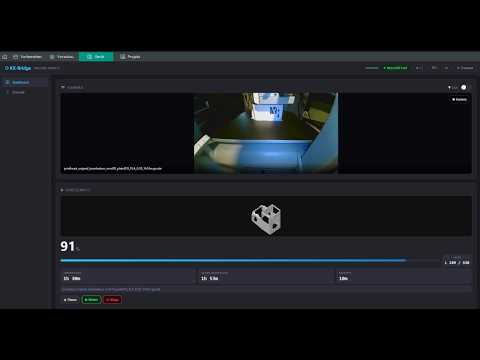](https://www.youtube.com/watch?v=1Ql4wfH27fM)
|
||||
|
||||
---
|
||||
|
||||
## 🎨 Empfohlener Slicer
|
||||
|
||||
Für sauberen AMS-Filament-Sync gibt es einen **gepatchten OrcaSlicer-Build**:
|
||||
|
||||
→ **[OrcaSlicer-KX Releases](https://gitea.it-drui.de/viewit/OrcaSlicer-KX/releases/latest)** (Linux AppImage + Windows ZIP)
|
||||
|
||||
**Upstream-PRs im KX-Build:**
|
||||
|
||||
- **[PR #13372](https://github.com/SoftFever/OrcaSlicer/pull/13372)** — Moonraker / Happy-Hare AMS-Sync-Fix (Slot-Positionen bleiben auch bei leerem Slot in der Mitte korrekt)
|
||||
- **[PR #13719](https://github.com/SoftFever/OrcaSlicer/pull/13719)** — Vendor- + Name-Matching für Moonraker (liest `name` + `vendor_name` pro Slot und matched gegen deine Filament-Presets), von [@LordGuenni](https://github.com/LordGuenni)
|
||||
- **[PR #13315](https://github.com/SoftFever/OrcaSlicer/pull/13315)** — Eindeutige `filament_id` für User-Presets (neu erstellte eigene Profile bekommen eine frische ID statt das `OGFL99` vom Generic-Parent zu erben), von [@mrnoisytiger](https://github.com/mrnoisytiger)
|
||||
|
||||
**Plus vier KX-eigene Verbesserungen on top:**
|
||||
|
||||
- Bridge-Filament-Hint (`tray_info_idx` + Vendor) respektieren
|
||||
- Vendor-Match auch wenn das gewählte Base-Preset **nicht is_compatible** mit dem aktiven Drucker ist (so matchen Profile aus anderen Drucker-Setups trotzdem über die Marke)
|
||||
- Vendor-Match wenn `tray_info_idx` gesetzt ist, das Preset aber inkompatibel
|
||||
- Zwei-Pass-Suche: erst kompatible Presets, dann alle sichtbaren
|
||||
|
||||
**Warum das zusammen wichtig ist:** ohne #13719 landen die AMS-Slots in OrcaSlicer alle auf `Generic PLA` / `Generic PETG`, obwohl die Bridge die konkrete Marke schon mitsendet (`name + vendor_name + gate_filament_name`). Mit dem KX-Build matched OrcaSlicer deine echten User-Presets — auch die, die du via [Eigene OrcaSlicer-Profile importieren](#-features) in die Bridge gezogen hast.
|
||||
|
||||
Stock-Upstream-OrcaSlicer funktioniert für Slicing und Drucken weiterhin — nur das Per-Slot-Vendor-Matching beim AMS-Sync fällt dann weg. Material und Farbe pro Slot kannst du auch ohne den KX-Build über die Bridge ans Drucker-Display schreiben (das läuft über MQTT, nicht über den Slicer).
|
||||
|
||||
OrcaSlicer-KX ist ein Build von [OrcaSlicer](https://github.com/SoftFever/OrcaSlicer) (AGPL-3.0); der Quellcode der Upstream-PRs ist auf GitHub, die KX-spezifischen Patches im OrcaSlicer-KX-Repo.
|
||||
|
||||
---
|
||||
|
||||
## 🏠 Community & Integrationen
|
||||
|
||||
- **[Home-Assistant-Integration](https://github.com/gangoke/kobrax-lan-hass-component)**
|
||||
von [@gangoke](https://github.com/gangoke) — bindet Sensoren, Drucksteuerung,
|
||||
Licht, Kamera und das GCode-Vorschaubild als native Home-Assistant-Entitäten ein.
|
||||
- **[Obico (selbst gehostet)](https://github.com/TheSpaghettiDetective/obico-server)** —
|
||||
die Bridge bietet eine Moonraker-kompatible API, die
|
||||
[moonraker-obico](https://github.com/TheSpaghettiDetective/moonraker-obico)
|
||||
akzeptiert; damit hast du Time-Lapse und WebRTC-Live-Stream gegen deinen
|
||||
eigenen Obico-Server. Die KI-Spaghetti-Erkennung ist beim Kobra X
|
||||
experimentell — der Top-Down-Kamerawinkel weicht von dem ab, auf den
|
||||
das Modell trainiert wurde.
|
||||
|
||||
> Dies sind **Community-Projekte**, die nicht von KX-Bridge betreut oder
|
||||
> supportet werden. Bei Fragen oder Problemen bitte das verlinkte Repository nutzen.
|
||||
|
||||
---
|
||||
|
||||
## 🔧 Zugangsdaten manuell ermitteln
|
||||
|
||||
Normalerweise nicht nötig — *„+ Drucker hinzufügen"* macht das automatisch. Falls doch:
|
||||
|
||||
```bash
|
||||
fetch_credentials --ip 192.168.x.x --write-config
|
||||
```
|
||||
Holt die Zugangsdaten per HTTP direkt vom Drucker und schreibt sie in `config/config.ini`.
|
||||
Nur die Drucker-IP nötig, kein Slicer.
|
||||
|
||||
Holt die Credentials direkt per HTTP vom Drucker und schreibt sie automatisch in `config/config.ini`. Benötigt nur die Drucker-IP — kein Slicer nötig.
|
||||
Alternativ (wenn die IP unbekannt ist): AnycubicSlicerNext öffnen, Drucker verbinden,
|
||||
dann `extract_credentials` ausführen → gibt Username, Passwort, Device-ID und IP aus.
|
||||
|
||||
**Option B – extract_credentials (wenn Drucker-IP unbekannt):**
|
||||
> **Downloads:** [Releases](https://gitea.it-drui.de/viewit/KX-Bridge-Release/releases) → `fetch_credentials` / `extract_credentials` (Linux & Windows)
|
||||
|
||||
1. **AnycubicSlicerNext** öffnen und Drucker verbinden (bis Status angezeigt wird)
|
||||
2. **`extract_credentials`** ausführen — gibt Username, Password, Device-ID und Drucker-IP aus
|
||||
3. Werte im Web-UI eintragen (⚙-Menü)
|
||||
---
|
||||
|
||||
> **Download:** [gitea.it-drui.de/viewit/KX-Bridge-Release/releases](https://gitea.it-drui.de/viewit/KX-Bridge-Release/releases) → `fetch_credentials` / `extract_credentials` (Linux & Windows) im jeweiligen Release-Asset
|
||||
|
||||
### Schritt 3 – Bridge starten
|
||||
## ⚙️ Nützliche Befehle
|
||||
|
||||
```bash
|
||||
./start.sh
|
||||
```
|
||||
|
||||
Das Skript baut das Docker-Image automatisch beim ersten Aufruf.
|
||||
|
||||
**Web-UI öffnen:** `http://BRIDGE-IP:7125`
|
||||
→ Das ⚙-Menü öffnet sich beim ersten Start automatisch
|
||||
→ Bei Option B: Credentials aus Schritt 2 eintragen → **Speichern & Neustart**
|
||||
|
||||
**OrcaSlicer verbinden:**
|
||||
Drucker → Verbindungstyp **Moonraker** → Host: `http://BRIDGE-IP:7125`
|
||||
|
||||
> **Wichtig:** Verbindungstyp muss **Moonraker** sein (nicht „Bambu" oder „Klipper").
|
||||
> Im Host-Feld vollständige URL mit `http://` und Port `:7125` angeben.
|
||||
|
||||
---
|
||||
|
||||
## 📺 Video Tutorial
|
||||
|
||||
[](https://www.youtube.com/watch?v=1Ql4wfH27fM)
|
||||
|
||||
---
|
||||
|
||||
## ⚠️ Update von 0.9.1 oder älter
|
||||
|
||||
Ab **0.9.2** speichert KX-Bridge Einstellungen in `config/config.ini` statt in `.env`.
|
||||
|
||||
**Migration erfolgt automatisch** — keine manuelle Aktion nötig:
|
||||
- Beim ersten Start nach dem Update liest die Bridge die vorhandene `.env` und erstellt `config/config.ini` automatisch
|
||||
- Einstellungen bleiben ab sofort nach `docker-compose restart` und zukünftigen Updates erhalten
|
||||
- Die `.env`-Datei bleibt read-only gemountet als Migrationsquelle — kann liegen bleiben
|
||||
- Zum manuellen Anlegen einer `config.ini`: Vorlage unter `config/config.ini.example` kopieren
|
||||
|
||||
---
|
||||
|
||||
## Was wird unterstützt?
|
||||
|
||||
| Funktion | Details |
|
||||
|----------|---------|
|
||||
| Druckerstatus | Temperatur, Fortschritt, Zustand, Restzeit |
|
||||
| Drucksteuerung | Start, Pause, Fortsetzen, Abbrechen |
|
||||
| Temperaturregelung | Nozzle und Bett während des Drucks |
|
||||
| Druckgeschwindigkeit | Leise / Normal / Sport |
|
||||
| AMS-Farbwechsel | Filament einziehen / ausziehen |
|
||||
| Licht & Lüfter | Drucklicht und Lüfterdrehzahl |
|
||||
| Web-UI | Dashboard, Achsensteuerung, Kameraansicht |
|
||||
| Self-Update | Neue Versionen direkt im Browser installieren |
|
||||
| OrcaSlicer | Moonraker-Protokoll (HTTP + WebSocket) |
|
||||
|
||||
---
|
||||
|
||||
## Alternativen zu Docker
|
||||
|
||||
**Linux Binary** (kein Docker nötig):
|
||||
```bash
|
||||
chmod +x kx-bridge
|
||||
./kx-bridge
|
||||
```
|
||||
|
||||
**Python direkt:**
|
||||
```bash
|
||||
pip install aiohttp
|
||||
python bridge/kobrax_moonraker_bridge.py
|
||||
```
|
||||
|
||||
Web-UI jeweils unter `http://localhost:7125` — ⚙-Menü führt durch die Erstkonfiguration.
|
||||
|
||||
---
|
||||
|
||||
## Nützliche Befehle
|
||||
|
||||
```bash
|
||||
# Logs anzeigen
|
||||
docker-compose logs -f
|
||||
|
||||
# Bridge stoppen
|
||||
docker-compose down
|
||||
|
||||
# Bridge neu starten (nach Update)
|
||||
./start.sh
|
||||
docker compose logs -f # Logs anzeigen
|
||||
docker compose down # Bridge stoppen
|
||||
docker compose pull && docker compose up -d # auf neueste veröffentlichte Version updaten
|
||||
docker compose up -d --build # lokal selber bauen (statt zu pullen)
|
||||
```
|
||||
|
||||
---
|
||||
|
||||
## Fehlerbehebung
|
||||
## 🌙 Nightly-Builds
|
||||
|
||||
**„Falsche MQTT-Zugangsdaten"** beim Start:
|
||||
- `fetch_credentials --ip <Drucker-IP> --write-config` erneut ausführen und Bridge neu starten
|
||||
- Wenn IP unbekannt: AnycubicSlicerNext neu starten, Drucker verbinden, `extract_credentials` erneut ausführen
|
||||
- Nur die IP-Adresse ins Feld eintragen, keinen Port (✗ `192.168.1.102:9883` → ✓ `192.168.1.102`)
|
||||
Nightly-Builds enthalten die neuesten unveröffentlichten Features und werden automatisch bei jedem Entwicklungs-Push gebaut.
|
||||
Sie können instabil sein — für Tests oder frühen Zugriff auf neue Funktionen geeignet.
|
||||
|
||||
**Drucker nicht gefunden / kein LAN-Modus:**
|
||||
- Am Drucker-Display: Einstellungen → LAN-Modus einschalten
|
||||
```bash
|
||||
docker compose -f docker-compose.yml -f docker-compose.nightly.yml pull
|
||||
docker compose -f docker-compose.yml -f docker-compose.nightly.yml up -d
|
||||
```
|
||||
|
||||
Zurück zum stabilen Release:
|
||||
|
||||
```bash
|
||||
docker compose pull && docker compose up -d
|
||||
```
|
||||
|
||||
---
|
||||
|
||||
## 🩹 Troubleshooting
|
||||
|
||||
<details>
|
||||
<summary><b>"Falsche MQTT-Zugangsdaten" beim Start</b></summary>
|
||||
|
||||
- Drucker über *„+ Drucker hinzufügen"* erneut hinzufügen, oder
|
||||
`fetch_credentials --ip <ip> --write-config` ausführen und Bridge neu starten
|
||||
- Nur die IP-Adresse eingeben, ohne Port (✗ `192.168.1.102:9883` → ✓ `192.168.1.102`)
|
||||
</details>
|
||||
|
||||
<details>
|
||||
<summary><b>Drucker nicht gefunden / kein LAN-Modus</b></summary>
|
||||
|
||||
- Am Drucker-Display: Einstellungen → LAN-Modus aktivieren
|
||||
- Drucker und Bridge müssen im selben Netzwerk sein
|
||||
</details>
|
||||
|
||||
<details>
|
||||
<summary><b>Docker: Permission denied</b></summary>
|
||||
|
||||
**Docker: Permission denied:**
|
||||
```bash
|
||||
sudo usermod -aG docker $USER # dann neu einloggen
|
||||
sudo usermod -aG docker $USER # danach aus- und wieder einloggen
|
||||
```
|
||||
</details>
|
||||
|
||||
<details>
|
||||
<summary><b>Upgrade von 0.9.1 oder älter</b></summary>
|
||||
|
||||
Ab 0.9.2 speichert KX-Bridge die Einstellungen in `config/config.ini` statt `.env`.
|
||||
Die Migration läuft automatisch beim ersten Start nach dem Upgrade — keine Aktion nötig.
|
||||
</details>
|
||||
|
||||
---
|
||||
|
||||
## Sicherheitshinweise
|
||||
## 🔒 Sicherheit
|
||||
|
||||
- Die Bridge ist im lokalen Netzwerk erreichbar unter `http://<Host-IP>:7125` — nicht ins Internet freigeben
|
||||
- `config/config.ini` enthält Drucker-Credentials — nicht öffentlich teilen
|
||||
- Credentials haben keinen Zugang zu Anycubic-Cloud-Diensten
|
||||
- Die Bridge ist im lokalen Netzwerk unter `http://<host-IP>:7125` erreichbar — **nicht** ins Internet exposen
|
||||
- `config/config.ini` enthält Drucker-Zugangsdaten — nicht öffentlich teilen
|
||||
- Die Zugangsdaten geben **keinen** Zugriff auf Anycubic-Cloud-Dienste
|
||||
|
||||
---
|
||||
|
||||
## Lizenz & Rechtliches
|
||||
## 📄 Lizenz
|
||||
|
||||
Interoperabilitätsforschung gem. §69e UrhG — ausschließlich private, nicht-kommerzielle Nutzung.
|
||||
[](LICENSE)
|
||||
|
||||
<p align="center">
|
||||
<a href="https://ko-fi.com/viewitde">
|
||||
<img src="https://ko-fi.com/img/githubbutton_sm.svg" alt="Ko-fi Support"/>
|
||||
</a>
|
||||
</p>
|
||||
KX-Bridge steht unter der **GNU General Public License v3.0** ([LICENSE](LICENSE)).
|
||||
Forks und Erweiterungen müssen bei Weitergabe ebenfalls unter GPLv3 stehen.
|
||||
|
||||
Die MQTT-Protokoll-Implementierung ist das Ergebnis unabhängiger
|
||||
Reverse-Engineering-Arbeit zur Herstellung der Interoperabilität (§69e UrhG /
|
||||
EU-Softwarerichtlinie Art. 6). Drittmaterial im Repository (Anycubic-
|
||||
TLS-Zertifikate) fällt **nicht** unter die GPLv3 und ist ausschließlich
|
||||
enthalten, um die Authentifizierung am eigenen Drucker zu ermöglichen.
|
||||
Details + Disclaimer in [NOTICE.md](NOTICE.md).
|
||||
|
||||
Dieses Projekt ist unabhängig und steht in keinem Zusammenhang mit Anycubic.
|
||||
|
||||
<div align="center">
|
||||
<br>
|
||||
|
||||
**Wenn dir KX-Bridge hilft, freut sich das Projekt über Unterstützung:**
|
||||
|
||||
[](https://ko-fi.com/viewitde)
|
||||
|
||||
</div>
|
||||
|
||||
147
README.dev.md
Normal file
147
README.dev.md
Normal file
@@ -0,0 +1,147 @@
|
||||
<p align="center"><img src="knlogo.png" alt="KX-Bridge Logo" width="180"/></p>
|
||||
|
||||
# KX-Bridge – Dev Branch
|
||||
|
||||
> **Achtung:** Dies ist der Entwicklungs-Branch. Builds hier sind experimentell und nicht für den produktiven Einsatz geeignet.
|
||||
> Für stabile Releases → [KX-Bridge-Release](https://gitea.it-drui.de/viewit/KX-Bridge-Release/releases)
|
||||
|
||||
---
|
||||
|
||||
## Versionsschema
|
||||
|
||||
Dev-Builds verwenden das Format:
|
||||
|
||||
```
|
||||
<basis-version>-dev+<git-hash>
|
||||
```
|
||||
|
||||
**Beispiel:** `0.9.1-dev+04a6a20`
|
||||
|
||||
- `0.9.1` – Basis der aktuellen stabilen Version
|
||||
- `-dev` – kennzeichnet den Entwicklungs-Branch
|
||||
- `+04a6a20` – 7-stelliger Git-Commit-Hash, eindeutig je Build
|
||||
|
||||
---
|
||||
|
||||
## Dev-Binaries testen
|
||||
|
||||
Dev-Releases sind auf Gitea als Pre-Releases verfügbar:
|
||||
[Dev-Releases](https://gitea.it-drui.de/viewit/KX-Bridge-Release/releases)
|
||||
|
||||
### Docker (empfohlen)
|
||||
|
||||
```bash
|
||||
git clone <repo-url> -b dev
|
||||
cd kobrax
|
||||
docker compose up -d
|
||||
```
|
||||
|
||||
### Linux-Binary
|
||||
|
||||
```bash
|
||||
# Dev-Release herunterladen (kx-bridge-linux.zip)
|
||||
unzip kx-bridge-linux.zip
|
||||
chmod +x kx-bridge
|
||||
./kx-bridge
|
||||
```
|
||||
|
||||
`config/config.ini` und `data/` (SQLite + GCode-Store) werden **neben dem Binary**
|
||||
angelegt. Beim Erststart ohne Drucker zeigt die UI auf `http://localhost:7125` den
|
||||
Drucker-Tab mit "+ Drucker hinzufügen" — dort nur die IP eingeben, der Rest wird
|
||||
automatisch importiert.
|
||||
|
||||
### Windows-EXE
|
||||
|
||||
```
|
||||
# Dev-Release herunterladen (kx-bridge-windows.zip)
|
||||
# kx-bridge.exe starten — config/ und data/ liegen daneben
|
||||
```
|
||||
|
||||
---
|
||||
|
||||
## Update-Kanal
|
||||
|
||||
Dev-Versionen prüfen automatisch auf neue **Dev-Releases** — nicht auf stabile Releases.
|
||||
Im Settings-Modal → „Auf Updates prüfen" zeigt den neuesten Dev-Build an.
|
||||
|
||||
---
|
||||
|
||||
## Aktive Entwicklung (Stand 2026-05-10)
|
||||
|
||||
Stand `dev`-Branch über v0.9.7 hinaus:
|
||||
|
||||
| Feature | Status |
|
||||
|---------|--------|
|
||||
| MMU-Emulation (`/printer/objects/query?mmu`) für OrcaSlicer Filament-Sync | ✅ |
|
||||
| GCode Store (SQLite + Thumbnails) | ✅ |
|
||||
| Browser-Tab mit Suche/Filter/Sortierung | ✅ |
|
||||
| Filament-Dialog: Per-Kanal-Remapping (GCode-Kanal → AMS-Slot) | ✅ |
|
||||
| MQTT Print-Payload `ams_settings.ams_box_mapping` (nested) | ✅ |
|
||||
| Print-History in SQLite | ✅ |
|
||||
| Multi-Printer Support (Drucker-Tab + Header-Dropdown) | ✅ |
|
||||
| **Multi-Printer in einer Bridge-Instanz** (ein Prozess, N Listener) | ✅ |
|
||||
| Drucker-Emulator (`_archive/tools/kx_printer_emulator.py`) | ✅ |
|
||||
| i18n DE/EN für alle neuen UI-Elemente | ✅ |
|
||||
|
||||
---
|
||||
|
||||
## Multi-Printer-Setup
|
||||
|
||||
Eine Bridge-Instanz kann jetzt mehrere Drucker gleichzeitig verwalten — ein Prozess,
|
||||
N MQTT-Verbindungen, N HTTP-Listener, geteilte SQLite + GCode-Verzeichnis.
|
||||
|
||||
### Konfiguration
|
||||
|
||||
In `config/config.ini` pro Drucker eine `[printer_N]`-Sektion anlegen:
|
||||
|
||||
```ini
|
||||
[printer_1]
|
||||
name = Kobra X
|
||||
printer_ip = <DRUCKER_IP_1>
|
||||
mqtt_port = 9883
|
||||
username = <MQTT_USER>
|
||||
password = <MQTT_PASSWORT>
|
||||
mode_id = 20030
|
||||
device_id = <DEVICE_ID_1>
|
||||
http_port = 7125
|
||||
|
||||
[printer_2]
|
||||
name = Drucker 2
|
||||
printer_ip = <DRUCKER_IP_2>
|
||||
mqtt_port = 9883
|
||||
username = <MQTT_USER>
|
||||
password = <MQTT_PASSWORT>
|
||||
mode_id = 20030
|
||||
device_id = <DEVICE_ID_2>
|
||||
http_port = 7126
|
||||
```
|
||||
|
||||
Credentials per `extract_credentials` oder `fetch_credentials` ermitteln (siehe Haupt-README).
|
||||
|
||||
`http_port` ist optional — Default ist `7125 + (N-1)`. Wenn keine `[printer_N]`-Sektionen
|
||||
existieren, läuft die Bridge im klassischen Einzel-Modus mit `[connection]` und einem Listener.
|
||||
|
||||
### Docker
|
||||
|
||||
`docker-compose.yml` exposed jetzt einen Port-Range `7125-7130`:
|
||||
|
||||
```yaml
|
||||
ports:
|
||||
- "7125-7130:7125-7130"
|
||||
```
|
||||
|
||||
```bash
|
||||
docker compose up -d
|
||||
# Drucker 1: http://localhost:7125
|
||||
# Drucker 2: http://localhost:7126
|
||||
```
|
||||
|
||||
OrcaSlicer / Mainsail richten den Klipper-Endpunkt pro Drucker auf den jeweiligen Port —
|
||||
keine Slicer-Anpassungen nötig.
|
||||
|
||||
---
|
||||
|
||||
## Stabile Version
|
||||
|
||||
Für den produktiven Einsatz bitte die stabile Version verwenden:
|
||||
[→ Zum stabilen Release](https://gitea.it-drui.de/viewit/KX-Bridge-Release/releases)
|
||||
274
README.es.md
Normal file
274
README.es.md
Normal file
@@ -0,0 +1,274 @@
|
||||
<div align="center">
|
||||
|
||||
<img src="knlogo.png" alt="KX-Bridge" width="160"/>
|
||||
|
||||
# KX-Bridge
|
||||
|
||||
**Controla tu Anycubic Kobra X con OrcaSlicer — sin Klipper, sin Raspberry Pi.**
|
||||
|
||||
Un puente compatible con Moonraker que se comunica directamente con la impresora.
|
||||
|
||||
<sub>🧪 Un usuario en Reddit ha reportado que el puente también funciona con la
|
||||
**Kobra S1** y la **Kobra S1 Max** — los protocolos parecen compatibles, pero
|
||||
ninguna está oficialmente probada ni soportada. Se agradece el feedback.</sub>
|
||||
|
||||
<sub>🇬🇧 <a href="README.md">English version</a> · 🇩🇪 <a href="README.de.md">Deutsche Version</a></sub>
|
||||
|
||||
<br>
|
||||
|
||||
[](https://ko-fi.com/viewitde)
|
||||
|
||||
[](https://gitea.it-drui.de/viewit/KX-Bridge-Release/releases)
|
||||
|
||||
[](https://gitea.it-drui.de/viewit/KX-Bridge-Release/releases)
|
||||
|
||||
[](https://www.youtube.com/watch?v=1Ql4wfH27fM)
|
||||
|
||||
<sub>¿Te gusta KX-Bridge? Un café en <a href="https://ko-fi.com/viewitde">Ko-fi</a> mantiene el proyecto vivo. ☕</sub>
|
||||
|
||||
</div>
|
||||
|
||||
> [!CAUTION]
|
||||
> **Trabajos de mantenimiento en curso** — Estamos reestructurando el repositorio (modelo de ramas, flujos CI, proceso de contribución). Es posible que notes cambios en los nombres de ramas, plantillas de PR y la forma en que se publican las versiones. Pedimos disculpas por las molestias. El manejo, el flujo de trabajo y la mantenibilidad a largo plazo mejorarán considerablemente.
|
||||
>
|
||||
> 👉 ¿Quieres contribuir? Por favor lee [CONTRIBUTING.md](CONTRIBUTING.md) primero.
|
||||
|
||||
---
|
||||
|
||||
## ✨ Características
|
||||
|
||||
| | |
|
||||
|---|---|
|
||||
| 🖨️ | **Control de impresora** — iniciar, pausar, reanudar, cancelar, temperaturas, velocidad de impresión |
|
||||
| 📊 | **Estado en tiempo real** — temperatura, progreso, capas, tiempo restante, transmisión de cámara |
|
||||
| 🎨 | **AMS / multicolor** — ranuras con **selector de perfil por ranura** (asigna tu propia marca de los perfiles de OrcaSlicer a cada ranura); el puente escribe material y color al display de la impresora |
|
||||
| 📦 | **Importa tus propios perfiles de OrcaSlicer** — arrastra un ZIP de `~/.config/OrcaSlicer/user/<id>/filament/` al puente; aparecen en el desplegable de la ranura bajo ★ Perfiles propios |
|
||||
| 📷 | **Integración con Obico (experimental)** — Time-Lapse y stream en vivo WebRTC contra un [servidor Obico](https://github.com/TheSpaghettiDetective/obico-server) autoalojado vía moonraker-obico |
|
||||
| 📐 | **Stream H.264 directo + altura Z** — ruta de cámara de bajo consumo de CPU para Obico, Z actual derivada de la altura de capa (widget de progreso) |
|
||||
| 🗂️ | **Explorador de GCode** — archivos subidos con vistas previas, historial de impresión, búsqueda y filtros |
|
||||
| 🧩 | **Multi-impresora** — múltiples impresoras en **una** instancia del puente, cambia mediante un menú desplegable |
|
||||
| ➕ | **Añade una impresora con un clic** — solo introduce la IP, las credenciales se importan automáticamente |
|
||||
| 🔁 | **Reconexión MQTT robusta** — el puente sobrevive a reinicios nocturnos de la impresora sin reinicio manual |
|
||||
| 🌐 | **Interfaz multilingüe** — DE / EN / ES / FR / IT / 中文, detecta automáticamente el idioma del navegador |
|
||||
| 🔄 | **Actualización automática** — instala nuevas versiones directamente desde el navegador |
|
||||
| 🧠 | **OrcaSlicer** — protocolo Moonraker completo (HTTP + WebSocket); usa el [build OrcaSlicer-KX](#-slicer-recomendado) para emparejamiento correcto de vendor por ranura |
|
||||
|
||||
---
|
||||
|
||||
## 🚀 Inicio rápido
|
||||
|
||||
### 1. Prepara la impresora
|
||||
|
||||
Activa el modo LAN en la Kobra X:
|
||||
**Pantalla de la impresora → Ajustes → Activar modo LAN**
|
||||
|
||||
### 2. Inicia el puente
|
||||
|
||||
**Docker (recomendado):**
|
||||
```bash
|
||||
docker compose up -d
|
||||
```
|
||||
|
||||
**Binario Linux (sin Docker):**
|
||||
```bash
|
||||
chmod +x kx-bridge && ./kx-bridge
|
||||
```
|
||||
|
||||
**EXE Windows (sin Docker):**
|
||||
```
|
||||
kx-bridge.exe
|
||||
```
|
||||
> `config\` y `data\` se crean junto al EXE — instalación portátil.
|
||||
|
||||
> Con los binarios de Linux y Windows, `config/` y `data/` (configuración, SQLite, almacén de GCode)
|
||||
> viven junto al programa. Copia toda la carpeta para mover la instalación.
|
||||
|
||||
**Python directamente:**
|
||||
```bash
|
||||
pip install -r bridge/requirements.txt
|
||||
python bridge/kobrax_moonraker_bridge.py
|
||||
```
|
||||
|
||||
### 3. Configura la impresora
|
||||
|
||||
Abre la interfaz web: **`http://IP-DEL-PUENTE:7125`**
|
||||
|
||||
En el primer inicio, la pestaña **Impresoras** muestra *"+ Añadir impresora"* — solo introduce la dirección IP
|
||||
de la impresora, el resto (usuario, contraseña, ID de dispositivo) se obtiene de la impresora y se desencripta
|
||||
automáticamente. Listo.
|
||||
|
||||
> ¿Más de una impresora? Simplemente haz clic en *"+ Añadir impresora"* de nuevo — cada una recibe su propio puerto
|
||||
> (7125, 7126, …) y se puede seleccionar desde el menú desplegable del encabezado.
|
||||
|
||||
### 4. Conecta OrcaSlicer
|
||||
|
||||
Impresora → Tipo de conexión **Moonraker** → Host: `http://IP-DEL-PUENTE:7125`
|
||||
|
||||
> ⚠️ El tipo de conexión debe ser **Moonraker** (no "Bambu" ni "Klipper").
|
||||
> Introduce la URL completa incluyendo `http://` y el puerto `:7125` en el campo de host.
|
||||
|
||||
---
|
||||
|
||||
## 📺 Vídeo tutorial
|
||||
|
||||
[](https://www.youtube.com/watch?v=1Ql4wfH27fM)
|
||||
|
||||
---
|
||||
|
||||
## 🎨 Slicer recomendado
|
||||
|
||||
Para una sincronización de filamento AMS correcta ofrecemos una **versión modificada de OrcaSlicer**:
|
||||
|
||||
→ **[Lanzamientos de OrcaSlicer-KX](https://gitea.it-drui.de/viewit/OrcaSlicer-KX/releases/latest)** (Linux AppImage + Windows ZIP)
|
||||
|
||||
**PRs upstream incluidos en el build KX:**
|
||||
|
||||
- **[PR #13372](https://github.com/SoftFever/OrcaSlicer/pull/13372)** — Corrección de sincronización Moonraker / Happy-Hare AMS (las posiciones de las ranuras se mantienen correctas incluso con ranuras vacías)
|
||||
- **[PR #13719](https://github.com/SoftFever/OrcaSlicer/pull/13719)** — Coincidencia de Vendor + Nombre para Moonraker (lee `name` + `vendor_name` por ranura y los empareja con los presets de filamento del usuario), por [@LordGuenni](https://github.com/LordGuenni)
|
||||
- **[PR #13315](https://github.com/SoftFever/OrcaSlicer/pull/13315)** — `filament_id` único para presets de usuario (los perfiles nuevos reciben un ID nuevo en vez de heredar `OGFL99` del padre genérico), por [@mrnoisytiger](https://github.com/mrnoisytiger)
|
||||
|
||||
**Más cuatro mejoras específicas de KX encima:**
|
||||
|
||||
- Respetar el hint de filamento del puente (`tray_info_idx` + vendor)
|
||||
- Coincidencia por vendor incluso cuando el preset base no es **is_compatible** con la impresora activa (así un perfil copiado de otra máquina sigue coincidiendo por vendor)
|
||||
- Coincidencia por vendor cuando `tray_info_idx` está definido pero su preset es incompatible
|
||||
- Búsqueda de dos pasadas: primero presets compatibles, luego todos los visibles
|
||||
|
||||
**Por qué importa:** sin #13719 todas las ranuras AMS caen en `Generic PLA` / `Generic PETG` aunque el puente ya envíe la marca concreta (`name + vendor_name + gate_filament_name`). Con el build KX, OrcaSlicer coincide con tus presets de usuario reales — incluyendo los perfiles que importaste al puente vía [Importa tus propios perfiles de OrcaSlicer](#-características).
|
||||
|
||||
OrcaSlicer upstream también funciona para rebanar e imprimir — solo pierdes la coincidencia de vendor por ranura en la sincronización AMS. El material y color por ranura se pueden empujar puente → impresora con cualquier slicer (eso va por MQTT, no por el slicer).
|
||||
|
||||
OrcaSlicer-KX es un build de [OrcaSlicer](https://github.com/SoftFever/OrcaSlicer) (AGPL-3.0); el código fuente de cada PR upstream está en GitHub, los parches específicos de KX en el repo OrcaSlicer-KX.
|
||||
|
||||
---
|
||||
|
||||
## 🏠 Comunidad e integraciones
|
||||
|
||||
- **[Integración con Home Assistant](https://github.com/gangoke/kobrax-lan-hass-component)**
|
||||
por [@gangoke](https://github.com/gangoke) — expone sensores, controles de impresión,
|
||||
luz, cámara y la vista previa del GCode como entidades nativas de Home Assistant.
|
||||
- **[Obico (autoalojado)](https://github.com/TheSpaghettiDetective/obico-server)** —
|
||||
el puente expone una API compatible con Moonraker que
|
||||
[moonraker-obico](https://github.com/TheSpaghettiDetective/moonraker-obico)
|
||||
acepta, así obtienes Time-Lapse y streaming en vivo WebRTC contra tu propio
|
||||
servidor Obico. La detección de fallos por IA es experimental en la Kobra X
|
||||
(el ángulo cenital de la cámara difiere del que el modelo fue entrenado).
|
||||
|
||||
> Estos son **proyectos de la comunidad**, no mantenidos ni soportados por KX-Bridge.
|
||||
> Para preguntas o problemas, utiliza el repositorio enlazado.
|
||||
|
||||
---
|
||||
|
||||
## 🔧 Obtener credenciales manualmente
|
||||
|
||||
Normalmente no es necesario — *"+ Añadir impresora"* lo hace automáticamente. Si lo necesitas:
|
||||
|
||||
```bash
|
||||
fetch_credentials --ip 192.168.x.x --write-config
|
||||
```
|
||||
Obtiene las credenciales directamente de la impresora vía HTTP y las escribe en `config/config.ini`.
|
||||
Solo se requiere la IP de la impresora, no hace falta un slicer.
|
||||
|
||||
Alternativamente (si se desconoce la IP): abre AnycubicSlicerNext, conecta la impresora, luego ejecuta
|
||||
`extract_credentials` → muestra usuario, contraseña, ID de dispositivo y la IP de la impresora.
|
||||
|
||||
> **Descargas:** [Lanzamientos](https://gitea.it-drui.de/viewit/KX-Bridge-Release/releases) → `fetch_credentials` / `extract_credentials` (Linux y Windows)
|
||||
|
||||
---
|
||||
|
||||
## ⚙️ Comandos útiles
|
||||
|
||||
```bash
|
||||
docker compose logs -f # mostrar registros
|
||||
docker compose down # detener el puente
|
||||
docker compose pull && docker compose up -d # actualizar a la imagen publicada más reciente
|
||||
docker compose up -d --build # recompilar localmente (en lugar de descargar)
|
||||
```
|
||||
|
||||
---
|
||||
|
||||
## 🌙 Builds nocturnos (Nightly)
|
||||
|
||||
Los builds nocturnos contienen las últimas funciones no publicadas y se generan automáticamente en cada push de desarrollo.
|
||||
Pueden ser inestables — úsalos para pruebas o acceso anticipado a nuevas funciones.
|
||||
|
||||
```bash
|
||||
docker compose -f docker-compose.yml -f docker-compose.nightly.yml pull
|
||||
docker compose -f docker-compose.yml -f docker-compose.nightly.yml up -d
|
||||
```
|
||||
|
||||
Volver a la versión estable:
|
||||
|
||||
```bash
|
||||
docker compose pull && docker compose up -d
|
||||
```
|
||||
|
||||
---
|
||||
|
||||
## 🩹 Solución de problemas
|
||||
|
||||
<details>
|
||||
<summary><b>"Credenciales MQTT incorrectas" al iniciar</b></summary>
|
||||
|
||||
- Vuelve a añadir la impresora mediante *"+ Añadir impresora"*, o ejecuta
|
||||
`fetch_credentials --ip <ip> --write-config` y reinicia el puente
|
||||
- Introduce solo la dirección IP, sin puerto (✗ `192.168.1.102:9883` → ✓ `192.168.1.102`)
|
||||
</details>
|
||||
|
||||
<details>
|
||||
<summary><b>Impresora no encontrada / modo LAN no activado</b></summary>
|
||||
|
||||
- En la pantalla de la impresora: Ajustes → Activar modo LAN
|
||||
- La impresora y el puente deben estar en la misma red
|
||||
</details>
|
||||
|
||||
<details>
|
||||
<summary><b>Docker: Permiso denegado</b></summary>
|
||||
|
||||
```bash
|
||||
sudo usermod -aG docker $USER # luego cierra la sesión y vuelve a iniciarla
|
||||
```
|
||||
</details>
|
||||
|
||||
<details>
|
||||
<summary><b>Actualizar desde 0.9.1 o anterior</b></summary>
|
||||
|
||||
A partir de 0.9.2, KX-Bridge almacena la configuración en `config/config.ini` en lugar de `.env`.
|
||||
La migración se ejecuta automáticamente en el primer inicio después de la actualización — no requiere acción.
|
||||
</details>
|
||||
|
||||
---
|
||||
|
||||
## 🔒 Seguridad
|
||||
|
||||
- El puente es accesible en la red local en `http://<IP-del-host>:7125` — **no** lo expongas a internet
|
||||
- `config/config.ini` contiene las credenciales de la impresora — no las compartas públicamente
|
||||
- Las credenciales **no** otorgan acceso a los servicios en la nube de Anycubic
|
||||
|
||||
---
|
||||
|
||||
## 📄 Licencia
|
||||
|
||||
[](LICENSE)
|
||||
|
||||
KX-Bridge se publica bajo la **GNU General Public License v3.0**. Consulta
|
||||
[LICENSE](LICENSE) para el texto completo. Las bifurcaciones y modificaciones deben
|
||||
permanecer bajo GPLv3 si se redistribuyen.
|
||||
|
||||
La implementación del protocolo MQTT es el resultado de una ingeniería inversa
|
||||
independiente con fines de interoperabilidad (§69e UrhG / Directiva de Software de la UE
|
||||
Art. 6). El material de terceros en el repositorio (certificados TLS de Anycubic)
|
||||
**no** está cubierto por GPLv3 y se incluye únicamente para permitir la
|
||||
autenticación contra impresoras que el usuario final ya posee. Consulta
|
||||
[NOTICE.md](NOTICE.md) para más detalles y el aviso legal.
|
||||
|
||||
Este proyecto es independiente y no está afiliado con Anycubic.
|
||||
|
||||
<div align="center">
|
||||
<br>
|
||||
|
||||
**Si KX-Bridge te ayuda, el proyecto agradece tu apoyo:**
|
||||
|
||||
[](https://ko-fi.com/viewitde)
|
||||
|
||||
</div>
|
||||
285
README.md
285
README.md
@@ -1,47 +1,110 @@
|
||||
<p align="center"><img src="knlogo.png" alt="KX-Bridge Logo" width="180"/></p>
|
||||
<div align="center">
|
||||
|
||||
# KX-Bridge – Anycubic Kobra X
|
||||
<img src="knlogo.png" alt="KX-Bridge" width="160"/>
|
||||
|
||||
**Version:** 0.9.8
|
||||
# KX-Bridge
|
||||
|
||||
Control your **Anycubic Kobra X** with OrcaSlicer — no Klipper, no Raspberry Pi.
|
||||
KX-Bridge is a Moonraker-compatible bridge that communicates directly with the printer.
|
||||
**Control your Anycubic Kobra X with OrcaSlicer — no Klipper, no Raspberry Pi.**
|
||||
|
||||
A Moonraker-compatible bridge that talks directly to the printer.
|
||||
|
||||
<sub>🧪 A community report on Reddit suggests the bridge also works with the
|
||||
**Kobra S1** and **Kobra S1 Max** — protocols look compatible, but neither is
|
||||
officially tested or supported. Feedback welcome.</sub>
|
||||
|
||||
<sub>🇩🇪 <a href="README.de.md">Deutsche Version</a> · 🇪🇸 <a href="README.es.md">Versión española</a></sub>
|
||||
|
||||
<br>
|
||||
|
||||
[](https://ko-fi.com/viewitde)
|
||||
|
||||
[](https://gitea.it-drui.de/viewit/KX-Bridge-Release/releases)
|
||||
|
||||
[](https://gitea.it-drui.de/viewit/KX-Bridge-Release/releases)
|
||||
|
||||
[](https://www.youtube.com/watch?v=1Ql4wfH27fM)
|
||||
|
||||
<sub>Like KX-Bridge? A coffee on <a href="https://ko-fi.com/viewitde">Ko-fi</a> keeps the project alive. ☕</sub>
|
||||
|
||||
</div>
|
||||
|
||||
> [!CAUTION]
|
||||
> **Ongoing maintenance work** — We are restructuring the repository (branch model, CI workflows, contribution process). You may notice changes to branch names, PR templates, and how releases are published. We apologise for any inconvenience. Handling, workflow, and long-term maintainability will be significantly improved as a result.
|
||||
>
|
||||
> 👉 Want to contribute? Please read [CONTRIBUTING.md](CONTRIBUTING.md) first.
|
||||
|
||||
---
|
||||
|
||||
## Quick Start in 3 Steps
|
||||
## ✨ Features
|
||||
|
||||
### Step 1 – Prepare the printer
|
||||
| | |
|
||||
|---|---|
|
||||
| 🖨️ | **Printer control** — start, pause, resume, cancel, temperatures, print speed |
|
||||
| 📊 | **Live status** — temperature, progress, layers, remaining time, camera stream |
|
||||
| 🎨 | **AMS / multicolor** — slots with per-slot **profile picker** (assign your own brand from OrcaSlicer profiles per slot); bridge writes material & colour back to the printer display |
|
||||
| 📦 | **Import your own OrcaSlicer profiles** — drag a ZIP from `~/.config/OrcaSlicer/user/<id>/filament/` into the bridge; they show up in the slot dropdown under ★ Own profiles |
|
||||
| 📷 | **Obico integration (experimental)** — Time-Lapse and WebRTC live stream against a self-hosted [Obico server](https://github.com/TheSpaghettiDetective/obico-server) via moonraker-obico |
|
||||
| 📐 | **Direct H.264 stream + Z-height** — low-CPU camera path for Obico, current Z derived from layer-height for the print-progress widget |
|
||||
| 🗂️ | **GCode browser** — uploaded files with thumbnails, print history, search & filter |
|
||||
| 🧩 | **Multi-printer** — multiple printers in **one** bridge instance, switch via dropdown |
|
||||
| ➕ | **Add a printer with one click** — just enter the IP, credentials are imported automatically |
|
||||
| 🔁 | **Robust MQTT reconnect** — bridge survives overnight printer reboots without manual restart |
|
||||
| 🌐 | **Multi-language UI** — DE / EN / ES / FR / IT / 中文, auto-detect browser locale |
|
||||
| 🔄 | **Self-update** — install new versions directly in the browser |
|
||||
| 🧠 | **OrcaSlicer** — full Moonraker protocol (HTTP + WebSocket); pair with the [OrcaSlicer-KX build](#-recommended-slicer) for proper per-slot vendor matching |
|
||||
|
||||
Enable LAN mode on the Kobra X:
|
||||
---
|
||||
|
||||
## 🚀 Quick Start
|
||||
|
||||
### 1. Prepare the printer
|
||||
|
||||
Enable LAN mode on the Kobra X:
|
||||
**Printer display → Settings → Enable LAN mode**
|
||||
|
||||
### Step 2 – Get credentials
|
||||
|
||||
The MQTT credentials are printer-specific. Here's how to get them:
|
||||
|
||||
1. Open **AnycubicSlicerNext** and connect the printer (wait until status is shown)
|
||||
2. Run **`extract_credentials.exe`** (Windows) or **`extract_credentials`** (Linux) — outputs Username, Password, Device ID and printer IP
|
||||
3. Note / copy the values
|
||||
|
||||
> **Download:** [gitea.it-drui.de/viewit/KX-Bridge-Release/releases](https://gitea.it-drui.de/viewit/KX-Bridge-Release/releases) → `extract_credentials.exe` (Windows) / `extract_credentials` (Linux) in the release assets
|
||||
|
||||
### Step 3 – Start the bridge
|
||||
### 2. Start the bridge
|
||||
|
||||
**Docker (recommended):**
|
||||
```bash
|
||||
./start.sh
|
||||
docker compose up -d
|
||||
```
|
||||
|
||||
The script builds the Docker image automatically on first run.
|
||||
**Linux binary (no Docker):**
|
||||
```bash
|
||||
chmod +x kx-bridge && ./kx-bridge
|
||||
```
|
||||
|
||||
**Open Web-UI:** `http://BRIDGE-IP:7125`
|
||||
→ The ⚙ menu opens automatically on first start
|
||||
→ Enter credentials from Step 2 → **Save & Restart**
|
||||
**Windows EXE (no Docker):**
|
||||
```
|
||||
kx-bridge.exe
|
||||
```
|
||||
> `config\` and `data\` are created next to the EXE — portable.
|
||||
|
||||
> With the Linux and Windows binaries, `config/` and `data/` (settings, SQLite, GCode store)
|
||||
> live next to the program. Copy the whole folder = move the installation.
|
||||
|
||||
**Python directly:**
|
||||
```bash
|
||||
pip install -r bridge/requirements.txt
|
||||
python bridge/kobrax_moonraker_bridge.py
|
||||
```
|
||||
|
||||
### 3. Set up the printer
|
||||
|
||||
Open the Web UI: **`http://BRIDGE-IP:7125`**
|
||||
|
||||
On first start the **Printers tab** shows *"+ Add printer"* — just enter the printer's IP
|
||||
address, the rest (username, password, device ID) is fetched from the printer and decrypted
|
||||
automatically. Done.
|
||||
|
||||
> More than one printer? Just click *"+ Add printer"* again — each gets its own port
|
||||
> (7125, 7126, …) and is selectable from the header dropdown.
|
||||
|
||||
### 4. Connect OrcaSlicer
|
||||
|
||||
**Connect OrcaSlicer:**
|
||||
Printer → Connection type **Moonraker** → Host: `http://BRIDGE-IP:7125`
|
||||
|
||||
> **Important:** Connection type must be **Moonraker** (not "Bambu" or "Klipper").
|
||||
> ⚠️ Connection type must be **Moonraker** (not "Bambu" or "Klipper").
|
||||
> Enter the full URL including `http://` and port `:7125` in the host field.
|
||||
|
||||
---
|
||||
@@ -52,98 +115,160 @@ Printer → Connection type **Moonraker** → Host: `http://BRIDGE-IP:7125`
|
||||
|
||||
---
|
||||
|
||||
## ⚠️ Upgrading from 0.9.1 or earlier
|
||||
## 🎨 Recommended Slicer
|
||||
|
||||
Starting with **0.9.2**, KX-Bridge stores settings in `config/config.ini` instead of `.env`.
|
||||
For proper AMS filament-sync we ship a **patched OrcaSlicer build**:
|
||||
|
||||
**Migration is automatic** — no manual action required:
|
||||
- On first start after upgrade, the bridge reads your existing `.env` and creates `config/config.ini` automatically
|
||||
- Settings now survive `docker-compose restart` and future updates
|
||||
- The `.env` file stays mounted read-only as a migration source — you can keep it in place
|
||||
- If you want to create a `config.ini` manually: copy `config/config.ini.example`
|
||||
→ **[OrcaSlicer-KX releases](https://gitea.it-drui.de/viewit/OrcaSlicer-KX/releases/latest)** (Linux AppImage + Windows ZIP)
|
||||
|
||||
**Upstream PRs bundled in the KX build:**
|
||||
|
||||
- **[PR #13372](https://github.com/SoftFever/OrcaSlicer/pull/13372)** — Moonraker / Happy-Hare AMS sync fix (slot positions stay correct even with empty slots)
|
||||
- **[PR #13719](https://github.com/SoftFever/OrcaSlicer/pull/13719)** — Vendor + Name matching for Moonraker (reads `name` + `vendor_name` per slot and matches against the user's filament presets), by [@LordGuenni](https://github.com/LordGuenni)
|
||||
- **[PR #13315](https://github.com/SoftFever/OrcaSlicer/pull/13315)** — Unique `filament_id` for user presets (so newly created custom profiles get a fresh ID instead of inheriting `OGFL99` from the generic parent), by [@mrnoisytiger](https://github.com/mrnoisytiger)
|
||||
|
||||
**Plus four KX-specific matching improvements on top:**
|
||||
|
||||
- Respect the bridge filament hint (`tray_info_idx` + vendor)
|
||||
- Vendor match also when the chosen base preset is **not is_compatible** with the active printer (so a profile copied from a different machine still matches by vendor)
|
||||
- Vendor match when `tray_info_idx` is set but its preset is incompatible
|
||||
- Two-pass lookup: first compatible presets, then all visible ones
|
||||
|
||||
**Why this matters:** without #13719 the AMS slots in OrcaSlicer all fall back to `Generic PLA` / `Generic PETG` even though the bridge already sends the concrete brand (`name + vendor_name + gate_filament_name`). With the KX build OrcaSlicer matches your actual user presets — including profiles you imported into the bridge via the [Import your own OrcaSlicer profiles](#-features) flow.
|
||||
|
||||
Stock upstream OrcaSlicer still works for slicing and printing — you just lose the per-slot brand matching on AMS sync. Slot material + colour can still be pushed bridge → printer either way (that goes over MQTT, not via the slicer).
|
||||
|
||||
OrcaSlicer-KX is a build of [OrcaSlicer](https://github.com/SoftFever/OrcaSlicer) (AGPL-3.0); source for each upstream PR is on GitHub, KX-specific patches live in the OrcaSlicer-KX repo.
|
||||
|
||||
---
|
||||
|
||||
## What's supported?
|
||||
## 🏠 Community & Integrations
|
||||
|
||||
| Feature | Details |
|
||||
|---------|---------|
|
||||
| Printer status | Temperature, progress, state, remaining time |
|
||||
| Print control | Start, pause, resume, cancel |
|
||||
| Temperature control | Nozzle and bed during print |
|
||||
| Print speed | Silent / Normal / Sport |
|
||||
| AMS filament change | Load / unload filament |
|
||||
| Light & fan | Print light and fan speed |
|
||||
| Web-UI | Dashboard, motion control, camera view |
|
||||
| Self-update | Install new versions directly in the browser |
|
||||
| OrcaSlicer | Moonraker protocol (HTTP + WebSocket) |
|
||||
- **[Home Assistant integration](https://github.com/gangoke/kobrax-lan-hass-component)**
|
||||
by [@gangoke](https://github.com/gangoke) — exposes sensors, print controls,
|
||||
light, camera and the GCode thumbnail as native Home Assistant entities.
|
||||
- **[Obico (self-hosted)](https://github.com/TheSpaghettiDetective/obico-server)** —
|
||||
the bridge exposes a Moonraker-compatible surface that
|
||||
[moonraker-obico](https://github.com/TheSpaghettiDetective/moonraker-obico)
|
||||
accepts, so you get Time-Lapse and WebRTC live streaming against your own
|
||||
Obico server. The AI failure-detection side is experimental on the Kobra X
|
||||
(top-down camera angle differs from what the model was trained on).
|
||||
|
||||
> These are **community projects**, not maintained or supported by KX-Bridge.
|
||||
> For questions or issues, please use the linked repository.
|
||||
|
||||
---
|
||||
|
||||
## Alternatives to Docker
|
||||
## 🔧 Getting credentials manually
|
||||
|
||||
Normally not needed — *"+ Add printer"* does this automatically. If you do need it:
|
||||
|
||||
**Linux binary** (no Docker needed):
|
||||
```bash
|
||||
chmod +x kx-bridge
|
||||
./kx-bridge
|
||||
fetch_credentials --ip 192.168.x.x --write-config
|
||||
```
|
||||
Fetches the credentials directly from the printer via HTTP and writes them to `config/config.ini`.
|
||||
Only the printer IP is required, no slicer.
|
||||
|
||||
**Python directly:**
|
||||
```bash
|
||||
pip install aiohttp
|
||||
python bridge/kobrax_moonraker_bridge.py
|
||||
```
|
||||
Alternatively (if the IP is unknown): open AnycubicSlicerNext, connect the printer, then run
|
||||
`extract_credentials` → outputs username, password, device ID and the printer IP.
|
||||
|
||||
Web-UI available at `http://localhost:7125` — the ⚙ menu guides through initial setup.
|
||||
> **Downloads:** [Releases](https://gitea.it-drui.de/viewit/KX-Bridge-Release/releases) → `fetch_credentials` / `extract_credentials` (Linux & Windows)
|
||||
|
||||
---
|
||||
|
||||
## Useful commands
|
||||
## ⚙️ Useful commands
|
||||
|
||||
```bash
|
||||
# Show logs
|
||||
docker-compose logs -f
|
||||
|
||||
# Stop bridge
|
||||
docker-compose down
|
||||
|
||||
# Restart bridge (after update)
|
||||
./start.sh
|
||||
docker compose logs -f # show logs
|
||||
docker compose down # stop the bridge
|
||||
docker compose pull && docker compose up -d # update to the latest published image
|
||||
docker compose up -d --build # rebuild locally (instead of pulling)
|
||||
```
|
||||
|
||||
---
|
||||
|
||||
## Troubleshooting
|
||||
## 🌙 Nightly Builds
|
||||
|
||||
**"Wrong MQTT credentials"** on start:
|
||||
- Restart AnycubicSlicerNext, reconnect the printer, run `extract_credentials` again
|
||||
Nightly builds contain the latest unreleased features and are built automatically on every development push.
|
||||
They may be unstable — use them for testing or early access to new functionality.
|
||||
|
||||
```bash
|
||||
docker compose -f docker-compose.yml -f docker-compose.nightly.yml pull
|
||||
docker compose -f docker-compose.yml -f docker-compose.nightly.yml up -d
|
||||
```
|
||||
|
||||
To go back to the stable release:
|
||||
|
||||
```bash
|
||||
docker compose pull && docker compose up -d
|
||||
```
|
||||
|
||||
---
|
||||
|
||||
## 🩹 Troubleshooting
|
||||
|
||||
<details>
|
||||
<summary><b>"Wrong MQTT credentials" on start</b></summary>
|
||||
|
||||
- Re-add the printer via *"+ Add printer"*, or run
|
||||
`fetch_credentials --ip <ip> --write-config` and restart the bridge
|
||||
- Enter only the IP address, no port (✗ `192.168.1.102:9883` → ✓ `192.168.1.102`)
|
||||
</details>
|
||||
|
||||
<details>
|
||||
<summary><b>Printer not found / no LAN mode</b></summary>
|
||||
|
||||
**Printer not found / no LAN mode:**
|
||||
- On the printer display: Settings → Enable LAN mode
|
||||
- Printer and bridge must be on the same network
|
||||
</details>
|
||||
|
||||
<details>
|
||||
<summary><b>Docker: Permission denied</b></summary>
|
||||
|
||||
**Docker: Permission denied:**
|
||||
```bash
|
||||
sudo usermod -aG docker $USER # then log out and back in
|
||||
sudo usermod -aG docker $USER # then log out and back in
|
||||
```
|
||||
</details>
|
||||
|
||||
<details>
|
||||
<summary><b>Upgrading from 0.9.1 or earlier</b></summary>
|
||||
|
||||
Starting with 0.9.2, KX-Bridge stores settings in `config/config.ini` instead of `.env`.
|
||||
Migration runs automatically on first start after the upgrade — no action required.
|
||||
</details>
|
||||
|
||||
---
|
||||
|
||||
## Security
|
||||
## 🔒 Security
|
||||
|
||||
- The bridge is accessible on the local network at `http://<host-IP>:7125` — do not expose to the internet
|
||||
- The bridge is reachable on the local network at `http://<host-IP>:7125` — **do not** expose it to the internet
|
||||
- `config/config.ini` contains printer credentials — do not share publicly
|
||||
- Credentials do not grant access to Anycubic cloud services
|
||||
- The credentials do **not** grant access to Anycubic cloud services
|
||||
|
||||
---
|
||||
|
||||
## License
|
||||
## 📄 License
|
||||
|
||||
Interoperability research under §69e UrhG — private, non-commercial use only.
|
||||
[](LICENSE)
|
||||
|
||||
<p align="center">
|
||||
<a href="https://ko-fi.com/viewitde">
|
||||
<img src="https://ko-fi.com/img/githubbutton_sm.svg" alt="Ko-fi Support"/>
|
||||
</a>
|
||||
</p>
|
||||
KX-Bridge is released under the **GNU General Public License v3.0**. See
|
||||
[LICENSE](LICENSE) for the full text. Forks and modifications must remain
|
||||
under GPLv3 if redistributed.
|
||||
|
||||
The MQTT protocol implementation is the result of independent
|
||||
reverse-engineering for interoperability purposes (§69e UrhG / EU Software
|
||||
Directive Art. 6). Third-party material in the repository (Anycubic TLS
|
||||
certificates) is **not** covered by GPLv3 and is included solely to enable
|
||||
authentication against printers the end-user already owns. See
|
||||
[NOTICE.md](NOTICE.md) for details and disclaimer.
|
||||
|
||||
This project is independent and not affiliated with Anycubic.
|
||||
|
||||
<div align="center">
|
||||
<br>
|
||||
|
||||
**If KX-Bridge helps you, the project appreciates your support:**
|
||||
|
||||
[](https://ko-fi.com/viewitde)
|
||||
|
||||
</div>
|
||||
|
||||
31
agents.md
Normal file
31
agents.md
Normal file
@@ -0,0 +1,31 @@
|
||||
# KX-Bridge Claude Agents
|
||||
|
||||
## Available Agents
|
||||
|
||||
| Agent | File | When to use |
|
||||
|---|---|---|
|
||||
| Reviewer | `.claude/agents/reviewer.md` | Before every PR — checks logic, error handling, Moonraker compatibility |
|
||||
| Changelog | `.claude/agents/changelog.md` | After merge to nightly — generates CHANGELOG.md entry from commits |
|
||||
| Test Writer | `.claude/agents/test-writer.md` | When adding new functions — derives pytest tests |
|
||||
| Nightly Prep | `.claude/agents/nightly-prep.md` | Before a release — checks readiness of nightly → main merge |
|
||||
| Docker Check | `.claude/agents/docker-check.md` | Before image push — validates Dockerfile and compose config |
|
||||
| Moonraker Debug | `.claude/agents/moonraker-debug.md` | On runtime errors — analyzes Moonraker/Klipper logs |
|
||||
|
||||
## Usage
|
||||
|
||||
In VS Code with Claude Code extension:
|
||||
```
|
||||
@reviewer → code review of current changes
|
||||
@changelog → generate CHANGELOG entry
|
||||
@test-writer → write tests for changed files
|
||||
@nightly-prep → check release readiness
|
||||
@docker-check → validate Docker config
|
||||
@moonraker-debug → analyze logs
|
||||
```
|
||||
|
||||
## Context
|
||||
|
||||
- Moonraker API: Port 7125
|
||||
- AFC lane_data: flat indexing lane1–lane4
|
||||
- Registry: `gitea.it-drui.de/viewit/kx-bridge`
|
||||
- Default PR target: `nightly`
|
||||
@@ -2,8 +2,10 @@
|
||||
# Kopiere diese Datei nach config.ini und trage deine Werte ein:
|
||||
# cp config.ini.example config.ini
|
||||
#
|
||||
# Credentials mit extract_credentials.exe (Windows) oder
|
||||
# extract_credentials (Linux) aus dem laufenden AnycubicSlicerNext auslesen.
|
||||
# Credentials automatisch eintragen:
|
||||
# python3 tools/fetch_credentials.py --ip 192.168.x.x --write-config
|
||||
# Alternativ (Windows, ohne Drucker-IP bekannt):
|
||||
# extract_credentials.exe --write-env (liest aus laufendem AnycubicSlicerNext)
|
||||
|
||||
[connection]
|
||||
# IP-Adresse des Druckers im lokalen Netzwerk
|
||||
@@ -29,6 +31,65 @@ default_ams_slot = auto
|
||||
# Auto-Leveling vor jedem Druck (1 = an, 0 = aus)
|
||||
auto_leveling = 1
|
||||
|
||||
# Kamera-Stream bei Druckstart automatisch einschalten (1 = an, 0 = aus)
|
||||
camera_on_print = 0
|
||||
|
||||
# Warnung vor Druck von Web-Uploads (1 = an, 0 = aus)
|
||||
web_upload_warning = 1
|
||||
|
||||
[bridge]
|
||||
# Poll-Intervall in Sekunden
|
||||
poll_interval = 3
|
||||
|
||||
# ─── Multi-Printer (optional) ──────────────────────────────────────────────────
|
||||
# Mehrere Drucker können als [printer_1], [printer_2], … definiert werden.
|
||||
# Jede Bridge-Instanz verbindet sich mit einem Drucker (je eigener Port).
|
||||
# bridge_url zeigt auf die jeweilige Bridge-Instanz (für den /kx/printers-Endpunkt).
|
||||
# Die [connection]-Sektion wird weiterhin als Fallback für diese Instanz verwendet.
|
||||
#
|
||||
# Beispiel:
|
||||
# [printer_1]
|
||||
# name = Kobra X Links
|
||||
# bridge_url = http://192.168.178.95:7125
|
||||
# printer_ip = 192.168.178.95
|
||||
# mqtt_port = 9883
|
||||
# username = userXXXXXXXXXX
|
||||
# password = XXXXXXXXXXXXXXX
|
||||
# device_id = xxxxxxxxxxxxxxxxxxxxxxxxxxxxxxxx
|
||||
# mode_id = 20030
|
||||
#
|
||||
# [printer_2]
|
||||
# name = Kobra X Rechts
|
||||
# bridge_url = http://192.168.178.96:7125
|
||||
# printer_ip = 192.168.178.96
|
||||
# mqtt_port = 9883
|
||||
# username = userYYYYYYYYYY
|
||||
# password = YYYYYYYYYYYYYYY
|
||||
# device_id = yyyyyyyyyyyyyyyyyyyyyyyyyyyyyyyy
|
||||
# mode_id = 20030
|
||||
|
||||
[ace_dry_presets]
|
||||
# Vordefinierte Dry-Set Presets (Temp in °C, Dauer in Sekunden)
|
||||
pla_temp = 45
|
||||
pla_duration_sec = 14400
|
||||
pla_plus_temp = 45
|
||||
pla_plus_duration_sec = 14400
|
||||
petg_temp = 50
|
||||
petg_duration_sec = 14400
|
||||
tpu_temp = 55
|
||||
tpu_duration_sec = 14400
|
||||
abs_asa_temp = 45
|
||||
abs_asa_duration_sec = 28800
|
||||
pa_pc_temp = 55
|
||||
pa_pc_duration_sec = 43200
|
||||
|
||||
# Custom Presets (Name + Temp + Dauer)
|
||||
custom_1_name = Custom 1
|
||||
custom_1_temp = 45
|
||||
custom_1_duration_sec = 14400
|
||||
custom_2_name = Custom 2
|
||||
custom_2_temp = 45
|
||||
custom_2_duration_sec = 14400
|
||||
custom_3_name = Custom 3
|
||||
custom_3_temp = 45
|
||||
custom_3_duration_sec = 14400
|
||||
|
||||
@@ -31,6 +31,88 @@ default_ams_slot = auto
|
||||
# Auto-Leveling vor jedem Druck (1 = an, 0 = aus)
|
||||
auto_leveling = 1
|
||||
|
||||
# Kamera-Stream bei Druckstart automatisch einschalten (1 = an, 0 = aus)
|
||||
camera_on_print = 0
|
||||
|
||||
# Warnung vor Druck von Web-Uploads (1 = an, 0 = aus)
|
||||
web_upload_warning = 1
|
||||
|
||||
# Nach Upload: Filament/Color-Selector automatisch öffnen (1 = an, 0 = aus)
|
||||
print_start_dialog = 1
|
||||
|
||||
# ─── Filament-Profile pro AMS-Slot (optional) ────────────────────────────────
|
||||
# Beim Slicer-Sync nimmt OrcaSlicer per Default immer "Generic PLA/PETG/...".
|
||||
# Mit diesen Mappings sendet die Bridge die konkrete Orca-Filament-ID +
|
||||
# Vendor mit (Anzeige im Slicer dann z.B. "PolyTerra PLA — Polymaker" statt
|
||||
# nur "Generic PLA"). Mapping wird über die Web-UI gepflegt.
|
||||
# Beispiel:
|
||||
# [filament_profiles]
|
||||
# slot_0_id = OGFL01
|
||||
# slot_0_vendor = Polymaker
|
||||
# slot_1_id = OGFG23
|
||||
# slot_1_vendor = Polymaker
|
||||
|
||||
[bridge]
|
||||
# Poll-Intervall in Sekunden
|
||||
poll_interval = 3
|
||||
|
||||
# ─── Multi-Printer (optional) ──────────────────────────────────────────────────
|
||||
# Mehrere Drucker können als [printer_1], [printer_2], … definiert werden.
|
||||
# Jede Bridge-Instanz verbindet sich mit einem Drucker (je eigener Port).
|
||||
# bridge_url zeigt auf die jeweilige Bridge-Instanz (für den /kx/printers-Endpunkt).
|
||||
# Die [connection]-Sektion wird weiterhin als Fallback für diese Instanz verwendet.
|
||||
#
|
||||
# Beispiel:
|
||||
# [printer_1]
|
||||
# name = Kobra X Links
|
||||
# bridge_url = http://192.168.178.95:7125
|
||||
# printer_ip = 192.168.178.95
|
||||
# mqtt_port = 9883
|
||||
# username = userXXXXXXXXXX
|
||||
# password = XXXXXXXXXXXXXXX
|
||||
# device_id = xxxxxxxxxxxxxxxxxxxxxxxxxxxxxxxx
|
||||
# mode_id = 20030
|
||||
#
|
||||
# [printer_2]
|
||||
# name = Kobra X Rechts
|
||||
# bridge_url = http://192.168.178.96:7125
|
||||
# printer_ip = 192.168.178.96
|
||||
# mqtt_port = 9883
|
||||
# username = userYYYYYYYYYY
|
||||
# password = YYYYYYYYYYYYYYY
|
||||
# device_id = yyyyyyyyyyyyyyyyyyyyyyyyyyyyyyyy
|
||||
# mode_id = 20030
|
||||
|
||||
[ace_dry_presets]
|
||||
# Vordefinierte Dry-Set Presets (Temp in °C, Dauer in Sekunden)
|
||||
pla_temp = 45
|
||||
pla_duration_sec = 14400
|
||||
pla_plus_temp = 45
|
||||
pla_plus_duration_sec = 14400
|
||||
petg_temp = 50
|
||||
petg_duration_sec = 14400
|
||||
tpu_temp = 55
|
||||
tpu_duration_sec = 14400
|
||||
abs_asa_temp = 45
|
||||
abs_asa_duration_sec = 28800
|
||||
pa_pc_temp = 55
|
||||
pa_pc_duration_sec = 43200
|
||||
|
||||
# Custom Presets (Name + Temp + Dauer)
|
||||
custom_1_name = Custom 1
|
||||
custom_1_temp = 45
|
||||
custom_1_duration_sec = 14400
|
||||
custom_2_name = Custom 2
|
||||
custom_2_temp = 45
|
||||
custom_2_duration_sec = 14400
|
||||
custom_3_name = Custom 3
|
||||
custom_3_temp = 45
|
||||
custom_3_duration_sec = 14400
|
||||
|
||||
[spoolman]
|
||||
# URL der Spoolman-Instanz (leer lassen um Spoolman zu deaktivieren)
|
||||
# server = http://192.168.x.x:7912
|
||||
|
||||
# Wie oft (Sekunden) der Filamentverbrauch während des Drucks gemeldet wird
|
||||
# (0 = nur beim Druckende)
|
||||
# sync_rate = 0
|
||||
|
||||
147
config_loader.py
147
config_loader.py
@@ -13,6 +13,7 @@ _BASE = pathlib.Path(sys.executable).parent if getattr(sys, "frozen", False) els
|
||||
CONFIG_SECTION_CONNECTION = "connection"
|
||||
CONFIG_SECTION_PRINT = "print"
|
||||
CONFIG_SECTION_BRIDGE = "bridge"
|
||||
CONFIG_SECTION_SPOOLMAN = "spoolman"
|
||||
|
||||
|
||||
def _find_config_file() -> pathlib.Path | None:
|
||||
@@ -59,7 +60,12 @@ def _load_config_file(path: pathlib.Path):
|
||||
"DEVICE_ID": (CONFIG_SECTION_CONNECTION, "device_id"),
|
||||
"DEFAULT_AMS_SLOT": (CONFIG_SECTION_PRINT, "default_ams_slot"),
|
||||
"AUTO_LEVELING": (CONFIG_SECTION_PRINT, "auto_leveling"),
|
||||
"CAMERA_ON_PRINT": (CONFIG_SECTION_PRINT, "camera_on_print"),
|
||||
"WEB_UPLOAD_WARNING": (CONFIG_SECTION_PRINT, "web_upload_warning"),
|
||||
"PRINT_START_DIALOG": (CONFIG_SECTION_PRINT, "print_start_dialog"),
|
||||
"BRIDGE_PRINTER_NAME": (CONFIG_SECTION_BRIDGE, "printer_name"),
|
||||
"SPOOLMAN_SERVER": (CONFIG_SECTION_SPOOLMAN, "server"),
|
||||
"SPOOLMAN_SYNC_RATE": (CONFIG_SECTION_SPOOLMAN, "sync_rate"),
|
||||
}
|
||||
for env_key, (section, option) in mapping.items():
|
||||
if env_key not in os.environ:
|
||||
@@ -71,6 +77,18 @@ def _load_config_file(path: pathlib.Path):
|
||||
pass
|
||||
|
||||
|
||||
# Backward compatibility: old key FILE_READY_DIALOG → PRINT_START_DIALOG
|
||||
if "PRINT_START_DIALOG" not in os.environ:
|
||||
try:
|
||||
legacy = cfg.get(CONFIG_SECTION_PRINT, "file_ready_dialog")
|
||||
if legacy:
|
||||
os.environ["PRINT_START_DIALOG"] = legacy
|
||||
except (configparser.NoSectionError, configparser.NoOptionError):
|
||||
pass
|
||||
if "PRINT_START_DIALOG" not in os.environ and "FILE_READY_DIALOG" in os.environ:
|
||||
os.environ["PRINT_START_DIALOG"] = os.environ["FILE_READY_DIALOG"]
|
||||
|
||||
|
||||
def migrate_env_to_config(env_path: pathlib.Path, config_path: pathlib.Path):
|
||||
"""Einmalige Migration: .env → config.ini anlegen."""
|
||||
env_vals: dict[str, str] = {}
|
||||
@@ -95,6 +113,8 @@ def migrate_env_to_config(env_path: pathlib.Path, config_path: pathlib.Path):
|
||||
cfg[CONFIG_SECTION_PRINT] = {
|
||||
"default_ams_slot": env_vals.get("DEFAULT_AMS_SLOT", "auto"),
|
||||
"auto_leveling": env_vals.get("AUTO_LEVELING", "1"),
|
||||
"camera_on_print": env_vals.get("CAMERA_ON_PRINT", "0"),
|
||||
"web_upload_warning": env_vals.get("WEB_UPLOAD_WARNING", "1"),
|
||||
}
|
||||
cfg[CONFIG_SECTION_BRIDGE] = {
|
||||
"poll_interval": "3",
|
||||
@@ -162,6 +182,128 @@ def list_printers() -> list[dict]:
|
||||
return printers
|
||||
|
||||
|
||||
def list_filament_profiles() -> dict[int, dict]:
|
||||
"""Liest die [filament_profiles]-Sektion aus config.ini.
|
||||
|
||||
Format pro AMS-Slot — primärer Selector ist (vendor, name), die `id` wird
|
||||
aus der orca_filaments.json beim Speichern nachgeschlagen und mitgeführt
|
||||
(als Hint für OrcaSlicer; das Orca-Datenmodell hat ~136 Profile mit
|
||||
derselben filament_id wie 'OGFL99', d.h. die ID ist nicht eindeutig):
|
||||
|
||||
[filament_profiles]
|
||||
slot_0_vendor = Polymaker
|
||||
slot_0_name = PolyTerra PLA
|
||||
slot_0_id = OGFL01
|
||||
|
||||
Gibt einen Dict {slot_index: {"id": ..., "vendor": ..., "name": ...}}
|
||||
zurück. Leere/fehlende Slots werden NICHT aufgenommen — das Default-Mapping
|
||||
(per filament_type) in der Bridge bleibt dann aktiv.
|
||||
|
||||
Backwards-Kompat: alte Configs mit nur (vendor, id) bleiben lesbar; `name`
|
||||
fehlt dann und der Aufrufer kann optional aus der orca_filaments.json
|
||||
rekonstruieren.
|
||||
"""
|
||||
path = _find_config_file()
|
||||
if not path:
|
||||
return {}
|
||||
cfg = configparser.ConfigParser()
|
||||
cfg.read(path, encoding="utf-8")
|
||||
if not cfg.has_section("filament_profiles"):
|
||||
return {}
|
||||
result: dict[int, dict] = {}
|
||||
for key, value in cfg.items("filament_profiles"):
|
||||
# Erwartet: slot_<idx>_id oder slot_<idx>_vendor oder slot_<idx>_name
|
||||
if not key.startswith("slot_"):
|
||||
continue
|
||||
parts = key.split("_", 2)
|
||||
if len(parts) < 3:
|
||||
continue
|
||||
try:
|
||||
slot_idx = int(parts[1])
|
||||
except ValueError:
|
||||
continue
|
||||
field = parts[2]
|
||||
if field not in ("id", "vendor", "name"):
|
||||
continue
|
||||
if not value.strip():
|
||||
continue
|
||||
result.setdefault(slot_idx, {})[field] = value.strip()
|
||||
return result
|
||||
|
||||
|
||||
def save_filament_profiles(profiles: dict[int, dict]) -> bool:
|
||||
"""Schreibt die übergebenen Slot-Profile in die [filament_profiles]-
|
||||
Sektion der config.ini. Existierende Einträge werden komplett ersetzt.
|
||||
|
||||
profiles: {slot_index: {"id": "OGFL01", "vendor": "Polymaker", "name": "PolyTerra PLA"}}
|
||||
Mindestens vendor+name müssen gesetzt sein; id ist optional (Hint).
|
||||
"""
|
||||
path = _find_config_file()
|
||||
if not path:
|
||||
return False
|
||||
cfg = configparser.ConfigParser()
|
||||
cfg.read(path, encoding="utf-8")
|
||||
# visible_vendors (Issue #41) ist kein Slot-Mapping — beim Ersetzen der
|
||||
# Sektion erhalten, sonst geht der Vendor-Filter beim Slot-Save verloren.
|
||||
preserved_vendors = None
|
||||
if cfg.has_option("filament_profiles", "visible_vendors"):
|
||||
preserved_vendors = cfg.get("filament_profiles", "visible_vendors")
|
||||
if cfg.has_section("filament_profiles"):
|
||||
cfg.remove_section("filament_profiles")
|
||||
if profiles or preserved_vendors:
|
||||
cfg["filament_profiles"] = {}
|
||||
if preserved_vendors:
|
||||
cfg["filament_profiles"]["visible_vendors"] = preserved_vendors
|
||||
for slot_idx in sorted(profiles.keys()):
|
||||
entry = profiles[slot_idx] or {}
|
||||
if entry.get("vendor"):
|
||||
cfg["filament_profiles"][f"slot_{slot_idx}_vendor"] = entry["vendor"]
|
||||
if entry.get("name"):
|
||||
cfg["filament_profiles"][f"slot_{slot_idx}_name"] = entry["name"]
|
||||
if entry.get("id"):
|
||||
cfg["filament_profiles"][f"slot_{slot_idx}_id"] = entry["id"]
|
||||
with open(path, "w", encoding="utf-8") as f:
|
||||
cfg.write(f)
|
||||
return True
|
||||
|
||||
|
||||
def list_visible_vendors() -> list[str]:
|
||||
"""Liest [filament_profiles] visible_vendors (komma-separiert) aus config.ini.
|
||||
|
||||
Vendor-Sichtbarkeitsfilter für das Slot-Profil-Dropdown (Issue #41 Option A).
|
||||
Leere Liste = keine Einschränkung (rückwärtskompatibel: alle Vendoren).
|
||||
"""
|
||||
path = _find_config_file()
|
||||
if not path:
|
||||
return []
|
||||
cfg = configparser.ConfigParser()
|
||||
cfg.read(path, encoding="utf-8")
|
||||
if not cfg.has_option("filament_profiles", "visible_vendors"):
|
||||
return []
|
||||
raw = cfg.get("filament_profiles", "visible_vendors")
|
||||
return [v.strip() for v in raw.split(",") if v.strip()]
|
||||
|
||||
|
||||
def save_visible_vendors(vendors: list[str]) -> bool:
|
||||
"""Schreibt visible_vendors in [filament_profiles], ohne die Slot-Mappings
|
||||
(slot_N_*) zu verlieren. Leere Liste entfernt den Key wieder."""
|
||||
path = _find_config_file()
|
||||
if not path:
|
||||
return False
|
||||
cfg = configparser.ConfigParser()
|
||||
cfg.read(path, encoding="utf-8")
|
||||
if not cfg.has_section("filament_profiles"):
|
||||
cfg.add_section("filament_profiles")
|
||||
clean = [v.strip() for v in (vendors or []) if v and v.strip()]
|
||||
if clean:
|
||||
cfg["filament_profiles"]["visible_vendors"] = ", ".join(clean)
|
||||
elif cfg.has_option("filament_profiles", "visible_vendors"):
|
||||
cfg.remove_option("filament_profiles", "visible_vendors")
|
||||
with open(path, "w", encoding="utf-8") as f:
|
||||
cfg.write(f)
|
||||
return True
|
||||
|
||||
|
||||
def get(key: str, default: str = "") -> str:
|
||||
return os.environ.get(key, default)
|
||||
|
||||
@@ -175,3 +317,8 @@ MODE_ID = get("MODE_ID", "")
|
||||
DEVICE_ID = get("DEVICE_ID", "")
|
||||
DEFAULT_AMS_SLOT = get("DEFAULT_AMS_SLOT", "auto")
|
||||
AUTO_LEVELING = int(get("AUTO_LEVELING","1"))
|
||||
CAMERA_ON_PRINT = int(get("CAMERA_ON_PRINT","0"))
|
||||
WEB_UPLOAD_WARNING = int(get("WEB_UPLOAD_WARNING", "1"))
|
||||
PRINT_START_DIALOG = int(get("PRINT_START_DIALOG", get("FILE_READY_DIALOG", "1")))
|
||||
SPOOLMAN_SERVER = get("SPOOLMAN_SERVER", "")
|
||||
SPOOLMAN_SYNC_RATE = int(get("SPOOLMAN_SYNC_RATE", "0"))
|
||||
|
||||
1465
data/orca_filaments.json
Normal file
1465
data/orca_filaments.json
Normal file
File diff suppressed because it is too large
Load Diff
210
docker-compose-KX.yml
Normal file
210
docker-compose-KX.yml
Normal file
@@ -0,0 +1,210 @@
|
||||
# KobraX Full Stack — KX-Bridge + Obico Self-Hosted + Spoolman
|
||||
#
|
||||
# Für Portainer: Stack → Add Stack → Upload → diese Datei wählen
|
||||
#
|
||||
# Voraussetzung: Obico-Images einmalig in Gitea-Registry pushen:
|
||||
# docker tag obico-server-web:latest gitea.it-drui.de/viewit/obico-web:latest
|
||||
# docker tag obico-server-ml_api:latest gitea.it-drui.de/viewit/obico-ml:latest
|
||||
# docker tag obico-server-tasks:latest gitea.it-drui.de/viewit/obico-tasks:latest
|
||||
# docker push gitea.it-drui.de/viewit/obico-web:latest
|
||||
# docker push gitea.it-drui.de/viewit/obico-ml:latest
|
||||
# docker push gitea.it-drui.de/viewit/obico-tasks:latest
|
||||
#
|
||||
# Persistente Daten: /mnt/dockerdata/KobraXStack/<service>/
|
||||
#
|
||||
# Ports:
|
||||
# 7125 — KX-Bridge (Moonraker-API)
|
||||
# 3334 — Obico (Web-UI)
|
||||
# 7912 — Spoolman (Web-UI)
|
||||
#
|
||||
# Obico Admin-Account nach dem ersten Start:
|
||||
# docker exec obico-web python manage.py createsuperuser
|
||||
|
||||
x-obico-base: &obico-base
|
||||
restart: unless-stopped
|
||||
volumes:
|
||||
- /mnt/dockerdata/KobraXStack/obico/data:/data
|
||||
- /mnt/dockerdata/KobraXStack/obico/frontend:/frontend
|
||||
depends_on:
|
||||
- obico-redis
|
||||
environment:
|
||||
DEBUG: "False"
|
||||
REDIS_URL: "redis://obico-redis:6379"
|
||||
DATABASE_URL: "sqlite:////data/db.sqlite3"
|
||||
INTERNAL_MEDIA_HOST: "http://obico-web:3334"
|
||||
ML_API_HOST: "http://obico-ml:3333"
|
||||
ACCOUNT_ALLOW_SIGN_UP: "False"
|
||||
SITE_USES_HTTPS: "False"
|
||||
SITE_IS_PUBLIC: "False"
|
||||
DJANGO_SECRET_KEY: "change-me-to-a-random-secret-key-before-use"
|
||||
WEBPACK_LOADER_ENABLED: "False"
|
||||
networks:
|
||||
- kobrax-stack
|
||||
|
||||
services:
|
||||
|
||||
# ── KX-Bridge ───────────────────────────────────────────────
|
||||
kx-bridge:
|
||||
image: gitea.it-drui.de/viewit/kx-bridge:latest
|
||||
container_name: kx-bridge
|
||||
restart: unless-stopped
|
||||
ports:
|
||||
- "7125:7125"
|
||||
volumes:
|
||||
- /mnt/dockerdata/KobraXStack/kx-bridge/config:/app/config
|
||||
- /mnt/dockerdata/KobraXStack/kx-bridge/data:/app/data
|
||||
networks:
|
||||
- kobrax-stack
|
||||
logging:
|
||||
driver: json-file
|
||||
options:
|
||||
max-size: "10m"
|
||||
max-file: "3"
|
||||
|
||||
# ── Spoolman ────────────────────────────────────────────────
|
||||
spoolman:
|
||||
image: ghcr.io/donkie/spoolman:latest
|
||||
container_name: spoolman
|
||||
restart: unless-stopped
|
||||
ports:
|
||||
- "7912:8000"
|
||||
volumes:
|
||||
- /mnt/dockerdata/KobraXStack/spoolman:/home/app/.local/share/spoolman
|
||||
networks:
|
||||
- kobrax-stack
|
||||
logging:
|
||||
driver: json-file
|
||||
options:
|
||||
max-size: "10m"
|
||||
max-file: "3"
|
||||
|
||||
# ── Obico Redis ─────────────────────────────────────────────
|
||||
obico-redis:
|
||||
image: redis:7.2-alpine
|
||||
container_name: obico-redis
|
||||
restart: unless-stopped
|
||||
volumes:
|
||||
- /mnt/dockerdata/KobraXStack/obico/redis:/data
|
||||
networks:
|
||||
- kobrax-stack
|
||||
healthcheck:
|
||||
test: ["CMD", "redis-cli", "ping"]
|
||||
start_period: 10s
|
||||
interval: 15s
|
||||
timeout: 5s
|
||||
retries: 10
|
||||
logging:
|
||||
driver: json-file
|
||||
options:
|
||||
max-size: "5m"
|
||||
max-file: "2"
|
||||
|
||||
# ── Obico ML API ────────────────────────────────────────────
|
||||
obico-ml:
|
||||
image: gitea.it-drui.de/viewit/obico-ml:latest
|
||||
container_name: obico-ml
|
||||
restart: unless-stopped
|
||||
command: bash -c "gunicorn --bind 0.0.0.0:3333 --workers 1 wsgi"
|
||||
working_dir: /app
|
||||
environment:
|
||||
DEBUG: "False"
|
||||
FLASK_APP: "server.py"
|
||||
networks:
|
||||
- kobrax-stack
|
||||
healthcheck:
|
||||
test: ["CMD-SHELL", "wget -q --spider http://127.0.0.1:3333/hc/ || exit 1"]
|
||||
start_period: 30s
|
||||
interval: 30s
|
||||
timeout: 10s
|
||||
retries: 3
|
||||
logging:
|
||||
driver: json-file
|
||||
options:
|
||||
max-size: "10m"
|
||||
max-file: "3"
|
||||
|
||||
# ── Obico Web ───────────────────────────────────────────────
|
||||
obico-web:
|
||||
<<: *obico-base
|
||||
image: gitea.it-drui.de/viewit/obico-web:latest
|
||||
container_name: obico-web
|
||||
ports:
|
||||
- "3334:3334"
|
||||
depends_on:
|
||||
- obico-ml
|
||||
- obico-redis
|
||||
command: >
|
||||
sh -c 'python manage.py migrate &&
|
||||
python manage.py shell -c "from django.contrib.sites.models import Site; s=Site.objects.first(); s.domain=\"192.168.178.204:3334\"; s.name=\"Obico\"; s.save()" &&
|
||||
python manage.py collectstatic --noinput &&
|
||||
daphne -b 0.0.0.0 -p 3334 config.routing:application'
|
||||
healthcheck:
|
||||
test: ["CMD-SHELL", "wget -q --spider http://127.0.0.1:3334/hc/ || exit 1"]
|
||||
start_period: 60s
|
||||
interval: 90s
|
||||
timeout: 20s
|
||||
retries: 3
|
||||
logging:
|
||||
driver: json-file
|
||||
options:
|
||||
max-size: "10m"
|
||||
max-file: "3"
|
||||
|
||||
# ── Obico Tasks (Celery) ────────────────────────────────────
|
||||
obico-tasks:
|
||||
<<: *obico-base
|
||||
image: gitea.it-drui.de/viewit/obico-tasks:latest
|
||||
container_name: obico-tasks
|
||||
command: sh -c "celery -A config worker --beat -l info -c 2 -Q realtime,celery"
|
||||
logging:
|
||||
driver: json-file
|
||||
options:
|
||||
max-size: "10m"
|
||||
max-file: "3"
|
||||
|
||||
# ── moonraker-obico Plugin ──────────────────────────────────
|
||||
# Verbindet KX-Bridge mit dem Obico-Server (Spaghetti-Detektion, Remote-UI)
|
||||
# Voraussetzung: /mnt/dockerdata/KobraXStack/moonraker-obico/moonraker-obico.cfg
|
||||
# muss existieren und einen gültigen auth_token enthalten.
|
||||
#
|
||||
# Token holen (nach erstem obico-web Start):
|
||||
# docker exec obico-web python manage.py shell -c "
|
||||
# from app.models import OneTimeVerificationCode, User
|
||||
# from django.utils import timezone; from datetime import timedelta; import random
|
||||
# u = User.objects.first()
|
||||
# c = OneTimeVerificationCode.objects.create(user=u, code='%06d' % random.randint(100000,999999), expired_at=timezone.now()+timedelta(hours=2))
|
||||
# print('CODE:', c.code)"
|
||||
# curl -X POST 'http://localhost:3334/api/v1/octo/verify/?code=<CODE>'
|
||||
# → printer.auth_token aus der Antwort in die cfg eintragen
|
||||
moonraker-obico:
|
||||
image: gitea.it-drui.de/viewit/moonraker-obico:latest
|
||||
container_name: moonraker-obico
|
||||
restart: unless-stopped
|
||||
network_mode: host
|
||||
volumes:
|
||||
- /mnt/dockerdata/KobraXStack/moonraker-obico:/opt/printer_data/config
|
||||
- /mnt/dockerdata/KobraXStack/moonraker-obico/logs:/opt/printer_data/logs
|
||||
command: ["-c", "/opt/printer_data/config/moonraker-obico.cfg"]
|
||||
logging:
|
||||
driver: json-file
|
||||
options:
|
||||
max-size: "10m"
|
||||
max-file: "3"
|
||||
|
||||
networks:
|
||||
kobrax-stack:
|
||||
driver: bridge
|
||||
|
||||
# Verzeichnisse müssen auf dem Host existieren:
|
||||
# mkdir -p /mnt/dockerdata/KobraXStack/kx-bridge/config \
|
||||
# /mnt/dockerdata/KobraXStack/kx-bridge/data \
|
||||
# /mnt/dockerdata/KobraXStack/spoolman \
|
||||
# /mnt/dockerdata/KobraXStack/obico/data \
|
||||
# /mnt/dockerdata/KobraXStack/obico/frontend \
|
||||
# /mnt/dockerdata/KobraXStack/obico/redis \
|
||||
# /mnt/dockerdata/KobraXStack/moonraker-obico/logs
|
||||
# Spoolman benötigt UID/GID 1000:
|
||||
# sudo chown -R 1000:1000 /mnt/dockerdata/KobraXStack/spoolman
|
||||
#
|
||||
# moonraker-obico Config anlegen (auth_token nach Obico-Setup eintragen):
|
||||
# cp /path/to/moonraker-obico.cfg.example /mnt/dockerdata/KobraXStack/moonraker-obico/moonraker-obico.cfg
|
||||
3
docker-compose.nightly.yml
Normal file
3
docker-compose.nightly.yml
Normal file
@@ -0,0 +1,3 @@
|
||||
services:
|
||||
kx-bridge:
|
||||
image: gitea.it-drui.de/viewit/kx-bridge:nightly
|
||||
25
docker-compose.portainer-nightly.yml
Normal file
25
docker-compose.portainer-nightly.yml
Normal file
@@ -0,0 +1,25 @@
|
||||
# KX-Bridge Nightly — Portainer Stack
|
||||
#
|
||||
# Paste this into Portainer → Stacks → Add stack → Web editor
|
||||
#
|
||||
# Uses the nightly build — may be unstable, for testing new features early.
|
||||
# For production use, see docker-compose.portainer.yml (:latest).
|
||||
|
||||
services:
|
||||
kx-bridge:
|
||||
image: gitea.it-drui.de/viewit/kx-bridge:nightly
|
||||
volumes:
|
||||
- /mnt/dockerdata/kx-nightly/config:/app/config
|
||||
- /mnt/dockerdata/kx-nightly/data:/app/data
|
||||
ports:
|
||||
# Port 7125 = first printer. Add 7126, 7127, … for each additional printer.
|
||||
- "7125:7125"
|
||||
restart: unless-stopped
|
||||
logging:
|
||||
driver: json-file
|
||||
options:
|
||||
max-size: "10m"
|
||||
max-file: "3"
|
||||
|
||||
# Verzeichnisse müssen auf dem Host existieren:
|
||||
# mkdir -p /mnt/dockerdata/kx-nightly/config /mnt/dockerdata/kx-nightly/data
|
||||
29
docker-compose.portainer.yml
Normal file
29
docker-compose.portainer.yml
Normal file
@@ -0,0 +1,29 @@
|
||||
# KX-Bridge — Portainer Stack
|
||||
#
|
||||
# Paste this into Portainer → Stacks → Add stack → Web editor
|
||||
#
|
||||
# No configuration needed upfront — just deploy, open http://HOST-IP:7125
|
||||
# and add your printer via the UI (IP only, credentials are fetched automatically).
|
||||
#
|
||||
# All data (config, GCode store, database) is stored in named Docker volumes
|
||||
# managed by Portainer.
|
||||
|
||||
services:
|
||||
kx-bridge:
|
||||
image: gitea.it-drui.de/viewit/kx-bridge:latest
|
||||
volumes:
|
||||
- kx-bridge-config:/app/config
|
||||
- kx-bridge-data:/app/data
|
||||
ports:
|
||||
# Port 7125 = first printer. Add 7126, 7127, … for each additional printer.
|
||||
- "7125:7125"
|
||||
restart: unless-stopped
|
||||
logging:
|
||||
driver: json-file
|
||||
options:
|
||||
max-size: "10m"
|
||||
max-file: "3"
|
||||
|
||||
volumes:
|
||||
kx-bridge-config:
|
||||
kx-bridge-data:
|
||||
@@ -1,7 +1,9 @@
|
||||
services:
|
||||
kx-bridge:
|
||||
image: kx-bridge:latest
|
||||
build: .
|
||||
image: gitea.it-drui.de/viewit/kx-bridge:latest
|
||||
# Selbst bauen statt das Registry-Image zu pullen?
|
||||
# Dann image-Zeile auskommentieren und folgende aktivieren:
|
||||
# build: .
|
||||
volumes:
|
||||
- ./config:/app/config
|
||||
- ./data:/app/data
|
||||
|
||||
344
docs/filament-preset-bridge-guide.md
Normal file
344
docs/filament-preset-bridge-guide.md
Normal file
@@ -0,0 +1,344 @@
|
||||
# Eigene Filament-Presets anlegen, prüfen und mit KX-Bridge verknüpfen
|
||||
|
||||
> **Gilt für:** OrcaSlicer-KX v2.4.0-alpha-kx2 oder neuer
|
||||
|
||||
---
|
||||
|
||||
## Was ist die `filament_id` und warum ist sie wichtig?
|
||||
|
||||
Jedes Filament-Preset in OrcaSlicer hat eine interne `filament_id`. Diese ID wird von der KX-Bridge genutzt, um beim AMS-Sync das richtige Preset zuzuordnen.
|
||||
|
||||
- System-Presets (z.B. "Polymaker PolyTerra PLA") haben eine feste ID wie `GFL99` oder `OGFL04`.
|
||||
- **Eigene (User-)Presets** bekommen in OrcaSlicer-KX automatisch eine eindeutige ID, die mit `P` beginnt (z.B. `P3a7f2c1`).
|
||||
|
||||
Ohne eindeutige ID zeigt OrcaSlicer beim Sync immer "Generic PLA" — auch wenn das Preset existiert.
|
||||
|
||||
---
|
||||
|
||||
## 1. Eigenes Filament-Preset anlegen
|
||||
|
||||
1. OrcaSlicer-KX starten
|
||||
2. Rechts oben im **Filament-Dropdown** ein passendes Basis-Preset wählen (z.B. "Generic PLA" oder ein Hersteller-Preset)
|
||||
3. Einstellungen nach Wunsch anpassen (Temperaturen, Kühlung, etc.)
|
||||
4. Auf das **Speichern-Symbol** (Diskette) klicken → **"Save as new preset"**
|
||||
5. Namen eingeben — z.B. `SUNLU PLA+ 2.0`
|
||||
> Der Name muss später exakt so in der Bridge eingetragen werden.
|
||||
6. Drucker auswählen: **Anycubic Kobra X 0.4 nozzle** — wichtig für die Kompatibilität!
|
||||
7. **Speichern** klicken
|
||||
8. OrcaSlicer **einmal neu starten** — erst dann wird die `filament_id` dauerhaft gespeichert.
|
||||
|
||||
---
|
||||
|
||||
## 2. Eindeutige ID prüfen
|
||||
|
||||
Nach dem Neustart prüfen, ob die ID korrekt gesetzt wurde:
|
||||
|
||||
**Windows:**
|
||||
```
|
||||
%APPDATA%\OrcaSlicer\user\default\filament\SUNLU PLA+ 2.0.json
|
||||
```
|
||||
|
||||
**Linux:**
|
||||
```
|
||||
~/.config/OrcaSlicer/user/default/filament/SUNLU PLA+ 2.0.json
|
||||
```
|
||||
|
||||
Die Datei öffnen und nach `filament_id` suchen:
|
||||
|
||||
```json
|
||||
{
|
||||
"filament_id": "P3a7f2c1",
|
||||
...
|
||||
}
|
||||
```
|
||||
|
||||
✅ Korrekt: ID beginnt mit `P` gefolgt von 7 Hex-Zeichen
|
||||
❌ Fehlt oder leer: OrcaSlicer-KX zu alt — Update auf v2.4.0-alpha-kx2 oder neuer
|
||||
|
||||
---
|
||||
|
||||
## 3. Preset auf einen anderen PC übertragen (Import)
|
||||
|
||||
### Exportieren (Quell-PC)
|
||||
|
||||
Die Preset-Datei einfach kopieren:
|
||||
|
||||
**Windows:**
|
||||
```
|
||||
%APPDATA%\OrcaSlicer\user\default\filament\SUNLU PLA+ 2.0.json
|
||||
```
|
||||
|
||||
**Linux:**
|
||||
```
|
||||
~/.config/OrcaSlicer/user/default/filament/SUNLU PLA+ 2.0.json
|
||||
```
|
||||
|
||||
### Importieren (Ziel-PC)
|
||||
|
||||
**Methode A — Datei direkt kopieren:**
|
||||
1. Die `.json`-Datei in das gleiche Verzeichnis auf dem Ziel-PC kopieren
|
||||
2. OrcaSlicer neu starten → Preset erscheint im Dropdown
|
||||
|
||||
**Methode B — OrcaSlicer Import-Funktion:**
|
||||
1. In OrcaSlicer: **File → Import → Import Configs...**
|
||||
2. Die `.json`-Datei auswählen
|
||||
3. OrcaSlicer neu starten
|
||||
|
||||
> **Wichtig:** Die `filament_id` in der Datei bleibt erhalten — das Preset wird auf dem Ziel-PC genauso erkannt wie auf dem Quell-PC.
|
||||
|
||||
---
|
||||
|
||||
## 4. Preset in KX-Bridge verknüpfen
|
||||
|
||||
1. KX-Bridge UI öffnen
|
||||
2. **Filament-Verwaltung** → AMS-Slot auswählen
|
||||
3. Im Feld **Filament-Name** exakt den OrcaSlicer-Preset-Namen eintragen:
|
||||
```
|
||||
SUNLU PLA+ 2.0
|
||||
```
|
||||
4. Speichern
|
||||
|
||||
Die Bridge sendet beim Sync `filament_name: "SUNLU PLA+ 2.0"` → OrcaSlicer findet das Preset anhand von Name und `filament_id` → zeigt es korrekt an.
|
||||
|
||||
---
|
||||
|
||||
## Wichtige Hinweise
|
||||
|
||||
| Was | Warum |
|
||||
|-----|-------|
|
||||
| Name in OrcaSlicer und Bridge müssen **exakt** übereinstimmen | Groß-/Kleinschreibung und Sonderzeichen werden verglichen |
|
||||
| Preset muss für **Anycubic Kobra X 0.4 nozzle** kompatibel sein | Beim Speichern den richtigen Drucker auswählen |
|
||||
| Nach dem ersten Speichern OrcaSlicer **neu starten** | Erst dann wird die `filament_id` persistent geschrieben |
|
||||
| **OrcaSlicer-KX v2.4.0-alpha-kx2** oder neuer verwenden | Ältere Versionen generieren keine eindeutige `filament_id` für User-Presets |
|
||||
|
||||
---
|
||||
---
|
||||
|
||||
# How to Create, Verify and Import Custom Filament Presets for KX-Bridge
|
||||
|
||||
> **Requires:** OrcaSlicer-KX v2.4.0-alpha-kx2 or newer
|
||||
|
||||
---
|
||||
|
||||
## What is the `filament_id` and why does it matter?
|
||||
|
||||
Every filament preset in OrcaSlicer has an internal `filament_id`. The KX-Bridge uses this ID to match the correct preset during AMS sync.
|
||||
|
||||
- System presets (e.g. "Polymaker PolyTerra PLA") have a fixed ID like `GFL99` or `OGFL04`.
|
||||
- **Custom (user) presets** automatically receive a unique ID starting with `P` (e.g. `P3a7f2c1`) in OrcaSlicer-KX.
|
||||
|
||||
Without a unique ID, OrcaSlicer will always show "Generic PLA" during sync — even if the preset exists.
|
||||
|
||||
---
|
||||
|
||||
## 1. Create a Custom Filament Preset
|
||||
|
||||
1. Launch OrcaSlicer-KX
|
||||
2. Select a suitable base preset from the **filament dropdown** (e.g. "Generic PLA" or a vendor preset)
|
||||
3. Adjust settings as needed (temperatures, cooling, etc.)
|
||||
4. Click the **save icon** (floppy disk) → **"Save as new preset"**
|
||||
5. Enter a name — e.g. `SUNLU PLA+ 2.0`
|
||||
> This name must be entered in the bridge exactly as typed here.
|
||||
6. Select printer: **Anycubic Kobra X 0.4 nozzle** — required for compatibility!
|
||||
7. Click **Save**
|
||||
8. **Restart OrcaSlicer once** — the `filament_id` is only written permanently after a restart.
|
||||
|
||||
---
|
||||
|
||||
## 2. Verify the Unique ID
|
||||
|
||||
After restarting, check that the ID was set correctly:
|
||||
|
||||
**Windows:**
|
||||
```
|
||||
%APPDATA%\OrcaSlicer\user\default\filament\SUNLU PLA+ 2.0.json
|
||||
```
|
||||
|
||||
**Linux:**
|
||||
```
|
||||
~/.config/OrcaSlicer/user/default/filament/SUNLU PLA+ 2.0.json
|
||||
```
|
||||
|
||||
Open the file and look for `filament_id`:
|
||||
|
||||
```json
|
||||
{
|
||||
"filament_id": "P3a7f2c1",
|
||||
...
|
||||
}
|
||||
```
|
||||
|
||||
✅ Correct: ID starts with `P` followed by 7 hex characters
|
||||
❌ Missing or empty: Your OrcaSlicer-KX version is too old — update to v2.4.0-alpha-kx2 or newer
|
||||
|
||||
---
|
||||
|
||||
## 3. Transfer a Preset to Another PC (Import)
|
||||
|
||||
### Export (source PC)
|
||||
|
||||
Simply copy the preset file:
|
||||
|
||||
**Windows:**
|
||||
```
|
||||
%APPDATA%\OrcaSlicer\user\default\filament\SUNLU PLA+ 2.0.json
|
||||
```
|
||||
|
||||
**Linux:**
|
||||
```
|
||||
~/.config/OrcaSlicer/user/default/filament/SUNLU PLA+ 2.0.json
|
||||
```
|
||||
|
||||
### Import (target PC)
|
||||
|
||||
**Method A — Copy file directly:**
|
||||
1. Copy the `.json` file to the same directory on the target PC
|
||||
2. Restart OrcaSlicer → preset appears in the dropdown
|
||||
|
||||
**Method B — OrcaSlicer import function:**
|
||||
1. In OrcaSlicer: **File → Import → Import Configs...**
|
||||
2. Select the `.json` file
|
||||
3. Restart OrcaSlicer
|
||||
|
||||
> **Note:** The `filament_id` inside the file is preserved — the preset will be recognized on the target PC exactly as on the source PC.
|
||||
|
||||
---
|
||||
|
||||
## 4. Link the Preset in KX-Bridge
|
||||
|
||||
1. Open the KX-Bridge UI
|
||||
2. Go to **Filament Management** → select the AMS slot
|
||||
3. In the **Filament Name** field, enter the OrcaSlicer preset name exactly:
|
||||
```
|
||||
SUNLU PLA+ 2.0
|
||||
```
|
||||
4. Save
|
||||
|
||||
The bridge sends `filament_name: "SUNLU PLA+ 2.0"` during sync → OrcaSlicer matches by name and `filament_id` → displays the preset correctly.
|
||||
|
||||
---
|
||||
|
||||
## Quick Reference
|
||||
|
||||
| What | Why |
|
||||
|------|-----|
|
||||
| Name in OrcaSlicer and Bridge must match **exactly** | Case and special characters are compared |
|
||||
| Preset must be compatible with **Anycubic Kobra X 0.4 nozzle** | Select the correct printer when saving |
|
||||
| **Restart OrcaSlicer** after saving for the first time | The `filament_id` is only written persistently after a restart |
|
||||
| Use **OrcaSlicer-KX v2.4.0-alpha-kx2** or newer | Older versions do not generate a unique `filament_id` for user presets |
|
||||
|
||||
---
|
||||
---
|
||||
|
||||
# Cómo crear, verificar e importar perfiles de filamento personalizados para KX-Bridge
|
||||
|
||||
> **Requiere:** OrcaSlicer-KX v2.4.0-alpha-kx2 o superior
|
||||
|
||||
---
|
||||
|
||||
## ¿Qué es el `filament_id` y por qué es importante?
|
||||
|
||||
Cada perfil de filamento en OrcaSlicer tiene un `filament_id` interno. KX-Bridge usa este ID para asignar el perfil correcto durante la sincronización AMS.
|
||||
|
||||
- Los perfiles del sistema (p. ej. "Polymaker PolyTerra PLA") tienen un ID fijo como `GFL99` o `OGFL04`.
|
||||
- Los **perfiles personalizados (usuario)** reciben automáticamente un ID único que empieza por `P` (p. ej. `P3a7f2c1`) en OrcaSlicer-KX.
|
||||
|
||||
Sin un ID único, OrcaSlicer mostrará siempre "Generic PLA" durante la sincronización, aunque el perfil exista.
|
||||
|
||||
---
|
||||
|
||||
## 1. Crear un perfil de filamento personalizado
|
||||
|
||||
1. Iniciar OrcaSlicer-KX
|
||||
2. Seleccionar un perfil base adecuado en el **menú desplegable de filamento** (p. ej. "Generic PLA" o un perfil de fabricante)
|
||||
3. Ajustar la configuración según sea necesario (temperaturas, refrigeración, etc.)
|
||||
4. Hacer clic en el **icono de guardar** (disquete) → **"Save as new preset"**
|
||||
5. Introducir un nombre — p. ej. `SUNLU PLA+ 2.0`
|
||||
> Este nombre debe introducirse en la bridge exactamente igual.
|
||||
6. Seleccionar impresora: **Anycubic Kobra X 0.4 nozzle** — ¡necesario para la compatibilidad!
|
||||
7. Hacer clic en **Guardar**
|
||||
8. **Reiniciar OrcaSlicer una vez** — el `filament_id` solo se escribe de forma permanente tras un reinicio.
|
||||
|
||||
---
|
||||
|
||||
## 2. Verificar el ID único
|
||||
|
||||
Tras reiniciar, comprobar que el ID se ha establecido correctamente:
|
||||
|
||||
**Windows:**
|
||||
```
|
||||
%APPDATA%\OrcaSlicer\user\default\filament\SUNLU PLA+ 2.0.json
|
||||
```
|
||||
|
||||
**Linux:**
|
||||
```
|
||||
~/.config/OrcaSlicer/user/default/filament/SUNLU PLA+ 2.0.json
|
||||
```
|
||||
|
||||
Abrir el archivo y buscar `filament_id`:
|
||||
|
||||
```json
|
||||
{
|
||||
"filament_id": "P3a7f2c1",
|
||||
...
|
||||
}
|
||||
```
|
||||
|
||||
✅ Correcto: el ID empieza por `P` seguido de 7 caracteres hexadecimales
|
||||
❌ Falta o está vacío: la versión de OrcaSlicer-KX es demasiado antigua — actualizar a v2.4.0-alpha-kx2 o superior
|
||||
|
||||
---
|
||||
|
||||
## 3. Transferir un perfil a otro PC (importar)
|
||||
|
||||
### Exportar (PC de origen)
|
||||
|
||||
Simplemente copiar el archivo del perfil:
|
||||
|
||||
**Windows:**
|
||||
```
|
||||
%APPDATA%\OrcaSlicer\user\default\filament\SUNLU PLA+ 2.0.json
|
||||
```
|
||||
|
||||
**Linux:**
|
||||
```
|
||||
~/.config/OrcaSlicer/user/default/filament/SUNLU PLA+ 2.0.json
|
||||
```
|
||||
|
||||
### Importar (PC de destino)
|
||||
|
||||
**Método A — Copiar el archivo directamente:**
|
||||
1. Copiar el archivo `.json` al mismo directorio en el PC de destino
|
||||
2. Reiniciar OrcaSlicer → el perfil aparece en el menú desplegable
|
||||
|
||||
**Método B — Función de importación de OrcaSlicer:**
|
||||
1. En OrcaSlicer: **File → Import → Import Configs...**
|
||||
2. Seleccionar el archivo `.json`
|
||||
3. Reiniciar OrcaSlicer
|
||||
|
||||
> **Nota:** El `filament_id` dentro del archivo se conserva — el perfil se reconocerá en el PC de destino exactamente igual que en el de origen.
|
||||
|
||||
---
|
||||
|
||||
## 4. Vincular el perfil en KX-Bridge
|
||||
|
||||
1. Abrir la interfaz de KX-Bridge
|
||||
2. Ir a **Gestión de filamentos** → seleccionar la ranura AMS
|
||||
3. En el campo **Nombre de filamento**, introducir el nombre exacto del perfil de OrcaSlicer:
|
||||
```
|
||||
SUNLU PLA+ 2.0
|
||||
```
|
||||
4. Guardar
|
||||
|
||||
La bridge envía `filament_name: "SUNLU PLA+ 2.0"` durante la sincronización → OrcaSlicer busca por nombre y `filament_id` → muestra el perfil correctamente.
|
||||
|
||||
---
|
||||
|
||||
## Referencia rápida
|
||||
|
||||
| Qué | Por qué |
|
||||
|-----|---------|
|
||||
| El nombre en OrcaSlicer y en Bridge debe coincidir **exactamente** | Se comparan mayúsculas, minúsculas y caracteres especiales |
|
||||
| El perfil debe ser compatible con **Anycubic Kobra X 0.4 nozzle** | Seleccionar la impresora correcta al guardar |
|
||||
| **Reiniciar OrcaSlicer** tras guardar por primera vez | El `filament_id` solo se escribe de forma permanente tras un reinicio |
|
||||
| Usar **OrcaSlicer-KX v2.4.0-alpha-kx2** o superior | Las versiones anteriores no generan un `filament_id` único para perfiles de usuario |
|
||||
@@ -48,3 +48,6 @@ MODE_ID = get("MODE_ID", "")
|
||||
DEVICE_ID = get("DEVICE_ID", "")
|
||||
DEFAULT_AMS_SLOT = get("DEFAULT_AMS_SLOT", "auto")
|
||||
AUTO_LEVELING = int(get("AUTO_LEVELING", "1"))
|
||||
CAMERA_ON_PRINT = int(get("CAMERA_ON_PRINT", "0"))
|
||||
WEB_UPLOAD_WARNING = int(get("WEB_UPLOAD_WARNING", "1"))
|
||||
PRINT_START_DIALOG = int(get("PRINT_START_DIALOG", get("FILE_READY_DIALOG", "1")))
|
||||
|
||||
215
kobrax_client.py
215
kobrax_client.py
@@ -14,12 +14,20 @@ Verwendung:
|
||||
info = client.query_info()
|
||||
print(info["data"]["temp"])
|
||||
client.disconnect()
|
||||
|
||||
────────────────────────────────────────────────────────────────────────────
|
||||
Copyright (C) 2026 viewit (KX-Bridge contributors)
|
||||
|
||||
Licensed under GPLv3 — see LICENSE in the project root.
|
||||
Protocol reverse-engineered for interoperability (§69e UrhG / EU Software
|
||||
Directive Art. 6). Not affiliated with Anycubic. See NOTICE.md.
|
||||
"""
|
||||
|
||||
import hashlib
|
||||
import json
|
||||
import logging
|
||||
import os
|
||||
import select
|
||||
import socket
|
||||
import ssl
|
||||
import sys
|
||||
@@ -113,6 +121,10 @@ class KobraXClient:
|
||||
self._buf = b""
|
||||
self._pid = 1
|
||||
self._lock = threading.Lock()
|
||||
# Generations-Marker: wird bei jedem Socket-Swap/Close erhöht, damit der
|
||||
# Reader-Thread erkennt wenn _reconnect/_do_connect den Socket unter ihm
|
||||
# ersetzt hat (Issue #53). Schützt gegen recv auf einem stale fd.
|
||||
self._sock_gen = 0
|
||||
self._running = False
|
||||
|
||||
# Pending requests by msgid (for response ACK)
|
||||
@@ -147,63 +159,120 @@ class KobraXClient:
|
||||
# -- Connection ----------------------------------------------------------
|
||||
|
||||
def _do_connect(self):
|
||||
if not os.path.exists(CERT_FILE) or not os.path.exists(KEY_FILE):
|
||||
raise FileNotFoundError(
|
||||
f"TLS-Zertifikate fehlen: anycubic_slicer.crt + anycubic_slicer.key "
|
||||
f"müssen neben der kx-bridge Binary liegen ({_SCRIPT_DIR}/). "
|
||||
f"Lade anycubic-certs.zip vom Gitea-Release herunter und entpacke "
|
||||
f"die Dateien dorthin."
|
||||
)
|
||||
ctx = ssl.SSLContext(ssl.PROTOCOL_TLS_CLIENT)
|
||||
ctx.check_hostname = False
|
||||
ctx.verify_mode = ssl.CERT_NONE
|
||||
ctx.set_ciphers("DEFAULT:@SECLEVEL=0")
|
||||
ctx.load_cert_chain(CERT_FILE, KEY_FILE)
|
||||
|
||||
raw = socket.create_connection((self.host, self.port), timeout=5)
|
||||
self._sock = ctx.wrap_socket(raw)
|
||||
log.info("TLS connected cipher=%s", self._sock.cipher()[0])
|
||||
# Socket als lokale Variable aufbauen — der Handshake (Connect + CONNACK)
|
||||
# läuft OHNE gehaltenes Lock, damit ein langsamer Connect die Sender nicht
|
||||
# einfriert. Erst der fertige Socket wird unter Lock eingeschwenkt (#53).
|
||||
_ai = socket.getaddrinfo(self.host, self.port, socket.AF_INET, socket.SOCK_STREAM)
|
||||
raw = socket.create_connection(_ai[0][4], timeout=5)
|
||||
new_sock = ctx.wrap_socket(raw)
|
||||
log.info("TLS connected cipher=%s", new_sock.cipher()[0])
|
||||
|
||||
self._sock.sendall(_build_connect(self.client_id, self.username, self.password))
|
||||
self._sock.settimeout(3)
|
||||
r = self._sock.recv(64)
|
||||
new_sock.sendall(_build_connect(self.client_id, self.username, self.password))
|
||||
new_sock.settimeout(3)
|
||||
r = new_sock.recv(64)
|
||||
if len(r) < 4 or r[0] != 0x20 or r[3] != 0:
|
||||
try:
|
||||
new_sock.close()
|
||||
except Exception:
|
||||
pass
|
||||
raise RuntimeError(f"CONNACK failed: {r.hex()}")
|
||||
log.info("CONNACK rc=0")
|
||||
|
||||
self._sock.settimeout(0.2)
|
||||
self._buf = b""
|
||||
self._subscribe(self._sub_topic())
|
||||
new_sock.settimeout(0.2)
|
||||
with self._lock:
|
||||
self._sock = new_sock
|
||||
self._sock_gen += 1
|
||||
self._buf = b""
|
||||
self._subscribe(self._sub_topic()) # nimmt das Lock selbst — nicht verschachteln
|
||||
log.debug("MQTT connected to %s:%s", self.host, self.port)
|
||||
|
||||
def connect(self):
|
||||
self._do_connect()
|
||||
self._running = True
|
||||
t = threading.Thread(target=self._read_loop, daemon=True)
|
||||
t.start()
|
||||
self._ensure_reader()
|
||||
time.sleep(0.3)
|
||||
|
||||
def _ensure_reader(self):
|
||||
"""Stellt sicher dass der Reader-Thread lebt. Wenn der Reader nach einer
|
||||
früheren disconnect/reconnect-Sequenz oder einem unbehandelten Fehler
|
||||
gestorben ist, würden empfangene Replies sonst nie ankommen — publish()
|
||||
würde dann zwar senden, aber auf Antworten ewig warten."""
|
||||
if not self._running:
|
||||
return # gewollter disconnect
|
||||
t = getattr(self, "_reader_thread", None)
|
||||
if t is not None and t.is_alive():
|
||||
return
|
||||
self._reader_thread = threading.Thread(
|
||||
target=self._read_loop, daemon=True, name="kobrax-mqtt-reader",
|
||||
)
|
||||
self._reader_thread.start()
|
||||
|
||||
def disconnect(self):
|
||||
self._running = False
|
||||
try:
|
||||
self._sock.close()
|
||||
except Exception:
|
||||
pass
|
||||
with self._lock:
|
||||
try:
|
||||
if self._sock is not None:
|
||||
self._sock.close()
|
||||
except Exception:
|
||||
pass
|
||||
self._sock = None
|
||||
self._sock_gen += 1
|
||||
|
||||
def _reconnect(self):
|
||||
"""Persistenter Reconnect: versucht endlos weiter bis der Drucker wieder
|
||||
antwortet oder disconnect() gerufen wurde. Backoff cappt bei 60 s. Die
|
||||
ersten 5 Versuche loggen als WARNING (akute Verbindungsstörung), danach
|
||||
nur DEBUG um Log-Spam bei langem Drucker-Ausfall (z.B. über Nacht
|
||||
ausgeschaltet) zu vermeiden."""
|
||||
log.warning("Verbindung verloren – reconnect…")
|
||||
try:
|
||||
self._sock.close()
|
||||
except Exception:
|
||||
pass
|
||||
for delay in [2, 4, 8, 15, 30]:
|
||||
# Close + Invalidierung unter Lock, damit kein Sender mitten im sendall
|
||||
# auf den gerade geschlossenen Socket trifft (Issue #53).
|
||||
with self._lock:
|
||||
try:
|
||||
if self._sock is not None:
|
||||
self._sock.close()
|
||||
except Exception:
|
||||
pass
|
||||
self._sock = None
|
||||
self._sock_gen += 1
|
||||
delays = [2, 4, 8, 15, 30, 60]
|
||||
attempt = 0
|
||||
while self._running:
|
||||
delay = delays[min(attempt, len(delays) - 1)]
|
||||
try:
|
||||
self._do_connect()
|
||||
log.info("Reconnect erfolgreich")
|
||||
log.info("Reconnect erfolgreich (nach %d Versuchen)", attempt + 1)
|
||||
return True
|
||||
except Exception as e:
|
||||
log.warning("Reconnect fehlgeschlagen (%s), warte %ss…", e, delay)
|
||||
time.sleep(delay)
|
||||
return False
|
||||
attempt += 1
|
||||
lvl = log.warning if attempt <= 5 else log.debug
|
||||
lvl("Reconnect fehlgeschlagen (%s, Versuch %d), warte %ss…", e, attempt, delay)
|
||||
# Geteiltes Sleep damit disconnect() den Loop schneller bricht.
|
||||
slept = 0.0
|
||||
while slept < delay and self._running:
|
||||
time.sleep(min(0.5, delay - slept))
|
||||
slept += 0.5
|
||||
return False # nur wenn disconnect() gerufen wurde
|
||||
|
||||
def _subscribe(self, topic: str):
|
||||
with self._lock:
|
||||
pid = self._pid
|
||||
self._pid += 1
|
||||
self._sock.sendall(_build_subscribe(topic, pid))
|
||||
if self._sock is not None:
|
||||
self._sock.sendall(_build_subscribe(topic, pid))
|
||||
log.info("SUB %s", topic)
|
||||
|
||||
# -- Read loop -----------------------------------------------------------
|
||||
@@ -213,17 +282,52 @@ class KobraXClient:
|
||||
_empty_count = 0
|
||||
while self._running:
|
||||
if time.time() - last_ping > 30:
|
||||
ping_ok = False
|
||||
with self._lock:
|
||||
try:
|
||||
self._sock.sendall(_build_pingreq())
|
||||
if self._sock is not None:
|
||||
self._sock.sendall(_build_pingreq())
|
||||
ping_ok = True
|
||||
except Exception:
|
||||
if self._running and not self._reconnect():
|
||||
break
|
||||
last_ping = time.time()
|
||||
continue
|
||||
ping_ok = False
|
||||
# _reconnect() AUSSERHALB des Locks aufrufen — es nimmt das Lock
|
||||
# selbst, und threading.Lock ist nicht reentrant (sonst Deadlock).
|
||||
if not ping_ok:
|
||||
if self._running and not self._reconnect():
|
||||
break
|
||||
last_ping = time.time()
|
||||
# Aktuellen Socket + Generation unter Lock greifen, damit ein
|
||||
# paralleler _reconnect/_do_connect-Swap uns nicht auf einem stale
|
||||
# fd pollen lässt (Issue #53).
|
||||
with self._lock:
|
||||
sock = self._sock
|
||||
gen = self._sock_gen
|
||||
if sock is None:
|
||||
time.sleep(0.05)
|
||||
continue
|
||||
|
||||
# Idle-Wartezeit OHNE Lock — select probt nur die Bereitschaft, so
|
||||
# blockiert der Reader während Leerlauf nie das gemeinsame Lock.
|
||||
try:
|
||||
data = self._sock.recv(65536)
|
||||
ready, _, _ = select.select([sock], [], [], 0.2)
|
||||
except (OSError, ValueError):
|
||||
# fd geschlossen/ungültig (Reconnect oder Disconnect mitten im select)
|
||||
if not self._running:
|
||||
break
|
||||
time.sleep(0.05)
|
||||
continue
|
||||
if not ready:
|
||||
continue # Leerlauf, kein Lock gehalten
|
||||
|
||||
# Daten liegen an: Lock kurz greifen für das eine recv, serialisiert
|
||||
# gegen alle sendall-Caller. recv blockiert nicht lange (select sagte
|
||||
# ready, Socket-Timeout ist 0.2s).
|
||||
try:
|
||||
with self._lock:
|
||||
# Socket könnte zwischen select und hier ersetzt worden sein.
|
||||
if self._sock_gen != gen or self._sock is not sock:
|
||||
continue
|
||||
data = sock.recv(65536)
|
||||
if not data:
|
||||
# Windows SSL kann kurzzeitig b"" liefern ohne echten EOF
|
||||
_empty_count += 1
|
||||
@@ -232,7 +336,7 @@ class KobraXClient:
|
||||
continue
|
||||
_empty_count = 0
|
||||
self._buf += data
|
||||
self._drain()
|
||||
self._drain() # außerhalb des Locks — Dispatch/event.set() bleibt prompt
|
||||
except ssl.SSLWantReadError:
|
||||
continue
|
||||
except socket.timeout:
|
||||
@@ -341,6 +445,9 @@ class KobraXClient:
|
||||
# -- Publish + request/response ------------------------------------------
|
||||
|
||||
def publish(self, msg_type: str, action: str, data=None, timeout: float = 5.0) -> dict | None:
|
||||
# Falls Reader-Thread aus historischen Gründen tot ist, wiederbeleben —
|
||||
# sonst würden Replies nie ankommen und event.wait() läuft ins Timeout.
|
||||
self._ensure_reader()
|
||||
msgid = str(uuid.uuid4())
|
||||
payload = json.dumps({
|
||||
"type": msg_type,
|
||||
@@ -364,9 +471,12 @@ class KobraXClient:
|
||||
report_registered = True
|
||||
|
||||
topic = self._pub_topic(msg_type)
|
||||
log.info("TX %-25s action=%-12s data=%s",
|
||||
f"{msg_type}/request", action,
|
||||
json.dumps(data, ensure_ascii=False) if data else "null")
|
||||
# Status-Poll-TX (query/getInfo) ist reines Rauschen (alle paar Sekunden) →
|
||||
# auf DEBUG. Aktions-TX (start/set/control/move/…) bleibt INFO sichtbar.
|
||||
_tx_level = logging.DEBUG if action in ("query", "getInfo") else logging.INFO
|
||||
log.log(_tx_level, "TX %-25s action=%-12s data=%s",
|
||||
f"{msg_type}/request", action,
|
||||
json.dumps(data, ensure_ascii=False) if data else "null")
|
||||
try:
|
||||
with self._lock:
|
||||
self._sock.sendall(_build_publish(topic, payload))
|
||||
@@ -403,6 +513,7 @@ class KobraXClient:
|
||||
|
||||
def publish_web(self, msg_type: str, action: str, data=None) -> None:
|
||||
"""Fire-and-forget publish on the web/printer topic (used for runtime updates during print)."""
|
||||
self._ensure_reader()
|
||||
msgid = str(uuid.uuid4())
|
||||
payload = json.dumps({
|
||||
"type": msg_type,
|
||||
@@ -419,7 +530,14 @@ class KobraXClient:
|
||||
with self._lock:
|
||||
self._sock.sendall(_build_publish(topic, payload))
|
||||
except Exception as e:
|
||||
log.error("web send error: %s", e)
|
||||
log.error("web send error: %s, reconnecting…", e)
|
||||
# Reconnect triggern (analog zu publish()); ohne Retry weil
|
||||
# fire-and-forget — der nächste Aufruf wird auf den frischen Socket
|
||||
# treffen.
|
||||
try:
|
||||
self._reconnect()
|
||||
except Exception:
|
||||
pass
|
||||
|
||||
# -- High-level commands -------------------------------------------------
|
||||
|
||||
@@ -458,6 +576,20 @@ class KobraXClient:
|
||||
def stop_print(self, taskid: str = "-1") -> dict | None:
|
||||
return self.publish("print", "stop", {"taskid": taskid})
|
||||
|
||||
# -- Part-Skip ("Exclude Object") ---------------------------------------
|
||||
|
||||
def query_skip_objects(self) -> dict | None:
|
||||
"""Fragt den Drucker nach der aktuellen Objekt-/Skip-Liste."""
|
||||
return self.publish("skip", "query_obj")
|
||||
|
||||
def skip_objects(self, names: list[str]) -> dict | None:
|
||||
"""Überspringt die genannten Objekte – auch mid-print möglich.
|
||||
|
||||
Namen entsprechen den EXCLUDE_OBJECT_DEFINE NAME=… Einträgen
|
||||
im GCode-Header bzw. file_details.objects_skip_parts.
|
||||
"""
|
||||
return self.publish("skip", "start", {"objects_skip_parts": list(names)})
|
||||
|
||||
# -- G-Code Upload -------------------------------------------------------
|
||||
|
||||
def upload_gcode(self, filepath: str, remote_filename: str | None = None,
|
||||
@@ -521,9 +653,16 @@ class KobraXClient:
|
||||
f"Connection: close\r\n\r\n"
|
||||
).encode()
|
||||
|
||||
sock = socket.create_connection((self.host, 18910), timeout=30)
|
||||
# Connect-Timeout kurz (LAN). Während sendall() darf der Socket so
|
||||
# lange brauchen wie nötig — bei großen Dateien (>100 MB) und
|
||||
# langsamerem WLAN am Drucker dauert das Schieben sonst >30 s und
|
||||
# würde den Connect-Timeout fälschlich auslösen. Read-Timeout danach
|
||||
# generös (Drucker verarbeitet die Datei bevor er antwortet).
|
||||
_ai = socket.getaddrinfo(self.host, 18910, socket.AF_INET, socket.SOCK_STREAM)
|
||||
sock = socket.create_connection(_ai[0][4], timeout=10)
|
||||
sock.settimeout(None) # blocking während Send
|
||||
sock.sendall(headers + body)
|
||||
sock.settimeout(120) # große GCode-Dateien brauchen Zeit bis der Drucker antwortet
|
||||
sock.settimeout(180)
|
||||
response = b""
|
||||
try:
|
||||
while True:
|
||||
|
||||
File diff suppressed because it is too large
Load Diff
45
kx-bridge.spec
Normal file
45
kx-bridge.spec
Normal file
@@ -0,0 +1,45 @@
|
||||
# PyInstaller-Spec für kx-bridge — plattformneutral (Linux + Windows via PyBuilder).
|
||||
# Wird relativ zum Repo-Root ausgeführt (`pyinstaller kx-bridge.spec`), wo
|
||||
# kobrax_moonraker_bridge.py und web/ flach liegen (Release-Repo-Layout).
|
||||
#
|
||||
# Bindet das Web-Theme-System (web/themes/<name>/ + web/DOC/) ins Onefile-Binary
|
||||
# ein → zur Laufzeit über sys._MEIPASS lesbar (_WEB_BASE in der Bridge).
|
||||
from PyInstaller.utils.hooks import collect_all
|
||||
|
||||
datas = [("web", "web"), ("data", "static"), ("VERSION", ".")] # bridge/data/ → static/ im _MEIPASS
|
||||
binaries = []
|
||||
hiddenimports = []
|
||||
|
||||
# pycryptodome vollständig einsammeln (Krypto für die Drucker-Auth)
|
||||
_d, _b, _h = collect_all("pycryptodome")
|
||||
datas += _d
|
||||
binaries += _b
|
||||
hiddenimports += _h
|
||||
|
||||
a = Analysis(
|
||||
["kobrax_moonraker_bridge.py"],
|
||||
pathex=[],
|
||||
binaries=binaries,
|
||||
datas=datas,
|
||||
hiddenimports=hiddenimports,
|
||||
hookspath=[],
|
||||
runtime_hooks=[],
|
||||
excludes=[],
|
||||
noarchive=False,
|
||||
)
|
||||
pyz = PYZ(a.pure)
|
||||
|
||||
exe = EXE(
|
||||
pyz,
|
||||
a.scripts,
|
||||
a.binaries,
|
||||
a.datas,
|
||||
[],
|
||||
name="kx-bridge",
|
||||
debug=False,
|
||||
bootloader_ignore_signals=False,
|
||||
strip=False,
|
||||
upx=False,
|
||||
console=True,
|
||||
onefile=True,
|
||||
)
|
||||
18
moonraker-obico.cfg.example
Normal file
18
moonraker-obico.cfg.example
Normal file
@@ -0,0 +1,18 @@
|
||||
[server]
|
||||
url = http://127.0.0.1:3334
|
||||
auth_token = REPLACE_ME
|
||||
sentry_opt = out
|
||||
|
||||
[moonraker]
|
||||
host = 127.0.0.1
|
||||
port = 7125
|
||||
|
||||
[webcam]
|
||||
disable_video_streaming = False
|
||||
snapshot_url = http://127.0.0.1:7125/api/camera/snapshot
|
||||
stream_url = http://127.0.0.1:7125/api/camera/stream
|
||||
target_fps = 5
|
||||
|
||||
[logging]
|
||||
path = /opt/printer_data/logs/moonraker-obico.log
|
||||
level = INFO
|
||||
147
orca_filaments.py
Normal file
147
orca_filaments.py
Normal file
@@ -0,0 +1,147 @@
|
||||
"""OrcaSlicer Filament-Profil Parser.
|
||||
|
||||
Geteilt zwischen dem Generator (tools/gen_orca_filament_list.py) und dem
|
||||
Custom-Profile-Import-Endpoint (bridge/kobrax_moonraker_bridge.py).
|
||||
|
||||
Liest Orca-Filament-JSON-Dateien (System- oder User-Profile) und gibt
|
||||
sie als normalisierte Liste mit (id, name, vendor, type, color) zurück.
|
||||
"""
|
||||
from __future__ import annotations
|
||||
|
||||
import json
|
||||
import re
|
||||
|
||||
|
||||
def first_str(value, default: str = "") -> str:
|
||||
"""Orca-Profile speichern manche Felder als ['wert']. Liefert erstes
|
||||
Element als String."""
|
||||
if isinstance(value, list):
|
||||
return str(value[0]) if value else default
|
||||
if isinstance(value, str):
|
||||
return value
|
||||
return default
|
||||
|
||||
|
||||
def clean_name(raw: str) -> str:
|
||||
"""Strippt printer-/varianten-spezifische Suffixe:
|
||||
'PolyTerra PLA @base' → 'PolyTerra PLA'
|
||||
'Anycubic PLA @Anycubic Kobra X 0.4 nozzle' → 'Anycubic PLA'
|
||||
'Anker Generic PLA 0.4 nozzle' → 'Anker Generic PLA'
|
||||
"""
|
||||
name = re.sub(r"\s*@.*$", "", raw).strip()
|
||||
name = re.sub(r"\s+\d+(\.\d+)?\s*nozzle\s*$", "", name, flags=re.IGNORECASE).strip()
|
||||
return name or raw
|
||||
|
||||
|
||||
def parse_profile(data: dict, by_name: dict | None = None,
|
||||
path_vendor: str | None = None,
|
||||
source_path: str = "",
|
||||
system_index: list | None = None) -> dict | None:
|
||||
"""Parsed ein einzelnes Orca-Filament-Profil zum Bridge-Schema.
|
||||
|
||||
`by_name` ist optional ein {name: [profile, …]}-Index für Inherits-Resolve
|
||||
aus dem rohen Source-Tree (Generator). Bei Single-File-Import (User-Datei
|
||||
aus OrcaSlicer-User-Dir) reichen wir stattdessen `system_index` rein —
|
||||
die fertige System-Profile-Liste aus orca_filaments.json. Damit können
|
||||
wir filament_id/vendor/type/color über die `inherits`-Kette aus dem
|
||||
System-Parent ableiten, auch wenn das User-Profil diese Felder nicht
|
||||
selbst setzt (typisch: User-Override-Profile haben nur Tweaks).
|
||||
|
||||
Liefert {id, name, vendor, type, color} oder None wenn das Profil
|
||||
keine filament_id hat (z.B. abstrakte @base-Templates).
|
||||
"""
|
||||
if not isinstance(data, dict):
|
||||
return None
|
||||
# User-Profile aus dem OrcaSlicer-User-Dir setzen oft KEIN "type"-Feld —
|
||||
# das kommt vom System-Parent. Wir akzeptieren das wenn entweder "type"
|
||||
# explizit "filament" ist ODER ein "inherits" auf ein anderes Profil zeigt.
|
||||
if data.get("type") not in (None, "filament") and not data.get("inherits"):
|
||||
return None
|
||||
if data.get("type") == "filament" and data.get("inherits") is None and not data.get("filament_id"):
|
||||
# type=filament aber kein parent + keine ID → wertloses Stub
|
||||
return None
|
||||
inst = data.get("instantiation", "true")
|
||||
if isinstance(inst, str) and inst.lower() == "false":
|
||||
return None
|
||||
|
||||
# Build system-name-Index für den fallback-Lookup wenn system_index gesetzt.
|
||||
sys_by_name: dict[str, dict] = {}
|
||||
if system_index:
|
||||
for p in system_index:
|
||||
if isinstance(p, dict) and p.get("name"):
|
||||
sys_by_name[p["name"]] = p
|
||||
|
||||
def _resolve(key: str, depth: int = 5):
|
||||
cur_list = [data]
|
||||
for _ in range(depth):
|
||||
for cur in cur_list:
|
||||
v = cur.get(key)
|
||||
if v not in ("", [], None, [""]) and v is not None:
|
||||
return v
|
||||
# Erst raw-Inherits via by_name (Generator-Pfad)
|
||||
if by_name:
|
||||
next_list: list[dict] = []
|
||||
for cur in cur_list:
|
||||
parent_name = cur.get("inherits")
|
||||
if parent_name and parent_name in by_name:
|
||||
next_list.extend(by_name[parent_name])
|
||||
if next_list:
|
||||
cur_list = next_list
|
||||
continue
|
||||
break
|
||||
return None
|
||||
|
||||
def _resolve_via_system_index(key: str):
|
||||
"""Inherits-Kette über system_index (clean_name-Match)."""
|
||||
parent_raw = data.get("inherits")
|
||||
if not parent_raw or not sys_by_name:
|
||||
return None
|
||||
parent_clean = clean_name(parent_raw)
|
||||
sys_p = sys_by_name.get(parent_clean)
|
||||
if not sys_p:
|
||||
return None
|
||||
# System-JSON benutzt schon das normalisierte Schema
|
||||
mapping = {
|
||||
"filament_id": "id",
|
||||
"filament_vendor": "vendor",
|
||||
"filament_type": "type",
|
||||
"default_filament_colour": "color",
|
||||
}
|
||||
return sys_p.get(mapping.get(key, key))
|
||||
|
||||
def _resolve_full(key: str):
|
||||
v = _resolve(key)
|
||||
if v not in ("", [], None, [""]) and v is not None:
|
||||
return v
|
||||
return _resolve_via_system_index(key)
|
||||
|
||||
fid = _resolve_full("filament_id")
|
||||
if not fid or not isinstance(fid, str):
|
||||
return None
|
||||
|
||||
name_raw = data.get("name", fid)
|
||||
name = clean_name(name_raw)
|
||||
vendor = first_str(_resolve_full("filament_vendor")) or (path_vendor or "Generic")
|
||||
ftype = first_str(_resolve_full("filament_type"), "")
|
||||
color = first_str(_resolve_full("default_filament_colour"), "")
|
||||
|
||||
return {
|
||||
"id": fid,
|
||||
"name": name,
|
||||
"vendor": vendor,
|
||||
"type": ftype,
|
||||
"color": color,
|
||||
}
|
||||
|
||||
|
||||
def parse_profile_bytes(blob: bytes, source_name: str = "",
|
||||
system_index: list | None = None) -> dict | None:
|
||||
"""Liest ein einzelnes Profil aus JSON-Bytes. Für File-Upload-Pfad.
|
||||
`system_index` ist optional die fertige Liste aus orca_filaments.json —
|
||||
wird für die Inherits-Resolve von User-Profilen genutzt die das volle
|
||||
Schema vom System-Parent erben."""
|
||||
try:
|
||||
data = json.loads(blob.decode("utf-8", errors="replace"))
|
||||
except Exception:
|
||||
return None
|
||||
return parse_profile(data, source_path=source_name, system_index=system_index)
|
||||
21
pull_request_template.md
Normal file
21
pull_request_template.md
Normal file
@@ -0,0 +1,21 @@
|
||||
## Description
|
||||
<!-- What does this PR change? -->
|
||||
|
||||
## Related Issue
|
||||
Closes #
|
||||
|
||||
## Type
|
||||
- [ ] Bug fix
|
||||
- [ ] Feature
|
||||
- [ ] Documentation
|
||||
- [ ] Refactoring
|
||||
|
||||
## Tested with
|
||||
- OrcaSlicer Version:
|
||||
- Printer:
|
||||
- Moonraker/Klipper Version:
|
||||
|
||||
## Checklist
|
||||
- [ ] Tests added/updated
|
||||
- [ ] CHANGELOG.md updated
|
||||
- [ ] No debug code included
|
||||
3
pytest.ini
Normal file
3
pytest.ini
Normal file
@@ -0,0 +1,3 @@
|
||||
[pytest]
|
||||
asyncio_mode = auto
|
||||
testpaths = tests
|
||||
11
releases/0.9.27/SHA256SUMS.txt
Normal file
11
releases/0.9.27/SHA256SUMS.txt
Normal file
@@ -0,0 +1,11 @@
|
||||
06873a3b6773e6e755deff33dba468dee3af09859f9b026b14a600501c8285cb anycubic-certs.zip
|
||||
68e08c6b6badb2bf86f61e2164e96b902944c885f083a598ea4e3c854c432e91 extract_credentials
|
||||
8d4d78bdc887e2512790805b711b941420536d5f0f30043b5f3bc74d4fa893d3 extract_credentials.exe
|
||||
9b79a5f8edc734018fc547ac232ddd822ec5fee050e99e3305ccf8f38b177c9e fetch_credentials
|
||||
b79615bc2f9df33bccd5471bfcd83c9bdc5291e857fe5b04927b171342bc1b48 fetch_credentials.exe
|
||||
37ae8e3f4dc7bb6cf434de980db4aed9c1047d995063ce289bdc268f7764380e kx-bridge.exe
|
||||
4f636f91fef7eb1ea1ad1ae8c7f7eaa64b725e4dc2e74db42a53ce5dc5808ba3 kx-bridge-linux-amd64
|
||||
b0ff6fa222cfbf79e0ab609aac4c9d3b1acd80b5c4df10c7847e0c7d125913bc kx-bridge-linux-amd64.zip
|
||||
0cd9448ceec03cc7f545f9c62a21b7075a866dba5ee396ec26b48816f927db1a kx-bridge-linux-arm64
|
||||
99c4641bbdcc000b2cf2142ee01c16942b13da47ea837885fa1be68e984f6101 kx-bridge-linux-arm64.zip
|
||||
31659f76913e1c785cfa9e0a9e87f893a483a6a55248006b046ac07b25b40870 kx-bridge-windows.zip
|
||||
BIN
releases/0.9.27/anycubic-certs.zip
Normal file
BIN
releases/0.9.27/anycubic-certs.zip
Normal file
Binary file not shown.
24
releases/0.9.27/anycubic_slicer.crt
Normal file
24
releases/0.9.27/anycubic_slicer.crt
Normal file
@@ -0,0 +1,24 @@
|
||||
-----BEGIN CERTIFICATE-----
|
||||
MIIEDTCCAvWgAwIBAgICAZAwDQYJKoZIhvcNAQEFBQAwgZsxCzAJBgNVBAYTAkNO
|
||||
MRIwEAYDVQQIDAlHdWFuZ2RvbmcxETAPBgNVBAcMCFNoZW56aGVuMREwDwYDVQQK
|
||||
DAhBbnljdWJpYzERMA8GA1UECwwIQW55Y3ViaWMxEzARBgNVBAMMCkFDIFJvb3Qg
|
||||
Q0ExKjAoBgkqhkiG9w0BCQEWG2FueWN1YmljX2Nsb3VkQGFueWN1YmljLmNvbTAg
|
||||
Fw0yMzA3MjAwMzI3NTFaGA8yMTIzMDcyMTAzMjc1MVowgZ8xCzAJBgNVBAYTAkNO
|
||||
MRIwEAYDVQQIDAlHdWFuZ2RvbmcxETAPBgNVBAcMCFNoZW56aGVuMREwDwYDVQQK
|
||||
DAhBbnljdWJpYzERMA8GA1UECwwIQW55Y3ViaWMxFzAVBgNVBAMMDkFueWN1Ymlj
|
||||
U2xpY2VyMSowKAYJKoZIhvcNAQkBFhthbnljdWJpY19jbG91ZEBhbnljdWJpYy5j
|
||||
b20wggEiMA0GCSqGSIb3DQEBAQUAA4IBDwAwggEKAoIBAQDdoQ7g2F/yecfpdlqT
|
||||
b8W/84r3vQ4ZEWx2PbSTBcGD55HmzJp2lwABHFHbn4CltT9YzoJWpOiVMHYnyPep
|
||||
43tkNUIcGm7z0jrTD5djyYjVAzEitkNzJspKK/xcVmZe/V7Q3IAWXtzgWCd0YpVk
|
||||
K3J0HqoqJvcTSnYe4VXxbIGwbpeYyji9W/DuG1M4Z+sFiPDWeR9xo5IXRU5ZwaTP
|
||||
8OiCCLSBbeKgf0UFWTIZdJ1JXJ7efbbstZOjf5L9LhBIC0hLdL4jlMpF7r0ThecJ
|
||||
cTx9Bnw/hhy+i32rJTRzZDIaLhKg/bka9ZrORZdxxQRiPoMjLjoxtr4+AUaeLWkI
|
||||
ajSJAgMBAAGjUzBRMB0GA1UdDgQWBBRI4P3/uKdYYFPEcFIwYxdv1p9gETAfBgNV
|
||||
HSMEGDAWgBQlkDqpFERfr3u1rR9gNbNKtgrHIjAPBgNVHRMBAf8EBTADAQH/MA0G
|
||||
CSqGSIb3DQEBBQUAA4IBAQBP3ws80Y9eBR2lpjYP3rVvH8kA6+LnEXT4PpHj+fSw
|
||||
jciaNskzpiwNvBy00m32ACR5YKlMUjevlQuyyw+LQbTUwAEOwyy9SDQpiXdjL6q3
|
||||
SPQ4aB4A57nFXOGrthc/nb9yFcteWrZrKbwvVUu2vqU7U8n7lJKjhVuFRWSXS3SV
|
||||
sPc9JZ21kpPYWKbGtfD6jUlW0Ip+PurLw9FrbVwnEcOMf/ezSlrH5c8mfJyo8pVk
|
||||
aC/6PpReqijusOSRZ5oLyhPvtgddXseJFByun1Ud0CDlFA05nGGPmnVcXD+GMnHH
|
||||
i6baCTeifwp5Jpdzv4imcCPvayKUNuX32vYNfNkWC/R5
|
||||
-----END CERTIFICATE-----
|
||||
28
releases/0.9.27/anycubic_slicer.key
Normal file
28
releases/0.9.27/anycubic_slicer.key
Normal file
@@ -0,0 +1,28 @@
|
||||
-----BEGIN PRIVATE KEY-----
|
||||
MIIEvgIBADANBgkqhkiG9w0BAQEFAASCBKgwggSkAgEAAoIBAQDdoQ7g2F/yecfp
|
||||
dlqTb8W/84r3vQ4ZEWx2PbSTBcGD55HmzJp2lwABHFHbn4CltT9YzoJWpOiVMHYn
|
||||
yPep43tkNUIcGm7z0jrTD5djyYjVAzEitkNzJspKK/xcVmZe/V7Q3IAWXtzgWCd0
|
||||
YpVkK3J0HqoqJvcTSnYe4VXxbIGwbpeYyji9W/DuG1M4Z+sFiPDWeR9xo5IXRU5Z
|
||||
waTP8OiCCLSBbeKgf0UFWTIZdJ1JXJ7efbbstZOjf5L9LhBIC0hLdL4jlMpF7r0T
|
||||
hecJcTx9Bnw/hhy+i32rJTRzZDIaLhKg/bka9ZrORZdxxQRiPoMjLjoxtr4+AUae
|
||||
LWkIajSJAgMBAAECggEASwRkC9lRiLqN30kvWW5g6hsec8KrTfLm2pMCVy2AlgxB
|
||||
B3VD51YvKzERyBwSKITT/1RPK9K/4xe3NrpAkmGsd3vLd8W+vorvXFePr7gct7VP
|
||||
4Wb+J7D+keKXlg2sswRiHqI0PN45Nzq/iBaCaJiIMiPbB0+PHBl9J/Cv7XsD3tq+
|
||||
9WKhvXf2g1g9GMrLaCCcWXWCqcu0LlbqJnw3yMnJLSltmyFTmlVLjDHM75bMVz97
|
||||
4emQzOlnRN2yA5cWWCaM+mgjNM2aWwUsXBZzCgwSqSaj1QD4B/epCuDBORWHS9D6
|
||||
jL15w8xjly9q8OS+4d6beR5h9GiPyMK4Ff2wXImCXQKBgQDwXxtrL+kVZrQ/qftj
|
||||
24F3+QDN0j5Z3lUMTfZPn6ng/E/aBfn8KcWJHj2vYkKZdB5wOXJr56BYe3Hukzfp
|
||||
QF0E2+g1WAGskF1mb/vVab54geox5Y6CA+ionRn2kcCwybVkktR/0JK2UV9Qjb/z
|
||||
k1WU+RUhNrW/GDBqYulaadnR+wKBgQDsCf2/yKGPxj4pIvAtn5RFSlfscddgkSnc
|
||||
ouBkDXEp5ta+5PGrlrdzS/F0vFhvBPbfbVJxVwRnM/Oqj8c0/bj7oc5RpPxirciO
|
||||
AaovKVPTiORaviytnB2HgkflkJfy5vdXv4ZQahAV/UwtSmLwBshe+Ya68MAFrQRa
|
||||
7M4z6k4QSwKBgQCm7OVVoofzXMeADsONrTpT3pA4XvD95/CYAuwyj2ah35Z0igH4
|
||||
o+mSN3YO/eXSO1mIBdz4Inqv98o/K+2ABjqSzUSNBvjipb63DL2Oj0i+1zmUPR6i
|
||||
G6TOs4r8OGvgWbOmjHEV8fpwskHG5ymONZsRQYjy79N3SY0V1GrJZwjlUQKBgD0x
|
||||
AeWcP7YkMK09b4KEYk3sTgrwIGPafj3Cw+VsTrAMNhPbCoPvWLO9NmWLBmoRoWae
|
||||
0sarRmry3vKSv5QPSsuBURl9aiiy4NFfwRzk2+R1Eq4rqy1+0XD152muKJZCJlFL
|
||||
R6jFNlJdDkiXhjqvp3ZnvfPswfs2tXBU/8gZsA8tAoGBALXfc5m9I5R1l1zN7tpa
|
||||
ncA0S3EKzqmuCc3KzlS6OS0e9Lz1MsmfEsvxvW3w4SrdfTbwQpEy9RNg89dlgPtc
|
||||
rdId1QdN2eWPY5M4lz9n9EYdzi9ufoKAEYu2a0lP+qz690JwmL1Jx49bvQEn5Nu0
|
||||
4swn72uwBRlhjAw46MF77SBQ
|
||||
-----END PRIVATE KEY-----
|
||||
89
releases/0.9.27/build_exe.log
Normal file
89
releases/0.9.27/build_exe.log
Normal file
@@ -0,0 +1,89 @@
|
||||
pyinstaller --onefile --name extract_credentials /src/extract_credentials.py && cp /src/dist/extract_credentials.exe /out/ && pyinstaller --onefile --name fetch_credentials /src/fetch_credentials.py && cp /src/dist/fetch_credentials.exe /out/
|
||||
114 INFO: PyInstaller: 3.6
|
||||
114 INFO: Python: 3.7.5
|
||||
114 INFO: Platform: Windows-7-6.1.7601-SP1
|
||||
115 INFO: wrote Z:\src\extract_credentials.spec
|
||||
120 INFO: UPX is not available.
|
||||
121 INFO: Extending PYTHONPATH with paths
|
||||
['Z:\\src', 'Z:\\src']
|
||||
121 INFO: checking Analysis
|
||||
121 INFO: Building Analysis because Analysis-00.toc is non existent
|
||||
121 INFO: Initializing module dependency graph...
|
||||
124 INFO: Caching module graph hooks...
|
||||
130 INFO: Analyzing base_library.zip ...
|
||||
2142 INFO: Caching module dependency graph...
|
||||
2226 INFO: running Analysis Analysis-00.toc
|
||||
2234 INFO: Adding Microsoft.Windows.Common-Controls to dependent assemblies of final executable
|
||||
required by c:\Python37\python.exe
|
||||
2467 INFO: Analyzing \src\extract_credentials.py
|
||||
2497 INFO: Processing module hooks...
|
||||
2497 INFO: Loading module hook "hook-encodings.py"...
|
||||
2649 INFO: Loading module hook "hook-pydoc.py"...
|
||||
2650 INFO: Loading module hook "hook-xml.py"...
|
||||
2788 INFO: Looking for ctypes DLLs
|
||||
2791 INFO: Analyzing run-time hooks ...
|
||||
2794 INFO: Looking for dynamic libraries
|
||||
2909 INFO: Looking for eggs
|
||||
2909 INFO: Using Python library c:\Python37\python37.dll
|
||||
2909 INFO: Found binding redirects:
|
||||
[]
|
||||
2910 INFO: Warnings written to Z:\src\build\extract_credentials\warn-extract_credentials.txt
|
||||
2927 INFO: Graph cross-reference written to Z:\src\build\extract_credentials\xref-extract_credentials.html
|
||||
2939 INFO: checking PYZ
|
||||
2939 INFO: Building PYZ because PYZ-00.toc is non existent
|
||||
2939 INFO: Building PYZ (ZlibArchive) Z:\src\build\extract_credentials\PYZ-00.pyz
|
||||
3199 INFO: Building PYZ (ZlibArchive) Z:\src\build\extract_credentials\PYZ-00.pyz completed successfully.
|
||||
3203 INFO: checking PKG
|
||||
3203 INFO: Building PKG because PKG-00.toc is non existent
|
||||
3203 INFO: Building PKG (CArchive) PKG-00.pkg
|
||||
4599 INFO: Building PKG (CArchive) PKG-00.pkg completed successfully.
|
||||
4601 INFO: Bootloader c:\Python37\lib\site-packages\PyInstaller\bootloader\Windows-64bit\run.exe
|
||||
4601 INFO: checking EXE
|
||||
4601 INFO: Building EXE because EXE-00.toc is non existent
|
||||
4601 INFO: Building EXE from EXE-00.toc
|
||||
4601 INFO: Appending archive to EXE Z:\src\dist\extract_credentials.exe
|
||||
4604 INFO: Building EXE from EXE-00.toc completed successfully.
|
||||
77 INFO: PyInstaller: 3.6
|
||||
77 INFO: Python: 3.7.5
|
||||
77 INFO: Platform: Windows-7-6.1.7601-SP1
|
||||
77 INFO: wrote Z:\src\fetch_credentials.spec
|
||||
83 INFO: UPX is not available.
|
||||
84 INFO: Extending PYTHONPATH with paths
|
||||
['Z:\\src', 'Z:\\src']
|
||||
84 INFO: checking Analysis
|
||||
84 INFO: Building Analysis because Analysis-00.toc is non existent
|
||||
84 INFO: Initializing module dependency graph...
|
||||
88 INFO: Caching module graph hooks...
|
||||
94 INFO: Analyzing base_library.zip ...
|
||||
2079 INFO: Caching module dependency graph...
|
||||
2168 INFO: running Analysis Analysis-00.toc
|
||||
2170 INFO: Adding Microsoft.Windows.Common-Controls to dependent assemblies of final executable
|
||||
required by c:\Python37\python.exe
|
||||
2425 INFO: Analyzing \src\fetch_credentials.py
|
||||
2501 INFO: Processing module hooks...
|
||||
2501 INFO: Loading module hook "hook-encodings.py"...
|
||||
2630 INFO: Loading module hook "hook-pydoc.py"...
|
||||
2631 INFO: Loading module hook "hook-xml.py"...
|
||||
2765 INFO: Looking for ctypes DLLs
|
||||
2765 INFO: Analyzing run-time hooks ...
|
||||
2768 INFO: Looking for dynamic libraries
|
||||
2878 INFO: Looking for eggs
|
||||
2878 INFO: Using Python library c:\Python37\python37.dll
|
||||
2878 INFO: Found binding redirects:
|
||||
[]
|
||||
2880 INFO: Warnings written to Z:\src\build\fetch_credentials\warn-fetch_credentials.txt
|
||||
2896 INFO: Graph cross-reference written to Z:\src\build\fetch_credentials\xref-fetch_credentials.html
|
||||
2901 INFO: checking PYZ
|
||||
2901 INFO: Building PYZ because PYZ-00.toc is non existent
|
||||
2901 INFO: Building PYZ (ZlibArchive) Z:\src\build\fetch_credentials\PYZ-00.pyz
|
||||
3159 INFO: Building PYZ (ZlibArchive) Z:\src\build\fetch_credentials\PYZ-00.pyz completed successfully.
|
||||
3163 INFO: checking PKG
|
||||
3163 INFO: Building PKG because PKG-00.toc is non existent
|
||||
3163 INFO: Building PKG (CArchive) PKG-00.pkg
|
||||
4428 INFO: Building PKG (CArchive) PKG-00.pkg completed successfully.
|
||||
4430 INFO: Bootloader c:\Python37\lib\site-packages\PyInstaller\bootloader\Windows-64bit\run.exe
|
||||
4430 INFO: checking EXE
|
||||
4430 INFO: Building EXE because EXE-00.toc is non existent
|
||||
4430 INFO: Building EXE from EXE-00.toc
|
||||
4430 INFO: Appending archive to EXE Z:\src\dist\fetch_credentials.exe
|
||||
4434 INFO: Building EXE from EXE-00.toc completed successfully.
|
||||
56
releases/0.9.27/build_extract.log
Normal file
56
releases/0.9.27/build_extract.log
Normal file
@@ -0,0 +1,56 @@
|
||||
32 INFO: PyInstaller: 6.19.0, contrib hooks: 2026.4
|
||||
32 INFO: Python: 3.12.3
|
||||
33 INFO: Platform: Linux-6.17.0-35-generic-x86_64-with-glibc2.39
|
||||
33 INFO: Python environment: /usr
|
||||
33 INFO: wrote /home/coding/Source/KX-Bridge-Release/build/extract_credentials.spec
|
||||
34 INFO: Module search paths (PYTHONPATH):
|
||||
['/usr/lib/python312.zip',
|
||||
'/usr/lib/python3.12',
|
||||
'/usr/lib/python3.12/lib-dynload',
|
||||
'/home/coding/.local/lib/python3.12/site-packages',
|
||||
'/usr/local/lib/python3.12/dist-packages',
|
||||
'/usr/lib/python3/dist-packages',
|
||||
'/usr/lib/python3.12/dist-packages',
|
||||
'/home/coding/Source/KX-Bridge-Release']
|
||||
352 INFO: checking Analysis
|
||||
352 INFO: Building Analysis because Analysis-00.toc is non existent
|
||||
352 INFO: Looking for Python shared library...
|
||||
364 WARNING: Unrecognised line of output 'Der Cache wurde generiert von: ldconfig (Ubuntu GLIBC 2.39-0ubuntu8.7) stable release version 2.39' from ldconfig
|
||||
364 INFO: Using Python shared library: /lib/x86_64-linux-gnu/libpython3.12.so.1.0
|
||||
364 INFO: Running Analysis Analysis-00.toc
|
||||
364 INFO: Target bytecode optimization level: 0
|
||||
364 INFO: Initializing module dependency graph...
|
||||
366 INFO: Initializing module graph hook caches...
|
||||
380 INFO: Analyzing modules for base_library.zip ...
|
||||
1005 INFO: Processing standard module hook 'hook-encodings.py' from '/home/coding/.local/lib/python3.12/site-packages/PyInstaller/hooks'
|
||||
1923 INFO: Processing standard module hook 'hook-pickle.py' from '/home/coding/.local/lib/python3.12/site-packages/PyInstaller/hooks'
|
||||
2491 INFO: Processing standard module hook 'hook-heapq.py' from '/home/coding/.local/lib/python3.12/site-packages/PyInstaller/hooks'
|
||||
2739 INFO: Caching module dependency graph...
|
||||
2764 INFO: Analyzing /home/coding/Source/KX-Bridge-Release/extract_credentials.py
|
||||
2790 INFO: Processing standard module hook 'hook-platform.py' from '/home/coding/.local/lib/python3.12/site-packages/PyInstaller/hooks'
|
||||
2801 INFO: Processing standard module hook 'hook-_ctypes.py' from '/home/coding/.local/lib/python3.12/site-packages/PyInstaller/hooks'
|
||||
2808 INFO: Processing module hooks (post-graph stage)...
|
||||
2812 INFO: Performing binary vs. data reclassification (1 entries)
|
||||
2818 INFO: Looking for ctypes DLLs
|
||||
2825 INFO: Analyzing run-time hooks ...
|
||||
2825 INFO: Including run-time hook 'pyi_rth_inspect.py' from '/home/coding/.local/lib/python3.12/site-packages/PyInstaller/hooks/rthooks'
|
||||
2829 INFO: Creating base_library.zip...
|
||||
2841 INFO: Looking for dynamic libraries
|
||||
2987 INFO: Warnings written to /home/coding/Source/KX-Bridge-Release/build/pyinstaller/extract_credentials/warn-extract_credentials.txt
|
||||
2993 INFO: Graph cross-reference written to /home/coding/Source/KX-Bridge-Release/build/pyinstaller/extract_credentials/xref-extract_credentials.html
|
||||
3000 INFO: checking PYZ
|
||||
3000 INFO: Building PYZ because PYZ-00.toc is non existent
|
||||
3000 INFO: Building PYZ (ZlibArchive) /home/coding/Source/KX-Bridge-Release/build/pyinstaller/extract_credentials/PYZ-00.pyz
|
||||
3099 INFO: Building PYZ (ZlibArchive) /home/coding/Source/KX-Bridge-Release/build/pyinstaller/extract_credentials/PYZ-00.pyz completed successfully.
|
||||
3105 INFO: checking PKG
|
||||
3105 INFO: Building PKG because PKG-00.toc is non existent
|
||||
3105 INFO: Building PKG (CArchive) extract_credentials.pkg
|
||||
5376 INFO: Building PKG (CArchive) extract_credentials.pkg completed successfully.
|
||||
5376 INFO: Bootloader /home/coding/.local/lib/python3.12/site-packages/PyInstaller/bootloader/Linux-64bit-intel/run
|
||||
5376 INFO: checking EXE
|
||||
5376 INFO: Building EXE because EXE-00.toc is non existent
|
||||
5376 INFO: Building EXE from EXE-00.toc
|
||||
5376 INFO: Copying bootloader EXE to /home/coding/Source/KX-Bridge-Release/releases/0.9.27/extract_credentials
|
||||
5376 INFO: Appending PKG archive to custom ELF section in EXE
|
||||
5386 INFO: Building EXE from EXE-00.toc completed successfully.
|
||||
5386 INFO: Build complete! The results are available in: /home/coding/Source/KX-Bridge-Release/releases/0.9.27
|
||||
91
releases/0.9.27/build_fetch.log
Normal file
91
releases/0.9.27/build_fetch.log
Normal file
@@ -0,0 +1,91 @@
|
||||
35 INFO: PyInstaller: 6.19.0, contrib hooks: 2026.4
|
||||
35 INFO: Python: 3.12.3
|
||||
36 INFO: Platform: Linux-6.17.0-35-generic-x86_64-with-glibc2.39
|
||||
36 INFO: Python environment: /usr
|
||||
36 INFO: wrote /home/coding/Source/KX-Bridge-Release/build/fetch_credentials.spec
|
||||
37 WARNING: collect_data_files - skipping data collection for module 'pycryptodome' as it is not a package.
|
||||
37 WARNING: collect_dynamic_libs - skipping library collection for module 'pycryptodome' as it is not a package.
|
||||
117 INFO: Module search paths (PYTHONPATH):
|
||||
['/usr/lib/python312.zip',
|
||||
'/usr/lib/python3.12',
|
||||
'/usr/lib/python3.12/lib-dynload',
|
||||
'/home/coding/.local/lib/python3.12/site-packages',
|
||||
'/usr/local/lib/python3.12/dist-packages',
|
||||
'/usr/lib/python3/dist-packages',
|
||||
'/usr/lib/python3.12/dist-packages',
|
||||
'/home/coding/Source/KX-Bridge-Release']
|
||||
458 INFO: checking Analysis
|
||||
458 INFO: Building Analysis because Analysis-00.toc is non existent
|
||||
458 INFO: Looking for Python shared library...
|
||||
475 WARNING: Unrecognised line of output 'Der Cache wurde generiert von: ldconfig (Ubuntu GLIBC 2.39-0ubuntu8.7) stable release version 2.39' from ldconfig
|
||||
475 INFO: Using Python shared library: /lib/x86_64-linux-gnu/libpython3.12.so.1.0
|
||||
475 INFO: Running Analysis Analysis-00.toc
|
||||
475 INFO: Target bytecode optimization level: 0
|
||||
476 INFO: Initializing module dependency graph...
|
||||
476 INFO: Initializing module graph hook caches...
|
||||
491 INFO: Analyzing modules for base_library.zip ...
|
||||
1017 INFO: Processing standard module hook 'hook-encodings.py' from '/home/coding/.local/lib/python3.12/site-packages/PyInstaller/hooks'
|
||||
1871 INFO: Processing standard module hook 'hook-pickle.py' from '/home/coding/.local/lib/python3.12/site-packages/PyInstaller/hooks'
|
||||
2469 INFO: Processing standard module hook 'hook-heapq.py' from '/home/coding/.local/lib/python3.12/site-packages/PyInstaller/hooks'
|
||||
2692 INFO: Caching module dependency graph...
|
||||
2717 INFO: Analyzing /home/coding/Source/KX-Bridge-Release/fetch_credentials.py
|
||||
2750 INFO: Processing standard module hook 'hook-urllib3.py' from '/home/coding/.local/lib/python3.12/site-packages/_pyinstaller_hooks_contrib/stdhooks'
|
||||
2817 INFO: Processing pre-safe-import-module hook 'hook-typing_extensions.py' from '/home/coding/.local/lib/python3.12/site-packages/PyInstaller/hooks/pre_safe_import_module'
|
||||
2818 INFO: SetuptoolsInfo: initializing cached setuptools info...
|
||||
3154 INFO: Processing standard module hook 'hook-multiprocessing.util.py' from '/home/coding/.local/lib/python3.12/site-packages/PyInstaller/hooks'
|
||||
3216 INFO: Processing standard module hook 'hook-xml.py' from '/home/coding/.local/lib/python3.12/site-packages/PyInstaller/hooks'
|
||||
3402 INFO: Processing standard module hook 'hook-_ctypes.py' from '/home/coding/.local/lib/python3.12/site-packages/PyInstaller/hooks'
|
||||
4175 INFO: Processing standard module hook 'hook-chardet.py' from '/home/coding/.local/lib/python3.12/site-packages/_pyinstaller_hooks_contrib/stdhooks'
|
||||
4759 INFO: Processing standard module hook 'hook-cryptography.py' from '/home/coding/.local/lib/python3.12/site-packages/_pyinstaller_hooks_contrib/stdhooks'
|
||||
5142 INFO: hook-cryptography: cryptography uses dynamically-linked OpenSSL: '/lib/x86_64-linux-gnu/libssl.so.3'
|
||||
5351 INFO: Processing standard module hook 'hook-bcrypt.py' from '/home/coding/.local/lib/python3.12/site-packages/_pyinstaller_hooks_contrib/stdhooks'
|
||||
5426 INFO: Processing standard module hook 'hook-certifi.py' from '/home/coding/.local/lib/python3.12/site-packages/_pyinstaller_hooks_contrib/stdhooks'
|
||||
5502 INFO: Processing standard module hook 'hook-Crypto.py' from '/home/coding/.local/lib/python3.12/site-packages/_pyinstaller_hooks_contrib/stdhooks'
|
||||
5706 INFO: Processing standard module hook 'hook-pycparser.py' from '/home/coding/.local/lib/python3.12/site-packages/_pyinstaller_hooks_contrib/stdhooks'
|
||||
5802 INFO: Processing standard module hook 'hook-setuptools.py' from '/home/coding/.local/lib/python3.12/site-packages/PyInstaller/hooks'
|
||||
5806 INFO: Processing pre-safe-import-module hook 'hook-distutils.py' from '/home/coding/.local/lib/python3.12/site-packages/PyInstaller/hooks/pre_safe_import_module'
|
||||
5861 INFO: Processing standard module hook 'hook-sysconfig.py' from '/home/coding/.local/lib/python3.12/site-packages/PyInstaller/hooks'
|
||||
5896 INFO: Processing standard module hook 'hook-platform.py' from '/home/coding/.local/lib/python3.12/site-packages/PyInstaller/hooks'
|
||||
5906 INFO: Processing standard module hook 'hook-_osx_support.py' from '/home/coding/.local/lib/python3.12/site-packages/PyInstaller/hooks'
|
||||
6028 INFO: Processing pre-safe-import-module hook 'hook-importlib_metadata.py' from '/home/coding/.local/lib/python3.12/site-packages/PyInstaller/hooks/pre_safe_import_module'
|
||||
6141 INFO: Processing pre-safe-import-module hook 'hook-packaging.py' from '/home/coding/.local/lib/python3.12/site-packages/PyInstaller/hooks/pre_safe_import_module'
|
||||
6502 INFO: Processing standard module hook 'hook-pkg_resources.py' from '/home/coding/.local/lib/python3.12/site-packages/PyInstaller/hooks'
|
||||
7089 INFO: Processing standard module hook 'hook-xml.dom.domreg.py' from '/home/coding/.local/lib/python3.12/site-packages/PyInstaller/hooks'
|
||||
7323 INFO: Processing standard module hook 'hook-sqlite3.py' from '/home/coding/.local/lib/python3.12/site-packages/PyInstaller/hooks'
|
||||
7648 INFO: Processing standard module hook 'hook-difflib.py' from '/home/coding/.local/lib/python3.12/site-packages/PyInstaller/hooks'
|
||||
7995 INFO: Processing module hooks (post-graph stage)...
|
||||
7997 WARNING: Hidden import "pycparser.lextab" not found!
|
||||
7997 WARNING: Hidden import "pycparser.yacctab" not found!
|
||||
8231 INFO: Processing pre-safe-import-module hook 'hook-platformdirs.py' from '/home/coding/.local/lib/python3.12/site-packages/PyInstaller/hooks/pre_safe_import_module'
|
||||
8237 INFO: Processing standard module hook 'hook-platformdirs.py' from '/home/coding/.local/lib/python3.12/site-packages/_pyinstaller_hooks_contrib/stdhooks'
|
||||
8304 INFO: Processing standard module hook 'hook-setuptools._vendor.importlib_metadata.py' from '/home/coding/.local/lib/python3.12/site-packages/PyInstaller/hooks'
|
||||
8391 INFO: Processing standard module hook 'hook-setuptools._vendor.jaraco.text.py' from '/home/coding/.local/lib/python3.12/site-packages/PyInstaller/hooks'
|
||||
8490 INFO: Performing binary vs. data reclassification (51 entries)
|
||||
8605 INFO: Looking for ctypes DLLs
|
||||
8618 INFO: Analyzing run-time hooks ...
|
||||
8620 INFO: Including run-time hook 'pyi_rth_inspect.py' from '/home/coding/.local/lib/python3.12/site-packages/PyInstaller/hooks/rthooks'
|
||||
8622 INFO: Including run-time hook 'pyi_rth_pkgutil.py' from '/home/coding/.local/lib/python3.12/site-packages/PyInstaller/hooks/rthooks'
|
||||
8623 INFO: Including run-time hook 'pyi_rth_multiprocessing.py' from '/home/coding/.local/lib/python3.12/site-packages/PyInstaller/hooks/rthooks'
|
||||
8625 INFO: Including run-time hook 'pyi_rth_setuptools.py' from '/home/coding/.local/lib/python3.12/site-packages/PyInstaller/hooks/rthooks'
|
||||
8626 INFO: Including run-time hook 'pyi_rth_pkgres.py' from '/home/coding/.local/lib/python3.12/site-packages/PyInstaller/hooks/rthooks'
|
||||
8628 INFO: Including run-time hook 'pyi_rth_cryptography_openssl.py' from '/home/coding/.local/lib/python3.12/site-packages/_pyinstaller_hooks_contrib/rthooks'
|
||||
8635 INFO: Creating base_library.zip...
|
||||
8664 INFO: Looking for dynamic libraries
|
||||
9293 INFO: Warnings written to /home/coding/Source/KX-Bridge-Release/build/pyinstaller/fetch_credentials/warn-fetch_credentials.txt
|
||||
9315 INFO: Graph cross-reference written to /home/coding/Source/KX-Bridge-Release/build/pyinstaller/fetch_credentials/xref-fetch_credentials.html
|
||||
9327 INFO: checking PYZ
|
||||
9327 INFO: Building PYZ because PYZ-00.toc is non existent
|
||||
9327 INFO: Building PYZ (ZlibArchive) /home/coding/Source/KX-Bridge-Release/build/pyinstaller/fetch_credentials/PYZ-00.pyz
|
||||
9755 INFO: Building PYZ (ZlibArchive) /home/coding/Source/KX-Bridge-Release/build/pyinstaller/fetch_credentials/PYZ-00.pyz completed successfully.
|
||||
9766 INFO: checking PKG
|
||||
9766 INFO: Building PKG because PKG-00.toc is non existent
|
||||
9766 INFO: Building PKG (CArchive) fetch_credentials.pkg
|
||||
14335 INFO: Building PKG (CArchive) fetch_credentials.pkg completed successfully.
|
||||
14336 INFO: Bootloader /home/coding/.local/lib/python3.12/site-packages/PyInstaller/bootloader/Linux-64bit-intel/run
|
||||
14336 INFO: checking EXE
|
||||
14336 INFO: Building EXE because EXE-00.toc is non existent
|
||||
14336 INFO: Building EXE from EXE-00.toc
|
||||
14336 INFO: Copying bootloader EXE to /home/coding/Source/KX-Bridge-Release/releases/0.9.27/fetch_credentials
|
||||
14336 INFO: Appending PKG archive to custom ELF section in EXE
|
||||
14360 INFO: Building EXE from EXE-00.toc completed successfully.
|
||||
14361 INFO: Build complete! The results are available in: /home/coding/Source/KX-Bridge-Release/releases/0.9.27
|
||||
BIN
releases/0.9.27/fetch_credentials
Executable file
BIN
releases/0.9.27/fetch_credentials
Executable file
Binary file not shown.
BIN
releases/0.9.27/fetch_credentials.exe
Executable file
BIN
releases/0.9.27/fetch_credentials.exe
Executable file
Binary file not shown.
BIN
releases/0.9.27/kx-bridge-linux-amd64
Executable file
BIN
releases/0.9.27/kx-bridge-linux-amd64
Executable file
Binary file not shown.
BIN
releases/0.9.27/kx-bridge-linux-amd64.zip
Normal file
BIN
releases/0.9.27/kx-bridge-linux-amd64.zip
Normal file
Binary file not shown.
BIN
releases/0.9.27/kx-bridge-linux-arm64
Executable file
BIN
releases/0.9.27/kx-bridge-linux-arm64
Executable file
Binary file not shown.
BIN
releases/0.9.27/kx-bridge-linux-arm64.zip
Normal file
BIN
releases/0.9.27/kx-bridge-linux-arm64.zip
Normal file
Binary file not shown.
BIN
releases/0.9.27/kx-bridge-windows.zip
Normal file
BIN
releases/0.9.27/kx-bridge-windows.zip
Normal file
Binary file not shown.
BIN
releases/0.9.27/kx-bridge.exe
Executable file
BIN
releases/0.9.27/kx-bridge.exe
Executable file
Binary file not shown.
68
tests/conftest.py
Normal file
68
tests/conftest.py
Normal file
@@ -0,0 +1,68 @@
|
||||
"""
|
||||
Shared fixtures für KX-Bridge Tests.
|
||||
Startet die Bridge in-process mit einem Mock-MQTT-Client (kein Drucker nötig).
|
||||
"""
|
||||
import sys, types, argparse, pytest, pytest_asyncio
|
||||
from unittest.mock import MagicMock
|
||||
from aiohttp.test_utils import TestClient, TestServer
|
||||
|
||||
# ── Pfad ──────────────────────────────────────────────────────────────────────
|
||||
sys.path.insert(0, str(__import__("pathlib").Path(__file__).parent.parent / "bridge"))
|
||||
|
||||
# ── env_loader mocken (keine .env nötig) ──────────────────────────────────────
|
||||
env_mod = types.ModuleType("env_loader")
|
||||
env_mod.PRINTER_IP = ""
|
||||
env_mod.MQTT_PORT = 9883
|
||||
env_mod.USERNAME = ""
|
||||
env_mod.PASSWORD = ""
|
||||
env_mod.MODE_ID = "20030"
|
||||
env_mod.DEVICE_ID = ""
|
||||
sys.modules["env_loader"] = env_mod
|
||||
|
||||
# ── Bridge + App importieren ───────────────────────────────────────────────────
|
||||
from kobrax_moonraker_bridge import KobraXBridge, build_app # noqa: E402
|
||||
|
||||
|
||||
def make_mock_client():
|
||||
"""Minimaler Mock-MQTT-Client — keine Verbindung, keine Threads."""
|
||||
c = MagicMock()
|
||||
c.callbacks = {}
|
||||
c.connected = False
|
||||
return c
|
||||
|
||||
|
||||
def make_args(**overrides):
|
||||
args = argparse.Namespace(
|
||||
printer_ip = "",
|
||||
mqtt_port = 9883,
|
||||
username = "",
|
||||
password = "",
|
||||
mode_id = "20030",
|
||||
device_id = "",
|
||||
host = "127.0.0.1",
|
||||
port = 7125,
|
||||
)
|
||||
for k, v in overrides.items():
|
||||
setattr(args, k, v)
|
||||
return args
|
||||
|
||||
|
||||
@pytest_asyncio.fixture
|
||||
async def client():
|
||||
"""TestClient mit frischer Bridge-Instanz, ohne MQTT-Verbindung."""
|
||||
mock_client = make_mock_client()
|
||||
bridge = KobraXBridge(mock_client, args=make_args())
|
||||
app = build_app(bridge)
|
||||
async with TestClient(TestServer(app)) as c:
|
||||
yield c, bridge
|
||||
|
||||
|
||||
@pytest_asyncio.fixture
|
||||
async def client_configured():
|
||||
"""TestClient mit bereits konfigurierten Zugangsdaten."""
|
||||
mock_client = make_mock_client()
|
||||
args = make_args(printer_ip="192.168.1.100", device_id="abc123deadbeef")
|
||||
bridge = KobraXBridge(mock_client, args=args)
|
||||
app = build_app(bridge)
|
||||
async with TestClient(TestServer(app)) as c:
|
||||
yield c, bridge
|
||||
3
tests/requirements-test.txt
Normal file
3
tests/requirements-test.txt
Normal file
@@ -0,0 +1,3 @@
|
||||
pytest
|
||||
pytest-asyncio
|
||||
aiohttp
|
||||
113
tests/test_api_state.py
Normal file
113
tests/test_api_state.py
Normal file
@@ -0,0 +1,113 @@
|
||||
"""
|
||||
Tests für /api/state — Drucker-Zustandsabfrage.
|
||||
"""
|
||||
import pytest
|
||||
|
||||
|
||||
@pytest.mark.asyncio
|
||||
async def test_state_returns_200(client):
|
||||
c, _ = client
|
||||
resp = await c.get("/api/state")
|
||||
assert resp.status == 200
|
||||
|
||||
|
||||
@pytest.mark.asyncio
|
||||
async def test_state_schema(client):
|
||||
"""Alle erwarteten Felder müssen vorhanden und typsicher sein."""
|
||||
c, _ = client
|
||||
resp = await c.get("/api/state")
|
||||
data = await resp.json()
|
||||
|
||||
assert isinstance(data["print_state"], str)
|
||||
assert isinstance(data["kobra_state"], str)
|
||||
assert isinstance(data["nozzle_temp"], float)
|
||||
assert isinstance(data["nozzle_target"], float)
|
||||
assert isinstance(data["bed_temp"], float)
|
||||
assert isinstance(data["bed_target"], float)
|
||||
assert isinstance(data["progress"], float)
|
||||
assert isinstance(data["print_duration"], int)
|
||||
assert isinstance(data["remain_time"], int)
|
||||
assert isinstance(data["curr_layer"], int)
|
||||
assert isinstance(data["total_layers"], int)
|
||||
assert isinstance(data["filename"], str)
|
||||
assert isinstance(data["fan_speed"], int)
|
||||
assert isinstance(data["light_on"], bool)
|
||||
assert isinstance(data["ams_slots"], list)
|
||||
|
||||
|
||||
@pytest.mark.asyncio
|
||||
async def test_state_initial_values(client):
|
||||
"""Im Offline-Start müssen Temperaturen 0 und Zustand 'standby' sein."""
|
||||
c, _ = client
|
||||
data = await (await c.get("/api/state")).json()
|
||||
|
||||
assert data["print_state"] == "standby"
|
||||
assert data["nozzle_temp"] == 0.0
|
||||
assert data["bed_temp"] == 0.0
|
||||
assert data["progress"] == 0.0
|
||||
assert data["filename"] == ""
|
||||
|
||||
|
||||
@pytest.mark.asyncio
|
||||
async def test_state_updates_after_mqtt_print_report(client):
|
||||
"""Simuliert ein eingehendes print/report MQTT-Paket und prüft State-Update."""
|
||||
c, bridge = client
|
||||
|
||||
# Simuliere MQTT-Nachricht wie vom echten Drucker
|
||||
bridge._on_print({
|
||||
"state": "printing",
|
||||
"data": {
|
||||
"filename": "test.gcode",
|
||||
"progress": 42,
|
||||
"print_time": 10, # Minuten → 600s
|
||||
"remain_time": 5, # Minuten → 300s
|
||||
"curr_layer": 20,
|
||||
"total_layers": 100,
|
||||
}
|
||||
})
|
||||
|
||||
data = await (await c.get("/api/state")).json()
|
||||
|
||||
assert data["print_state"] == "printing"
|
||||
assert data["filename"] == "test.gcode"
|
||||
assert data["progress"] == pytest.approx(0.42)
|
||||
assert data["print_duration"] == 600
|
||||
assert data["remain_time"] == 300
|
||||
assert data["curr_layer"] == 20
|
||||
assert data["total_layers"] == 100
|
||||
|
||||
|
||||
@pytest.mark.asyncio
|
||||
async def test_state_updates_after_mqtt_temp_report(client):
|
||||
"""Simuliert ein tempature/report Paket."""
|
||||
c, bridge = client
|
||||
|
||||
bridge._on_temp({
|
||||
"data": {
|
||||
"curr_nozzle_temp": 215.3,
|
||||
"target_nozzle_temp": 220.0,
|
||||
"curr_hotbed_temp": 59.8,
|
||||
"target_hotbed_temp": 60.0,
|
||||
}
|
||||
})
|
||||
|
||||
data = await (await c.get("/api/state")).json()
|
||||
assert data["nozzle_temp"] == pytest.approx(215.3)
|
||||
assert data["nozzle_target"] == pytest.approx(220.0)
|
||||
assert data["bed_temp"] == pytest.approx(59.8)
|
||||
assert data["bed_target"] == pytest.approx(60.0)
|
||||
|
||||
|
||||
@pytest.mark.asyncio
|
||||
async def test_state_resets_on_cancel(client):
|
||||
"""Nach 'stoped' müssen Progress und Filename zurückgesetzt werden."""
|
||||
c, bridge = client
|
||||
|
||||
# Erst Druck simulieren
|
||||
bridge._on_print({"state": "printing", "data": {"filename": "x.gcode", "progress": 50}})
|
||||
# Dann Abbruch
|
||||
bridge._on_print({"state": "stoped", "data": {}})
|
||||
|
||||
data = await (await c.get("/api/state")).json()
|
||||
assert data["progress"] == 0.0
|
||||
assert data["filename"] == ""
|
||||
109
tests/test_install.sh
Normal file
109
tests/test_install.sh
Normal file
@@ -0,0 +1,109 @@
|
||||
#!/usr/bin/env bash
|
||||
# test_install.sh – Smoke-Test: Release-Repo klonen, start.sh ausführen, HTTP prüfen.
|
||||
#
|
||||
# Simuliert den Weg eines anonymen Nutzers:
|
||||
# 1. Release-Repo klonen
|
||||
# 2. start.sh ausführen (baut Docker-Image, startet Container)
|
||||
# 3. HTTP-Endpunkte prüfen
|
||||
# 4. Aufräumen
|
||||
#
|
||||
# Voraussetzung: Docker installiert, Port 7125 frei
|
||||
#
|
||||
# Verwendung:
|
||||
# bash tests/test_install.sh
|
||||
|
||||
set -euo pipefail
|
||||
|
||||
GITEA_URL="https://gitea.it-drui.de/viewit/KX-Bridge-Release"
|
||||
WORK_DIR=$(mktemp -d /tmp/kx-bridge-test-XXXXXX)
|
||||
PASS=0; FAIL=0
|
||||
|
||||
ok() { echo " ✓ $*"; PASS=$((PASS+1)); }
|
||||
fail() { echo " ✗ $*"; FAIL=$((FAIL+1)); }
|
||||
|
||||
cleanup() {
|
||||
echo ""
|
||||
echo "[cleanup] Stoppe Container und lösche Testverzeichnis ..."
|
||||
cd "$WORK_DIR/KX-Bridge-Release" 2>/dev/null && docker-compose down 2>/dev/null || true
|
||||
rm -rf "$WORK_DIR"
|
||||
}
|
||||
trap cleanup EXIT
|
||||
|
||||
echo "=== KX-Bridge Installations-Smoke-Test ==="
|
||||
echo ""
|
||||
|
||||
# ── Schritt 1: Repo klonen ────────────────────────────────────────────────────
|
||||
echo "[1/5] Klone Release-Repo ..."
|
||||
git clone --depth=1 "$GITEA_URL" "$WORK_DIR/KX-Bridge-Release" > /dev/null 2>&1 \
|
||||
&& ok "Repo geklont" \
|
||||
|| { fail "git clone fehlgeschlagen"; exit 1; }
|
||||
|
||||
cd "$WORK_DIR/KX-Bridge-Release"
|
||||
|
||||
# ── Schritt 2: Erwartete Dateien vorhanden ────────────────────────────────────
|
||||
echo "[2/5] Prüfe Dateien im Repo ..."
|
||||
for f in start.sh docker-compose.yml Dockerfile kobrax_moonraker_bridge.py \
|
||||
anycubic_slicer.crt anycubic_slicer.key .env.example; do
|
||||
[[ -f "$f" ]] && ok "$f vorhanden" || fail "$f FEHLT"
|
||||
done
|
||||
|
||||
# Dockerfile darf keine 05_scripts/-Pfade enthalten
|
||||
if grep -q "05_scripts/" Dockerfile; then
|
||||
fail "Dockerfile enthält '05_scripts/' – falsches Dockerfile im Release-Repo!"
|
||||
else
|
||||
ok "Dockerfile Pfade korrekt (kein 05_scripts/-Präfix)"
|
||||
fi
|
||||
|
||||
# ── Schritt 3: start.sh ausführen ────────────────────────────────────────────
|
||||
echo "[3/5] Führe start.sh aus ..."
|
||||
chmod +x start.sh
|
||||
./start.sh > /tmp/kx-bridge-start.log 2>&1 \
|
||||
&& ok "start.sh erfolgreich" \
|
||||
|| { fail "start.sh fehlgeschlagen (siehe /tmp/kx-bridge-start.log)"; cat /tmp/kx-bridge-start.log; exit 1; }
|
||||
|
||||
# Kurz warten bis Bridge hochgefahren
|
||||
sleep 3
|
||||
|
||||
# ── Schritt 4: HTTP-Endpunkte prüfen ─────────────────────────────────────────
|
||||
echo "[4/5] Prüfe HTTP-Endpunkte ..."
|
||||
BASE="http://localhost:7125"
|
||||
|
||||
check_endpoint() {
|
||||
local path="$1"
|
||||
local desc="$2"
|
||||
local http_code
|
||||
http_code=$(curl -s -o /dev/null -w "%{http_code}" "$BASE$path")
|
||||
[[ "$http_code" == "200" ]] \
|
||||
&& ok "$desc ($path → $http_code)" \
|
||||
|| fail "$desc ($path → $http_code)"
|
||||
}
|
||||
|
||||
check_endpoint "/" "Web-UI (index.html)"
|
||||
check_endpoint "/api/state" "GET /api/state"
|
||||
check_endpoint "/api/settings" "GET /api/settings"
|
||||
check_endpoint "/server/info" "GET /server/info (Moonraker)"
|
||||
check_endpoint "/printer/info" "GET /printer/info (Moonraker)"
|
||||
check_endpoint "/printer/objects/list" "GET /printer/objects/list"
|
||||
check_endpoint "/api/version" "GET /api/version (OctoPrint compat)"
|
||||
|
||||
# Beim ersten Start: printer_ip muss leer sein → Settings-Modal würde sich öffnen
|
||||
SETTINGS=$(curl -s "$BASE/api/settings")
|
||||
PRINTER_IP=$(echo "$SETTINGS" | python3 -c "import sys,json; print(json.load(sys.stdin).get('printer_ip',''))" 2>/dev/null || echo "ERROR")
|
||||
[[ -z "$PRINTER_IP" ]] \
|
||||
&& ok "Erstkonfiguration erkannt: printer_ip leer → Settings-Modal öffnet sich" \
|
||||
|| fail "printer_ip sollte beim Erststart leer sein, ist: '$PRINTER_IP'"
|
||||
|
||||
# ── Schritt 5: Container läuft stabil ────────────────────────────────────────
|
||||
echo "[5/5] Prüfe Container-Stabilität ..."
|
||||
sleep 2
|
||||
RUNNING=$(docker-compose ps --services --filter "status=running" 2>/dev/null || true)
|
||||
[[ -n "$RUNNING" ]] \
|
||||
&& ok "Container läuft stabil" \
|
||||
|| fail "Container ist nicht mehr aktiv"
|
||||
|
||||
# ── Ergebnis ──────────────────────────────────────────────────────────────────
|
||||
echo ""
|
||||
echo "══════════════════════════════════════"
|
||||
echo " Ergebnis: $PASS bestanden, $FAIL fehlgeschlagen"
|
||||
echo "══════════════════════════════════════"
|
||||
[[ $FAIL -eq 0 ]] && exit 0 || exit 1
|
||||
77
tests/test_moonraker.py
Normal file
77
tests/test_moonraker.py
Normal file
@@ -0,0 +1,77 @@
|
||||
"""
|
||||
Tests für Moonraker-kompatible Endpunkte die OrcaSlicer aufruft.
|
||||
"""
|
||||
import pytest
|
||||
|
||||
|
||||
@pytest.mark.asyncio
|
||||
async def test_server_info(client):
|
||||
c, _ = client
|
||||
resp = await c.get("/server/info")
|
||||
assert resp.status == 200
|
||||
data = await resp.json()
|
||||
assert data["result"]["klippy_state"] in ("ready", "standby", "error")
|
||||
|
||||
|
||||
@pytest.mark.asyncio
|
||||
async def test_printer_info(client):
|
||||
c, _ = client
|
||||
resp = await c.get("/printer/info")
|
||||
assert resp.status == 200
|
||||
data = await resp.json()
|
||||
assert "hostname" in data["result"]
|
||||
|
||||
|
||||
@pytest.mark.asyncio
|
||||
async def test_objects_list(client):
|
||||
c, _ = client
|
||||
resp = await c.get("/printer/objects/list")
|
||||
assert resp.status == 200
|
||||
data = await resp.json()
|
||||
objects = data["result"]["objects"]
|
||||
# OrcaSlicer erwartet mindestens diese Objekte
|
||||
for obj in ("print_stats", "heater_bed", "extruder", "display_status"):
|
||||
assert obj in objects
|
||||
|
||||
|
||||
@pytest.mark.asyncio
|
||||
async def test_objects_query_print_stats(client):
|
||||
c, _ = client
|
||||
resp = await c.get("/printer/objects/query?print_stats")
|
||||
assert resp.status == 200
|
||||
data = await resp.json()
|
||||
ps = data["result"]["status"]["print_stats"]
|
||||
assert "state" in ps
|
||||
assert "filename" in ps
|
||||
assert "print_duration" in ps
|
||||
|
||||
|
||||
@pytest.mark.asyncio
|
||||
async def test_objects_query_temperatures(client):
|
||||
c, _ = client
|
||||
resp = await c.get("/printer/objects/query?extruder&heater_bed")
|
||||
assert resp.status == 200
|
||||
data = await resp.json()
|
||||
status = data["result"]["status"]
|
||||
assert "temperature" in status["extruder"]
|
||||
assert "temperature" in status["heater_bed"]
|
||||
|
||||
|
||||
@pytest.mark.asyncio
|
||||
async def test_octoprint_version(client):
|
||||
"""OrcaSlicer probt /api/version um Drucker-Typ zu erkennen."""
|
||||
c, _ = client
|
||||
resp = await c.get("/api/version")
|
||||
assert resp.status == 200
|
||||
data = await resp.json()
|
||||
assert "server" in data
|
||||
assert "api" in data
|
||||
|
||||
|
||||
@pytest.mark.asyncio
|
||||
async def test_files_list(client):
|
||||
c, _ = client
|
||||
resp = await c.get("/server/files/list")
|
||||
assert resp.status == 200
|
||||
data = await resp.json()
|
||||
assert isinstance(data["result"], list)
|
||||
82
tests/test_settings.py
Normal file
82
tests/test_settings.py
Normal file
@@ -0,0 +1,82 @@
|
||||
"""
|
||||
Tests für /api/settings — Lesen und Schreiben der Verbindungseinstellungen.
|
||||
"""
|
||||
import pytest
|
||||
import tempfile
|
||||
import pathlib
|
||||
|
||||
|
||||
@pytest.mark.asyncio
|
||||
async def test_settings_get_returns_200(client):
|
||||
c, _ = client
|
||||
resp = await c.get("/api/settings")
|
||||
assert resp.status == 200
|
||||
|
||||
|
||||
@pytest.mark.asyncio
|
||||
async def test_settings_get_schema(client):
|
||||
c, _ = client
|
||||
data = await (await c.get("/api/settings")).json()
|
||||
for key in ("printer_ip", "mqtt_port", "username", "password", "device_id", "mode_id"):
|
||||
assert key in data
|
||||
|
||||
|
||||
@pytest.mark.asyncio
|
||||
async def test_settings_get_empty_when_unconfigured(client):
|
||||
"""Frische Bridge ohne Zugangsdaten → printer_ip und device_id leer."""
|
||||
c, _ = client
|
||||
data = await (await c.get("/api/settings")).json()
|
||||
assert data["printer_ip"] == ""
|
||||
assert data["device_id"] == ""
|
||||
|
||||
|
||||
@pytest.mark.asyncio
|
||||
async def test_settings_get_returns_configured_values(client_configured):
|
||||
"""Bridge mit Zugangsdaten → Werte korrekt zurückgegeben."""
|
||||
c, _ = client_configured
|
||||
data = await (await c.get("/api/settings")).json()
|
||||
assert data["printer_ip"] == "192.168.1.100"
|
||||
assert data["device_id"] == "abc123deadbeef"
|
||||
|
||||
|
||||
@pytest.mark.asyncio
|
||||
async def test_settings_post_writes_env(client):
|
||||
"""POST /api/settings schreibt Werte in .env-Datei."""
|
||||
c, bridge = client
|
||||
|
||||
with tempfile.TemporaryDirectory() as tmpdir:
|
||||
env_path = pathlib.Path(tmpdir) / ".env"
|
||||
env_path.write_text("")
|
||||
bridge._find_env_path = lambda: env_path
|
||||
|
||||
resp = await c.post("/api/settings", json={
|
||||
"printer_ip": "10.0.0.5",
|
||||
"mqtt_port": 9883,
|
||||
"username": "userABCD",
|
||||
"password": "secret123",
|
||||
"device_id": "deadbeef01234567",
|
||||
"mode_id": "20030",
|
||||
})
|
||||
assert resp.status == 200
|
||||
|
||||
content = env_path.read_text()
|
||||
assert "PRINTER_IP=10.0.0.5" in content
|
||||
assert "MQTT_USERNAME=userABCD" in content
|
||||
assert "DEVICE_ID=deadbeef01234567" in content
|
||||
|
||||
|
||||
@pytest.mark.asyncio
|
||||
async def test_settings_post_preserves_existing_keys(client):
|
||||
"""POST darf unbekannte Keys in .env nicht löschen (z.B. GITEA_TOKEN)."""
|
||||
c, bridge = client
|
||||
|
||||
with tempfile.TemporaryDirectory() as tmpdir:
|
||||
env_path = pathlib.Path(tmpdir) / ".env"
|
||||
env_path.write_text("GITEA_TOKEN=mytoken\nPRINTER_IP=old\n")
|
||||
bridge._find_env_path = lambda: env_path
|
||||
|
||||
await c.post("/api/settings", json={"printer_ip": "10.0.0.99"})
|
||||
|
||||
content = env_path.read_text()
|
||||
assert "GITEA_TOKEN=mytoken" in content
|
||||
assert "PRINTER_IP=10.0.0.99" in content
|
||||
136
web/DOC/THEME-CSS-HOOKS.md
Normal file
136
web/DOC/THEME-CSS-HOOKS.md
Normal file
@@ -0,0 +1,136 @@
|
||||
# KX-Bridge Theme – CSS-ID-Hooks
|
||||
|
||||
Referenzliste für CSS-/Layout-Anpassungen.
|
||||
|
||||
| ID | Verwendung |
|
||||
|---|---|
|
||||
| `#ace-dry-dialog-custom-name-label` | Hook / Selektor |
|
||||
| `#ace-dry-dialog-custom-name-row` | Hook / Selektor |
|
||||
| `#ace-dry-dialog-temp-label` | Hook / Selektor |
|
||||
| `#ace-dry-dialog-time-label` | Hook / Selektor |
|
||||
| `#ace-dry-dialog-title` | Hook / Selektor |
|
||||
| `#add-printer-btn-label` | Hook / Selektor |
|
||||
| `#ams-no-data` | Hook / Selektor |
|
||||
| `#apd-ip` | Hook / Selektor |
|
||||
| `#apd-lbl-ip` | Hook / Selektor |
|
||||
| `#apd-lbl-name` | Hook / Selektor |
|
||||
| `#apd-name` | Hook / Selektor |
|
||||
| `#apd-status` | Hook / Selektor |
|
||||
| `#apd-title` | Hook / Selektor |
|
||||
| `#btn-log-dl` | Hook / Selektor |
|
||||
| `#cam-fname` | Hook / Selektor |
|
||||
| `#cam-img` | Hook / Selektor |
|
||||
| `#cam-overlay` | Hook / Selektor |
|
||||
| `#cam-placeholder` | Hook / Selektor |
|
||||
| `#cam-placeholder-txt` | Hook / Selektor |
|
||||
| `#cam-spinner` | Hook / Selektor |
|
||||
| `#cam-wrap` | Hook / Selektor |
|
||||
| `#conn-error-banner` | Hook / Selektor |
|
||||
| `#d-ace-dry-grid` | Hook / Selektor |
|
||||
| `#d-ace-dry-wrap` | Hook / Selektor |
|
||||
| `#d-ams-card` | Hook / Selektor |
|
||||
| `#d-bt-t` | Hook / Selektor |
|
||||
| `#d-btbar` | Hook / Selektor |
|
||||
| `#d-btn-skip-label` | Hook / Selektor |
|
||||
| `#d-card-ams` | Hook / Selektor |
|
||||
| `#d-card-cam` | Hook / Selektor |
|
||||
| `#d-card-lightfan` | Hook / Selektor |
|
||||
| `#d-card-progress` | Hook / Selektor |
|
||||
| `#d-card-speed` | Hook / Selektor |
|
||||
| `#d-card-temps` | Hook / Selektor |
|
||||
| `#d-chart-label` | Hook / Selektor |
|
||||
| `#d-ctrl-btns` | Hook / Selektor |
|
||||
| `#d-elapsed` | Hook / Selektor |
|
||||
| `#d-fname` | Hook / Selektor |
|
||||
| `#d-layers` | Hook / Selektor |
|
||||
| `#d-lbl-bed` | Hook / Selektor |
|
||||
| `#d-lbl-elapsed` | Hook / Selektor |
|
||||
| `#d-lbl-layers` | Hook / Selektor |
|
||||
| `#d-lbl-light` | Hook / Selektor |
|
||||
| `#d-lbl-remain` | Hook / Selektor |
|
||||
| `#d-nt` | Hook / Selektor |
|
||||
| `#d-nt-t` | Hook / Selektor |
|
||||
| `#d-ntbar` | Hook / Selektor |
|
||||
| `#d-pbar` | Hook / Selektor |
|
||||
| `#d-pct` | Hook / Selektor |
|
||||
| `#d-remain` | Hook / Selektor |
|
||||
| `#d-slicer-label` | Hook / Selektor |
|
||||
| `#d-slicer-row` | Hook / Selektor |
|
||||
| `#d-slicer-time` | Hook / Selektor |
|
||||
| `#d-spd-bar` | Hook / Selektor |
|
||||
| `#d-spd-lbl-1` | Hook / Selektor |
|
||||
| `#d-spd-lbl-2` | Hook / Selektor |
|
||||
| `#d-spd-lbl-3` | Hook / Selektor |
|
||||
| `#d-thumbnail` | Hook / Selektor |
|
||||
| `#fd-objects` | Hook / Selektor |
|
||||
| `#fd-objects-hint` | Hook / Selektor |
|
||||
| `#fd-objects-section` | Hook / Selektor |
|
||||
| `#fd-objects-svg` | Hook / Selektor |
|
||||
| `#fd-slots-hint` | Hook / Selektor |
|
||||
| `#fd-title` | Hook / Selektor |
|
||||
| `#file-ready-banner` | Hook / Selektor |
|
||||
| `#file-ready-name` | Hook / Selektor |
|
||||
| `#h-badge` | Hook / Selektor |
|
||||
| `#h-pname` | Hook / Selektor |
|
||||
| `#h-pname-single` | Hook / Selektor |
|
||||
| `#h-state` | Hook / Selektor |
|
||||
| `#h-version` | Hook / Selektor |
|
||||
| `#lbl-auto-leveling` | Hook / Selektor |
|
||||
| `#lbl-default-slot` | Hook / Selektor |
|
||||
| `#lbl-device-id` | Hook / Selektor |
|
||||
| `#lbl-ip-hint` | Hook / Selektor |
|
||||
| `#lbl-mode-id` | Hook / Selektor |
|
||||
| `#lbl-mqtt-port` | Hook / Selektor |
|
||||
| `#lbl-password` | Hook / Selektor |
|
||||
| `#lbl-printer-ip` | Hook / Selektor |
|
||||
| `#lbl-printer-name` | Hook / Selektor |
|
||||
| `#lbl-slot-color` | Hook / Selektor |
|
||||
| `#lbl-slot-material` | Hook / Selektor |
|
||||
| `#lbl-update-apply` | Hook / Selektor |
|
||||
| `#lbl-update-check` | Hook / Selektor |
|
||||
| `#lbl-username` | Hook / Selektor |
|
||||
| `#log-badge` | Hook / Selektor |
|
||||
| `#log-badge-bot` | Hook / Selektor |
|
||||
| `#modal-sec-connection` | Hook / Selektor |
|
||||
| `#modal-sec-poll` | Hook / Selektor |
|
||||
| `#modal-sec-print` | Hook / Selektor |
|
||||
| `#modal-sec-version` | Hook / Selektor |
|
||||
| `#modal-title-settings` | Hook / Selektor |
|
||||
| `#opt-slot-0` | Hook / Selektor |
|
||||
| `#opt-slot-1` | Hook / Selektor |
|
||||
| `#opt-slot-2` | Hook / Selektor |
|
||||
| `#opt-slot-3` | Hook / Selektor |
|
||||
| `#opt-slot-auto` | Hook / Selektor |
|
||||
| `#printer-dropdown-menu` | Hook / Selektor |
|
||||
| `#printer-dropdown-wrap` | Hook / Selektor |
|
||||
| `#printers-panel-title` | Hook / Selektor |
|
||||
| `#ptitle-console` | Hook / Selektor |
|
||||
| `#ptitle-motion-xy` | Hook / Selektor |
|
||||
| `#ptitle-motion-z` | Hook / Selektor |
|
||||
| `#s-auto-leveling` | Hook / Selektor |
|
||||
| `#s-default-slot` | Hook / Selektor |
|
||||
| `#s-device-id` | Hook / Selektor |
|
||||
| `#s-mode-id` | Hook / Selektor |
|
||||
| `#s-mqtt-port` | Hook / Selektor |
|
||||
| `#s-password` | Hook / Selektor |
|
||||
| `#s-printer-name` | Hook / Selektor |
|
||||
| `#s-username` | Hook / Selektor |
|
||||
| `#s-version-label` | Hook / Selektor |
|
||||
| `#sf-all` | Hook / Selektor |
|
||||
| `#sf-err` | Hook / Selektor |
|
||||
| `#sf-new` | Hook / Selektor |
|
||||
| `#sf-ok` | Hook / Selektor |
|
||||
| `#skip-hint` | Hook / Selektor |
|
||||
| `#skip-list` | Hook / Selektor |
|
||||
| `#skip-status` | Hook / Selektor |
|
||||
| `#skip-svg` | Hook / Selektor |
|
||||
| `#skip-title` | Hook / Selektor |
|
||||
| `#slot-edit-title` | Hook / Selektor |
|
||||
| `#ss-date` | Hook / Selektor |
|
||||
| `#ss-dur` | Hook / Selektor |
|
||||
| `#ss-name` | Hook / Selektor |
|
||||
| `#step-display` | Hook / Selektor |
|
||||
| `#store-empty` | Hook / Selektor |
|
||||
| `#store-panel-title` | Hook / Selektor |
|
||||
| `#update-changelog` | Hook / Selektor |
|
||||
| `#update-status` | Hook / Selektor |
|
||||
90
web/DOC/THEME-JS-ID-HOOKS.md
Normal file
90
web/DOC/THEME-JS-ID-HOOKS.md
Normal file
@@ -0,0 +1,90 @@
|
||||
# KX-Bridge Theme – JavaScript-ID-Hooks
|
||||
|
||||
Referenzliste für JavaScript-/DOM-Hooks.
|
||||
|
||||
| ID | Verwendung |
|
||||
|---|---|
|
||||
| `#ace-dry-dialog` | Hook / Selektor |
|
||||
| `#ace-dry-dialog-cancel` | Hook / Selektor |
|
||||
| `#ace-dry-dialog-confirm` | Hook / Selektor |
|
||||
| `#ace-dry-dialog-custom-name` | Hook / Selektor |
|
||||
| `#ace-dry-dialog-h` | Hook / Selektor |
|
||||
| `#ace-dry-dialog-m` | Hook / Selektor |
|
||||
| `#ace-dry-dialog-reset-default` | Hook / Selektor |
|
||||
| `#ace-dry-dialog-s` | Hook / Selektor |
|
||||
| `#ace-dry-dialog-save-preset` | Hook / Selektor |
|
||||
| `#ace-dry-dialog-temp` | Hook / Selektor |
|
||||
| `#add-printer-dialog` | Hook / Selektor |
|
||||
| `#ams-slots` | Hook / Selektor |
|
||||
| `#apd-confirm` | Hook / Selektor |
|
||||
| `#bnb-console` | Hook / Selektor |
|
||||
| `#bnb-dashboard` | Hook / Selektor |
|
||||
| `#bnb-printers` | Hook / Selektor |
|
||||
| `#bnb-store` | Hook / Selektor |
|
||||
| `#btn-autoscroll` | Hook / Selektor |
|
||||
| `#btn-save-settings` | Hook / Selektor |
|
||||
| `#btn-slot-edit-feed` | Hook / Selektor |
|
||||
| `#btn-slot-edit-save` | Hook / Selektor |
|
||||
| `#btn-update-apply` | Hook / Selektor |
|
||||
| `#btn-update-check` | Hook / Selektor |
|
||||
| `#cam-toggle-btn` | Hook / Selektor |
|
||||
| `#conn-btn` | Hook / Selektor |
|
||||
| `#console-log` | Hook / Selektor |
|
||||
| `#d-bt` | Hook / Selektor |
|
||||
| `#d-btn-cancel` | Hook / Selektor |
|
||||
| `#d-btn-pause` | Hook / Selektor |
|
||||
| `#d-btn-resume` | Hook / Selektor |
|
||||
| `#d-btn-skip` | Hook / Selektor |
|
||||
| `#d-chart` | Hook / Selektor |
|
||||
| `#d-fan` | Hook / Selektor |
|
||||
| `#d-fan-val` | Hook / Selektor |
|
||||
| `#d-light-toggle` | Hook / Selektor |
|
||||
| `#d-spd-1` | Hook / Selektor |
|
||||
| `#d-spd-2` | Hook / Selektor |
|
||||
| `#d-spd-3` | Hook / Selektor |
|
||||
| `#fd-cancel` | Hook / Selektor |
|
||||
| `#fd-print` | Hook / Selektor |
|
||||
| `#fd-slots` | Hook / Selektor |
|
||||
| `#filament-dialog` | Hook / Selektor |
|
||||
| `#file-cancel-btn` | Hook / Selektor |
|
||||
| `#file-ready-btn` | Hook / Selektor |
|
||||
| `#file-slots-btn` | Hook / Selektor |
|
||||
| `#lang-btn` | Hook / Selektor |
|
||||
| `#log-filter` | Hook / Selektor |
|
||||
| `#logdir-all` | Hook / Selektor |
|
||||
| `#logdir-rx` | Hook / Selektor |
|
||||
| `#logdir-tx` | Hook / Selektor |
|
||||
| `#log-lbl-level` | i18n-Label "Level:" |
|
||||
| `#loglvl-all` | onclick `setLogLevel('all')` |
|
||||
| `#loglvl-err` | onclick `setLogLevel('err')` — nur Fehler |
|
||||
| `#loglvl-warn` | onclick `setLogLevel('warn')` — Fehler + Warnungen |
|
||||
| `#nb-console` | Hook / Selektor |
|
||||
| `#nb-dashboard` | Hook / Selektor |
|
||||
| `#nb-printers` | Hook / Selektor |
|
||||
| `#nb-store` | Hook / Selektor |
|
||||
| `#p-bed-inp` | Hook / Selektor |
|
||||
| `#p-nozzle-inp` | Hook / Selektor |
|
||||
| `#panel-console` | Hook / Selektor |
|
||||
| `#panel-dashboard` | Hook / Selektor |
|
||||
| `#panel-printers` | Hook / Selektor |
|
||||
| `#panel-store` | Hook / Selektor |
|
||||
| `#poll-1` | Hook / Selektor |
|
||||
| `#poll-2` | Hook / Selektor |
|
||||
| `#poll-5` | Hook / Selektor |
|
||||
| `#printer-dropdown-btn` | Hook / Selektor |
|
||||
| `#printers-grid` | Hook / Selektor |
|
||||
| `#s-printer-ip` | Hook / Selektor |
|
||||
| `#settings-btn` | Hook / Selektor |
|
||||
| `#settings-modal` | Hook / Selektor |
|
||||
| `#skip-confirm` | Hook / Selektor |
|
||||
| `#skip-dialog` | Hook / Selektor |
|
||||
| `#slot-edit-color` | Hook / Selektor |
|
||||
| `#slot-edit-mat` | Hook / Selektor |
|
||||
| `#slot-edit-modal` | Hook / Selektor |
|
||||
| `#slot-edit-preview` | Hook / Selektor |
|
||||
| `#slot-mat-btns` | Hook / Selektor |
|
||||
| `#store-filter` | Hook / Selektor |
|
||||
| `#store-grid` | Hook / Selektor |
|
||||
| `#store-refresh-btn` | Hook / Selektor |
|
||||
| `#store-search` | Hook / Selektor |
|
||||
| `#store-sort` | Hook / Selektor |
|
||||
3152
web/themes/default/app.js
Normal file
3152
web/themes/default/app.js
Normal file
File diff suppressed because it is too large
Load Diff
785
web/themes/default/index.html
Normal file
785
web/themes/default/index.html
Normal file
@@ -0,0 +1,785 @@
|
||||
<!DOCTYPE html>
|
||||
<html lang="de" data-theme="dark">
|
||||
<head>
|
||||
<meta charset="utf-8">
|
||||
<meta name="viewport" content="width=device-width,initial-scale=1">
|
||||
<title>KX-Bridge</title>
|
||||
<link rel="stylesheet" href="/kx/ui/style.css">
|
||||
<body>
|
||||
|
||||
<div id="conn-error-banner" style="display:none;background:#c0392b;color:#fff;padding:10px 18px;font-size:14px;text-align:center;position:sticky;top:0;z-index:999;"></div>
|
||||
<div id="file-ready-banner" style="display:none;background:#1a6e3c;color:#fff;padding:10px 18px;font-size:14px;text-align:center;position:sticky;top:0;z-index:998;display:none;align-items:center;justify-content:center;gap:12px;flex-wrap:wrap">
|
||||
<span>📄 <span id="file-ready-name"></span></span>
|
||||
<button id="file-ready-btn" onclick="startReadyFile()"
|
||||
style="padding:5px 16px;background:#fff;color:#1a6e3c;border:none;border-radius:6px;font-weight:700;cursor:pointer;font-size:13px"></button>
|
||||
<button id="file-slots-btn" onclick="startReadyFileWithSlots()"
|
||||
style="padding:5px 16px;background:rgba(255,255,255,0.15);color:#fff;border:1px solid rgba(255,255,255,0.5);border-radius:6px;font-weight:700;cursor:pointer;font-size:13px"></button>
|
||||
<button id="file-cancel-btn" onclick="cancelReadyFile()"
|
||||
style="padding:5px 16px;background:rgba(255,255,255,0.15);color:#fff;border:1px solid rgba(255,255,255,0.5);border-radius:6px;font-weight:700;cursor:pointer;font-size:13px"></button>
|
||||
</div>
|
||||
|
||||
<header>
|
||||
<div class="logo">⬡ KX-Bridge</div>
|
||||
<div style="flex:1"></div>
|
||||
<div id="printer-dropdown-wrap" style="display:none;position:relative">
|
||||
<button id="printer-dropdown-btn" onclick="togglePrinterDropdown()" style="background:var(--raised);border:1px solid var(--border);border-radius:6px;padding:4px 10px;color:var(--txt);cursor:pointer;font-size:13px;display:flex;align-items:center;gap:6px">
|
||||
<span id="h-pname">Anycubic Kobra X</span><span style="opacity:.5">▾</span>
|
||||
</button>
|
||||
<div id="printer-dropdown-menu" style="display:none;position:absolute;top:calc(100% + 4px);right:0;background:var(--card);border:1px solid var(--border);border-radius:8px;min-width:200px;z-index:200;box-shadow:0 4px 16px #0006;overflow:hidden">
|
||||
</div>
|
||||
</div>
|
||||
<div id="h-pname-single" class="hname">Anycubic Kobra X</div>
|
||||
<span id="h-version" style="font-size:11px;opacity:.5;margin-left:6px"></span>
|
||||
<div class="hbadge" id="h-badge"><span class="dot"></span><span id="h-state">Standby</span></div>
|
||||
<button class="theme-btn" onclick="toggleTheme()">☀ / ☾</button>
|
||||
<div style="display:flex;align-items:center;gap:6px">
|
||||
<span aria-hidden="true" style="font-size:15px;line-height:1;opacity:.85">🌐</span>
|
||||
<select class="theme-btn" id="lang-select" onchange="setLanguageFromSelect()" style="padding:6px 10px">
|
||||
<option value="de">Deutsch</option>
|
||||
<option value="en">English</option>
|
||||
<option value="es">Espanol</option>
|
||||
<option value="fr">Français</option>
|
||||
<option value="it">Italiano</option>
|
||||
<option value="zh-cn">中文(简体)</option>
|
||||
</select>
|
||||
</div>
|
||||
<button class="theme-btn" onclick="showPanel('settings')" id="settings-btn" title="Einstellungen">⚙</button>
|
||||
<button class="conn-btn disconnected" id="conn-btn" onclick="toggleConnection()">⚡ Verbinden</button>
|
||||
</header>
|
||||
|
||||
<!-- ═══ SETTINGS MODAL ═══ -->
|
||||
<!-- Settings-Modal entfernt — jetzt #panel-settings (Master-Detail im Main-Bereich) -->
|
||||
|
||||
<!-- ═══ AMS SLOT EDIT DIALOG ═══ -->
|
||||
<div class="modal-overlay" id="slot-edit-modal" onclick="if(event.target===this)closeSlotEdit()">
|
||||
<div class="modal-box" style="max-width:340px">
|
||||
<div style="display:flex;justify-content:space-between;align-items:center;margin-bottom:16px">
|
||||
<span class="modal-title" id="slot-edit-title"></span>
|
||||
<button onclick="closeSlotEdit()" style="background:none;border:none;color:var(--txt2);font-size:20px;cursor:pointer;line-height:1">✕</button>
|
||||
</div>
|
||||
<div style="display:flex;align-items:center;gap:16px;margin-bottom:20px">
|
||||
<div id="slot-edit-preview" style="width:56px;height:56px;border-radius:50%;border:3px solid rgba(255,255,255,.2);flex-shrink:0"></div>
|
||||
<div style="flex:1">
|
||||
<div style="font-size:11px;color:var(--txt2);margin-bottom:4px" id="lbl-slot-color"></div>
|
||||
<input type="color" id="slot-edit-color"
|
||||
oninput="document.getElementById('slot-edit-preview').style.background=this.value"
|
||||
style="width:100%;height:36px;border:1px solid var(--border);border-radius:6px;background:var(--raised);cursor:pointer;padding:2px">
|
||||
</div>
|
||||
</div>
|
||||
<div style="margin-bottom:20px">
|
||||
<div style="font-size:11px;color:var(--txt2);margin-bottom:6px" id="lbl-slot-material"></div>
|
||||
<div style="display:flex;flex-wrap:wrap;gap:6px" id="slot-mat-btns">
|
||||
</div>
|
||||
<input type="text" id="slot-edit-mat"
|
||||
oninput="highlightMatBtn(this.value)"
|
||||
style="margin-top:8px;width:100%;padding:6px 10px;background:var(--raised);border:1px solid var(--border);border-radius:6px;color:var(--txt);font-size:13px;box-sizing:border-box">
|
||||
</div>
|
||||
<!-- Orca-Filament-Profil-Override (für AMS-Sync) -->
|
||||
<div style="margin-bottom:20px">
|
||||
<div style="font-size:11px;color:var(--txt2);margin-bottom:6px" id="lbl-slot-profile"></div>
|
||||
<select id="slot-edit-profile"
|
||||
style="width:100%;padding:6px 10px;background:var(--raised);border:1px solid var(--border);border-radius:6px;color:var(--txt);font-size:13px;box-sizing:border-box">
|
||||
<option value="" id="slot-profile-default-opt"></option>
|
||||
</select>
|
||||
<div style="font-size:11px;color:var(--txt2);margin-top:4px" id="slot-profile-hint"></div>
|
||||
<a href="#" onclick="event.preventDefault();openProfileImport()"
|
||||
style="display:inline-block;margin-top:6px;font-size:11px;color:var(--accent);text-decoration:none"
|
||||
id="lbl-slot-profile-import">★ Eigene Profile importieren…</a>
|
||||
</div>
|
||||
<button class="btn" id="btn-slot-edit-feed" style="width:100%;margin-bottom:8px" onclick="slotEditFeed()"></button>
|
||||
<button class="modal-save" id="btn-slot-edit-save" onclick="saveSlotEdit()"></button>
|
||||
</div>
|
||||
</div>
|
||||
|
||||
<!-- ═══ ORCA-PROFILE-IMPORT-DIALOG (Issue #41) ═══ -->
|
||||
<div class="modal-overlay" id="profile-import-modal" onclick="if(event.target===this)closeProfileImport()">
|
||||
<div class="modal-box" style="max-width:480px">
|
||||
<div style="display:flex;justify-content:space-between;align-items:center;margin-bottom:16px">
|
||||
<div style="font-size:16px;font-weight:600" id="profile-import-title">Eigene OrcaSlicer-Profile importieren</div>
|
||||
<button onclick="closeProfileImport()" style="background:none;border:none;color:var(--txt2);font-size:20px;cursor:pointer">×</button>
|
||||
</div>
|
||||
<div style="font-size:12px;color:var(--txt2);margin-bottom:12px;line-height:1.5" id="profile-import-help">
|
||||
Lade ein <b>ZIP</b> deines OrcaSlicer-Filament-Ordners oder einzelne <b>.json</b>-Files hoch.<br>
|
||||
In OrcaSlicer: <i>Help → Show Configuration Folder → user/<id>/filament/</i>
|
||||
</div>
|
||||
<div id="profile-import-drop" style="border:2px dashed var(--border);border-radius:8px;padding:24px;text-align:center;cursor:pointer;margin-bottom:12px"
|
||||
ondragover="event.preventDefault();this.style.borderColor='var(--accent)'"
|
||||
ondragleave="this.style.borderColor='var(--border)'"
|
||||
ondrop="event.preventDefault();this.style.borderColor='var(--border)';doProfileImportUpload(event.dataTransfer.files)"
|
||||
onclick="document.getElementById('profile-import-file').click()">
|
||||
<div style="font-size:32px;margin-bottom:8px">⬆</div>
|
||||
<div style="font-size:13px;color:var(--txt2)" id="profile-import-dropmsg">Hierher ziehen oder klicken</div>
|
||||
<input type="file" id="profile-import-file" accept=".zip,.json" multiple
|
||||
style="display:none" onchange="doProfileImportUpload(this.files);this.value=''">
|
||||
</div>
|
||||
<div id="profile-import-status" style="font-size:12px;margin-bottom:12px;min-height:18px"></div>
|
||||
<div style="font-size:11px;color:var(--txt2);margin-bottom:6px" id="profile-import-list-label">Aktuell importiert</div>
|
||||
<div id="profile-import-list" style="max-height:240px;overflow-y:auto;font-size:12px"></div>
|
||||
</div>
|
||||
</div>
|
||||
|
||||
<div class="layout">
|
||||
<nav class="sidebar">
|
||||
<button class="nav-btn active" onclick="showPanel('dashboard')" id="nb-dashboard">
|
||||
<span class="nav-icon">⊞</span><span class="nav-text">Dashboard</span></button>
|
||||
<button class="nav-btn" onclick="showPanel('printers');loadPrinterTab()" id="nb-printers">
|
||||
<span class="nav-icon">🖨</span><span class="nav-text">Drucker</span></button>
|
||||
<button class="nav-btn" onclick="showPanel('store');loadStore()" id="nb-store">
|
||||
<span class="nav-icon">🗂</span><span class="nav-text">Browser</span></button>
|
||||
<button class="nav-btn" onclick="showPanel('console');clearLogBadge()" id="nb-console">
|
||||
<span class="nav-icon">≡</span><span class="nav-text">Konsole</span><span id="log-badge" style="display:none;margin-left:4px;background:var(--err);color:#fff;border-radius:10px;font-size:10px;padding:1px 5px;font-weight:700"></span></button>
|
||||
<button class="nav-btn" onclick="showPanel('settings')" id="nb-settings">
|
||||
<span class="nav-icon">⚙</span><span class="nav-text" id="nav-settings">Einstellungen</span></button>
|
||||
</nav>
|
||||
|
||||
<main>
|
||||
<!-- ═══ DASHBOARD ═══ -->
|
||||
<div class="panel active" id="panel-dashboard">
|
||||
<div class="grid">
|
||||
<!-- Kamera -->
|
||||
<div class="card" style="grid-column:1/-1">
|
||||
<div style="display:flex;align-items:center;justify-content:space-between;margin-bottom:10px">
|
||||
<div class="card-title" style="margin-bottom:0"><span>📷</span> <span id="d-card-cam">Kamera</span></div>
|
||||
<div style="display:flex;align-items:center;gap:10px">
|
||||
<span id="d-lbl-light" style="font-size:12px;color:var(--txt2)">💡 Licht</span>
|
||||
<label class="toggle">
|
||||
<input type="checkbox" id="d-light-toggle" onchange="setLight()">
|
||||
<span class="toggle-track"></span>
|
||||
<span class="toggle-thumb"></span>
|
||||
</label>
|
||||
</div>
|
||||
</div>
|
||||
<div class="cam-wrap" id="cam-wrap">
|
||||
<div class="cam-placeholder" id="cam-placeholder"><span id="cam-placeholder-txt">📷 Kamera nicht gestartet</span></div>
|
||||
<div class="cam-spinner" id="cam-spinner"></div>
|
||||
<img id="cam-img" style="display:none;width:100%;height:auto" alt="Kamera">
|
||||
<div class="cam-overlay" id="cam-overlay" style="display:none">
|
||||
<div style="font-size:12px;color:#fff" id="cam-fname"></div>
|
||||
</div>
|
||||
<button class="cam-toggle" onclick="toggleCam()" id="cam-toggle-btn">▶ Kamera</button>
|
||||
<button class="cam-toggle" onclick="resetCamera()" id="cam-reset-btn" style="display:none;margin-left:4px" title="Kamera-Stream neu verbinden (nach 429-Sperre)">↺</button>
|
||||
</div>
|
||||
</div>
|
||||
|
||||
<!-- Fortschritt -->
|
||||
<div class="card" style="grid-column:1/-1">
|
||||
<div class="card-title"><span>◉</span> <span id="d-card-progress">Fortschritt</span></div>
|
||||
<img id="d-thumbnail" src="" alt="" style="display:none;width:100%;max-height:160px;object-fit:contain;border-radius:8px;background:#111;margin-bottom:10px">
|
||||
<div class="pct-big"><span id="d-pct">0</span><small>%</small></div>
|
||||
<div style="display:flex;align-items:center;gap:10px;margin:8px 0">
|
||||
<div class="progress-bar" style="flex:1;margin:0"><div class="progress-fill" id="d-pbar" style="width:0%"></div></div>
|
||||
<div style="display:flex;flex-direction:column;gap:4px;flex-shrink:0">
|
||||
<div class="time-block" style="padding:6px 10px;min-width:72px;text-align:center">
|
||||
<div class="time-label" id="d-lbl-layers"></div>
|
||||
<div class="time-val" style="font-size:16px" id="d-layers">–</div>
|
||||
</div>
|
||||
<div class="time-block" style="padding:4px 10px;min-width:72px;text-align:center">
|
||||
<div class="time-label" id="d-lbl-zpos">Z</div>
|
||||
<div class="time-val" style="font-size:13px" id="d-zpos">–</div>
|
||||
</div>
|
||||
</div>
|
||||
</div>
|
||||
<div class="time-grid">
|
||||
<div class="time-block">
|
||||
<div class="time-label" id="d-lbl-elapsed"></div>
|
||||
<div class="time-val" id="d-elapsed">–</div>
|
||||
</div>
|
||||
<div class="time-block" id="d-slicer-row" style="display:none">
|
||||
<div class="time-label" id="d-slicer-label"></div>
|
||||
<div class="time-val" id="d-slicer-time">–</div>
|
||||
</div>
|
||||
<div class="time-block" style="color:var(--acc)">
|
||||
<div class="time-label" id="d-lbl-remain"></div>
|
||||
<div class="time-val" id="d-remain" style="color:var(--acc)">–</div>
|
||||
</div>
|
||||
</div>
|
||||
<div class="fname" id="d-fname" title="" style="margin-top:6px">–</div>
|
||||
<div class="ctrl-btns" id="d-ctrl-btns" style="margin-top:12px;display:none">
|
||||
<button class="btn btn-pause btn-sm" id="d-btn-pause" onclick="togglePauseResume()">⏸ Pause</button>
|
||||
<button class="btn btn-skip btn-sm" id="d-btn-skip" onclick="openSkipDialog()" style="display:none">✂ <span id="d-btn-skip-label">Objekte</span></button>
|
||||
<button class="btn btn-cancel btn-sm" id="d-btn-cancel" onclick="confirmCancel()">✕ Stopp</button>
|
||||
</div>
|
||||
<!-- Aktionen für eine geladene, aber nicht laufende Datei (Issue #55) -->
|
||||
<div class="ctrl-btns" id="d-idle-btns" style="margin-top:12px;display:none">
|
||||
<button class="btn btn-accent btn-sm" id="d-idle-print" onclick="startIdleFile()">▶ <span id="d-idle-print-lbl">Drucken</span></button>
|
||||
<button class="btn btn-sm" id="d-idle-slots" onclick="startIdleFileWithSlots()" style="background:var(--raised);color:var(--txt)">⚙ <span id="d-idle-slots-lbl">Slots zuordnen</span></button>
|
||||
<button class="btn btn-cancel btn-sm" id="d-idle-clear" onclick="clearIdleFile()">✕ <span id="d-idle-clear-lbl">Leeren</span></button>
|
||||
</div>
|
||||
</div>
|
||||
|
||||
<!-- Temperatursteuerung + Verlauf -->
|
||||
<div class="card" style="grid-column:1/-1">
|
||||
<div class="card-title"><span>⊙</span> <span id="d-card-temps">Temperaturen</span></div>
|
||||
<div class="temp-card-inner">
|
||||
<div class="temp-block">
|
||||
<div class="temp-label" id="d-lbl-nozzle">Nozzle</div>
|
||||
<div class="temp-row">
|
||||
<div class="temp-val" id="d-nt">–</div>
|
||||
<div class="temp-unit">°C</div>
|
||||
</div>
|
||||
<div class="temp-target">→ <span id="d-nt-t">0</span>°C</div>
|
||||
<div class="progress-bar" style="margin:8px 0 0">
|
||||
<div class="progress-fill" id="d-ntbar" style="width:0%;background:linear-gradient(90deg,var(--accent2),#ffb020)"></div>
|
||||
</div>
|
||||
<div class="temp-edit" style="margin-top:10px">
|
||||
<input type="number" class="temp-input" id="p-nozzle-inp" placeholder="Ziel" min="0" max="300" style="flex:1">
|
||||
<button class="btn btn-sm btn-accent" onclick="setNozzle()"><span class="lbl-set">Set</span></button>
|
||||
<button class="btn btn-sm" style="background:var(--raised);color:var(--txt)" onclick="document.getElementById('p-nozzle-inp').value=0;setNozzle()"><span class="lbl-off">Aus</span></button>
|
||||
</div>
|
||||
</div>
|
||||
<div class="temp-block">
|
||||
<div class="temp-label" id="d-lbl-bed">Bett</div>
|
||||
<div class="temp-row">
|
||||
<div class="temp-val" id="d-bt">–</div>
|
||||
<div class="temp-unit">°C</div>
|
||||
</div>
|
||||
<div class="temp-target">→ <span id="d-bt-t">0</span>°C</div>
|
||||
<div class="progress-bar" style="margin:8px 0 0">
|
||||
<div class="progress-fill" id="d-btbar" style="width:0%;background:linear-gradient(90deg,#ff6b35,var(--warn))"></div>
|
||||
</div>
|
||||
<div class="temp-edit" style="margin-top:10px">
|
||||
<input type="number" class="temp-input" id="p-bed-inp" placeholder="Ziel" min="0" max="120" style="flex:1">
|
||||
<button class="btn btn-sm btn-accent" onclick="setBed()"><span class="lbl-set">Set</span></button>
|
||||
<button class="btn btn-sm" style="background:var(--raised);color:var(--txt)" onclick="document.getElementById('p-bed-inp').value=0;setBed()"><span class="lbl-off">Aus</span></button>
|
||||
</div>
|
||||
</div>
|
||||
</div>
|
||||
<div style="margin-top:14px">
|
||||
<div style="font-size:10px;color:var(--txt2);margin-bottom:4px" id="d-chart-label">Verlauf (letzte 60 Messungen)</div>
|
||||
<canvas id="d-chart" width="800" height="120" style="width:100%;height:120px;background:var(--raised);border-radius:8px"></canvas>
|
||||
</div>
|
||||
</div>
|
||||
|
||||
<!-- Achsensteuerung -->
|
||||
<div class="card">
|
||||
<div class="card-title"><span>✛</span> <span id="ptitle-motion-xy">XY-Achsen</span></div>
|
||||
<div class="joypad">
|
||||
<div></div>
|
||||
<button class="joy" onclick="move(1,1,getStep())" title="Y+">▲</button>
|
||||
<div></div>
|
||||
<button class="joy" onclick="move(0,-1,getStep())" title="X−">◀</button>
|
||||
<button class="joy home" onclick="homeAll()" title="Home All">⌂</button>
|
||||
<button class="joy" onclick="move(0,1,getStep())" title="X+">▶</button>
|
||||
<div></div>
|
||||
<button class="joy" onclick="move(1,-1,getStep())" title="Y−">▼</button>
|
||||
<div></div>
|
||||
</div>
|
||||
<div class="step-btns">
|
||||
<button class="step-btn" onclick="setStep(this,0.1)">0.1</button>
|
||||
<button class="step-btn active" onclick="setStep(this,1)">1</button>
|
||||
<button class="step-btn" onclick="setStep(this,5)">5</button>
|
||||
<button class="step-btn" onclick="setStep(this,10)">10 mm</button>
|
||||
</div>
|
||||
<div class="home-btns">
|
||||
<button class="btn btn-sm" style="background:var(--raised);color:var(--txt)" onclick="homeZ()"><span class="lbl-home-z">Home Z</span></button>
|
||||
<button class="btn btn-sm" style="background:var(--raised);color:var(--txt)" onclick="homeXY()"><span class="lbl-home-xy">Home XY</span></button>
|
||||
<button class="btn btn-sm btn-accent" onclick="homeAll()"><span class="lbl-home-all">Home All</span></button>
|
||||
<button class="btn btn-sm" style="background:var(--raised);color:var(--txt)" onclick="disableMotors()"><span class="lbl-disable-motors">Motors Off</span></button>
|
||||
</div>
|
||||
</div>
|
||||
<div class="card">
|
||||
<div class="card-title"><span>↕</span> <span id="ptitle-motion-z">Z-Achse</span></div>
|
||||
<div class="joypad" style="grid-template-columns:52px;grid-template-rows:repeat(2,52px)">
|
||||
<button class="joy" onclick="move(2,1,getStep())" title="Z+">▲</button>
|
||||
<button class="joy" onclick="move(2,-1,getStep())" title="Z−">▼</button>
|
||||
</div>
|
||||
<div style="text-align:center;margin-top:8px;font-size:12px;color:var(--txt2)"><span class="lbl-step">Schrittweite:</span> <span id="step-display">1</span> mm</div>
|
||||
</div>
|
||||
|
||||
<!-- Print Speed -->
|
||||
<div class="card">
|
||||
<div class="card-title"><span>🏎</span> <span id="d-card-speed">Druckgeschwindigkeit</span></div>
|
||||
<div style="display:flex;gap:8px;margin-top:4px">
|
||||
<button class="spd-btn" id="d-spd-1" onclick="setSpeed(1)">
|
||||
<span class="spd-icon">🐢</span>
|
||||
<span id="d-spd-lbl-1">Leise</span>
|
||||
</button>
|
||||
<button class="spd-btn spd-active" id="d-spd-2" onclick="setSpeed(2)">
|
||||
<span class="spd-icon">⚡</span>
|
||||
<span id="d-spd-lbl-2">Normal</span>
|
||||
</button>
|
||||
<button class="spd-btn" id="d-spd-3" onclick="setSpeed(3)">
|
||||
<span class="spd-icon">🚀</span>
|
||||
<span id="d-spd-lbl-3">Sport</span>
|
||||
</button>
|
||||
</div>
|
||||
<div class="spd-bar" style="margin-top:12px">
|
||||
<div class="spd-bar-fill" id="d-spd-bar" style="width:50%"></div>
|
||||
</div>
|
||||
</div>
|
||||
|
||||
<!-- Lüfter -->
|
||||
<div class="card">
|
||||
<div class="card-title"><span>🌀</span> <span id="d-card-lightfan">Lüfter</span></div>
|
||||
<div class="slider-row">
|
||||
<input type="range" class="slider" min="0" max="100" value="0" id="d-fan" oninput="document.getElementById('d-fan-val').textContent=this.value" onchange="setFan()">
|
||||
<span class="slider-val" id="d-fan-val">0</span>
|
||||
</div>
|
||||
<div style="margin-top:12px;display:flex;gap:8px;flex-wrap:wrap">
|
||||
<button class="btn btn-sm" style="background:var(--raised);color:var(--txt)" onclick="quickFan(0)">Aus</button>
|
||||
<button class="btn btn-sm" style="background:var(--raised);color:var(--txt)" onclick="quickFan(25)">25%</button>
|
||||
<button class="btn btn-sm" style="background:var(--raised);color:var(--txt)" onclick="quickFan(50)">50%</button>
|
||||
<button class="btn btn-sm" style="background:var(--raised);color:var(--txt)" onclick="quickFan(75)">75%</button>
|
||||
<button class="btn btn-sm btn-accent" onclick="quickFan(100)">100%</button>
|
||||
</div>
|
||||
</div>
|
||||
|
||||
<div id="d-ace-dry-wrap" style="display:none">
|
||||
<div id="d-ace-dry-grid" style="display:contents"></div>
|
||||
</div>
|
||||
|
||||
<!-- AMS -->
|
||||
<div class="card" style="grid-column:1/-1" id="d-ams-card">
|
||||
<div class="card-title"><span>◫</span> <span id="d-card-ams">Filament</span></div>
|
||||
<div class="ams-slots" id="ams-slots">
|
||||
<div style="grid-column:1/-1;text-align:center;color:var(--txt2);padding:20px" id="ams-no-data">Keine AMS-Daten empfangen</div>
|
||||
</div>
|
||||
</div>
|
||||
</div>
|
||||
</div>
|
||||
|
||||
<!-- ═══ CONSOLE ═══ -->
|
||||
<!-- ═══ DRUCKER ═══ -->
|
||||
<div class="panel" id="panel-printers">
|
||||
<div class="card">
|
||||
<div class="card-title" style="display:flex;justify-content:space-between;align-items:center;margin-bottom:12px">
|
||||
<span id="printers-panel-title">🖨 Drucker</span>
|
||||
<div style="display:flex;gap:8px">
|
||||
<button onclick="openAddPrinterDialog()" style="font-size:12px;padding:4px 12px;background:var(--accent);border:none;border-radius:6px;color:#fff;cursor:pointer;font-weight:600">+ <span id="add-printer-btn-label">Drucker hinzufügen</span></button>
|
||||
<button onclick="loadPrinterTab()" style="font-size:12px;padding:4px 12px;background:var(--raised);border:1px solid var(--border);border-radius:6px;color:var(--txt2);cursor:pointer">↻</button>
|
||||
</div>
|
||||
</div>
|
||||
<div id="printers-grid" style="display:grid;grid-template-columns:repeat(auto-fill,minmax(260px,1fr));gap:14px"></div>
|
||||
</div>
|
||||
</div>
|
||||
|
||||
<!-- ═══ GCODE STORE ═══ -->
|
||||
<div class="panel" id="panel-store">
|
||||
<div class="card">
|
||||
<div class="card-title" style="display:flex;justify-content:space-between;align-items:center;margin-bottom:10px">
|
||||
<span id="store-panel-title">🗂 Datei-Browser</span>
|
||||
<button id="store-refresh-btn" onclick="loadStore()" style="font-size:12px;padding:4px 12px;background:var(--raised);border:1px solid var(--border);border-radius:6px;color:var(--txt2);cursor:pointer">↻ Aktualisieren</button>
|
||||
</div>
|
||||
<div style="display:flex;gap:8px;margin-bottom:12px;flex-wrap:wrap">
|
||||
<input id="store-search" type="text" placeholder="🔍 Suche…" oninput="renderStore()"
|
||||
style="flex:1;min-width:140px;padding:6px 10px;background:var(--raised);border:1px solid var(--border);border-radius:6px;color:var(--txt);font-size:13px">
|
||||
<select id="store-filter" onchange="renderStore()"
|
||||
style="padding:6px 8px;background:var(--raised);border:1px solid var(--border);border-radius:6px;color:var(--txt);font-size:13px">
|
||||
<option value="all" id="sf-all">Alle</option>
|
||||
<option value="completed" id="sf-ok">✓ Erfolgreich</option>
|
||||
<option value="failed" id="sf-err">✗ Fehler</option>
|
||||
<option value="never" id="sf-new">Neu</option>
|
||||
</select>
|
||||
<select id="store-sort" onchange="renderStore()"
|
||||
style="padding:6px 8px;background:var(--raised);border:1px solid var(--border);border-radius:6px;color:var(--txt);font-size:13px">
|
||||
<option value="date_desc" id="ss-date">↓ Datum</option>
|
||||
<option value="name_asc" id="ss-name">A–Z Name</option>
|
||||
<option value="duration_asc" id="ss-dur">⏱ Druckzeit</option>
|
||||
</select>
|
||||
</div>
|
||||
<div id="store-upload-zone" onclick="document.getElementById('store-upload-input').click()"
|
||||
ondragover="event.preventDefault();this.classList.add('drag-over')"
|
||||
ondragleave="this.classList.remove('drag-over')"
|
||||
ondrop="event.preventDefault();this.classList.remove('drag-over');uploadGcode(event.dataTransfer.files[0])">
|
||||
<input type="file" id="store-upload-input" accept=".gcode,.bgcode"
|
||||
style="display:none" onchange="uploadGcode(this.files[0]);this.value=''">
|
||||
<span id="store-upload-icon">⬆</span>
|
||||
<span id="store-upload-label"><span id="store-upload-label-prefix">GCode hierher ziehen oder </span><u id="store-upload-label-browse">durchsuchen</u></span>
|
||||
<span id="store-upload-status" style="display:none"></span>
|
||||
</div>
|
||||
<div id="store-empty" style="display:none;color:var(--txt2);text-align:center;padding:40px 0;font-size:14px">
|
||||
</div>
|
||||
<div id="store-grid" style="display:grid;grid-template-columns:repeat(auto-fill,minmax(200px,1fr));gap:14px"></div>
|
||||
</div>
|
||||
</div>
|
||||
|
||||
<div class="panel" id="panel-console">
|
||||
<div class="card">
|
||||
<div class="card-title" style="display:flex;justify-content:space-between;align-items:center">
|
||||
<span><span>≡</span> <span id="ptitle-console">Ereignis-Log</span></span>
|
||||
<a id="btn-log-dl" href="/api/log/download" download
|
||||
style="font-size:12px;padding:4px 10px;background:var(--raised);border-radius:6px;color:var(--txt2);text-decoration:none">⬇ Download</a>
|
||||
</div>
|
||||
<div style="display:flex;gap:6px;margin-bottom:6px;flex-wrap:wrap;align-items:center">
|
||||
<input id="log-filter" type="text" placeholder="Filter…"
|
||||
oninput="renderLog()"
|
||||
style="flex:1;min-width:120px;padding:5px 10px;background:var(--raised);border:1px solid var(--border);border-radius:6px;color:var(--txt);font-size:12px;font-family:var(--mono)">
|
||||
<button id="btn-autoscroll" onclick="toggleAutoScroll()"
|
||||
style="font-size:12px;padding:5px 10px;border-radius:6px;border:1px solid var(--border);background:var(--accent);color:#fff;cursor:pointer;white-space:nowrap">⬇ Auto</button>
|
||||
<button onclick="consoleLogs=[];renderLog()"
|
||||
style="font-size:12px;padding:5px 10px;border-radius:6px;border:1px solid var(--border);background:var(--raised);color:var(--txt2);cursor:pointer">✕ Clear</button>
|
||||
</div>
|
||||
<div style="display:flex;gap:5px;margin-bottom:8px;flex-wrap:wrap">
|
||||
<span style="font-size:11px;color:var(--txt2);align-self:center;margin-right:2px">Dir:</span>
|
||||
<button class="log-dir-btn active" id="logdir-all" onclick="setLogDir('all')" style="font-size:11px;padding:3px 9px;border-radius:5px;border:1px solid var(--border);cursor:pointer"></button>
|
||||
<button class="log-dir-btn" id="logdir-rx" onclick="setLogDir('rx')" style="font-size:11px;padding:3px 9px;border-radius:5px;border:1px solid var(--border);cursor:pointer">RX</button>
|
||||
<button class="log-dir-btn" id="logdir-tx" onclick="setLogDir('tx')" style="font-size:11px;padding:3px 9px;border-radius:5px;border:1px solid var(--border);cursor:pointer">TX</button>
|
||||
<span style="font-size:11px;color:var(--txt2);align-self:center;margin-left:6px;margin-right:2px" id="log-lbl-level">Level:</span>
|
||||
<button class="log-lvl-btn active" id="loglvl-all" onclick="setLogLevel('all')" style="font-size:11px;padding:3px 9px;border-radius:5px;border:1px solid var(--border);cursor:pointer"></button>
|
||||
<button class="log-lvl-btn" id="loglvl-err" onclick="setLogLevel('err')" style="font-size:11px;padding:3px 9px;border-radius:5px;border:1px solid var(--border);cursor:pointer">⛔ Errors</button>
|
||||
<button class="log-lvl-btn" id="loglvl-warn" onclick="setLogLevel('warn')" style="font-size:11px;padding:3px 9px;border-radius:5px;border:1px solid var(--border);cursor:pointer">⚠ Warn</button>
|
||||
<span style="font-size:11px;color:var(--txt2);align-self:center;margin-left:6px;margin-right:2px">Topic:</span>
|
||||
<button class="log-topic-btn" data-topic="multiColorBox" onclick="setLogTopic('multiColorBox')" style="font-size:11px;padding:3px 9px;border-radius:5px;border:1px solid var(--border);cursor:pointer">AMS</button>
|
||||
<button class="log-topic-btn" data-topic="print" onclick="setLogTopic('print')" style="font-size:11px;padding:3px 9px;border-radius:5px;border:1px solid var(--border);cursor:pointer">print</button>
|
||||
<button class="log-topic-btn" data-topic="info" onclick="setLogTopic('info')" style="font-size:11px;padding:3px 9px;border-radius:5px;border:1px solid var(--border);cursor:pointer">info</button>
|
||||
<button class="log-topic-btn" data-topic="status" onclick="setLogTopic('status')" style="font-size:11px;padding:3px 9px;border-radius:5px;border:1px solid var(--border);cursor:pointer">status</button>
|
||||
</div>
|
||||
<div class="console" id="console-log" style="height:calc(100vh - 260px);min-height:160px" onscroll="onLogScroll()"></div>
|
||||
</div>
|
||||
</div>
|
||||
|
||||
<!-- ═══ EINSTELLUNGEN ═══ -->
|
||||
<div class="panel" id="panel-settings">
|
||||
<div class="settings-wrap">
|
||||
<div class="settings-cats">
|
||||
<button class="set-cat active" id="setcat-connection" onclick="showSettingsCat('connection')"><span>🔌</span> <span id="setcat-lbl-connection">Verbindung</span></button>
|
||||
<button class="set-cat" id="setcat-printer" onclick="showSettingsCat('printer')"><span>🖨</span> <span id="setcat-lbl-printer">Drucker</span></button>
|
||||
<button class="set-cat" id="setcat-display" onclick="showSettingsCat('display')"><span>🎨</span> <span id="setcat-lbl-display">Darstellung</span></button>
|
||||
<button class="set-cat" id="setcat-filament" onclick="showSettingsCat('filament')"><span>🧵</span> <span id="setcat-lbl-filament">Filament</span></button>
|
||||
<button class="set-cat" id="setcat-integrations" onclick="showSettingsCat('integrations')"><span>⚡</span> <span id="setcat-lbl-integrations">Integrationen</span></button>
|
||||
<button class="set-cat" id="setcat-system" onclick="showSettingsCat('system')"><span>⚙</span> <span id="setcat-lbl-system">System</span></button>
|
||||
</div>
|
||||
|
||||
<div class="settings-content">
|
||||
<!-- Verbindung -->
|
||||
<div class="set-group active" id="setgrp-connection">
|
||||
<div class="card">
|
||||
<div class="card-title"><span>🔌</span> <span id="modal-sec-connection">Verbindung</span></div>
|
||||
<div class="modal-field" style="margin-bottom:12px">
|
||||
<label id="lbl-printer-name" style="font-weight:600">Drucker-Name</label>
|
||||
<input type="text" id="s-printer-name" placeholder="z.B. Kobra X Links">
|
||||
</div>
|
||||
<div class="modal-field">
|
||||
<label id="lbl-printer-ip">Drucker-IP</label>
|
||||
<input type="text" id="s-printer-ip" placeholder="192.168.x.x">
|
||||
<small id="lbl-ip-hint" style="color:#f80;display:none"></small>
|
||||
</div>
|
||||
<div class="modal-field">
|
||||
<label id="lbl-mqtt-port">MQTT-Port</label>
|
||||
<input type="number" id="s-mqtt-port" placeholder="9883">
|
||||
</div>
|
||||
<div class="modal-field">
|
||||
<label id="lbl-username">MQTT-Benutzername</label>
|
||||
<input type="text" id="s-username" placeholder="userXXXXXXXX" autocomplete="new-password">
|
||||
</div>
|
||||
<div class="modal-field">
|
||||
<label id="lbl-password">MQTT-Passwort</label>
|
||||
<input type="password" id="s-password" autocomplete="new-password">
|
||||
</div>
|
||||
<div class="modal-field">
|
||||
<label id="lbl-device-id">Device-ID</label>
|
||||
<input type="text" id="s-device-id" placeholder="32 Hex-Zeichen">
|
||||
</div>
|
||||
<div class="modal-field">
|
||||
<label id="lbl-mode-id">Mode-ID</label>
|
||||
<input type="text" id="s-mode-id" placeholder="20030">
|
||||
</div>
|
||||
</div>
|
||||
</div>
|
||||
|
||||
<!-- Drucker -->
|
||||
<div class="set-group" id="setgrp-printer">
|
||||
<div class="card">
|
||||
<div class="card-title"><span>🖨</span> <span id="modal-sec-print">Druckeinstellungen</span></div>
|
||||
<div class="modal-field">
|
||||
<label id="lbl-default-slot">Standard-Slot (Einfarbdruck)</label>
|
||||
<select id="s-default-slot">
|
||||
<option value="auto" id="opt-slot-auto">Auto (alle belegten Slots)</option>
|
||||
<option value="0" id="opt-slot-0">Slot 1</option>
|
||||
<option value="1" id="opt-slot-1">Slot 2</option>
|
||||
<option value="2" id="opt-slot-2">Slot 3</option>
|
||||
<option value="3" id="opt-slot-3">Slot 4</option>
|
||||
</select>
|
||||
</div>
|
||||
<div class="modal-field" style="flex-direction:row;align-items:center;gap:10px">
|
||||
<input type="checkbox" id="s-auto-leveling" style="width:auto;margin:0">
|
||||
<label id="lbl-auto-leveling" style="margin:0;cursor:pointer" for="s-auto-leveling">Auto-Leveling vor Druck</label>
|
||||
</div>
|
||||
<div class="modal-field">
|
||||
<label id="lbl-file-ready-mode">Nach Upload: Druckstart-Verhalten</label>
|
||||
<select id="s-file-ready-mode">
|
||||
<option value="1" id="opt-file-ready-dialog">Print-Dialog</option>
|
||||
<option value="0" id="opt-file-ready-banner">Print-Leiste</option>
|
||||
</select>
|
||||
</div>
|
||||
<div class="modal-field" style="flex-direction:row;align-items:center;gap:10px">
|
||||
<input type="checkbox" id="s-camera-on-print" style="width:auto;margin:0">
|
||||
<label id="lbl-camera-on-print" style="margin:0;cursor:pointer" for="s-camera-on-print">Kamera bei Druckstart einschalten</label>
|
||||
</div>
|
||||
<div class="modal-field" style="flex-direction:row;align-items:center;gap:10px">
|
||||
<input type="checkbox" id="s-web-upload-warning" style="width:auto;margin:0">
|
||||
<label id="lbl-web-upload-warning" style="margin:0;cursor:pointer" for="s-web-upload-warning">Warnung bei Web-Upload-Druck anzeigen</label>
|
||||
</div>
|
||||
</div>
|
||||
</div>
|
||||
|
||||
<!-- Darstellung -->
|
||||
<div class="set-group" id="setgrp-display">
|
||||
<div class="card">
|
||||
<div class="card-title"><span>🎨</span> <span id="setcat-lbl-display2">Darstellung</span></div>
|
||||
<div class="modal-field">
|
||||
<label id="lbl-set-lang">Sprache</label>
|
||||
<select id="s-lang-select" onchange="setLanguage(this.value)">
|
||||
<option value="de">Deutsch</option>
|
||||
<option value="en">English</option>
|
||||
<option value="es">Espanol</option>
|
||||
<option value="fr">Français</option>
|
||||
<option value="it">Italiano</option>
|
||||
<option value="zh-cn">中文(简体)</option>
|
||||
</select>
|
||||
</div>
|
||||
<div class="modal-field" style="flex-direction:row;align-items:center;gap:10px">
|
||||
<button class="btn btn-sm" style="background:var(--raised);color:var(--txt)" onclick="toggleTheme()"><span id="lbl-set-theme">Hell / Dunkel umschalten</span></button>
|
||||
</div>
|
||||
<div class="modal-field">
|
||||
<label id="lbl-poll-interval">Poll-Intervall (Sekunden)</label>
|
||||
<input type="number" id="s-poll-interval" min="1" max="60" step="1" placeholder="3" oninput="onPollIntervalInput()">
|
||||
<small style="color:var(--txt2)" id="lbl-poll-hint">Wie oft die Bridge den Drucker-Status abfragt</small>
|
||||
</div>
|
||||
</div>
|
||||
</div>
|
||||
|
||||
<!-- Filament -->
|
||||
<div class="set-group" id="setgrp-filament">
|
||||
<div class="card">
|
||||
<div class="card-title"><span>🧵</span> <span id="modal-sec-orca-profiles">OrcaSlicer-Profile</span></div>
|
||||
<div style="font-size:11px;color:var(--txt2);margin-bottom:8px" id="orca-profiles-hint">
|
||||
Eigene Profile aus OrcaSlicer importieren (User-Dir öffnen via Help → Show Configuration Folder)
|
||||
</div>
|
||||
<div id="orca-profiles-list" style="margin-bottom:8px;font-size:12px;color:var(--txt2)"></div>
|
||||
<button class="btn btn-sm" id="btn-orca-profiles-import" onclick="openProfileImport()"
|
||||
style="background:var(--raised);color:var(--txt)">
|
||||
⬆ <span id="lbl-orca-profiles-import">Profile importieren</span>
|
||||
</button>
|
||||
</div>
|
||||
<div class="card">
|
||||
<div class="card-title"><span>🎯</span> <span id="lbl-filament-mapping">Filament-Profil-Mapping (pro Slot)</span></div>
|
||||
<div style="font-size:11px;color:var(--txt2);margin-bottom:8px" id="filament-mapping-hint">
|
||||
Festes Orca-Profil pro AMS-Slot. Beim Slicer-Sync sendet die Bridge dieses Profil statt „Generic".
|
||||
</div>
|
||||
<div id="filament-mapping-list"></div>
|
||||
<button class="btn btn-sm" style="background:var(--accent);color:#fff;margin-top:8px" onclick="saveFilamentMapping()"><span id="lbl-filament-mapping-save">Mapping speichern</span></button>
|
||||
</div>
|
||||
<div class="card">
|
||||
<div class="card-title"><span>👁</span> <span id="lbl-visible-vendors">Sichtbare Hersteller (Profil-Dropdown)</span></div>
|
||||
<div style="font-size:11px;color:var(--txt2);margin-bottom:8px" id="visible-vendors-hint">
|
||||
Nur diese Hersteller erscheinen im Slot-Profil-Dropdown. Nichts ausgewählt = alle anzeigen. „Generic" und eigene Profile sind immer sichtbar.
|
||||
</div>
|
||||
<input type="text" id="vendor-filter-search" placeholder="Hersteller suchen…" oninput="renderVendorChecklist()"
|
||||
style="width:100%;padding:6px 10px;margin-bottom:8px;background:var(--raised);border:1px solid var(--border);border-radius:6px;color:var(--txt);font-size:12px">
|
||||
<div id="visible-vendors-list" style="max-height:260px;overflow-y:auto;border:1px solid var(--border);border-radius:6px;padding:8px"></div>
|
||||
<button class="btn btn-sm" style="background:var(--accent);color:#fff;margin-top:8px" onclick="saveVisibleVendors()"><span id="lbl-visible-vendors-save">Auswahl speichern</span></button>
|
||||
</div>
|
||||
</div>
|
||||
|
||||
<!-- Integrationen -->
|
||||
<div class="set-group" id="setgrp-integrations">
|
||||
<!-- Spoolman -->
|
||||
<div class="card">
|
||||
<div class="card-title"><span>🧵</span> <span id="modal-sec-spoolman">Spoolman</span></div>
|
||||
<div class="set-row">
|
||||
<label id="lbl-spoolman-url">Server-URL</label>
|
||||
<input type="text" id="s-spoolman-url" placeholder="http://spoolman:7912" style="width:200px">
|
||||
</div>
|
||||
<div class="set-row">
|
||||
<label id="lbl-spoolman-sync-rate">Sync-Rate (s, 0=aus)</label>
|
||||
<input type="number" id="s-spoolman-sync-rate" min="0" max="3600" value="30" style="width:80px">
|
||||
</div>
|
||||
<div id="spoolman-status-row" style="margin-top:6px;font-size:12px;color:var(--txt2)">
|
||||
<span id="spoolman-status-dot">●</span> <span id="spoolman-status-lbl"></span>
|
||||
</div>
|
||||
</div>
|
||||
<!-- Obico -->
|
||||
<div class="card" style="margin-top:10px">
|
||||
<div class="card-title"><span>🕵</span> <span id="modal-sec-obico">Obico</span></div>
|
||||
<div style="font-size:12px;color:var(--txt2);line-height:1.6" id="obico-info-box">
|
||||
Obico wird über den <code>moonraker-obico</code>-Container konfiguriert.<br>
|
||||
Config-Datei: <code id="obico-cfg-path">/mnt/dockerdata/KobraXStack/moonraker-obico/moonraker-obico.cfg</code>
|
||||
</div>
|
||||
</div>
|
||||
</div>
|
||||
|
||||
<!-- System -->
|
||||
<div class="set-group" id="setgrp-system">
|
||||
<div class="card">
|
||||
<div class="card-title"><span>⚙</span> <span id="modal-sec-version">Version</span></div>
|
||||
<div class="update-row">
|
||||
<span id="s-version-label" style="font-size:13px;color:var(--txt)">–</span>
|
||||
<button class="btn btn-sm" style="background:var(--raised);color:var(--txt)" onclick="checkUpdate()" id="btn-update-check">🔄 <span id="lbl-update-check">Auf Updates prüfen</span></button>
|
||||
</div>
|
||||
<div class="update-status" id="update-status" style="margin-top:6px"></div>
|
||||
<button class="btn btn-sm btn-accent" id="btn-update-apply" style="display:none;margin-top:8px" onclick="applyUpdate()">
|
||||
<span id="lbl-update-apply">Jetzt installieren</span>
|
||||
</button>
|
||||
<div id="update-changelog" style="display:none;margin-top:10px;background:var(--raised);border-radius:6px;padding:10px;font-size:11px;font-family:var(--mono);color:var(--txt2);white-space:pre-wrap;max-height:180px;overflow-y:auto;line-height:1.6"></div>
|
||||
</div>
|
||||
</div>
|
||||
|
||||
<button class="modal-save" onclick="saveSettings()" id="btn-save-settings" style="margin-top:14px">Speichern & Neustart</button>
|
||||
</div>
|
||||
</div>
|
||||
</div>
|
||||
</main>
|
||||
</div>
|
||||
|
||||
<nav class="bottom-nav">
|
||||
<button class="bnav-btn active" onclick="showPanel('dashboard')" id="bnb-dashboard"><span class="bnav-icon">⊞</span>Dashboard</button>
|
||||
<button class="bnav-btn" onclick="showPanel('printers');loadPrinterTab()" id="bnb-printers"><span class="bnav-icon">🖨</span>Drucker</button>
|
||||
<button class="bnav-btn" onclick="showPanel('store');loadStore()" id="bnb-store"><span class="bnav-icon">🗂</span>Browser</button>
|
||||
<button class="bnav-btn" onclick="showPanel('console');clearLogBadge()" id="bnb-console"><span class="bnav-icon">≡</span>Log<span id="log-badge-bot" style="display:none;margin-left:3px;background:var(--err);color:#fff;border-radius:10px;font-size:10px;padding:1px 4px;font-weight:700"></span></button>
|
||||
<button class="bnav-btn" onclick="showPanel('settings')" id="bnb-settings"><span class="bnav-icon">⚙</span>Setup</button>
|
||||
</nav>
|
||||
|
||||
|
||||
<!-- Web-Upload-Verify-Dialog -->
|
||||
<div class="modal-overlay" id="store-web-verify-dialog" onclick="if(event.target===this)closeStoreWebVerifyDialog()">
|
||||
<div class="modal-box" style="max-width:420px;width:100%">
|
||||
<div class="modal-header" style="margin-bottom:14px">
|
||||
<span class="modal-title" id="store-web-verify-title">Datei verifizieren</span>
|
||||
<button onclick="closeStoreWebVerifyDialog()" style="background:none;border:none;font-size:18px;cursor:pointer;color:var(--txt2)">✕</button>
|
||||
</div>
|
||||
<p id="store-web-verify-msg" style="font-size:13px;color:var(--txt);margin-bottom:12px">Bitte bestätige, dass diese Datei für den Anycubic Kobra X erstellt wurde.</p>
|
||||
<div id="store-web-verify-status" style="font-size:12px;color:var(--txt2);min-height:16px;margin-bottom:8px"></div>
|
||||
<div style="display:flex;gap:8px;justify-content:flex-end">
|
||||
<button id="store-web-verify-abort" onclick="closeStoreWebVerifyDialog()" style="padding:8px 16px;background:var(--raised);border:1px solid var(--border);border-radius:8px;color:var(--txt);cursor:pointer">Abbrechen</button>
|
||||
<button id="store-web-verify-confirm" onclick="confirmStoreWebVerify()" style="padding:8px 18px;background:var(--accent);color:#fff;border:none;border-radius:8px;cursor:pointer;font-weight:600">Bestätigen</button>
|
||||
</div>
|
||||
</div>
|
||||
</div>
|
||||
|
||||
<!-- Filament-Slot-Dialog -->
|
||||
<div class="modal-overlay" id="filament-dialog" onclick="if(event.target===this)closeFilamentDialog()">
|
||||
<div class="modal-box" style="max-width:380px;width:100%">
|
||||
<div class="modal-header" style="margin-bottom:14px">
|
||||
<span class="modal-title" id="fd-title" style="font-size:14px;word-break:break-all"></span>
|
||||
<button onclick="closeFilamentDialog()" style="background:none;border:none;font-size:18px;cursor:pointer;color:var(--txt2)">✕</button>
|
||||
</div>
|
||||
<p id="fd-slots-hint" style="font-size:12px;color:var(--txt2);margin-bottom:10px">GCode-Kanal → AMS-Slot zuweisen:</p>
|
||||
<div id="fd-slots" style="display:flex;flex-direction:column;gap:8px;margin-bottom:16px"></div>
|
||||
<div id="fd-objects-section" style="display:none;margin-bottom:16px">
|
||||
<button type="button" id="fd-objects-toggle" onclick="toggleFdObjects()"
|
||||
style="display:flex;align-items:center;gap:8px;width:100%;padding:8px 10px;background:var(--raised);border:1px solid var(--border);border-radius:8px;color:var(--txt);cursor:pointer;font-size:12px;text-align:left">
|
||||
<span id="fd-objects-arrow" style="font-size:10px;transition:transform .15s">▶</span>
|
||||
<span>✂ <span id="fd-objects-toggle-lbl">Objekte überspringen</span></span>
|
||||
<span id="fd-objects-count" style="margin-left:auto;color:var(--txt2);font-weight:600"></span>
|
||||
</button>
|
||||
<div id="fd-objects-body" style="display:none;margin-top:8px">
|
||||
<div id="fd-objects-svg" style="display:none;background:var(--raised);border:1px solid var(--border);border-radius:8px;padding:6px;margin-bottom:8px;text-align:center"></div>
|
||||
<div id="fd-objects" style="display:flex;flex-direction:column;gap:6px;max-height:140px;overflow-y:auto"></div>
|
||||
</div>
|
||||
</div>
|
||||
<div style="margin-bottom:14px;padding:10px 12px;background:var(--raised);border-radius:8px;border:1px solid var(--border)">
|
||||
<div style="font-size:11px;font-weight:600;color:var(--txt2);margin-bottom:8px;text-transform:uppercase;letter-spacing:.05em" id="fd-options-title">Druckoptionen</div>
|
||||
<div style="display:flex;align-items:center;gap:8px">
|
||||
<input type="checkbox" id="fd-auto-leveling" style="width:auto;margin:0">
|
||||
<label for="fd-auto-leveling" style="margin:0;cursor:pointer;font-size:13px" id="fd-lbl-auto-leveling">Auto-Leveling</label>
|
||||
</div>
|
||||
</div>
|
||||
<div id="fd-spoolman-section" style="display:none;margin-bottom:16px;border-top:1px solid var(--border);padding-top:12px">
|
||||
<p style="font-size:12px;color:var(--txt2);margin-bottom:8px;display:flex;align-items:center;gap:6px">
|
||||
<span id="fd-spoolman-lbl">🧵 Spoolman</span>
|
||||
<span id="fd-spoolman-loading" style="display:none;font-size:10px">…</span>
|
||||
</p>
|
||||
<div id="fd-spoolman-rows" style="display:flex;flex-direction:column;gap:6px"></div>
|
||||
</div>
|
||||
<div style="display:flex;gap:8px;justify-content:flex-end">
|
||||
<button id="fd-cancel" onclick="closeFilamentDialog()" style="padding:8px 16px;background:var(--raised);border:1px solid var(--border);border-radius:8px;color:var(--txt);cursor:pointer">Abbrechen</button>
|
||||
<button id="fd-print" onclick="confirmFilamentPrint()" style="padding:8px 18px;background:var(--accent);color:#fff;border:none;border-radius:8px;cursor:pointer;font-weight:600">▶ Drucken</button>
|
||||
</div>
|
||||
</div>
|
||||
</div>
|
||||
<!-- Drucker-hinzufügen-Dialog -->
|
||||
<div class="modal-overlay" id="add-printer-dialog" onclick="if(event.target===this)closeAddPrinterDialog()">
|
||||
<div class="modal-box" style="max-width:380px;width:100%">
|
||||
<div class="modal-header" style="margin-bottom:14px">
|
||||
<span class="modal-title" id="apd-title">Drucker hinzufügen</span>
|
||||
<button onclick="closeAddPrinterDialog()" style="background:none;border:none;font-size:18px;cursor:pointer;color:var(--txt2)">✕</button>
|
||||
</div>
|
||||
<label id="apd-lbl-ip" style="display:block;font-size:12px;color:var(--txt2);margin-bottom:4px">Drucker-IP</label>
|
||||
<input type="text" id="apd-ip" placeholder="192.168.1.100" style="width:100%;box-sizing:border-box;padding:8px;background:var(--raised);border:1px solid var(--border);border-radius:6px;color:var(--txt);margin-bottom:10px">
|
||||
<label id="apd-lbl-name" style="display:block;font-size:12px;color:var(--txt2);margin-bottom:4px">Name (optional)</label>
|
||||
<input type="text" id="apd-name" placeholder="z.B. Kobra X Wohnzimmer" style="width:100%;box-sizing:border-box;padding:8px;background:var(--raised);border:1px solid var(--border);border-radius:6px;color:var(--txt);margin-bottom:6px">
|
||||
<div id="apd-status" style="font-size:12px;margin:8px 0;min-height:16px;color:var(--txt2)"></div>
|
||||
<div style="display:flex;gap:8px;justify-content:flex-end">
|
||||
<button id="apd-cancel" onclick="closeAddPrinterDialog()" style="padding:8px 16px;background:var(--raised);border:1px solid var(--border);border-radius:8px;color:var(--txt);cursor:pointer">Abbrechen</button>
|
||||
<button id="apd-confirm" onclick="confirmAddPrinter()" style="padding:8px 18px;background:var(--accent);color:#fff;border:none;border-radius:8px;cursor:pointer;font-weight:600">Hinzufügen</button>
|
||||
</div>
|
||||
</div>
|
||||
</div>
|
||||
<!-- Mid-Print Skip-Dialog -->
|
||||
<div class="modal-overlay" id="skip-dialog" onclick="if(event.target===this)closeSkipDialog()">
|
||||
<div class="modal-box" style="max-width:420px;width:100%">
|
||||
<div class="modal-header" style="margin-bottom:14px">
|
||||
<span class="modal-title" id="skip-title">✂ Objekte überspringen</span>
|
||||
<button onclick="closeSkipDialog()" style="background:none;border:none;font-size:18px;cursor:pointer;color:var(--txt2)">✕</button>
|
||||
</div>
|
||||
<p id="skip-hint" style="font-size:12px;color:var(--txt2);margin-bottom:10px">Objekte abwählen, die nicht weiter gedruckt werden sollen:</p>
|
||||
<div id="skip-svg" style="display:none;background:var(--raised);border:1px solid var(--border);border-radius:8px;padding:6px;margin-bottom:10px;text-align:center"></div>
|
||||
<div id="skip-list" style="display:flex;flex-direction:column;gap:6px;max-height:200px;overflow-y:auto;margin-bottom:12px"></div>
|
||||
<div id="skip-status" style="font-size:12px;color:var(--txt2);min-height:16px;margin-bottom:8px"></div>
|
||||
<div style="display:flex;gap:8px;justify-content:flex-end">
|
||||
<button onclick="closeSkipDialog()" style="padding:8px 16px;background:var(--raised);border:1px solid var(--border);border-radius:8px;color:var(--txt);cursor:pointer">Abbrechen</button>
|
||||
<button id="skip-confirm" onclick="confirmSkip()" style="padding:8px 18px;background:var(--accent);color:#fff;border:none;border-radius:8px;cursor:pointer;font-weight:600">Überspringen</button>
|
||||
</div>
|
||||
</div>
|
||||
</div>
|
||||
|
||||
<!-- ACE Dryer Temp/Time Settings Dialog -->
|
||||
<div class="modal-overlay" id="ace-dry-dialog" onclick="if(event.target===this)closeAceDryDialog()">
|
||||
<div class="modal-box" style="max-width:560px;width:100%">
|
||||
<div class="modal-header" style="margin-bottom:10px">
|
||||
<span class="modal-title" id="ace-dry-dialog-title">Dryer Temp/Time Settings</span>
|
||||
<button onclick="closeAceDryDialog()" style="background:none;border:none;font-size:18px;cursor:pointer;color:var(--txt2)">✕</button>
|
||||
</div>
|
||||
<div style="display:flex;align-items:center;gap:12px;margin-bottom:8px">
|
||||
<label id="ace-dry-dialog-temp-label" style="min-width:190px;font-size:12px;color:var(--txt)">Temperature (30-80°C)</label>
|
||||
<input id="ace-dry-dialog-temp" type="number" min="30" max="80" step="1"
|
||||
oninput="aceDryDialogInputsChanged()"
|
||||
style="width:130px;padding:8px;background:var(--raised);border:1px solid var(--border);border-radius:6px;color:var(--txt);text-align:center" value="45">
|
||||
</div>
|
||||
<div style="display:flex;align-items:center;gap:12px;margin-bottom:16px">
|
||||
<label id="ace-dry-dialog-time-label" style="min-width:190px;font-size:12px;color:var(--txt)">Rem. Time (h:m:s)</label>
|
||||
<div style="display:flex;align-items:center;gap:8px">
|
||||
<input id="ace-dry-dialog-h" type="number" min="0" max="24" step="1" value="4"
|
||||
oninput="aceDryDialogInputsChanged()"
|
||||
style="width:70px;padding:8px;background:var(--raised);border:1px solid var(--border);border-radius:6px;color:var(--txt);text-align:center">
|
||||
<span style="color:var(--txt2)">:</span>
|
||||
<input id="ace-dry-dialog-m" type="number" min="0" max="59" step="1" value="0"
|
||||
oninput="aceDryDialogInputsChanged()"
|
||||
style="width:70px;padding:8px;background:var(--raised);border:1px solid var(--border);border-radius:6px;color:var(--txt);text-align:center">
|
||||
<span style="color:var(--txt2)">:</span>
|
||||
<input id="ace-dry-dialog-s" type="number" min="0" max="59" step="1" value="0"
|
||||
oninput="aceDryDialogInputsChanged()"
|
||||
style="width:70px;padding:8px;background:var(--raised);border:1px solid var(--border);border-radius:6px;color:var(--txt);text-align:center">
|
||||
</div>
|
||||
</div>
|
||||
<div style="display:grid;grid-template-columns:repeat(3,1fr);gap:8px;margin-bottom:8px">
|
||||
<button class="ace-dry-preset-btn" data-preset="pla" onclick="aceDryDialogPreset('pla')" style="padding:8px;border-radius:8px;border:1px solid var(--border);background:var(--raised);color:var(--txt2);cursor:pointer">PLA</button>
|
||||
<button class="ace-dry-preset-btn" data-preset="pla_plus" onclick="aceDryDialogPreset('pla_plus')" style="padding:8px;border-radius:8px;border:1px solid var(--border);background:var(--raised);color:var(--txt2);cursor:pointer">PLA+</button>
|
||||
<button class="ace-dry-preset-btn" data-preset="petg" onclick="aceDryDialogPreset('petg')" style="padding:8px;border-radius:8px;border:1px solid var(--border);background:var(--raised);color:var(--txt2);cursor:pointer">PETG</button>
|
||||
<button class="ace-dry-preset-btn" data-preset="tpu" onclick="aceDryDialogPreset('tpu')" style="padding:8px;border-radius:8px;border:1px solid var(--border);background:var(--raised);color:var(--txt2);cursor:pointer">TPU</button>
|
||||
<button class="ace-dry-preset-btn" data-preset="abs_asa" onclick="aceDryDialogPreset('abs_asa')" style="padding:8px;border-radius:8px;border:1px solid var(--border);background:var(--raised);color:var(--txt2);cursor:pointer">ABS / ASA</button>
|
||||
<button class="ace-dry-preset-btn" data-preset="pa_pc" onclick="aceDryDialogPreset('pa_pc')" style="padding:8px;border-radius:8px;border:1px solid var(--border);background:var(--raised);color:var(--txt2);cursor:pointer">PA / PC</button>
|
||||
<button class="ace-dry-preset-btn" data-preset="custom_1" onclick="aceDryDialogPreset('custom_1')" style="padding:8px;border-radius:8px;border:1px solid var(--border);background:var(--raised);color:var(--txt2);cursor:pointer">Custom 1</button>
|
||||
<button class="ace-dry-preset-btn" data-preset="custom_2" onclick="aceDryDialogPreset('custom_2')" style="padding:8px;border-radius:8px;border:1px solid var(--border);background:var(--raised);color:var(--txt2);cursor:pointer">Custom 2</button>
|
||||
<button class="ace-dry-preset-btn" data-preset="custom_3" onclick="aceDryDialogPreset('custom_3')" style="padding:8px;border-radius:8px;border:1px solid var(--border);background:var(--raised);color:var(--txt2);cursor:pointer">Custom 3</button>
|
||||
</div>
|
||||
<div id="ace-dry-dialog-custom-name-row" style="display:none;align-items:center;gap:12px;margin-bottom:14px">
|
||||
<label id="ace-dry-dialog-custom-name-label" style="min-width:190px;font-size:12px;color:var(--txt)">Custom Name</label>
|
||||
<input id="ace-dry-dialog-custom-name" type="text" maxlength="32" oninput="aceDryDialogInputsChanged()"
|
||||
style="width:220px;padding:8px;background:var(--raised);border:1px solid var(--border);border-radius:6px;color:var(--txt)">
|
||||
</div>
|
||||
<div style="display:flex;justify-content:flex-end;gap:8px">
|
||||
<button id="ace-dry-dialog-reset-default" onclick="resetAceDryPresetToDefault()" style="display:none;padding:8px 14px;background:var(--raised);border:1px solid var(--border);border-radius:8px;color:var(--txt);cursor:pointer">Reset to Default</button>
|
||||
<button id="ace-dry-dialog-save-preset" onclick="saveAceDryPresetAndRestart()" style="display:none;padding:8px 14px;background:var(--warn);border:1px solid transparent;border-radius:8px;color:#fff;cursor:pointer">Save & Restart</button>
|
||||
<button id="ace-dry-dialog-cancel" onclick="closeAceDryDialog()" style="padding:8px 14px;background:var(--raised);border:1px solid var(--border);border-radius:8px;color:var(--txt);cursor:pointer">Cancel</button>
|
||||
<button id="ace-dry-dialog-confirm" onclick="confirmAceDryDialog()" style="padding:8px 16px;background:var(--accent);color:#fff;border:none;border-radius:8px;cursor:pointer;font-weight:600">Confirm</button>
|
||||
</div>
|
||||
</div>
|
||||
</div>
|
||||
<script src="/kx/ui/app.js"></script></head>
|
||||
<footer style="text-align:center;padding:12px;font-size:11px;color:var(--txt2);border-top:1px solid var(--border);margin-top:auto">
|
||||
© ViewIT 2026
|
||||
</footer>
|
||||
</body>
|
||||
</html>
|
||||
333
web/themes/default/style.css
Normal file
333
web/themes/default/style.css
Normal file
@@ -0,0 +1,333 @@
|
||||
:root{
|
||||
color-scheme:dark; /* native Form-Controls (select) im Webview dunkel rendern */
|
||||
--bg:#1a1a1f;--card:#24242c;--raised:#2e2e3a;--border:#3a3a4a;
|
||||
--txt:#f0f0f5;--txt2:#8888aa;--accent:#00c8ff;--accent2:#ff6b35;
|
||||
--ok:#4cde80;--err:#ff4d6d;--warn:#ffb020;
|
||||
--font:-apple-system,BlinkMacSystemFont,"Segoe UI",sans-serif;
|
||||
--mono:"JetBrains Mono","Fira Code",monospace;
|
||||
}
|
||||
[data-theme=light]{
|
||||
color-scheme:light;
|
||||
--bg:#f0f0f5;--card:#fff;--raised:#e8e8f0;--border:#d0d0e0;
|
||||
--txt:#1a1a2e;--txt2:#666680;
|
||||
}
|
||||
*{box-sizing:border-box;margin:0;padding:0}
|
||||
body{background:var(--bg);color:var(--txt);font-family:var(--font);font-size:14px;min-height:100vh;display:flex;flex-direction:column}
|
||||
a{color:var(--accent);text-decoration:none}
|
||||
/* select/option-Farben explizit setzen — OrcaSlicers Device-Tab-Webview erbt
|
||||
sie sonst nicht und rendert weiße Schrift auf weißem Grund (Issue #29). */
|
||||
select{background:var(--raised)!important;color:var(--txt)!important}
|
||||
select option{background:var(--card)!important;color:var(--txt)!important}
|
||||
|
||||
/* ── HEADER ── */
|
||||
header{background:var(--card);border-bottom:1px solid var(--border);
|
||||
display:flex;align-items:center;gap:12px;padding:0 20px;height:52px;
|
||||
position:sticky;top:0;z-index:100}
|
||||
.logo{font-size:18px;font-weight:700;color:var(--accent);letter-spacing:-.02em}
|
||||
.hname{font-size:13px;color:var(--txt2)}
|
||||
.hbadge{display:flex;align-items:center;gap:6px;font-size:12px;font-weight:600;
|
||||
padding:4px 10px;border-radius:20px;background:var(--raised);color:var(--txt2);
|
||||
text-transform:uppercase;letter-spacing:.04em}
|
||||
.hbadge.printing{background:#0d2d1a;color:var(--ok)}
|
||||
.hbadge.complete{background:#0d1f38;color:#60b0ff}
|
||||
.hbadge.error{background:#2d0d0d;color:var(--err)}
|
||||
.hbadge .dot{width:7px;height:7px;border-radius:50%;background:currentColor}
|
||||
.hbadge.printing .dot{animation:pulse 1.4s infinite}
|
||||
@keyframes pulse{0%,100%{opacity:1}50%{opacity:.25}}
|
||||
.theme-btn{background:none;border:1px solid var(--border);color:var(--txt2);
|
||||
border-radius:8px;padding:6px 10px;cursor:pointer;font-size:13px;transition:.15s}
|
||||
.theme-btn:hover{border-color:var(--accent);color:var(--accent)}
|
||||
.conn-btn{border-radius:8px;padding:6px 12px;cursor:pointer;font-size:13px;
|
||||
font-weight:600;border:none;transition:.15s}
|
||||
.conn-btn.disconnected{background:var(--accent);color:#fff}
|
||||
.conn-btn.disconnected:hover{opacity:.85}
|
||||
.conn-btn.connected{background:transparent;border:1px solid var(--border);color:var(--txt2)}
|
||||
.conn-btn.connected:hover{border-color:#e05;color:#e05}
|
||||
|
||||
/* ── LAYOUT ── */
|
||||
.layout{display:flex;flex:1;min-height:0}
|
||||
nav.sidebar{width:200px;background:var(--card);border-right:1px solid var(--border);
|
||||
display:flex;flex-direction:column;padding:12px 8px;gap:2px;flex-shrink:0}
|
||||
.nav-btn{background:none;border:none;color:var(--txt2);text-align:left;
|
||||
padding:9px 12px;border-radius:8px;cursor:pointer;font-size:13px;
|
||||
display:flex;align-items:center;gap:10px;transition:.12s;width:100%}
|
||||
.nav-btn:hover{background:var(--raised);color:var(--txt)}
|
||||
.nav-btn.active{background:var(--raised);color:var(--accent)}
|
||||
.nav-icon{font-size:16px;width:20px;text-align:center}
|
||||
main{flex:1;overflow-y:auto;padding:20px}
|
||||
.grid{display:grid;grid-template-columns:repeat(auto-fill,minmax(320px,1fr));gap:16px}
|
||||
|
||||
/* ── CARD ── */
|
||||
.card{background:var(--card);border:1px solid var(--border);border-radius:12px;
|
||||
padding:18px;transition:box-shadow .15s,transform .15s}
|
||||
.card:hover{box-shadow:0 4px 20px rgba(0,0,0,.3);transform:translateY(-1px)}
|
||||
.card-title{font-size:11px;text-transform:uppercase;letter-spacing:.1em;color:var(--txt2);
|
||||
margin-bottom:14px;display:flex;align-items:center;gap:8px}
|
||||
.card-title span{font-size:14px}
|
||||
|
||||
/* ── HERO ── */
|
||||
.hero{grid-column:1/-1;display:grid;grid-template-columns:1fr 320px;gap:16px}
|
||||
@media(max-width:900px){.hero{grid-template-columns:1fr}}
|
||||
.cam-wrap{background:#0a0a0e;border-radius:10px;overflow:hidden;
|
||||
min-height:180px;max-height:320px;display:flex;align-items:center;justify-content:center;position:relative}
|
||||
.cam-wrap img,.cam-wrap video{width:100%;max-height:320px;height:auto;display:block;object-fit:contain}
|
||||
.cam-placeholder{color:var(--txt2);font-size:13px;text-align:center;padding:20px}
|
||||
@keyframes spin{to{transform:rotate(360deg)}}
|
||||
.cam-spinner{width:40px;height:40px;border:3px solid rgba(255,255,255,.15);
|
||||
border-top-color:var(--accent);border-radius:50%;animation:spin .8s linear infinite;display:none}
|
||||
.cam-overlay{position:absolute;bottom:0;left:0;right:0;
|
||||
background:linear-gradient(transparent,rgba(0,0,0,.75));padding:14px}
|
||||
.cam-toggle{position:absolute;top:10px;right:10px;background:rgba(0,0,0,.5);
|
||||
border:1px solid rgba(255,255,255,.2);color:#fff;border-radius:8px;
|
||||
padding:6px 10px;cursor:pointer;font-size:12px;backdrop-filter:blur(4px)}
|
||||
.cam-toggle:hover{background:rgba(0,0,0,.7)}
|
||||
|
||||
/* ── PROGRESS ── */
|
||||
.hero-info{display:flex;flex-direction:column;gap:12px}
|
||||
.pct-big{font-size:52px;font-weight:700;line-height:1;color:var(--txt)}
|
||||
.pct-big small{font-size:20px;font-weight:400;color:var(--txt2)}
|
||||
.progress-bar{height:8px;background:var(--raised);border-radius:4px;overflow:hidden;margin:4px 0}
|
||||
.progress-fill{height:100%;background:linear-gradient(90deg,var(--accent),#0080cc);
|
||||
border-radius:4px;transition:width .6s ease}
|
||||
.meta-row{display:flex;justify-content:space-between;font-size:12px;color:var(--txt2)}
|
||||
.layer-badge{background:var(--raised);border-radius:6px;padding:4px 8px;
|
||||
font-family:var(--mono);font-size:12px;color:var(--txt)}
|
||||
.fname{font-size:12px;color:var(--txt2);white-space:nowrap;overflow:hidden;text-overflow:ellipsis;
|
||||
background:var(--raised);border-radius:6px;padding:6px 8px}
|
||||
|
||||
/* ── PRINT CONTROLS ── */
|
||||
.ctrl-btns{display:flex;gap:8px;flex-wrap:wrap}
|
||||
.btn{border:none;border-radius:8px;padding:10px 16px;font-size:13px;font-weight:600;
|
||||
cursor:pointer;transition:opacity .15s,transform .1s;white-space:nowrap}
|
||||
.btn:hover{opacity:.85;transform:translateY(-1px)}
|
||||
.btn:active{transform:translateY(0)}
|
||||
.btn-start{background:var(--ok);color:#0d2010}
|
||||
.btn-pause{background:var(--raised);color:var(--txt);border:1px solid var(--border)}
|
||||
.btn-resume{background:#0d2d1a;color:var(--ok);border:1px solid var(--ok)}
|
||||
.btn-skip{background:var(--raised);color:var(--warn);border:1px solid var(--warn)}
|
||||
.btn-cancel{background:#2d0d0d;color:var(--err);border:1px solid var(--err)}
|
||||
.btn-accent{background:var(--accent);color:#001a24}
|
||||
.btn-sm{padding:7px 12px;font-size:12px}
|
||||
.spd-btn{flex:1;border:1.5px solid var(--border);background:var(--raised);color:var(--txt);
|
||||
border-radius:10px;padding:14px 8px;font-size:13px;font-weight:600;cursor:pointer;
|
||||
transition:all .15s;display:flex;flex-direction:column;align-items:center;gap:4px}
|
||||
.spd-btn:hover{border-color:var(--accent);color:var(--accent)}
|
||||
.spd-btn.spd-active{border-color:var(--accent);background:rgba(0,200,255,.12);color:var(--accent)}
|
||||
.spd-btn .spd-icon{font-size:22px}
|
||||
.spd-bar{height:4px;border-radius:2px;background:var(--border);margin-top:10px;overflow:hidden}
|
||||
.spd-bar-fill{height:100%;border-radius:2px;background:linear-gradient(90deg,var(--accent2),var(--accent));transition:width .3s}
|
||||
|
||||
/* ── TIME CARDS ── */
|
||||
.time-grid{display:grid;grid-template-columns:1fr 1fr 1fr;gap:8px;margin-top:8px}
|
||||
.time-block{background:var(--raised);border-radius:10px;padding:10px 12px}
|
||||
.time-label{font-size:10px;text-transform:uppercase;letter-spacing:.08em;color:var(--txt2);margin-bottom:4px}
|
||||
.time-val{font-size:20px;font-weight:700;font-family:var(--mono);color:var(--txt)}
|
||||
/* ── TEMPS ── */
|
||||
.temp-pair{display:grid;grid-template-columns:1fr 1fr;gap:12px}
|
||||
.temp-card-inner{display:grid;grid-template-columns:1fr 1fr;gap:12px}
|
||||
.temp-block{background:var(--raised);border-radius:10px;padding:14px;position:relative}
|
||||
.temp-label{font-size:11px;text-transform:uppercase;letter-spacing:.08em;color:var(--txt2);margin-bottom:6px}
|
||||
.temp-row{display:flex;align-items:baseline;gap:6px}
|
||||
.temp-val{font-size:30px;font-weight:700;font-family:var(--mono)}
|
||||
.temp-unit{font-size:14px;color:var(--txt2)}
|
||||
.temp-target{font-size:11px;color:var(--txt2);margin-top:2px}
|
||||
.temp-arc{position:absolute;top:12px;right:12px}
|
||||
.temp-edit{display:flex;gap:6px;margin-top:10px}
|
||||
.temp-input{background:var(--bg);border:1px solid var(--border);color:var(--txt);
|
||||
border-radius:6px;padding:5px 8px;font-size:13px;font-family:var(--mono);width:70px}
|
||||
.temp-input:focus{outline:none;border-color:var(--accent)}
|
||||
.chart-wrap{margin-top:12px}
|
||||
canvas.tchart{width:100%;height:60px;display:block;border-radius:6px;background:var(--raised)}
|
||||
|
||||
/* ── MOTION ── */
|
||||
.joypad{display:grid;grid-template-columns:repeat(3,52px);
|
||||
grid-template-rows:repeat(3,52px);gap:6px;justify-content:center;margin:8px auto}
|
||||
.joy{background:var(--raised);border:1px solid var(--border);color:var(--txt);
|
||||
border-radius:10px;font-size:18px;cursor:pointer;transition:.12s;
|
||||
display:flex;align-items:center;justify-content:center}
|
||||
.joy:hover{background:var(--accent);color:#001a24;border-color:var(--accent)}
|
||||
.joy:active{transform:scale(.93)}
|
||||
.joy.home{font-size:14px;background:var(--bg)}
|
||||
.step-btns{display:flex;gap:6px;justify-content:center;flex-wrap:wrap;margin-top:10px}
|
||||
.step-btn{background:var(--raised);border:1px solid var(--border);color:var(--txt2);
|
||||
border-radius:6px;padding:5px 10px;font-size:12px;cursor:pointer;transition:.12s}
|
||||
.step-btn.active,.step-btn:hover{background:var(--accent);color:#001a24;border-color:var(--accent)}
|
||||
.home-btns{display:flex;gap:6px;flex-wrap:wrap;margin-top:10px;justify-content:center}
|
||||
|
||||
/* ── AMS ── */
|
||||
.ams-slots{display:flex;flex-direction:column;gap:12px}
|
||||
.ams-box-group{}
|
||||
.ams-box-label{font-size:11px;font-weight:700;color:var(--txt2);text-transform:uppercase;letter-spacing:.06em;margin-bottom:6px;padding-left:2px}
|
||||
.ams-box-slots{display:grid;grid-template-columns:repeat(4,1fr);gap:8px}
|
||||
.ams-slot{background:var(--raised);border-radius:10px;padding:10px;text-align:center;
|
||||
border:2px solid transparent;transition:.2s;position:relative}
|
||||
.ams-slot.active{border-color:var(--slot-color,var(--accent));
|
||||
box-shadow:0 0 12px rgba(var(--slot-rgb,0,200,255),.3)}
|
||||
.ams-slot.loaded{border-color:var(--ok)!important;
|
||||
box-shadow:0 0 0 2px rgba(64,220,120,.35),0 0 14px rgba(64,220,120,.35)}
|
||||
.ams-slot.loading{border-color:var(--ok)!important;animation:amsPulseGreen 1s ease-in-out infinite}
|
||||
.ams-slot.unloading{border-color:var(--err)!important;animation:amsPulseRed 1s ease-in-out infinite}
|
||||
@keyframes amsPulseGreen{0%{box-shadow:0 0 0 0 rgba(64,220,120,.55)}50%{box-shadow:0 0 0 4px rgba(64,220,120,.25),0 0 18px rgba(64,220,120,.45)}100%{box-shadow:0 0 0 0 rgba(64,220,120,.55)}}
|
||||
@keyframes amsPulseRed{0%{box-shadow:0 0 0 0 rgba(230,80,80,.55)}50%{box-shadow:0 0 0 4px rgba(230,80,80,.25),0 0 18px rgba(230,80,80,.45)}100%{box-shadow:0 0 0 0 rgba(230,80,80,.55)}}
|
||||
.ams-slot-bridge{display:flex;flex-direction:column;align-items:center;justify-content:center;gap:6px;
|
||||
border:1px dashed var(--border);background:linear-gradient(180deg,rgba(255,255,255,.03),rgba(255,255,255,.01));
|
||||
color:var(--txt2);min-height:106px}
|
||||
.ams-slot-bridge .bridge-chip{width:58px;height:58px;border:1px solid rgba(255,255,255,.14);border-radius:50%;
|
||||
display:flex;align-items:center;justify-content:center;background:rgba(255,255,255,.04);color:var(--txt2);
|
||||
font-size:13px;font-weight:700;letter-spacing:.04em}
|
||||
.slot-circle{width:36px;height:36px;border-radius:50%;margin:0 auto 6px;border:2px solid rgba(255,255,255,.15)}
|
||||
.slot-label{font-size:11px;color:var(--txt2);font-family:var(--mono)}
|
||||
.slot-material{font-size:12px;font-weight:600;margin-bottom:2px}
|
||||
|
||||
/* ── LIGHT + FAN ── */
|
||||
.toggle-row{display:flex;align-items:center;justify-content:space-between;margin-bottom:14px}
|
||||
.toggle-label{font-size:13px;font-weight:600}
|
||||
.toggle{position:relative;width:44px;height:24px;cursor:pointer}
|
||||
.toggle input{opacity:0;width:0;height:0;position:absolute}
|
||||
.toggle-track{width:44px;height:24px;background:var(--raised);border-radius:12px;
|
||||
border:1px solid var(--border);transition:.25s;display:block}
|
||||
.toggle input:checked+.toggle-track{background:var(--accent)}
|
||||
.toggle-thumb{position:absolute;top:3px;left:3px;width:18px;height:18px;
|
||||
background:#fff;border-radius:50%;transition:.25s;pointer-events:none}
|
||||
.toggle input:checked~.toggle-thumb{transform:translateX(20px)}
|
||||
.slider-row{display:flex;align-items:center;gap:10px;margin-top:8px}
|
||||
.slider-label{font-size:12px;color:var(--txt2);width:80px}
|
||||
.slider{flex:1;-webkit-appearance:none;height:4px;border-radius:2px;
|
||||
background:var(--raised);outline:none;cursor:pointer}
|
||||
.slider::-webkit-slider-thumb{-webkit-appearance:none;width:16px;height:16px;
|
||||
border-radius:50%;background:var(--accent);cursor:pointer;transition:.1s}
|
||||
.slider::-webkit-slider-thumb:hover{transform:scale(1.2)}
|
||||
.slider-val{font-family:var(--mono);font-size:12px;color:var(--txt);width:30px;text-align:right}
|
||||
|
||||
/* ── CONSOLE ── */
|
||||
.console{background:#0a0a0e;border-radius:8px;padding:10px;font-family:var(--mono);
|
||||
font-size:11px;color:#8888aa;overflow-y:auto;line-height:1.6}
|
||||
.console .ts{color:#444;margin-right:6px}
|
||||
.console .msg-info{color:#8888aa}
|
||||
.console .msg-ok{color:var(--ok)}
|
||||
.console .msg-err{color:var(--err)}
|
||||
.console .msg-warn{color:var(--warn)}
|
||||
|
||||
/* ── PANELS ── */
|
||||
.panel{display:none}
|
||||
.panel.active{display:block}
|
||||
|
||||
/* ── SETTINGS (Master-Detail) ── */
|
||||
.settings-wrap{display:grid;grid-template-columns:200px 1fr;gap:16px;align-items:start}
|
||||
.settings-cats{display:flex;flex-direction:column;gap:4px;position:sticky;top:12px}
|
||||
.set-cat{display:flex;align-items:center;gap:8px;padding:10px 12px;border-radius:8px;
|
||||
border:1px solid transparent;background:var(--raised);color:var(--txt2);cursor:pointer;
|
||||
font-size:13px;text-align:left;transition:background .15s,color .15s}
|
||||
.set-cat:hover{color:var(--txt)}
|
||||
.set-cat.active{background:var(--accent);color:#fff;border-color:var(--accent)}
|
||||
.set-group{display:none}
|
||||
.set-group.active{display:block}
|
||||
.set-group .card{margin-bottom:14px}
|
||||
@media(max-width:768px){
|
||||
.settings-wrap{grid-template-columns:1fr}
|
||||
.settings-cats{flex-direction:row;flex-wrap:wrap;position:static;overflow-x:auto}
|
||||
.set-cat{flex:1;min-width:auto;justify-content:center;padding:8px 6px;font-size:12px}
|
||||
.set-cat .nav-text{display:inline}
|
||||
}
|
||||
|
||||
/* ── FILE BROWSER UPLOAD ZONE ── */
|
||||
#store-upload-zone{
|
||||
display:flex;flex-direction:column;align-items:center;justify-content:center;
|
||||
gap:6px;padding:18px 12px;margin-bottom:14px;
|
||||
border:2px dashed var(--border);border-radius:10px;
|
||||
background:var(--raised);color:var(--txt2);
|
||||
cursor:pointer;transition:border-color .15s,background .15s;
|
||||
font-size:13px;text-align:center;user-select:none;
|
||||
}
|
||||
#store-upload-zone:hover{border-color:var(--accent);background:rgba(0,200,255,.06);color:var(--txt)}
|
||||
#store-upload-zone.drag-over{border-color:var(--accent);background:rgba(0,200,255,.12);color:var(--accent)}
|
||||
#store-upload-icon{font-size:22px;line-height:1}
|
||||
.upload-status-busy{color:var(--txt2)}
|
||||
.upload-status-ok{color:var(--ok)}
|
||||
.upload-status-err{color:var(--err)}
|
||||
|
||||
/* ── MODAL ── */
|
||||
.modal-overlay{display:none;position:fixed;inset:0;background:rgba(0,0,0,.6);
|
||||
z-index:200;align-items:center;justify-content:center;padding:16px}
|
||||
.modal-overlay.open{display:flex}
|
||||
.modal-box{background:var(--card);border:1px solid var(--border);border-radius:14px;
|
||||
width:100%;max-width:480px;max-height:90vh;overflow-y:auto;padding:24px;
|
||||
display:flex;flex-direction:column;gap:18px}
|
||||
.modal-header{display:flex;align-items:center;justify-content:space-between}
|
||||
.modal-title{font-size:15px;font-weight:700;color:var(--txt)}
|
||||
.modal-close{background:none;border:none;color:var(--txt2);font-size:20px;
|
||||
cursor:pointer;padding:4px 8px;border-radius:6px}
|
||||
.modal-close:hover{background:var(--raised);color:var(--txt)}
|
||||
.modal-section{font-size:10px;text-transform:uppercase;letter-spacing:.1em;
|
||||
color:var(--txt2);margin-bottom:6px;margin-top:4px}
|
||||
.modal-field{display:flex;flex-direction:column;gap:4px;margin-bottom:10px}
|
||||
.modal-field label{font-size:12px;color:var(--txt2)}
|
||||
.modal-field input{background:var(--raised);border:1px solid var(--border);
|
||||
border-radius:7px;color:var(--txt);padding:7px 10px;font-size:13px;width:100%}
|
||||
.modal-field input:focus{outline:none;border-color:var(--accent)}
|
||||
.poll-btns{display:flex;gap:8px}
|
||||
.poll-btn{flex:1;padding:7px;background:var(--raised);border:1px solid var(--border);
|
||||
border-radius:7px;color:var(--txt2);cursor:pointer;font-size:13px;transition:all .15s}
|
||||
.poll-btn.active{background:var(--accent);border-color:var(--accent);color:#000;font-weight:600}
|
||||
.update-row{display:flex;align-items:center;gap:10px;flex-wrap:wrap}
|
||||
.update-status{font-size:12px;color:var(--txt2);flex:1;min-width:0}
|
||||
.modal-save{width:100%;padding:10px;background:var(--accent);border:none;
|
||||
border-radius:8px;color:#000;font-weight:700;font-size:14px;cursor:pointer;margin-top:4px}
|
||||
.modal-save:hover{opacity:.88}
|
||||
|
||||
/* ── BOTTOM NAV (mobile) ── */
|
||||
nav.bottom-nav{display:none;position:fixed;bottom:0;left:0;right:0;
|
||||
background:var(--card);border-top:1px solid var(--border);
|
||||
justify-content:space-around;padding:8px 0 max(8px,env(safe-area-inset-bottom))}
|
||||
.bnav-btn{background:none;border:none;color:var(--txt2);display:flex;
|
||||
flex-direction:column;align-items:center;gap:3px;cursor:pointer;font-size:10px;padding:4px 8px}
|
||||
.bnav-btn.active{color:var(--accent)}
|
||||
.bnav-icon{font-size:20px}
|
||||
|
||||
/* ── Tablet (769–1100px): schmale Sidebar ── */
|
||||
@media(min-width:769px) and (max-width:1100px){
|
||||
nav.sidebar{width:52px;padding:12px 4px}
|
||||
.nav-btn .nav-text{display:none}
|
||||
.nav-btn{justify-content:center;padding:10px}
|
||||
.nav-icon{width:auto}
|
||||
.grid{grid-template-columns:repeat(2,1fr)}
|
||||
.hero{grid-template-columns:1fr}
|
||||
}
|
||||
|
||||
/* ── Mobile (≤768px): Bottom-Nav, 1-Spalte ── */
|
||||
@media(max-width:768px){
|
||||
nav.sidebar{display:none}
|
||||
nav.bottom-nav{display:flex}
|
||||
main{padding:10px;padding-bottom:72px}
|
||||
|
||||
/* Header kompakt */
|
||||
header{padding:0 12px;gap:8px}
|
||||
.hname{display:none}
|
||||
|
||||
/* 1-Spalten-Grid, full-width spans funktionieren weiterhin */
|
||||
.grid{grid-template-columns:1fr;gap:12px}
|
||||
|
||||
/* Hero: Kamera über Info */
|
||||
.hero{grid-template-columns:1fr}
|
||||
.cam-wrap{max-height:220px}
|
||||
|
||||
/* Temp-Pair und Temp-Card übereinander */
|
||||
.temp-pair{grid-template-columns:1fr}
|
||||
.temp-card-inner{grid-template-columns:1fr}
|
||||
|
||||
/* AMS: 2 Spalten auf kleinen Screens */
|
||||
.ams-box-slots{grid-template-columns:repeat(2,1fr)}
|
||||
|
||||
/* Joypad etwas kleiner */
|
||||
.joypad{grid-template-columns:repeat(3,44px);grid-template-rows:repeat(3,44px);gap:5px}
|
||||
.joy{font-size:16px}
|
||||
|
||||
/* Buttons größere Touch-Targets */
|
||||
.btn{padding:10px 14px;font-size:13px}
|
||||
.btn-sm{padding:8px 12px}
|
||||
.step-btn{padding:8px 12px;font-size:13px}
|
||||
|
||||
/* Modal vollbreite auf kleinen Screens */
|
||||
.modal-box{padding:16px;border-radius:10px}
|
||||
.poll-btns{gap:6px}
|
||||
}
|
||||
329
web/translations/de.json
Normal file
329
web/translations/de.json
Normal file
@@ -0,0 +1,329 @@
|
||||
{
|
||||
"ace_dry_auto_refill": "Auto-Nachschub",
|
||||
"ace_dry_chart": "Verlauf (Temp/Feuchte)",
|
||||
"ace_dry_current_temp": "Temperatur",
|
||||
"ace_dry_dialog_cancel": "Abbrechen",
|
||||
"ace_dry_dialog_confirm": "Bestätigen",
|
||||
"ace_dry_dialog_custom_name": "Eigener Name",
|
||||
"ace_dry_dialog_reset_default": "Auf Standard zurücksetzen",
|
||||
"ace_dry_dialog_save_restart": "Speichern & Neustart",
|
||||
"ace_dry_dialog_temp": "Temperatur (30-80°C)",
|
||||
"ace_dry_dialog_time": "Restzeit (h:m:s)",
|
||||
"ace_dry_dialog_title": "Trockner Temp/Zeit-Einstellungen",
|
||||
"ace_dry_dryer": "Trockner",
|
||||
"ace_dry_duration": "Dauer (Min)",
|
||||
"ace_dry_enable": "Trocknung aktivieren",
|
||||
"ace_dry_humidity": "Luftfeuchte",
|
||||
"ace_dry_preset_abs_asa": "ABS / ASA",
|
||||
"ace_dry_preset_custom": "Custom",
|
||||
"ace_dry_preset_pa_pc": "PA / PC",
|
||||
"ace_dry_preset_petg": "PETG",
|
||||
"ace_dry_preset_pla": "PLA",
|
||||
"ace_dry_preset_pla_plus": "PLA+",
|
||||
"ace_dry_preset_tpu": "TPU",
|
||||
"ace_dry_start": "▶ Start",
|
||||
"ace_dry_status_off": "Status: Aus",
|
||||
"ace_dry_status_on": "Status: Aktiv",
|
||||
"ace_dry_status_remaining": "Rest",
|
||||
"ace_dry_stop": "■ Stop",
|
||||
"ace_dry_temp": "Temperatur (°C)",
|
||||
"ace_dry_temp_line": "Trocknungstemperatur",
|
||||
"ace_dry_time_line": "Trocknungszeit",
|
||||
"ace_dry_ui_pending": "(nur UI, Backend folgt)",
|
||||
"add_printer": "Drucker hinzufügen",
|
||||
"ams_empty": "Leer",
|
||||
"ams_no_data": "Keine AMS-Daten empfangen",
|
||||
"apd_cancel": "Abbrechen",
|
||||
"apd_confirm": "Hinzufügen",
|
||||
"apd_err_ip": "Bitte IP-Adresse eingeben",
|
||||
"apd_fetching": "Hole Daten vom Drucker…",
|
||||
"apd_lbl_ip": "Drucker-IP",
|
||||
"apd_lbl_name": "Name (optional)",
|
||||
"apd_placeholder_name": "z.B. Kobra X Wohnzimmer",
|
||||
"apd_success": "Drucker hinzugefügt, Bridge startet neu…",
|
||||
"apd_title": "Drucker hinzufügen",
|
||||
"btn_cam_start": "▶ Kamera",
|
||||
"btn_cam_start2": "▶ Start",
|
||||
"btn_cam_stop": "◼ Kamera",
|
||||
"btn_cam_stop2": "◼ Stop",
|
||||
"btn_cancel": "✕ Stopp",
|
||||
"btn_cancel_generic": "Abbrechen",
|
||||
"btn_confirm_generic": "Bestätigen",
|
||||
"btn_connect": "⚡ Verbinden",
|
||||
"btn_delete": "Löschen",
|
||||
"btn_disable_motors": "Motoren aus",
|
||||
"btn_disconnect": "✕ Trennen",
|
||||
"btn_home_all": "Home All",
|
||||
"btn_home_xy": "Home XY",
|
||||
"btn_home_z": "Home Z",
|
||||
"btn_pause": "⏸ Pause",
|
||||
"btn_resume": "▶ Weiter",
|
||||
"cam_placeholder": "📷 Kamera nicht gestartet",
|
||||
"cam_stream_unavailable": "Stream nicht verfügbar",
|
||||
"card_ace_dry": "ACE Trocknung",
|
||||
"card_ams": "Filament",
|
||||
"card_cam": "Kamera",
|
||||
"card_light_fan": "Lüfter",
|
||||
"card_progress": "Fortschritt",
|
||||
"card_speed": "Druckgeschwindigkeit",
|
||||
"card_temps": "Temperaturen",
|
||||
"confirm_cancel": "Druck wirklich abbrechen?",
|
||||
"fd_cancel": "Abbrechen",
|
||||
"fd_no_matching_material": "Kein passendes Material",
|
||||
"fd_no_slots_msg": "Keine belegten AMS-Slots.{br}Druck trotzdem starten?",
|
||||
"fd_objects_hint": "Objekte überspringen (optional):",
|
||||
"fd_objects_toggle": "Objekte überspringen",
|
||||
"fd_options_title": "Optionen",
|
||||
"fd_print": "▶ Drucken",
|
||||
"fd_slot": "Slot",
|
||||
"fd_slots_hint": "GCode-Kanal → AMS-Slot zuweisen:",
|
||||
"fd_title": "Slot-Zuweisung",
|
||||
"fd_used": "BELEGT",
|
||||
"file_cancel_btn": "✕ Abbrechen",
|
||||
"file_ready_btn": "▶ Druck starten",
|
||||
"file_slots_btn": "🎨 Slots wählen",
|
||||
"header_status_complete": "Fertig",
|
||||
"header_status_error": "Fehler",
|
||||
"header_status_printing": "Druckt",
|
||||
"header_status_standby": "Bereit",
|
||||
"hint_ip_no_port": "Nur IP-Adresse, kein Port (z.B. 192.168.1.102)",
|
||||
"kobra_auto_leveling": "Nivellierung",
|
||||
"kobra_busy": "Beschäftigt",
|
||||
"kobra_canceled": "Abgebrochen",
|
||||
"kobra_checking": "Prüfung",
|
||||
"kobra_failed": "Fehler",
|
||||
"kobra_finished": "Abgeschlossen",
|
||||
"kobra_free": "Bereit",
|
||||
"kobra_init": "Initialisierung",
|
||||
"kobra_offline": "Offline",
|
||||
"kobra_paused": "Pausiert",
|
||||
"kobra_pausing": "Pausiert...",
|
||||
"kobra_preheating": "Aufheizen",
|
||||
"kobra_printing": "Druckt",
|
||||
"kobra_resumed": "Fortgesetzt",
|
||||
"kobra_resuming": "Fortsetzen...",
|
||||
"kobra_stoped": "Gestoppt",
|
||||
"kobra_stopping": "Stoppt...",
|
||||
"kobra_updated": "Aktualisierung",
|
||||
"label_bed": "Bett",
|
||||
"label_fan": "🌀 Lüfter",
|
||||
"label_light": "💡 Licht",
|
||||
"label_nozzle": "Düse",
|
||||
"label_off": "Aus",
|
||||
"label_on_off": "Ein / Aus",
|
||||
"label_set": "Setzen",
|
||||
"label_slot": "Slot",
|
||||
"label_speed": "Geschwindigkeit",
|
||||
"label_step": "Schrittweite:",
|
||||
"label_target_c": "Ziel:",
|
||||
"lbl_conn_error": "Verbindungsfehler:",
|
||||
"lbl_elapsed": "Verstrichen:",
|
||||
"lbl_feed": "Einziehen",
|
||||
"lbl_layers": "Layer",
|
||||
"lbl_light": "💡 Licht",
|
||||
"lbl_remaining": "Restzeit:",
|
||||
"lbl_slicer_time": "Slicer-Schätzung:",
|
||||
"lbl_spoolman_sync_rate": "Sync-Rate (s, 0=aus)",
|
||||
"lbl_spoolman_url": "Server-URL",
|
||||
"lbl_unload": "Ausziehen",
|
||||
"lbl_zpos": "Z (mm)",
|
||||
"log_auto": "⬇ Auto",
|
||||
"log_axis": "Achse",
|
||||
"log_bed": "Bett →",
|
||||
"log_cam_start": "Kamera gestartet:",
|
||||
"log_cam_stop": "Kamera gestoppt",
|
||||
"log_clear": "✕ Leeren",
|
||||
"log_delete_failed": "Löschung fehlgeschlagen",
|
||||
"log_dir_all": "Alle",
|
||||
"log_dir_label": "Richtung:",
|
||||
"log_dir_rx": "RX",
|
||||
"log_dir_tx": "TX",
|
||||
"log_download": "⬇ Download",
|
||||
"log_error": "Fehler:",
|
||||
"log_fan": "Lüfter →",
|
||||
"log_filter_placeholder": "Filtern…",
|
||||
"log_home": "Home",
|
||||
"log_home_all": "Home All",
|
||||
"log_light_off": "Licht aus",
|
||||
"log_light_on": "Licht an",
|
||||
"log_lvl_err": "⛔ Fehler",
|
||||
"log_lvl_label": "Level:",
|
||||
"log_lvl_warn": "⚠ Warnung",
|
||||
"log_nozzle": "Düse →",
|
||||
"log_poll_error": "Poll-Fehler:",
|
||||
"log_print_action": "Druck:",
|
||||
"log_print_start": "Druckstart:",
|
||||
"log_topic_ams": "AMS",
|
||||
"log_topic_info": "Info",
|
||||
"log_topic_label": "Thema:",
|
||||
"log_topic_print": "Druck",
|
||||
"log_topic_status": "Status",
|
||||
"modal_sec_obico": "Obico",
|
||||
"modal_sec_spoolman": "Spoolman",
|
||||
"nav_ams": "AMS",
|
||||
"nav_browser": "Browser",
|
||||
"nav_console": "Konsole",
|
||||
"nav_dashboard": "Dashboard",
|
||||
"nav_extras": "Licht / Lüfter",
|
||||
"nav_motion": "Achsen",
|
||||
"nav_print": "Druck",
|
||||
"nav_printers": "Drucker",
|
||||
"nav_settings": "Einstellungen",
|
||||
"nav_temps": "Temperaturen",
|
||||
"orca_profile_done": "Importiert",
|
||||
"orca_profile_dropmsg": "Hierher ziehen oder klicken",
|
||||
"orca_profile_help_html": "Lade ein <b>ZIP</b> deines OrcaSlicer-Filament-Ordners oder einzelne <b>.json</b>-Files hoch.<br>In OrcaSlicer: <i>Help → Show Configuration Folder → user/<id>/filament/</i>",
|
||||
"orca_profile_hint": "Eigene Profile aus OrcaSlicer importieren (User-Dir öffnen via Help → Show Configuration Folder)",
|
||||
"orca_profile_import_btn": "Profile importieren",
|
||||
"orca_profile_import_link": "★ Eigene Profile importieren…",
|
||||
"orca_profile_import_title": "Eigene OrcaSlicer-Profile importieren",
|
||||
"orca_profile_list_label": "Aktuell importiert",
|
||||
"orca_profile_section": "OrcaSlicer-Profile",
|
||||
"orca_profile_skipped": "übersprungen",
|
||||
"orca_profile_uploading": "Lade hoch…",
|
||||
"orca_profile_user_empty": "– keine –",
|
||||
"orca_profile_user_label": "Eigene Profile",
|
||||
"panel_ams_title": "Filament",
|
||||
"panel_browser_title": "Datei-Browser",
|
||||
"panel_console_title": "Ereignis-Log",
|
||||
"panel_extras_camera": "Kamera",
|
||||
"panel_extras_fan": "Lüfter",
|
||||
"panel_extras_light": "Licht",
|
||||
"panel_motion_xy": "XY-Achsen",
|
||||
"panel_motion_z": "Z-Achse",
|
||||
"panel_print_btn_cancel": "✕ Abbrechen",
|
||||
"panel_print_btn_pause": "⏸ Pause",
|
||||
"panel_print_btn_resume": "▶ Fortsetzen",
|
||||
"panel_print_temps_live": "Temperaturen (Live)",
|
||||
"panel_print_title": "Drucksteuerung",
|
||||
"panel_temps_bed": "Heizbett",
|
||||
"panel_temps_chart": "Verlauf (letzte 60 Messungen)",
|
||||
"panel_temps_nozzle": "Düse",
|
||||
"print_auto_leveling": "Auto-Leveling für diesen Druck",
|
||||
"printers_active": "● aktiv",
|
||||
"printers_current": "Aktueller Drucker",
|
||||
"printers_empty_hint": "Noch kein Drucker eingerichtet.",
|
||||
"printers_loading": "Lade…",
|
||||
"printers_none": "Keine Drucker konfiguriert.",
|
||||
"printers_remove": "Drucker entfernen",
|
||||
"printers_remove_confirm": "Drucker \"{name}\" entfernen? Die Bridge startet neu.",
|
||||
"printers_switch": "Wechseln →",
|
||||
"progress_action_clear": "Leeren",
|
||||
"progress_action_print": "Drucken",
|
||||
"progress_action_slots": "Slots zuordnen",
|
||||
"settings_auto_leveling": "Auto-Leveling vor Druck",
|
||||
"settings_auto_leveling_label": "Auto-Leveling vor dem Druck",
|
||||
"settings_btn_tooltip": "Einstellungen",
|
||||
"settings_camera_on_print": "Kamera bei Druckstart einschalten",
|
||||
"settings_cat_connection": "Verbindung",
|
||||
"settings_cat_display": "Darstellung",
|
||||
"settings_cat_filament": "Filament",
|
||||
"settings_cat_language": "Sprache",
|
||||
"settings_cat_printer": "Drucker",
|
||||
"settings_cat_system": "System",
|
||||
"settings_cat_theme": "Hell / Dunkel umschalten",
|
||||
"settings_connection": "Verbindung",
|
||||
"settings_default_slot": "Standard-Slot (Einfarbdruck)",
|
||||
"settings_device_id": "Device-ID",
|
||||
"settings_device_id_hint": "32 Hexzeichen",
|
||||
"settings_device_id_placeholder": "32 Hexzeichen",
|
||||
"settings_filament_mapping": "Filament-Profil-Mapping (pro Slot)",
|
||||
"settings_filament_mapping_hint": "Festes Orca-Profil pro AMS-Slot. Bei der Slicer-Synchronisierung sendet die Bridge dieses Profil statt \"Generic\".",
|
||||
"settings_filament_mapping_label": "Filament-Profil-Mapping (pro Slot)",
|
||||
"settings_filament_mapping_save": "Mapping speichern",
|
||||
"settings_filament_mapping_save_label": "Mapping speichern",
|
||||
"settings_file_ready_banner": "Druckleiste",
|
||||
"settings_file_ready_dialog": "Druckdialog",
|
||||
"settings_file_ready_mode": "Nach Upload: Druckstart-Verhalten",
|
||||
"settings_integrations": "Integrationen",
|
||||
"settings_language": "Sprache",
|
||||
"settings_mode_id": "Mode-ID",
|
||||
"settings_mode_id_placeholder": "20030",
|
||||
"settings_mqtt_port": "MQTT-Port",
|
||||
"settings_mqtt_username_placeholder": "userXXXXXXXX",
|
||||
"settings_orca_profiles_import": "Profile importieren",
|
||||
"settings_orca_profiles_label": "OrcaSlicer-Profile",
|
||||
"settings_password": "MQTT-Passwort",
|
||||
"settings_poll": "Poll-Intervall (Sekunden)",
|
||||
"settings_poll_interval_hint": "Wie oft die Bridge den Druckerstatus abfragt",
|
||||
"settings_poll_interval_label": "Poll-Intervall (Sekunden)",
|
||||
"settings_print": "Druckeinstellungen",
|
||||
"settings_printer_ip": "Drucker-IP",
|
||||
"settings_printer_name": "Drucker-Name",
|
||||
"settings_printer_name_placeholder": "z.B. Kobra X Links",
|
||||
"settings_save": "Speichern & Neustart",
|
||||
"settings_slot_auto": "Auto (alle belegten Slots)",
|
||||
"settings_theme_toggle": "Wechsel Hell / Dunkel",
|
||||
"settings_title": "Einstellungen",
|
||||
"settings_username": "MQTT-Benutzername",
|
||||
"settings_vendor_filter_placeholder": "Hersteller suchen…",
|
||||
"settings_version": "Version",
|
||||
"settings_visible_vendors": "Sichtbare Hersteller (Profil-Dropdown)",
|
||||
"settings_visible_vendors_hint": "Nur diese Hersteller erscheinen im Slot-Profil-Dropdown. Nichts ausgewählt = alle anzeigen. „Generic\" und eigene Profile sind immer sichtbar.",
|
||||
"settings_visible_vendors_label": "Sichtbare Hersteller (Profil-Dropdown)",
|
||||
"settings_visible_vendors_save": "Auswahl speichern",
|
||||
"settings_visible_vendors_save_label": "Auswahl speichern",
|
||||
"settings_web_upload_warning": "Warnung bei Web-Upload-Druck anzeigen",
|
||||
"sf_all": "Alle",
|
||||
"sf_err": "✗ Fehler",
|
||||
"sf_new": "Neu",
|
||||
"sf_ok": "✓ Erfolgreich",
|
||||
"skip_already": "übersprungen",
|
||||
"skip_btn_label": "Objekte",
|
||||
"skip_cancel": "Abbrechen",
|
||||
"skip_confirm": "Überspringen",
|
||||
"skip_confirm_btn": "Überspringen",
|
||||
"skip_hint": "Objekte abwählen, die nicht weiter gedruckt werden sollen:",
|
||||
"skip_no_objects": "Keine Objekte in diesem Druck.",
|
||||
"skip_select_at_least_one": "Bitte mindestens ein Objekt wählen.",
|
||||
"skip_sending": "Sende …",
|
||||
"skip_success": "Objekte werden übersprungen.",
|
||||
"skip_title": "✂ Objekte überspringen",
|
||||
"slot_edit_color": "Farbe",
|
||||
"slot_edit_custom": "z.B. PLA, PETG, ABS…",
|
||||
"slot_edit_load": "⬇ Einziehen",
|
||||
"slot_edit_material": "Material",
|
||||
"slot_edit_ok": "AMS Slot",
|
||||
"slot_edit_profile": "OrcaSlicer-Profil",
|
||||
"slot_edit_profile_default": "— Generic (Default) —",
|
||||
"slot_edit_profile_hint": "Sendet beim OrcaSlicer-Sync die konkrete Marke statt nur „Generic\"",
|
||||
"slot_edit_save": "💾 Speichern",
|
||||
"slot_edit_title": "Slot bearbeiten",
|
||||
"slot_edit_unload": "⬆ Ausziehen",
|
||||
"speed_normal": "⚡ Normal",
|
||||
"speed_silent": "🐢 Leise",
|
||||
"speed_sport": "🚀 Sport",
|
||||
"ss_date": "↓ Datum",
|
||||
"ss_dur": "⏱ Druckzeit",
|
||||
"ss_name": "A–Z Name",
|
||||
"store_delete_confirm": "Datei löschen?",
|
||||
"store_download": "⬇ Download",
|
||||
"store_empty": "Noch keine Dateien hochgeladen.",
|
||||
"store_estimate": "Schätzung",
|
||||
"store_never": "noch nicht gedruckt",
|
||||
"store_no_results": "Keine Dateien gefunden.",
|
||||
"store_print": "▶ Drucken",
|
||||
"store_print_confirm": "Datei drucken?",
|
||||
"store_refresh": "↻ Aktualisieren",
|
||||
"store_search_placeholder": "🔍 Suche…",
|
||||
"store_upload_busy": "⏳ Hochladen…",
|
||||
"store_upload_error": "✗ {error}",
|
||||
"store_upload_label_browse": "durchsuchen",
|
||||
"store_upload_label_prefix": "GCode hierher ziehen oder ",
|
||||
"store_upload_only_gcode": "✗ Nur GCode-Dateien erlaubt (.gcode, .3mf, .bgcode)",
|
||||
"store_upload_success": "✓ {file}",
|
||||
"store_web_verify_abort": "Abbrechen",
|
||||
"store_web_verify_confirm": "Bestätigen",
|
||||
"store_web_verify_msg": "Bitte bestätige, dass diese Datei für den Anycubic Kobra X erstellt wurde.",
|
||||
"store_web_verify_title": "Datei verifizieren",
|
||||
"update_apply": "Jetzt installieren",
|
||||
"update_applying": "Lade herunter...",
|
||||
"update_available": "verfügbar",
|
||||
"update_check": "Auf Updates prüfen",
|
||||
"update_checking": "Prüfe...",
|
||||
"update_docker": "Befehl kopieren",
|
||||
"update_docker_copied": "Kopiert! Ausführen: docker compose pull && docker compose up -d",
|
||||
"update_error": "Fehler",
|
||||
"update_none": "Bereits aktuell",
|
||||
"update_restarting": "Starte neu..."
|
||||
}
|
||||
329
web/translations/en.json
Normal file
329
web/translations/en.json
Normal file
@@ -0,0 +1,329 @@
|
||||
{
|
||||
"ace_dry_auto_refill": "Auto Refill",
|
||||
"ace_dry_chart": "History (Temp/Humidity)",
|
||||
"ace_dry_current_temp": "Temperature",
|
||||
"ace_dry_dialog_cancel": "Cancel",
|
||||
"ace_dry_dialog_confirm": "Confirm",
|
||||
"ace_dry_dialog_custom_name": "Custom Name",
|
||||
"ace_dry_dialog_reset_default": "Reset to Default",
|
||||
"ace_dry_dialog_save_restart": "Save & Restart",
|
||||
"ace_dry_dialog_temp": "Temperature (30-80°C)",
|
||||
"ace_dry_dialog_time": "Rem. Time (h:m:s)",
|
||||
"ace_dry_dialog_title": "Dryer Temp/Time Settings",
|
||||
"ace_dry_dryer": "Dryer",
|
||||
"ace_dry_duration": "Duration (min)",
|
||||
"ace_dry_enable": "Enable Drying",
|
||||
"ace_dry_humidity": "Humidity",
|
||||
"ace_dry_preset_abs_asa": "ABS / ASA",
|
||||
"ace_dry_preset_custom": "Custom",
|
||||
"ace_dry_preset_pa_pc": "PA / PC",
|
||||
"ace_dry_preset_petg": "PETG",
|
||||
"ace_dry_preset_pla": "PLA",
|
||||
"ace_dry_preset_pla_plus": "PLA+",
|
||||
"ace_dry_preset_tpu": "TPU",
|
||||
"ace_dry_start": "▶ Start",
|
||||
"ace_dry_status_off": "Status: Off",
|
||||
"ace_dry_status_on": "Status: Active",
|
||||
"ace_dry_status_remaining": "Remaining",
|
||||
"ace_dry_stop": "■ Stop",
|
||||
"ace_dry_temp": "Temperature (°C)",
|
||||
"ace_dry_temp_line": "Drying Temperature",
|
||||
"ace_dry_time_line": "Drying Time",
|
||||
"ace_dry_ui_pending": "(UI only, backend next)",
|
||||
"add_printer": "Add printer",
|
||||
"ams_empty": "Empty",
|
||||
"ams_no_data": "No AMS data received",
|
||||
"apd_cancel": "Cancel",
|
||||
"apd_confirm": "Add",
|
||||
"apd_err_ip": "Please enter an IP address",
|
||||
"apd_fetching": "Fetching data from printer…",
|
||||
"apd_lbl_ip": "Printer IP",
|
||||
"apd_lbl_name": "Name (optional)",
|
||||
"apd_placeholder_name": "e.g. Kobra X Living Room",
|
||||
"apd_success": "Printer added, bridge restarting…",
|
||||
"apd_title": "Add printer",
|
||||
"btn_cam_start": "▶ Camera",
|
||||
"btn_cam_start2": "▶ Start",
|
||||
"btn_cam_stop": "◼ Camera",
|
||||
"btn_cam_stop2": "◼ Stop",
|
||||
"btn_cancel": "✕ Stop",
|
||||
"btn_cancel_generic": "Cancel",
|
||||
"btn_confirm_generic": "Confirm",
|
||||
"btn_connect": "⚡ Connect",
|
||||
"btn_delete": "Delete",
|
||||
"btn_disable_motors": "Motors Off",
|
||||
"btn_disconnect": "✕ Disconnect",
|
||||
"btn_home_all": "Home All",
|
||||
"btn_home_xy": "Home XY",
|
||||
"btn_home_z": "Home Z",
|
||||
"btn_pause": "⏸ Pause",
|
||||
"btn_resume": "▶ Resume",
|
||||
"cam_placeholder": "📷 Camera not started",
|
||||
"cam_stream_unavailable": "Stream unavailable",
|
||||
"card_ace_dry": "ACE Drying",
|
||||
"card_ams": "Filament",
|
||||
"card_cam": "Camera",
|
||||
"card_light_fan": "Fan",
|
||||
"card_progress": "Progress",
|
||||
"card_speed": "Print Speed",
|
||||
"card_temps": "Temperatures",
|
||||
"confirm_cancel": "Really cancel the print?",
|
||||
"fd_cancel": "Cancel",
|
||||
"fd_no_matching_material": "No matching material",
|
||||
"fd_no_slots_msg": "No loaded AMS slots.{br}Start print anyway?",
|
||||
"fd_objects_hint": "Skip objects (optional):",
|
||||
"fd_objects_toggle": "Skip objects",
|
||||
"fd_options_title": "Print Options",
|
||||
"fd_print": "▶ Print",
|
||||
"fd_slot": "Slot",
|
||||
"fd_slots_hint": "Assign GCode channel to AMS slot:",
|
||||
"fd_title": "Slot Assignment",
|
||||
"fd_used": "USED",
|
||||
"file_cancel_btn": "✕ Cancel",
|
||||
"file_ready_btn": "▶ Start Print",
|
||||
"file_slots_btn": "🎨 Select Slots",
|
||||
"header_status_complete": "Complete",
|
||||
"header_status_error": "Error",
|
||||
"header_status_printing": "Printing",
|
||||
"header_status_standby": "Ready",
|
||||
"hint_ip_no_port": "IP address only, no port (e.g. 192.168.1.102)",
|
||||
"kobra_auto_leveling": "Auto Leveling",
|
||||
"kobra_busy": "Busy",
|
||||
"kobra_canceled": "Cancelled",
|
||||
"kobra_checking": "Checking",
|
||||
"kobra_failed": "Error",
|
||||
"kobra_finished": "Finished",
|
||||
"kobra_free": "Ready",
|
||||
"kobra_init": "Initializing",
|
||||
"kobra_offline": "Offline",
|
||||
"kobra_paused": "Paused",
|
||||
"kobra_pausing": "Pausing...",
|
||||
"kobra_preheating": "Preheating",
|
||||
"kobra_printing": "Printing",
|
||||
"kobra_resumed": "Resumed",
|
||||
"kobra_resuming": "Resuming...",
|
||||
"kobra_stoped": "Stopped",
|
||||
"kobra_stopping": "Stopping...",
|
||||
"kobra_updated": "Updating",
|
||||
"label_bed": "Bed",
|
||||
"label_fan": "🌀 Fan",
|
||||
"label_light": "💡 Light",
|
||||
"label_nozzle": "Nozzle",
|
||||
"label_off": "Off",
|
||||
"label_on_off": "On / Off",
|
||||
"label_set": "Set",
|
||||
"label_slot": "Slot",
|
||||
"label_speed": "Speed",
|
||||
"label_step": "Step size:",
|
||||
"label_target_c": "Target:",
|
||||
"lbl_conn_error": "Connection error:",
|
||||
"lbl_elapsed": "Elapsed:",
|
||||
"lbl_feed": "Load",
|
||||
"lbl_layers": "Layer",
|
||||
"lbl_light": "💡 Light",
|
||||
"lbl_remaining": "Remaining:",
|
||||
"lbl_slicer_time": "Slicer estimate:",
|
||||
"lbl_spoolman_sync_rate": "Sync rate (s, 0=off)",
|
||||
"lbl_spoolman_url": "Server URL",
|
||||
"lbl_unload": "Unload",
|
||||
"lbl_zpos": "Z (mm)",
|
||||
"log_auto": "⬇ Auto",
|
||||
"log_axis": "Axis",
|
||||
"log_bed": "Bed →",
|
||||
"log_cam_start": "Camera started:",
|
||||
"log_cam_stop": "Camera stopped",
|
||||
"log_clear": "✕ Clear",
|
||||
"log_delete_failed": "Delete failed",
|
||||
"log_dir_all": "All",
|
||||
"log_dir_label": "Dir:",
|
||||
"log_dir_rx": "RX",
|
||||
"log_dir_tx": "TX",
|
||||
"log_download": "⬇ Download",
|
||||
"log_error": "Error:",
|
||||
"log_fan": "Fan →",
|
||||
"log_filter_placeholder": "Filter…",
|
||||
"log_home": "Home",
|
||||
"log_home_all": "Home All",
|
||||
"log_light_off": "Light off",
|
||||
"log_light_on": "Light on",
|
||||
"log_lvl_err": "⛔ Errors",
|
||||
"log_lvl_label": "Level:",
|
||||
"log_lvl_warn": "⚠ Warn",
|
||||
"log_nozzle": "Nozzle →",
|
||||
"log_poll_error": "Poll error:",
|
||||
"log_print_action": "Print:",
|
||||
"log_print_start": "Print start:",
|
||||
"log_topic_ams": "AMS",
|
||||
"log_topic_info": "Info",
|
||||
"log_topic_label": "Topic:",
|
||||
"log_topic_print": "Print",
|
||||
"log_topic_status": "Status",
|
||||
"modal_sec_obico": "Obico",
|
||||
"modal_sec_spoolman": "Spoolman",
|
||||
"nav_ams": "AMS",
|
||||
"nav_browser": "Browser",
|
||||
"nav_console": "Console",
|
||||
"nav_dashboard": "Dashboard",
|
||||
"nav_extras": "Light / Fan",
|
||||
"nav_motion": "Motion",
|
||||
"nav_print": "Print",
|
||||
"nav_printers": "Printers",
|
||||
"nav_settings": "Settings",
|
||||
"nav_temps": "Temperatures",
|
||||
"orca_profile_done": "Imported",
|
||||
"orca_profile_dropmsg": "Drop here or click",
|
||||
"orca_profile_help_html": "Upload a <b>ZIP</b> of your OrcaSlicer filament folder or single <b>.json</b> files.<br>In OrcaSlicer: <i>Help → Show Configuration Folder → user/<id>/filament/</i>",
|
||||
"orca_profile_hint": "Import your own OrcaSlicer filament profiles (open the user dir via Help → Show Configuration Folder)",
|
||||
"orca_profile_import_btn": "Import profiles",
|
||||
"orca_profile_import_link": "★ Import own profiles…",
|
||||
"orca_profile_import_title": "Import your OrcaSlicer profiles",
|
||||
"orca_profile_list_label": "Currently imported",
|
||||
"orca_profile_section": "OrcaSlicer Profiles",
|
||||
"orca_profile_skipped": "skipped",
|
||||
"orca_profile_uploading": "Uploading…",
|
||||
"orca_profile_user_empty": "– none –",
|
||||
"orca_profile_user_label": "Own profiles",
|
||||
"panel_ams_title": "Filament",
|
||||
"panel_browser_title": "File Browser",
|
||||
"panel_console_title": "Event Log",
|
||||
"panel_extras_camera": "Camera",
|
||||
"panel_extras_fan": "Fan",
|
||||
"panel_extras_light": "Light",
|
||||
"panel_motion_xy": "XY Axes",
|
||||
"panel_motion_z": "Z Axis",
|
||||
"panel_print_btn_cancel": "✕ Cancel",
|
||||
"panel_print_btn_pause": "⏸ Pause",
|
||||
"panel_print_btn_resume": "▶ Resume",
|
||||
"panel_print_temps_live": "Temperatures (Live)",
|
||||
"panel_print_title": "Print Control",
|
||||
"panel_temps_bed": "Heated Bed",
|
||||
"panel_temps_chart": "History (last 60 readings)",
|
||||
"panel_temps_nozzle": "Nozzle",
|
||||
"print_auto_leveling": "Auto-Leveling",
|
||||
"printers_active": "● active",
|
||||
"printers_current": "Current printer",
|
||||
"printers_empty_hint": "No printer set up yet.",
|
||||
"printers_loading": "Loading…",
|
||||
"printers_none": "No printers configured.",
|
||||
"printers_remove": "Remove printer",
|
||||
"printers_remove_confirm": "Remove printer \"{name}\"? The bridge will restart.",
|
||||
"printers_switch": "Switch →",
|
||||
"progress_action_clear": "Clear",
|
||||
"progress_action_print": "Print",
|
||||
"progress_action_slots": "Map slots",
|
||||
"settings_auto_leveling": "Auto-Leveling Default",
|
||||
"settings_auto_leveling_label": "Auto-Leveling before print",
|
||||
"settings_btn_tooltip": "Settings",
|
||||
"settings_camera_on_print": "Turn camera on at print start",
|
||||
"settings_cat_connection": "Connection",
|
||||
"settings_cat_display": "Appearance",
|
||||
"settings_cat_filament": "Filament",
|
||||
"settings_cat_language": "Language",
|
||||
"settings_cat_printer": "Printer",
|
||||
"settings_cat_system": "System",
|
||||
"settings_cat_theme": "Toggle light / dark",
|
||||
"settings_connection": "Connection",
|
||||
"settings_default_slot": "Default Slot (single color)",
|
||||
"settings_device_id": "Device ID",
|
||||
"settings_device_id_hint": "32 hex characters",
|
||||
"settings_device_id_placeholder": "32 hex characters",
|
||||
"settings_filament_mapping": "Filament profile mapping (per slot)",
|
||||
"settings_filament_mapping_hint": "Fixed Orca profile per AMS slot. On slicer sync, the bridge sends this profile instead of \"Generic\".",
|
||||
"settings_filament_mapping_label": "Filament profile mapping (per slot)",
|
||||
"settings_filament_mapping_save": "Save mapping",
|
||||
"settings_filament_mapping_save_label": "Save mapping",
|
||||
"settings_file_ready_banner": "Print bar",
|
||||
"settings_file_ready_dialog": "Print dialog",
|
||||
"settings_file_ready_mode": "After upload: Start print behavior",
|
||||
"settings_integrations": "Integrations",
|
||||
"settings_language": "Language",
|
||||
"settings_mode_id": "Mode ID",
|
||||
"settings_mode_id_placeholder": "20030",
|
||||
"settings_mqtt_port": "MQTT Port",
|
||||
"settings_mqtt_username_placeholder": "userXXXXXXXX",
|
||||
"settings_orca_profiles_import": "Import profiles",
|
||||
"settings_orca_profiles_label": "OrcaSlicer Profiles",
|
||||
"settings_password": "MQTT Password",
|
||||
"settings_poll": "Poll Interval (seconds)",
|
||||
"settings_poll_interval_hint": "How often the bridge queries printer status",
|
||||
"settings_poll_interval_label": "Poll Interval (seconds)",
|
||||
"settings_print": "Print Settings",
|
||||
"settings_printer_ip": "Printer IP",
|
||||
"settings_printer_name": "Printer Name",
|
||||
"settings_printer_name_placeholder": "e.g. Kobra X Left",
|
||||
"settings_save": "Save & Restart",
|
||||
"settings_slot_auto": "Auto (all loaded slots)",
|
||||
"settings_theme_toggle": "Toggle light / dark",
|
||||
"settings_title": "Settings",
|
||||
"settings_username": "MQTT Username",
|
||||
"settings_vendor_filter_placeholder": "Search vendors…",
|
||||
"settings_version": "Version",
|
||||
"settings_visible_vendors": "Visible vendors (profile dropdown)",
|
||||
"settings_visible_vendors_hint": "Only these vendors appear in the slot profile dropdown. Nothing selected = show all. \"Generic\" and your own profiles are always visible.",
|
||||
"settings_visible_vendors_label": "Visible vendors (profile dropdown)",
|
||||
"settings_visible_vendors_save": "Save selection",
|
||||
"settings_visible_vendors_save_label": "Save selection",
|
||||
"settings_web_upload_warning": "Show warning when printing web uploads",
|
||||
"sf_all": "All",
|
||||
"sf_err": "✗ Failed",
|
||||
"sf_new": "New",
|
||||
"sf_ok": "✓ Completed",
|
||||
"skip_already": "skipped",
|
||||
"skip_btn_label": "Objects",
|
||||
"skip_cancel": "Cancel",
|
||||
"skip_confirm": "Skip",
|
||||
"skip_confirm_btn": "Skip",
|
||||
"skip_hint": "Uncheck objects you no longer want to print:",
|
||||
"skip_no_objects": "No objects in this print.",
|
||||
"skip_select_at_least_one": "Please pick at least one object.",
|
||||
"skip_sending": "Sending …",
|
||||
"skip_success": "Objects will be skipped.",
|
||||
"skip_title": "✂ Skip objects",
|
||||
"slot_edit_color": "Color",
|
||||
"slot_edit_custom": "e.g. PLA, PETG, ABS…",
|
||||
"slot_edit_load": "⬇ Load",
|
||||
"slot_edit_material": "Material",
|
||||
"slot_edit_ok": "AMS Slot",
|
||||
"slot_edit_profile": "OrcaSlicer profile",
|
||||
"slot_edit_profile_default": "— Generic (default) —",
|
||||
"slot_edit_profile_hint": "Sent on OrcaSlicer sync as the specific brand instead of just \"Generic\"",
|
||||
"slot_edit_save": "💾 Save",
|
||||
"slot_edit_title": "Edit Slot",
|
||||
"slot_edit_unload": "⬆ Unload",
|
||||
"speed_normal": "⚡ Normal",
|
||||
"speed_silent": "🐢 Silent",
|
||||
"speed_sport": "🚀 Sport",
|
||||
"ss_date": "↓ Date",
|
||||
"ss_dur": "⏱ Print time",
|
||||
"ss_name": "A–Z Name",
|
||||
"store_delete_confirm": "Delete file?",
|
||||
"store_download": "⬇ Download",
|
||||
"store_empty": "No files uploaded yet.",
|
||||
"store_estimate": "Estimate",
|
||||
"store_never": "never printed",
|
||||
"store_no_results": "No files found.",
|
||||
"store_print": "▶ Print",
|
||||
"store_print_confirm": "Print file?",
|
||||
"store_refresh": "↻ Refresh",
|
||||
"store_search_placeholder": "🔍 Search…",
|
||||
"store_upload_busy": "⏳ Uploading…",
|
||||
"store_upload_error": "✗ {error}",
|
||||
"store_upload_label_browse": "browse",
|
||||
"store_upload_label_prefix": "Drag GCode here or ",
|
||||
"store_upload_only_gcode": "✗ Only GCode files allowed (.gcode, .3mf, .bgcode)",
|
||||
"store_upload_success": "✓ {file}",
|
||||
"store_web_verify_abort": "Cancel",
|
||||
"store_web_verify_confirm": "Confirm",
|
||||
"store_web_verify_msg": "Please verify this file was made for Anycubic Kobra X.",
|
||||
"store_web_verify_title": "Verify file",
|
||||
"update_apply": "Install Now",
|
||||
"update_applying": "Downloading...",
|
||||
"update_available": "available",
|
||||
"update_check": "Check for Updates",
|
||||
"update_checking": "Checking...",
|
||||
"update_docker": "Copy Command",
|
||||
"update_docker_copied": "Copied! Run: docker compose pull && docker compose up -d",
|
||||
"update_error": "Error",
|
||||
"update_none": "Already up to date",
|
||||
"update_restarting": "Restarting..."
|
||||
}
|
||||
329
web/translations/es.json
Normal file
329
web/translations/es.json
Normal file
@@ -0,0 +1,329 @@
|
||||
{
|
||||
"ace_dry_auto_refill": "Relleno automático",
|
||||
"ace_dry_chart": "Historial (Temp/Humedad)",
|
||||
"ace_dry_current_temp": "Temperatura",
|
||||
"ace_dry_dialog_cancel": "Cancelar",
|
||||
"ace_dry_dialog_confirm": "Confirmar",
|
||||
"ace_dry_dialog_custom_name": "Nombre personalizado",
|
||||
"ace_dry_dialog_reset_default": "Restablecer valores predeterminados",
|
||||
"ace_dry_dialog_save_restart": "Guardar y reiniciar",
|
||||
"ace_dry_dialog_temp": "Temperatura (30-80°C)",
|
||||
"ace_dry_dialog_time": "Tiempo restante (h:m:s)",
|
||||
"ace_dry_dialog_title": "Ajustes de temp/tiempo del secador",
|
||||
"ace_dry_dryer": "Secador",
|
||||
"ace_dry_duration": "Duración (min)",
|
||||
"ace_dry_enable": "Activar secado",
|
||||
"ace_dry_humidity": "Humedad",
|
||||
"ace_dry_preset_abs_asa": "ABS / ASA",
|
||||
"ace_dry_preset_custom": "Personalizado",
|
||||
"ace_dry_preset_pa_pc": "PA / PC",
|
||||
"ace_dry_preset_petg": "PETG",
|
||||
"ace_dry_preset_pla": "PLA",
|
||||
"ace_dry_preset_pla_plus": "PLA+",
|
||||
"ace_dry_preset_tpu": "TPU",
|
||||
"ace_dry_start": "▶ Iniciar",
|
||||
"ace_dry_status_off": "Estado: Apagado",
|
||||
"ace_dry_status_on": "Estado: Activo",
|
||||
"ace_dry_status_remaining": "Restante",
|
||||
"ace_dry_stop": "■ Parar",
|
||||
"ace_dry_temp": "Temperatura (°C)",
|
||||
"ace_dry_temp_line": "Temperatura de secado",
|
||||
"ace_dry_time_line": "Tiempo de secado",
|
||||
"ace_dry_ui_pending": "(solo UI, backend después)",
|
||||
"add_printer": "Añadir impresora",
|
||||
"ams_empty": "Vacío",
|
||||
"ams_no_data": "No se recibieron datos de AMS",
|
||||
"apd_cancel": "Cancelar",
|
||||
"apd_confirm": "Agregar",
|
||||
"apd_err_ip": "Introduce una dirección IP",
|
||||
"apd_fetching": "Obteniendo datos de la impresora…",
|
||||
"apd_lbl_ip": "IP de impresora",
|
||||
"apd_lbl_name": "Nombre (opcional)",
|
||||
"apd_placeholder_name": "p. ej. Kobra X Sala",
|
||||
"apd_success": "Impresora añadida, reiniciando bridge…",
|
||||
"apd_title": "Agregar impresora",
|
||||
"btn_cam_start": "▶ Cámara",
|
||||
"btn_cam_start2": "▶ Iniciar",
|
||||
"btn_cam_stop": "◼ Cámara",
|
||||
"btn_cam_stop2": "◼ Detener",
|
||||
"btn_cancel": "✕ Detener",
|
||||
"btn_cancel_generic": "Cancelar",
|
||||
"btn_confirm_generic": "Confirmar",
|
||||
"btn_connect": "⚡ Conectar",
|
||||
"btn_delete": "Eliminar",
|
||||
"btn_disable_motors": "Motores apagados",
|
||||
"btn_disconnect": "✕ Desconectar",
|
||||
"btn_home_all": "Home All",
|
||||
"btn_home_xy": "Home XY",
|
||||
"btn_home_z": "Home Z",
|
||||
"btn_pause": "⏸ Pausa",
|
||||
"btn_resume": "▶ Reanudar",
|
||||
"cam_placeholder": "📷 Cámara no iniciada",
|
||||
"cam_stream_unavailable": "Stream no disponible",
|
||||
"card_ace_dry": "Secado ACE",
|
||||
"card_ams": "Filamento",
|
||||
"card_cam": "Cámara",
|
||||
"card_light_fan": "Ventilador",
|
||||
"card_progress": "Progreso",
|
||||
"card_speed": "Velocidad de impresión",
|
||||
"card_temps": "Temperaturas",
|
||||
"confirm_cancel": "¿Realmente cancelar la impresión?",
|
||||
"fd_cancel": "Cancelar",
|
||||
"fd_no_matching_material": "No hay material compatible",
|
||||
"fd_no_slots_msg": "No hay slots AMS cargados.{br}¿Iniciar impresión de todos modos?",
|
||||
"fd_objects_hint": "Omitir objetos (opcional):",
|
||||
"fd_objects_toggle": "Omitir objetos",
|
||||
"fd_options_title": "Opciones",
|
||||
"fd_print": "▶ Imprimir",
|
||||
"fd_slot": "Ranura",
|
||||
"fd_slots_hint": "Asignar canal GCode a la ranura AMS:",
|
||||
"fd_title": "Asignación de ranura",
|
||||
"fd_used": "USADO",
|
||||
"file_cancel_btn": "✕ Cancelar",
|
||||
"file_ready_btn": "▶ Iniciar impresión",
|
||||
"file_slots_btn": "🎨 Seleccionar ranuras",
|
||||
"header_status_complete": "Completado",
|
||||
"header_status_error": "Error",
|
||||
"header_status_printing": "Imprimiendo",
|
||||
"header_status_standby": "Listo",
|
||||
"hint_ip_no_port": "Solo dirección IP, sin puerto (p. ej. 192.168.1.102)",
|
||||
"kobra_auto_leveling": "Autonivelado",
|
||||
"kobra_busy": "Ocupado",
|
||||
"kobra_canceled": "Cancelado",
|
||||
"kobra_checking": "Comprobando",
|
||||
"kobra_failed": "Error",
|
||||
"kobra_finished": "Finalizado",
|
||||
"kobra_free": "Listo",
|
||||
"kobra_init": "Inicializando",
|
||||
"kobra_offline": "Desconectada",
|
||||
"kobra_paused": "Pausado",
|
||||
"kobra_pausing": "Pausando...",
|
||||
"kobra_preheating": "Precalentando",
|
||||
"kobra_printing": "Imprimiendo",
|
||||
"kobra_resumed": "Reanudado",
|
||||
"kobra_resuming": "Reanudando...",
|
||||
"kobra_stoped": "Detenido",
|
||||
"kobra_stopping": "Deteniendo...",
|
||||
"kobra_updated": "Actualizando",
|
||||
"label_bed": "Cama",
|
||||
"label_fan": "🌀 Ventilador",
|
||||
"label_light": "💡 Luz",
|
||||
"label_nozzle": "Boquilla",
|
||||
"label_off": "Apagado",
|
||||
"label_on_off": "Encendido / Apagado",
|
||||
"label_set": "Set",
|
||||
"label_slot": "Ranura",
|
||||
"label_speed": "Velocidad",
|
||||
"label_step": "Tamaño del paso:",
|
||||
"label_target_c": "Objetivo:",
|
||||
"lbl_conn_error": "Error de conexión:",
|
||||
"lbl_elapsed": "Transcurrido:",
|
||||
"lbl_feed": "Cargar",
|
||||
"lbl_layers": "Capa",
|
||||
"lbl_light": "💡 Luz",
|
||||
"lbl_remaining": "Restante:",
|
||||
"lbl_slicer_time": "Estimación del slicer:",
|
||||
"lbl_spoolman_sync_rate": "Tasa de sincronización (s, 0=desact.)",
|
||||
"lbl_spoolman_url": "URL del servidor",
|
||||
"lbl_unload": "Descargar",
|
||||
"lbl_zpos": "Z (mm)",
|
||||
"log_auto": "⬇ Auto",
|
||||
"log_axis": "Eje",
|
||||
"log_bed": "Cama →",
|
||||
"log_cam_start": "Cámara iniciada:",
|
||||
"log_cam_stop": "Cámara detenida",
|
||||
"log_clear": "✕ Limpiar",
|
||||
"log_delete_failed": "Error al eliminar",
|
||||
"log_dir_all": "Todos",
|
||||
"log_dir_label": "Dirección:",
|
||||
"log_dir_rx": "RX",
|
||||
"log_dir_tx": "TX",
|
||||
"log_download": "⬇ Descargar",
|
||||
"log_error": "Error:",
|
||||
"log_fan": "Ventilador →",
|
||||
"log_filter_placeholder": "Filtrar…",
|
||||
"log_home": "Home",
|
||||
"log_home_all": "Home All",
|
||||
"log_light_off": "Luz apagada",
|
||||
"log_light_on": "Luz encendida",
|
||||
"log_lvl_err": "⛔ Errores",
|
||||
"log_lvl_label": "Nivel:",
|
||||
"log_lvl_warn": "⚠ Avisos",
|
||||
"log_nozzle": "Boquilla →",
|
||||
"log_poll_error": "Error de sondeo:",
|
||||
"log_print_action": "Impresión:",
|
||||
"log_print_start": "Inicio de impresión:",
|
||||
"log_topic_ams": "AMS",
|
||||
"log_topic_info": "Info",
|
||||
"log_topic_label": "Tema:",
|
||||
"log_topic_print": "Impresión",
|
||||
"log_topic_status": "Estado",
|
||||
"modal_sec_obico": "Obico",
|
||||
"modal_sec_spoolman": "Spoolman",
|
||||
"nav_ams": "AMS",
|
||||
"nav_browser": "Explorador",
|
||||
"nav_console": "Consola",
|
||||
"nav_dashboard": "Panel",
|
||||
"nav_extras": "Luz / Ventilador",
|
||||
"nav_motion": "Movimiento",
|
||||
"nav_print": "Impresión",
|
||||
"nav_printers": "Impresoras",
|
||||
"nav_settings": "Ajustes",
|
||||
"nav_temps": "Temperaturas",
|
||||
"orca_profile_done": "Importado",
|
||||
"orca_profile_dropmsg": "Suelta aquí o haz clic",
|
||||
"orca_profile_help_html": "Sube un <b>ZIP</b> de tu carpeta de filamentos de OrcaSlicer o archivos <b>.json</b> sueltos.<br>En OrcaSlicer: <i>Help → Show Configuration Folder → user/<id>/filament/</i>",
|
||||
"orca_profile_hint": "Importa tus propios perfiles de filamento de OrcaSlicer (abre el directorio del usuario vía Help → Show Configuration Folder)",
|
||||
"orca_profile_import_btn": "Importar perfiles",
|
||||
"orca_profile_import_link": "★ Importar perfiles propios…",
|
||||
"orca_profile_import_title": "Importar tus perfiles de OrcaSlicer",
|
||||
"orca_profile_list_label": "Actualmente importados",
|
||||
"orca_profile_section": "Perfiles de OrcaSlicer",
|
||||
"orca_profile_skipped": "omitido",
|
||||
"orca_profile_uploading": "Subiendo…",
|
||||
"orca_profile_user_empty": "– ninguno –",
|
||||
"orca_profile_user_label": "Perfiles propios",
|
||||
"panel_ams_title": "Filamento",
|
||||
"panel_browser_title": "Explorador de archivos",
|
||||
"panel_console_title": "Registro de eventos",
|
||||
"panel_extras_camera": "Cámara",
|
||||
"panel_extras_fan": "Ventilador",
|
||||
"panel_extras_light": "Luz",
|
||||
"panel_motion_xy": "Ejes XY",
|
||||
"panel_motion_z": "Eje Z",
|
||||
"panel_print_btn_cancel": "✕ Cancelar",
|
||||
"panel_print_btn_pause": "⏸ Pausa",
|
||||
"panel_print_btn_resume": "▶ Reanudar",
|
||||
"panel_print_temps_live": "Temperaturas (en vivo)",
|
||||
"panel_print_title": "Control de impresión",
|
||||
"panel_temps_bed": "Cama caliente",
|
||||
"panel_temps_chart": "Historial (últimas 60 lecturas)",
|
||||
"panel_temps_nozzle": "Boquilla",
|
||||
"print_auto_leveling": "Autonivelado para esta impresión",
|
||||
"printers_active": "● activa",
|
||||
"printers_current": "Impresora actual",
|
||||
"printers_empty_hint": "Aún no hay impresora configurada.",
|
||||
"printers_loading": "Cargando…",
|
||||
"printers_none": "No hay impresoras configuradas.",
|
||||
"printers_remove": "Eliminar impresora",
|
||||
"printers_remove_confirm": "¿Eliminar impresora \"{name}\"? El bridge se reiniciará.",
|
||||
"printers_switch": "Cambiar →",
|
||||
"progress_action_clear": "Vaciar",
|
||||
"progress_action_print": "Imprimir",
|
||||
"progress_action_slots": "Asignar ranuras",
|
||||
"settings_auto_leveling": "Autonivelado antes de imprimir",
|
||||
"settings_auto_leveling_label": "Autonivelado antes de imprimir",
|
||||
"settings_btn_tooltip": "Ajustes",
|
||||
"settings_camera_on_print": "Encender cámara al iniciar impresión",
|
||||
"settings_cat_connection": "Conexión",
|
||||
"settings_cat_display": "Apariencia",
|
||||
"settings_cat_filament": "Filamento",
|
||||
"settings_cat_language": "Idioma",
|
||||
"settings_cat_printer": "Impresora",
|
||||
"settings_cat_system": "Sistema",
|
||||
"settings_cat_theme": "Alternar claro / oscuro",
|
||||
"settings_connection": "Conexión",
|
||||
"settings_default_slot": "Ranura predeterminada (un color)",
|
||||
"settings_device_id": "ID del dispositivo",
|
||||
"settings_device_id_hint": "32 caracteres hexadecimales",
|
||||
"settings_device_id_placeholder": "32 caracteres hexadecimales",
|
||||
"settings_filament_mapping": "Asignación de perfil de filamento (por ranura)",
|
||||
"settings_filament_mapping_hint": "Perfil Orca fijo por ranura AMS. Al sincronizar con el slicer, el bridge envía este perfil en lugar de \"Generic\".",
|
||||
"settings_filament_mapping_label": "Asignación de perfil de filamento (por ranura)",
|
||||
"settings_filament_mapping_save": "Guardar asignación",
|
||||
"settings_filament_mapping_save_label": "Guardar asignación",
|
||||
"settings_file_ready_banner": "Barra de impresión",
|
||||
"settings_file_ready_dialog": "Diálogo de impresión",
|
||||
"settings_file_ready_mode": "Después de carga: Comportamiento de inicio de impresión",
|
||||
"settings_integrations": "Integraciones",
|
||||
"settings_language": "Idioma",
|
||||
"settings_mode_id": "ID de modo",
|
||||
"settings_mode_id_placeholder": "20030",
|
||||
"settings_mqtt_port": "MQTT Port",
|
||||
"settings_mqtt_username_placeholder": "userXXXXXXXX",
|
||||
"settings_orca_profiles_import": "Importar perfiles",
|
||||
"settings_orca_profiles_label": "Perfiles de OrcaSlicer",
|
||||
"settings_password": "Contraseña MQTT",
|
||||
"settings_poll": "Intervalo de sondeo (segundos)",
|
||||
"settings_poll_interval_hint": "Con qué frecuencia el bridge consulta el estado de la impresora",
|
||||
"settings_poll_interval_label": "Intervalo de sondeo (segundos)",
|
||||
"settings_print": "Ajustes de impresión",
|
||||
"settings_printer_ip": "IP de impresora",
|
||||
"settings_printer_name": "Nombre de impresora",
|
||||
"settings_printer_name_placeholder": "p. ej. Kobra X Sala",
|
||||
"settings_save": "Guardar y reiniciar",
|
||||
"settings_slot_auto": "Auto (todos los slots cargados)",
|
||||
"settings_theme_toggle": "Alternar claro / oscuro",
|
||||
"settings_title": "Configuración",
|
||||
"settings_username": "Usuario MQTT",
|
||||
"settings_vendor_filter_placeholder": "Buscar fabricantes…",
|
||||
"settings_version": "Versión",
|
||||
"settings_visible_vendors": "Fabricantes visibles (lista de perfiles)",
|
||||
"settings_visible_vendors_hint": "Solo estos fabricantes aparecen en la lista de perfiles de ranura. Nada seleccionado = mostrar todos. «Generic» y tus propios perfiles siempre son visibles.",
|
||||
"settings_visible_vendors_label": "Fabricantes visibles (lista de perfiles)",
|
||||
"settings_visible_vendors_save": "Guardar selección",
|
||||
"settings_visible_vendors_save_label": "Guardar selección",
|
||||
"settings_web_upload_warning": "Mostrar advertencia al imprimir subidas web",
|
||||
"sf_all": "Todos",
|
||||
"sf_err": "✗ Fallido",
|
||||
"sf_new": "Nuevo",
|
||||
"sf_ok": "✓ Completado",
|
||||
"skip_already": "omitido",
|
||||
"skip_btn_label": "Objetos",
|
||||
"skip_cancel": "Cancelar",
|
||||
"skip_confirm": "Omitir",
|
||||
"skip_confirm_btn": "Omitir",
|
||||
"skip_hint": "Deselecciona los objetos que ya no quieras imprimir:",
|
||||
"skip_no_objects": "No hay objetos en esta impresión.",
|
||||
"skip_select_at_least_one": "Selecciona al menos un objeto.",
|
||||
"skip_sending": "Enviando …",
|
||||
"skip_success": "Se omitirán los objetos.",
|
||||
"skip_title": "✂ Omitir objetos",
|
||||
"slot_edit_color": "Color",
|
||||
"slot_edit_custom": "p. ej. PLA, PETG, ABS…",
|
||||
"slot_edit_load": "⬇ Cargar",
|
||||
"slot_edit_material": "Material",
|
||||
"slot_edit_ok": "Ranura AMS",
|
||||
"slot_edit_profile": "Perfil de OrcaSlicer",
|
||||
"slot_edit_profile_default": "— Genérico (Predeterminado) —",
|
||||
"slot_edit_profile_hint": "Envía al sincronizar con OrcaSlicer la marca concreta en lugar de solo \"Generic\"",
|
||||
"slot_edit_save": "💾 Guardar",
|
||||
"slot_edit_title": "Editar slot",
|
||||
"slot_edit_unload": "⬆ Descargar",
|
||||
"speed_normal": "⚡ Normal",
|
||||
"speed_silent": "🐢 Silencioso",
|
||||
"speed_sport": "🚀 Sport",
|
||||
"ss_date": "↓ Fecha",
|
||||
"ss_dur": "⏱ Tiempo de impresión",
|
||||
"ss_name": "A–Z Nombre",
|
||||
"store_delete_confirm": "¿Eliminar archivo?",
|
||||
"store_download": "⬇ Descargar",
|
||||
"store_empty": "Aún no hay archivos subidos.",
|
||||
"store_estimate": "Estimación",
|
||||
"store_never": "nunca impreso",
|
||||
"store_no_results": "No se encontraron archivos.",
|
||||
"store_print": "▶ Imprimir",
|
||||
"store_print_confirm": "¿Imprimir archivo?",
|
||||
"store_refresh": "↻ Actualizar",
|
||||
"store_search_placeholder": "🔍 Buscar…",
|
||||
"store_upload_busy": "⏳ Subiendo…",
|
||||
"store_upload_error": "✗ {error}",
|
||||
"store_upload_label_browse": "buscar",
|
||||
"store_upload_label_prefix": "Arrastra el GCode aquí o ",
|
||||
"store_upload_only_gcode": "✗ Solo se permiten archivos GCode (.gcode, .3mf, .bgcode)",
|
||||
"store_upload_success": "✓ {file}",
|
||||
"store_web_verify_abort": "Cancelar",
|
||||
"store_web_verify_confirm": "Confirmar",
|
||||
"store_web_verify_msg": "Verifica que este archivo fue hecho para Anycubic Kobra X.",
|
||||
"store_web_verify_title": "Verificar archivo",
|
||||
"update_apply": "Instalar ahora",
|
||||
"update_applying": "Descargando...",
|
||||
"update_available": "disponible",
|
||||
"update_check": "Buscar actualizaciones",
|
||||
"update_checking": "Comprobando...",
|
||||
"update_docker": "Copiar comando",
|
||||
"update_docker_copied": "Copiado. Ejecutar: docker compose pull && docker compose up -d",
|
||||
"update_error": "Error",
|
||||
"update_none": "Ya actualizado",
|
||||
"update_restarting": "Reiniciando..."
|
||||
}
|
||||
329
web/translations/fr.json
Normal file
329
web/translations/fr.json
Normal file
@@ -0,0 +1,329 @@
|
||||
{
|
||||
"ace_dry_auto_refill": "Remplissage auto",
|
||||
"ace_dry_chart": "Historique (Temp/Humidité)",
|
||||
"ace_dry_current_temp": "Température",
|
||||
"ace_dry_dialog_cancel": "Annuler",
|
||||
"ace_dry_dialog_confirm": "Confirmer",
|
||||
"ace_dry_dialog_custom_name": "Nom personnalisé",
|
||||
"ace_dry_dialog_reset_default": "Réinitialiser",
|
||||
"ace_dry_dialog_save_restart": "Enregistrer et redémarrer",
|
||||
"ace_dry_dialog_temp": "Température (30-80°C)",
|
||||
"ace_dry_dialog_time": "Temps restant (h:m:s)",
|
||||
"ace_dry_dialog_title": "Réglages Temp/Durée du séchoir",
|
||||
"ace_dry_dryer": "Séchoir",
|
||||
"ace_dry_duration": "Durée (min)",
|
||||
"ace_dry_enable": "Activer le séchage",
|
||||
"ace_dry_humidity": "Humidité",
|
||||
"ace_dry_preset_abs_asa": "ABS / ASA",
|
||||
"ace_dry_preset_custom": "Personnalisé",
|
||||
"ace_dry_preset_pa_pc": "PA / PC",
|
||||
"ace_dry_preset_petg": "PETG",
|
||||
"ace_dry_preset_pla": "PLA",
|
||||
"ace_dry_preset_pla_plus": "PLA+",
|
||||
"ace_dry_preset_tpu": "TPU",
|
||||
"ace_dry_start": "▶ Démarrer",
|
||||
"ace_dry_status_off": "Statut : Arrêté",
|
||||
"ace_dry_status_on": "Statut : Actif",
|
||||
"ace_dry_status_remaining": "Restant",
|
||||
"ace_dry_stop": "■ Arrêter",
|
||||
"ace_dry_temp": "Température (°C)",
|
||||
"ace_dry_temp_line": "Température de séchage",
|
||||
"ace_dry_time_line": "Durée de séchage",
|
||||
"ace_dry_ui_pending": "(Interface seule, backend suivant)",
|
||||
"add_printer": "Ajouter une imprimante",
|
||||
"ams_empty": "Vide",
|
||||
"ams_no_data": "Aucune donnée AMS reçue",
|
||||
"apd_cancel": "Annuler",
|
||||
"apd_confirm": "Ajouter",
|
||||
"apd_err_ip": "Veuillez saisir une adresse IP",
|
||||
"apd_fetching": "Récupération des données de l'imprimante…",
|
||||
"apd_lbl_ip": "IP de l'imprimante",
|
||||
"apd_lbl_name": "Nom (optionnel)",
|
||||
"apd_placeholder_name": "ex. Kobra X Salon",
|
||||
"apd_success": "Imprimante ajoutée, redémarrage du bridge…",
|
||||
"apd_title": "Ajouter une imprimante",
|
||||
"btn_cam_start": "▶ Caméra",
|
||||
"btn_cam_start2": "▶ Démarrer",
|
||||
"btn_cam_stop": "◼ Caméra",
|
||||
"btn_cam_stop2": "◼ Arrêter",
|
||||
"btn_cancel": "✕ Arrêter",
|
||||
"btn_cancel_generic": "Annuler",
|
||||
"btn_confirm_generic": "Confirmer",
|
||||
"btn_connect": "⚡ Connecter",
|
||||
"btn_delete": "Supprimer",
|
||||
"btn_disable_motors": "Moteurs Off",
|
||||
"btn_disconnect": "✕ Déconnecter",
|
||||
"btn_home_all": "Origine Tout",
|
||||
"btn_home_xy": "Origine XY",
|
||||
"btn_home_z": "Origine Z",
|
||||
"btn_pause": "⏸ Pause",
|
||||
"btn_resume": "▶ Reprendre",
|
||||
"cam_placeholder": "📷 Caméra non démarrée",
|
||||
"cam_stream_unavailable": "Flux indisponible",
|
||||
"card_ace_dry": "Séchage ACE",
|
||||
"card_ams": "Filament",
|
||||
"card_cam": "Caméra",
|
||||
"card_light_fan": "Ventilateur",
|
||||
"card_progress": "Progression",
|
||||
"card_speed": "Vitesse d'impression",
|
||||
"card_temps": "Températures",
|
||||
"confirm_cancel": "Vraiment annuler l'impression ?",
|
||||
"fd_cancel": "Annuler",
|
||||
"fd_no_matching_material": "Aucun matériau correspondant",
|
||||
"fd_no_slots_msg": "Aucun slot AMS chargé.{br}Lancer l'impression quand même ?",
|
||||
"fd_objects_hint": "Ignorer des objets (optionnel) :",
|
||||
"fd_objects_toggle": "Ignorer des objets",
|
||||
"fd_options_title": "Options",
|
||||
"fd_print": "▶ Imprimer",
|
||||
"fd_slot": "Slot",
|
||||
"fd_slots_hint": "Associer le canal GCode au slot AMS :",
|
||||
"fd_title": "Attribution de fente",
|
||||
"fd_used": "UTILISÉ",
|
||||
"file_cancel_btn": "✕ Annuler",
|
||||
"file_ready_btn": "▶ Lancer l'impression",
|
||||
"file_slots_btn": "🎨 Choisir les slots",
|
||||
"header_status_complete": "Terminé",
|
||||
"header_status_error": "Erreur",
|
||||
"header_status_printing": "Impression",
|
||||
"header_status_standby": "Prêt",
|
||||
"hint_ip_no_port": "Adresse IP uniquement, sans port (ex. 192.168.1.102)",
|
||||
"kobra_auto_leveling": "Mise à niveau auto",
|
||||
"kobra_busy": "Occupé",
|
||||
"kobra_canceled": "Annulé",
|
||||
"kobra_checking": "Vérification",
|
||||
"kobra_failed": "Erreur",
|
||||
"kobra_finished": "Terminé",
|
||||
"kobra_free": "Disponible",
|
||||
"kobra_init": "Initialisation",
|
||||
"kobra_offline": "Hors ligne",
|
||||
"kobra_paused": "En pause",
|
||||
"kobra_pausing": "Pause en cours…",
|
||||
"kobra_preheating": "Préchauffage",
|
||||
"kobra_printing": "Impression",
|
||||
"kobra_resumed": "Repris",
|
||||
"kobra_resuming": "Reprise en cours…",
|
||||
"kobra_stoped": "Arrêté",
|
||||
"kobra_stopping": "Arrêt en cours…",
|
||||
"kobra_updated": "Mise à jour",
|
||||
"label_bed": "Plateau",
|
||||
"label_fan": "🌀 Ventilateur",
|
||||
"label_light": "💡 Lumière",
|
||||
"label_nozzle": "Buse",
|
||||
"label_off": "Éteint",
|
||||
"label_on_off": "On / Off",
|
||||
"label_set": "Définir",
|
||||
"label_slot": "Slot",
|
||||
"label_speed": "Vitesse",
|
||||
"label_step": "Pas :",
|
||||
"label_target_c": "Cible :",
|
||||
"lbl_conn_error": "Erreur de connexion :",
|
||||
"lbl_elapsed": "Écoulé :",
|
||||
"lbl_feed": "Charger",
|
||||
"lbl_layers": "Couche",
|
||||
"lbl_light": "💡 Lumière",
|
||||
"lbl_remaining": "Restant :",
|
||||
"lbl_slicer_time": "Estimation slicer :",
|
||||
"lbl_spoolman_sync_rate": "Taux de sync. (s, 0=désact.)",
|
||||
"lbl_spoolman_url": "URL du serveur",
|
||||
"lbl_unload": "Décharger",
|
||||
"lbl_zpos": "Z (mm)",
|
||||
"log_auto": "⬇ Auto",
|
||||
"log_axis": "Axe",
|
||||
"log_bed": "Plateau →",
|
||||
"log_cam_start": "Caméra démarrée :",
|
||||
"log_cam_stop": "Caméra arrêtée",
|
||||
"log_clear": "✕ Effacer",
|
||||
"log_delete_failed": "Échec de la suppression",
|
||||
"log_dir_all": "Tout",
|
||||
"log_dir_label": "Sens :",
|
||||
"log_dir_rx": "RX",
|
||||
"log_dir_tx": "TX",
|
||||
"log_download": "⬇ Télécharger",
|
||||
"log_error": "Erreur :",
|
||||
"log_fan": "Ventilateur →",
|
||||
"log_filter_placeholder": "Filtrer…",
|
||||
"log_home": "Origine",
|
||||
"log_home_all": "Origine Tout",
|
||||
"log_light_off": "Lumière éteinte",
|
||||
"log_light_on": "Lumière allumée",
|
||||
"log_lvl_err": "⛔ Erreurs",
|
||||
"log_lvl_label": "Niveau :",
|
||||
"log_lvl_warn": "⚠ Avert.",
|
||||
"log_nozzle": "Buse →",
|
||||
"log_poll_error": "Erreur de sondage :",
|
||||
"log_print_action": "Impression :",
|
||||
"log_print_start": "Début de l'impression :",
|
||||
"log_topic_ams": "AMS",
|
||||
"log_topic_info": "Info",
|
||||
"log_topic_label": "Sujet :",
|
||||
"log_topic_print": "Impression",
|
||||
"log_topic_status": "Statut",
|
||||
"modal_sec_obico": "Obico",
|
||||
"modal_sec_spoolman": "Spoolman",
|
||||
"nav_ams": "AMS",
|
||||
"nav_browser": "Navigateur",
|
||||
"nav_console": "Console",
|
||||
"nav_dashboard": "Tableau de bord",
|
||||
"nav_extras": "Lumière / Ventilateur",
|
||||
"nav_motion": "Mouvement",
|
||||
"nav_print": "Impression",
|
||||
"nav_printers": "Imprimantes",
|
||||
"nav_settings": "Paramètres",
|
||||
"nav_temps": "Températures",
|
||||
"orca_profile_done": "Importé",
|
||||
"orca_profile_dropmsg": "Déposez ici ou cliquez",
|
||||
"orca_profile_help_html": "Déposez un <b>ZIP</b> de votre dossier filament OrcaSlicer ou des fichiers <b>.json</b> individuels.<br>Dans OrcaSlicer : <i>Aide → Afficher le dossier de configuration → user/<id>/filament/</i>",
|
||||
"orca_profile_hint": "Importez vos propres profils de filament OrcaSlicer (ouvrez le dossier utilisateur via Aide → Afficher le dossier de configuration)",
|
||||
"orca_profile_import_btn": "Importer des profils",
|
||||
"orca_profile_import_link": "★ Importer mes profils…",
|
||||
"orca_profile_import_title": "Importer vos profils OrcaSlicer",
|
||||
"orca_profile_list_label": "Profils importés",
|
||||
"orca_profile_section": "Profils OrcaSlicer",
|
||||
"orca_profile_skipped": "ignoré",
|
||||
"orca_profile_uploading": "Envoi en cours…",
|
||||
"orca_profile_user_empty": "– aucun –",
|
||||
"orca_profile_user_label": "Mes profils",
|
||||
"panel_ams_title": "Filament",
|
||||
"panel_browser_title": "Explorateur de fichiers",
|
||||
"panel_console_title": "Journal d'événements",
|
||||
"panel_extras_camera": "Caméra",
|
||||
"panel_extras_fan": "Ventilateur",
|
||||
"panel_extras_light": "Lumière",
|
||||
"panel_motion_xy": "Axes XY",
|
||||
"panel_motion_z": "Axe Z",
|
||||
"panel_print_btn_cancel": "✕ Annuler",
|
||||
"panel_print_btn_pause": "⏸ Pause",
|
||||
"panel_print_btn_resume": "▶ Reprendre",
|
||||
"panel_print_temps_live": "Températures (en direct)",
|
||||
"panel_print_title": "Contrôle impression",
|
||||
"panel_temps_bed": "Plateau chauffant",
|
||||
"panel_temps_chart": "Historique (60 dernières valeurs)",
|
||||
"panel_temps_nozzle": "Buse",
|
||||
"print_auto_leveling": "Mise à niveau auto pour cette impression",
|
||||
"printers_active": "● actif",
|
||||
"printers_current": "Imprimante actuelle",
|
||||
"printers_empty_hint": "Aucune imprimante configurée.",
|
||||
"printers_loading": "Chargement…",
|
||||
"printers_none": "Aucune imprimante configurée.",
|
||||
"printers_remove": "Supprimer l'imprimante",
|
||||
"printers_remove_confirm": "Supprimer l'imprimante \"{name}\" ? Le bridge va redémarrer.",
|
||||
"printers_switch": "Changer →",
|
||||
"progress_action_clear": "Vider",
|
||||
"progress_action_print": "Imprimer",
|
||||
"progress_action_slots": "Affecter les emplacements",
|
||||
"settings_auto_leveling": "Mise à niveau auto avant impression",
|
||||
"settings_auto_leveling_label": "Mise à niveau auto avant impression",
|
||||
"settings_btn_tooltip": "Paramètres",
|
||||
"settings_camera_on_print": "Activer la caméra au démarrage de l'impression",
|
||||
"settings_cat_connection": "Connexion",
|
||||
"settings_cat_display": "Apparence",
|
||||
"settings_cat_filament": "Filament",
|
||||
"settings_cat_language": "Langue",
|
||||
"settings_cat_printer": "Imprimante",
|
||||
"settings_cat_system": "Système",
|
||||
"settings_cat_theme": "Basculer clair / sombre",
|
||||
"settings_connection": "Connexion",
|
||||
"settings_default_slot": "Slot par défaut (couleur unique)",
|
||||
"settings_device_id": "ID de l'appareil",
|
||||
"settings_device_id_hint": "32 caractères hexadécimaux",
|
||||
"settings_device_id_placeholder": "32 caractères hexadécimaux",
|
||||
"settings_filament_mapping": "Mappage du profil de filament (par emplacement)",
|
||||
"settings_filament_mapping_hint": "Profil Orca fixe par emplacement AMS. Lors de la synchronisation du slicer, le bridge envoie ce profil au lieu de « Generic ».",
|
||||
"settings_filament_mapping_label": "Mappage du profil de filament (par emplacement)",
|
||||
"settings_filament_mapping_save": "Enregistrer le mappage",
|
||||
"settings_filament_mapping_save_label": "Enregistrer le mappage",
|
||||
"settings_file_ready_banner": "Barre d'impression",
|
||||
"settings_file_ready_dialog": "Dialogue d'impression",
|
||||
"settings_file_ready_mode": "Après téléchargement : Comportement de démarrage d'impression",
|
||||
"settings_integrations": "Intégrations",
|
||||
"settings_language": "Langue",
|
||||
"settings_mode_id": "ID du mode",
|
||||
"settings_mode_id_placeholder": "20030",
|
||||
"settings_mqtt_port": "Port MQTT",
|
||||
"settings_mqtt_username_placeholder": "userXXXXXXXX",
|
||||
"settings_orca_profiles_import": "Importer des profils",
|
||||
"settings_orca_profiles_label": "Profils OrcaSlicer",
|
||||
"settings_password": "Mot de passe MQTT",
|
||||
"settings_poll": "Intervalle de sondage (secondes)",
|
||||
"settings_poll_interval_hint": "Fréquence à laquelle le bridge interroge l'état de l'imprimante",
|
||||
"settings_poll_interval_label": "Intervalle de sondage (secondes)",
|
||||
"settings_print": "Paramètres d'impression",
|
||||
"settings_printer_ip": "IP de l'imprimante",
|
||||
"settings_printer_name": "Nom de l'imprimante",
|
||||
"settings_printer_name_placeholder": "p. ex. Kobra X Salon",
|
||||
"settings_save": "Enregistrer et redémarrer",
|
||||
"settings_slot_auto": "Auto (tous les slots chargés)",
|
||||
"settings_theme_toggle": "Basculer clair / sombre",
|
||||
"settings_title": "Paramètres",
|
||||
"settings_username": "Nom d'utilisateur MQTT",
|
||||
"settings_vendor_filter_placeholder": "Rechercher des fabricants…",
|
||||
"settings_version": "Version",
|
||||
"settings_visible_vendors": "Fabricants visibles (liste des profils)",
|
||||
"settings_visible_vendors_hint": "Seuls ces fabricants apparaissent dans la liste des profils d'emplacement. Rien de sélectionné = tout afficher. « Generic » et vos propres profils sont toujours visibles.",
|
||||
"settings_visible_vendors_label": "Fabricants visibles (liste des profils)",
|
||||
"settings_visible_vendors_save": "Enregistrer la sélection",
|
||||
"settings_visible_vendors_save_label": "Enregistrer la sélection",
|
||||
"settings_web_upload_warning": "Afficher un avertissement lors de l'impression de fichiers web",
|
||||
"sf_all": "Tout",
|
||||
"sf_err": "✗ Échoués",
|
||||
"sf_new": "Nouveau",
|
||||
"sf_ok": "✓ Terminés",
|
||||
"skip_already": "ignoré",
|
||||
"skip_btn_label": "Objets",
|
||||
"skip_cancel": "Annuler",
|
||||
"skip_confirm": "Ignorer",
|
||||
"skip_confirm_btn": "Ignorer",
|
||||
"skip_hint": "Décochez les objets que vous ne souhaitez plus imprimer :",
|
||||
"skip_no_objects": "Aucun objet dans cette impression.",
|
||||
"skip_select_at_least_one": "Veuillez sélectionner au moins un objet.",
|
||||
"skip_sending": "Envoi …",
|
||||
"skip_success": "Les objets seront ignorés.",
|
||||
"skip_title": "✂ Ignorer des objets",
|
||||
"slot_edit_color": "Couleur",
|
||||
"slot_edit_custom": "ex. PLA, PETG, ABS…",
|
||||
"slot_edit_load": "⬇ Charger",
|
||||
"slot_edit_material": "Matériau",
|
||||
"slot_edit_ok": "Slot AMS",
|
||||
"slot_edit_profile": "Profil OrcaSlicer",
|
||||
"slot_edit_profile_default": "— Générique (défaut) —",
|
||||
"slot_edit_profile_hint": "Envoyé lors de la synchronisation OrcaSlicer comme marque spécifique au lieu de \"Générique\"",
|
||||
"slot_edit_save": "💾 Enregistrer",
|
||||
"slot_edit_title": "Modifier le slot",
|
||||
"slot_edit_unload": "⬆ Décharger",
|
||||
"speed_normal": "⚡ Normal",
|
||||
"speed_silent": "🐢 Silencieux",
|
||||
"speed_sport": "🚀 Sport",
|
||||
"ss_date": "↓ Date",
|
||||
"ss_dur": "⏱ Durée d'impression",
|
||||
"ss_name": "A–Z Nom",
|
||||
"store_delete_confirm": "Supprimer le fichier ?",
|
||||
"store_download": "⬇ Télécharger",
|
||||
"store_empty": "Aucun fichier uploadé.",
|
||||
"store_estimate": "Estimation",
|
||||
"store_never": "jamais imprimé",
|
||||
"store_no_results": "Aucun fichier trouvé.",
|
||||
"store_print": "▶ Imprimer",
|
||||
"store_print_confirm": "Imprimer le fichier ?",
|
||||
"store_refresh": "↻ Actualiser",
|
||||
"store_search_placeholder": "🔍 Rechercher…",
|
||||
"store_upload_busy": "⏳ Envoi en cours…",
|
||||
"store_upload_error": "✗ {error}",
|
||||
"store_upload_label_browse": "parcourir",
|
||||
"store_upload_label_prefix": "Déposez un GCode ici ou ",
|
||||
"store_upload_only_gcode": "✗ Seuls les fichiers GCode sont autorisés (.gcode, .3mf, .bgcode)",
|
||||
"store_upload_success": "✓ {file}",
|
||||
"store_web_verify_abort": "Annuler",
|
||||
"store_web_verify_confirm": "Confirmer",
|
||||
"store_web_verify_msg": "Veuillez vérifier que ce fichier a été créé pour Anycubic Kobra X.",
|
||||
"store_web_verify_title": "Vérifier le fichier",
|
||||
"update_apply": "Installer maintenant",
|
||||
"update_applying": "Téléchargement…",
|
||||
"update_available": "disponible",
|
||||
"update_check": "Vérifier les mises à jour",
|
||||
"update_checking": "Vérification…",
|
||||
"update_docker": "Copier la commande",
|
||||
"update_docker_copied": "Copié ! Exécuter : docker compose pull && docker compose up -d",
|
||||
"update_error": "Erreur",
|
||||
"update_none": "Déjà à jour",
|
||||
"update_restarting": "Redémarrage…"
|
||||
}
|
||||
329
web/translations/it.json
Normal file
329
web/translations/it.json
Normal file
@@ -0,0 +1,329 @@
|
||||
{
|
||||
"ace_dry_auto_refill": "Ricarica automatica",
|
||||
"ace_dry_chart": "Cronologia (Temp/Umidità)",
|
||||
"ace_dry_current_temp": "Temperatura",
|
||||
"ace_dry_dialog_cancel": "Annulla",
|
||||
"ace_dry_dialog_confirm": "Conferma",
|
||||
"ace_dry_dialog_custom_name": "Nome personalizzato",
|
||||
"ace_dry_dialog_reset_default": "Ripristina predefiniti",
|
||||
"ace_dry_dialog_save_restart": "Salva e riavvia",
|
||||
"ace_dry_dialog_temp": "Temperatura (30-80°C)",
|
||||
"ace_dry_dialog_time": "Tempo rim. (h:m:s)",
|
||||
"ace_dry_dialog_title": "Impostazioni Temp/Tempo essiccatore",
|
||||
"ace_dry_dryer": "Essiccatore",
|
||||
"ace_dry_duration": "Durata (min)",
|
||||
"ace_dry_enable": "Abilita essiccazione",
|
||||
"ace_dry_humidity": "Umidità",
|
||||
"ace_dry_preset_abs_asa": "ABS / ASA",
|
||||
"ace_dry_preset_custom": "Personalizzato",
|
||||
"ace_dry_preset_pa_pc": "PA / PC",
|
||||
"ace_dry_preset_petg": "PETG",
|
||||
"ace_dry_preset_pla": "PLA",
|
||||
"ace_dry_preset_pla_plus": "PLA+",
|
||||
"ace_dry_preset_tpu": "TPU",
|
||||
"ace_dry_start": "▶ Avvia",
|
||||
"ace_dry_status_off": "Stato: Spento",
|
||||
"ace_dry_status_on": "Stato: Attivo",
|
||||
"ace_dry_status_remaining": "Rimanente",
|
||||
"ace_dry_stop": "■ Ferma",
|
||||
"ace_dry_temp": "Temperatura (°C)",
|
||||
"ace_dry_temp_line": "Temperatura di essiccazione",
|
||||
"ace_dry_time_line": "Tempo di essiccazione",
|
||||
"ace_dry_ui_pending": "(Solo interfaccia, backend a seguire)",
|
||||
"add_printer": "Aggiungi stampante",
|
||||
"ams_empty": "Vuoto",
|
||||
"ams_no_data": "Nessun dato ricevuto dall' AMS",
|
||||
"apd_cancel": "Annulla",
|
||||
"apd_confirm": "Aggiungi",
|
||||
"apd_err_ip": "Inserisci un indirizzo IP",
|
||||
"apd_fetching": "Recupero dati dalla stampante…",
|
||||
"apd_lbl_ip": "IP stampante",
|
||||
"apd_lbl_name": "Nome (opzionale)",
|
||||
"apd_placeholder_name": "es. Kobra X Soggiorno",
|
||||
"apd_success": "Stampante aggiunta, riavvio del bridge in corso…",
|
||||
"apd_title": "Aggiungi stampante",
|
||||
"btn_cam_start": "▶ Camera",
|
||||
"btn_cam_start2": "▶ Avvia",
|
||||
"btn_cam_stop": "◼ Camera",
|
||||
"btn_cam_stop2": "◼ Ferma",
|
||||
"btn_cancel": "✕ Stop",
|
||||
"btn_cancel_generic": "Annulla",
|
||||
"btn_confirm_generic": "Conferma",
|
||||
"btn_connect": "⚡ Connetti",
|
||||
"btn_delete": "Elimina",
|
||||
"btn_disable_motors": "Spegni motori",
|
||||
"btn_disconnect": "✕ Disconnetti",
|
||||
"btn_home_all": "Home generale",
|
||||
"btn_home_xy": "Home XY",
|
||||
"btn_home_z": "Home Z",
|
||||
"btn_pause": "⏸ Pausa",
|
||||
"btn_resume": "▶ Riprendi",
|
||||
"cam_placeholder": "📷 Camera non avviata",
|
||||
"cam_stream_unavailable": "Flusso video non disponibile",
|
||||
"card_ace_dry": "Essiccazione ACE",
|
||||
"card_ams": "Filamento",
|
||||
"card_cam": "Camera",
|
||||
"card_light_fan": "Ventola",
|
||||
"card_progress": "Avanzamento",
|
||||
"card_speed": "Velocità di stampa",
|
||||
"card_temps": "Temperature",
|
||||
"confirm_cancel": "Annullare davvero la stampa?",
|
||||
"fd_cancel": "Annulla",
|
||||
"fd_no_matching_material": "Nessun materiale corrispondente",
|
||||
"fd_no_slots_msg": "Nessuno slot AMS caricato.{br}Avviare comunque la stampa?",
|
||||
"fd_objects_hint": "Salta oggetti (opzionale):",
|
||||
"fd_objects_toggle": "Salta oggetti",
|
||||
"fd_options_title": "Opzioni di stampa",
|
||||
"fd_print": "▶ Stampa",
|
||||
"fd_slot": "Slot",
|
||||
"fd_slots_hint": "Assegna il canale GCode allo slot AMS:",
|
||||
"fd_title": "Assegnazione slot",
|
||||
"fd_used": "USATO",
|
||||
"file_cancel_btn": "✕ Annulla",
|
||||
"file_ready_btn": "▶ Avvia stampa",
|
||||
"file_slots_btn": "🎨 Seleziona slot",
|
||||
"header_status_complete": "Completato",
|
||||
"header_status_error": "Errore",
|
||||
"header_status_printing": "In stampa",
|
||||
"header_status_standby": "Pronto",
|
||||
"hint_ip_no_port": "Solo indirizzo IP, senza porta (es. 192.168.1.102)",
|
||||
"kobra_auto_leveling": "Livellamento automatico",
|
||||
"kobra_busy": "Occupato",
|
||||
"kobra_canceled": "Annullato",
|
||||
"kobra_checking": "Verifica",
|
||||
"kobra_failed": "Errore",
|
||||
"kobra_finished": "Finito",
|
||||
"kobra_free": "Pronto",
|
||||
"kobra_init": "Inizializzazione",
|
||||
"kobra_offline": "Offline",
|
||||
"kobra_paused": "In pausa",
|
||||
"kobra_pausing": "Pausa in corso...",
|
||||
"kobra_preheating": "Preriscaldamento",
|
||||
"kobra_printing": "In stampa",
|
||||
"kobra_resumed": "Ripreso",
|
||||
"kobra_resuming": "Ripresa...",
|
||||
"kobra_stoped": "Arrestato",
|
||||
"kobra_stopping": "Arresto...",
|
||||
"kobra_updated": "Aggiornamento",
|
||||
"label_bed": "Piatto",
|
||||
"label_fan": "🌀 Ventola",
|
||||
"label_light": "💡 Luce",
|
||||
"label_nozzle": "Ugello",
|
||||
"label_off": "Off",
|
||||
"label_on_off": "On / Off",
|
||||
"label_set": "Imposta",
|
||||
"label_slot": "Slot",
|
||||
"label_speed": "Velocità",
|
||||
"label_step": "Ampiezza passo:",
|
||||
"label_target_c": "Target:",
|
||||
"lbl_conn_error": "Errore di connessione:",
|
||||
"lbl_elapsed": "Trascorso:",
|
||||
"lbl_feed": "Carica",
|
||||
"lbl_layers": "Layer",
|
||||
"lbl_light": "💡 Luce",
|
||||
"lbl_remaining": "Rimanente:",
|
||||
"lbl_slicer_time": "Stima slicer:",
|
||||
"lbl_spoolman_sync_rate": "Frequenza sync (s, 0=disatt.)",
|
||||
"lbl_spoolman_url": "URL server",
|
||||
"lbl_unload": "Rimuovi",
|
||||
"lbl_zpos": "Z (mm)",
|
||||
"log_auto": "⬇ Auto",
|
||||
"log_axis": "Asse",
|
||||
"log_bed": "Piatto →",
|
||||
"log_cam_start": "Camera avviata:",
|
||||
"log_cam_stop": "Camera arrestata",
|
||||
"log_clear": "✕ Cancella",
|
||||
"log_delete_failed": "Eliminazione non riuscita",
|
||||
"log_dir_all": "Tutti",
|
||||
"log_dir_label": "Dir:",
|
||||
"log_dir_rx": "RX",
|
||||
"log_dir_tx": "TX",
|
||||
"log_download": "⬇ Scarica",
|
||||
"log_error": "Errore:",
|
||||
"log_fan": "Ventola →",
|
||||
"log_filter_placeholder": "Filtra…",
|
||||
"log_home": "Home",
|
||||
"log_home_all": "Home generale",
|
||||
"log_light_off": "Luce spenta",
|
||||
"log_light_on": "Luce accesa",
|
||||
"log_lvl_err": "⛔ Errori",
|
||||
"log_lvl_label": "Livello:",
|
||||
"log_lvl_warn": "⚠ Avvisi",
|
||||
"log_nozzle": "Ugello →",
|
||||
"log_poll_error": "Errore di sincronizzazione:",
|
||||
"log_print_action": "Stampa:",
|
||||
"log_print_start": "Inizio stampa:",
|
||||
"log_topic_ams": "AMS",
|
||||
"log_topic_info": "Info",
|
||||
"log_topic_label": "Argomento:",
|
||||
"log_topic_print": "Stampa",
|
||||
"log_topic_status": "Stato",
|
||||
"modal_sec_obico": "Obico",
|
||||
"modal_sec_spoolman": "Spoolman",
|
||||
"nav_ams": "AMS",
|
||||
"nav_browser": "Browser",
|
||||
"nav_console": "Console",
|
||||
"nav_dashboard": "Dashboard",
|
||||
"nav_extras": "Luce / Ventola",
|
||||
"nav_motion": "Movimento",
|
||||
"nav_print": "Stampa",
|
||||
"nav_printers": "Stampanti",
|
||||
"nav_settings": "Impostazioni",
|
||||
"nav_temps": "Temperature",
|
||||
"orca_profile_done": "Importato",
|
||||
"orca_profile_dropmsg": "Trascina qui o fai clic",
|
||||
"orca_profile_help_html": "Carica un file <b>ZIP</b> della tua cartella filamenti di OrcaSlicer o file singoli <b>.json</b>.<br>In OrcaSlicer: <i>Aiuto → Mostra cartella di configurazione → user/<id>/filament/</i>",
|
||||
"orca_profile_hint": "Importa i tuoi profili di filamento OrcaSlicer (apri la cartella utente tramite Aiuto → Mostra cartella di configurazione)",
|
||||
"orca_profile_import_btn": "Importa profili",
|
||||
"orca_profile_import_link": "★ Importa i tuoi profili…",
|
||||
"orca_profile_import_title": "Importa i tuoi profili OrcaSlicer",
|
||||
"orca_profile_list_label": "Attualmente importati",
|
||||
"orca_profile_section": "Profili OrcaSlicer",
|
||||
"orca_profile_skipped": "saltato",
|
||||
"orca_profile_uploading": "Caricamento in corso…",
|
||||
"orca_profile_user_empty": "– nessuno –",
|
||||
"orca_profile_user_label": "Profili personali",
|
||||
"panel_ams_title": "Filamento",
|
||||
"panel_browser_title": "Browser dei file",
|
||||
"panel_console_title": "Registro eventi",
|
||||
"panel_extras_camera": "Camera",
|
||||
"panel_extras_fan": "Ventola",
|
||||
"panel_extras_light": "Luce",
|
||||
"panel_motion_xy": "Assi XY",
|
||||
"panel_motion_z": "Asse Z",
|
||||
"panel_print_btn_cancel": "✕ Annulla",
|
||||
"panel_print_btn_pause": "⏸ Pausa",
|
||||
"panel_print_btn_resume": "▶ Riprendi",
|
||||
"panel_print_temps_live": "Temperature (In tempo reale)",
|
||||
"panel_print_title": "Controllo stampa",
|
||||
"panel_temps_bed": "Piatto riscaldato",
|
||||
"panel_temps_chart": "Cronologia (ultime 60 letture)",
|
||||
"panel_temps_nozzle": "Ugello",
|
||||
"print_auto_leveling": "Livellamento automatico",
|
||||
"printers_active": "● attiva",
|
||||
"printers_current": "Stampante corrente",
|
||||
"printers_empty_hint": "Nessuna stampante ancora configurata.",
|
||||
"printers_loading": "Caricamento in corso…",
|
||||
"printers_none": "Nessuna stampante configurata.",
|
||||
"printers_remove": "Rimuovi stampante",
|
||||
"printers_remove_confirm": "Rimuovere la stampante \"{name}\"? Il bridge si riavvierà.",
|
||||
"printers_switch": "Cambia →",
|
||||
"progress_action_clear": "Cancella",
|
||||
"progress_action_print": "Stampa",
|
||||
"progress_action_slots": "Mappa slot",
|
||||
"settings_auto_leveling": "Livellamento automatico predefinito",
|
||||
"settings_auto_leveling_label": "Livellamento automatico prima della stampa",
|
||||
"settings_btn_tooltip": "Impostazioni",
|
||||
"settings_camera_on_print": "Attiva la camera all'avvio della stampa",
|
||||
"settings_cat_connection": "Connessione",
|
||||
"settings_cat_display": "Aspetto",
|
||||
"settings_cat_filament": "Filamento",
|
||||
"settings_cat_language": "Lingua",
|
||||
"settings_cat_printer": "Stampante",
|
||||
"settings_cat_system": "Sistema",
|
||||
"settings_cat_theme": "Alterna chiaro / scuro",
|
||||
"settings_connection": "Connessione",
|
||||
"settings_default_slot": "Slot predefinito (colore singolo)",
|
||||
"settings_device_id": "ID dispositivo",
|
||||
"settings_device_id_hint": "32 caratteri esadecimali",
|
||||
"settings_device_id_placeholder": "32 caratteri esadecimali",
|
||||
"settings_filament_mapping": "Mappatura profilo filamento (per slot)",
|
||||
"settings_filament_mapping_hint": "Profilo Orca fisso per slot AMS. Durante la sincronizzazione dello slicer, il bridge invia questo profilo al posto di \"Generic\".",
|
||||
"settings_filament_mapping_label": "Mappatura profilo filamento (per slot)",
|
||||
"settings_filament_mapping_save": "Salva mappatura",
|
||||
"settings_filament_mapping_save_label": "Salva mappatura",
|
||||
"settings_file_ready_banner": "Barra di stampa",
|
||||
"settings_file_ready_dialog": "Finestra di dialogo stampa",
|
||||
"settings_file_ready_mode": "Dopo il caricamento: Comportamento di avvio stampa",
|
||||
"settings_integrations": "Integrazioni",
|
||||
"settings_language": "Lingua",
|
||||
"settings_mode_id": "ID modalità",
|
||||
"settings_mode_id_placeholder": "20030",
|
||||
"settings_mqtt_port": "Porta MQTT",
|
||||
"settings_mqtt_username_placeholder": "userXXXXXXXX",
|
||||
"settings_orca_profiles_import": "Importa profili",
|
||||
"settings_orca_profiles_label": "Profili OrcaSlicer",
|
||||
"settings_password": "Password MQTT",
|
||||
"settings_poll": "Intervallo di sincronizzazione (secondi)",
|
||||
"settings_poll_interval_hint": "Con che frequenza il bridge interroga lo stato della stampante",
|
||||
"settings_poll_interval_label": "Intervallo di sincronizzazione (secondi)",
|
||||
"settings_print": "Impostazioni di stampa",
|
||||
"settings_printer_ip": "IP stampante",
|
||||
"settings_printer_name": "Nome stampante",
|
||||
"settings_printer_name_placeholder": "p. es. Kobra X Sala",
|
||||
"settings_save": "Salva e riavvia",
|
||||
"settings_slot_auto": "Auto (tutti gli slot caricati)",
|
||||
"settings_theme_toggle": "Attiva/disattiva chiaro / scuro",
|
||||
"settings_title": "Impostazioni",
|
||||
"settings_username": "Nome utente MQTT",
|
||||
"settings_vendor_filter_placeholder": "Cerca produttori…",
|
||||
"settings_version": "Versione",
|
||||
"settings_visible_vendors": "Produttori visibili (menu del profilo)",
|
||||
"settings_visible_vendors_hint": "Solo questi produttori appariranno nel menu del profilo dello slot. Se non selezioni nulla = mostra tutti. I profili \"Generici\" e i tuoi personali sono sempre visibili.",
|
||||
"settings_visible_vendors_label": "Produttori visibili (menu del profilo)",
|
||||
"settings_visible_vendors_save": "Salva selezione",
|
||||
"settings_visible_vendors_save_label": "Salva selezione",
|
||||
"settings_web_upload_warning": "Mostra un avviso quando si stampano caricamenti web",
|
||||
"sf_all": "Tutti",
|
||||
"sf_err": "✗ Fallito",
|
||||
"sf_new": "Nuovo",
|
||||
"sf_ok": "✓ Completato",
|
||||
"skip_already": "saltato",
|
||||
"skip_btn_label": "Oggetti",
|
||||
"skip_cancel": "Annulla",
|
||||
"skip_confirm": "Salta",
|
||||
"skip_confirm_btn": "Salta",
|
||||
"skip_hint": "Deseleziona gli oggetti che non vuoi più stampare:",
|
||||
"skip_no_objects": "Nessun oggetto in questa stampa.",
|
||||
"skip_select_at_least_one": "Seleziona almeno un oggetto.",
|
||||
"skip_sending": "Invio in corso …",
|
||||
"skip_success": "Gli oggetti verranno saltati.",
|
||||
"skip_title": "✂ Salta oggetti",
|
||||
"slot_edit_color": "Colore",
|
||||
"slot_edit_custom": "es. PLA, PETG, ABS…",
|
||||
"slot_edit_load": "⬇ Carica",
|
||||
"slot_edit_material": "Materiale",
|
||||
"slot_edit_ok": "Slot AMS",
|
||||
"slot_edit_profile": "Profilo OrcaSlicer",
|
||||
"slot_edit_profile_default": "— Generico (predefinito) —",
|
||||
"slot_edit_profile_hint": "Inviato durante la sincronizzazione con OrcaSlicer come marchio specifico invece di un semplice \"Generico\"",
|
||||
"slot_edit_save": "💾 Salva",
|
||||
"slot_edit_title": "Modifica slot",
|
||||
"slot_edit_unload": "⬆ Rimuovi",
|
||||
"speed_normal": "⚡ Normale",
|
||||
"speed_silent": "🐢 Silenzioso",
|
||||
"speed_sport": "🚀 Sport",
|
||||
"ss_date": "↓ Data",
|
||||
"ss_dur": "⏱ Tempo di stampa",
|
||||
"ss_name": "Nome A–Z",
|
||||
"store_delete_confirm": "Eliminare il file?",
|
||||
"store_download": "⬇ Scarica",
|
||||
"store_empty": "Nessun file caricato.",
|
||||
"store_estimate": "Stima",
|
||||
"store_never": "mai stampato",
|
||||
"store_no_results": "Nessun file trovato.",
|
||||
"store_print": "▶ Stampa",
|
||||
"store_print_confirm": "Stampare il file?",
|
||||
"store_refresh": "↻ Aggiorna",
|
||||
"store_search_placeholder": "🔍 Cerca…",
|
||||
"store_upload_busy": "⏳ Caricamento in corso…",
|
||||
"store_upload_error": "✗ {error}",
|
||||
"store_upload_label_browse": "sfoglia",
|
||||
"store_upload_label_prefix": "Trascina il GCode qui o ",
|
||||
"store_upload_only_gcode": "✗ Sono consentiti solo file GCode (.gcode, .3mf, .bgcode)",
|
||||
"store_upload_success": "✓ {file}",
|
||||
"store_web_verify_abort": "Annulla",
|
||||
"store_web_verify_confirm": "Conferma",
|
||||
"store_web_verify_msg": "Verifica che questo file sia stato creato per Anycubic Kobra X.",
|
||||
"store_web_verify_title": "Verifica file",
|
||||
"update_apply": "Installa ora",
|
||||
"update_applying": "Download in corso...",
|
||||
"update_available": "disponibile",
|
||||
"update_check": "Controlla aggiornamenti",
|
||||
"update_checking": "Verifica in corso...",
|
||||
"update_docker": "Copia comando",
|
||||
"update_docker_copied": "Copiato! Eseguire: docker compose pull && docker compose up -d",
|
||||
"update_error": "Errore",
|
||||
"update_none": "Già aggiornato",
|
||||
"update_restarting": "Riavvio in corso..."
|
||||
}
|
||||
329
web/translations/zh-cn.json
Normal file
329
web/translations/zh-cn.json
Normal file
@@ -0,0 +1,329 @@
|
||||
{
|
||||
"ace_dry_auto_refill": "自动补料",
|
||||
"ace_dry_chart": "历史 (温度/湿度)",
|
||||
"ace_dry_current_temp": "温度",
|
||||
"ace_dry_dialog_cancel": "取消",
|
||||
"ace_dry_dialog_confirm": "确认",
|
||||
"ace_dry_dialog_custom_name": "自定义名称",
|
||||
"ace_dry_dialog_reset_default": "恢复默认",
|
||||
"ace_dry_dialog_save_restart": "保存并重启",
|
||||
"ace_dry_dialog_temp": "温度 (30-80°C)",
|
||||
"ace_dry_dialog_time": "剩余时间 (h:m:s)",
|
||||
"ace_dry_dialog_title": "烘干温度/时间设置",
|
||||
"ace_dry_dryer": "烘干机",
|
||||
"ace_dry_duration": "时长 (分钟)",
|
||||
"ace_dry_enable": "启用烘干",
|
||||
"ace_dry_humidity": "湿度",
|
||||
"ace_dry_preset_abs_asa": "ABS / ASA",
|
||||
"ace_dry_preset_custom": "自定义",
|
||||
"ace_dry_preset_pa_pc": "PA / PC",
|
||||
"ace_dry_preset_petg": "PETG",
|
||||
"ace_dry_preset_pla": "PLA",
|
||||
"ace_dry_preset_pla_plus": "PLA+",
|
||||
"ace_dry_preset_tpu": "TPU",
|
||||
"ace_dry_start": "▶ 启动",
|
||||
"ace_dry_status_off": "状态: 关闭",
|
||||
"ace_dry_status_on": "状态: 运行中",
|
||||
"ace_dry_status_remaining": "剩余",
|
||||
"ace_dry_stop": "■ 停止",
|
||||
"ace_dry_temp": "温度 (°C)",
|
||||
"ace_dry_temp_line": "烘干温度",
|
||||
"ace_dry_time_line": "烘干时间",
|
||||
"ace_dry_ui_pending": "(仅 UI,后端稍后支持)",
|
||||
"add_printer": "添加打印机",
|
||||
"ams_empty": "空",
|
||||
"ams_no_data": "未收到 AMS 数据",
|
||||
"apd_cancel": "取消",
|
||||
"apd_confirm": "添加",
|
||||
"apd_err_ip": "请输入 IP 地址",
|
||||
"apd_fetching": "正在从打印机获取数据…",
|
||||
"apd_lbl_ip": "打印机 IP",
|
||||
"apd_lbl_name": "名称 (可选)",
|
||||
"apd_placeholder_name": "例如 Kobra X 客厅",
|
||||
"apd_success": "打印机已添加,Bridge 正在重启…",
|
||||
"apd_title": "添加打印机",
|
||||
"btn_cam_start": "▶ 相机",
|
||||
"btn_cam_start2": "▶ 启动",
|
||||
"btn_cam_stop": "◼ 相机",
|
||||
"btn_cam_stop2": "◼ 停止",
|
||||
"btn_cancel": "✕ 停止",
|
||||
"btn_cancel_generic": "取消",
|
||||
"btn_confirm_generic": "确认",
|
||||
"btn_connect": "⚡ 连接",
|
||||
"btn_delete": "删除",
|
||||
"btn_disable_motors": "关闭电机",
|
||||
"btn_disconnect": "✕ 断开",
|
||||
"btn_home_all": "全部回零",
|
||||
"btn_home_xy": "回零 XY",
|
||||
"btn_home_z": "回零 Z",
|
||||
"btn_pause": "⏸ 暂停",
|
||||
"btn_resume": "▶ 继续",
|
||||
"cam_placeholder": "📷 相机未启动",
|
||||
"cam_stream_unavailable": "视频流不可用",
|
||||
"card_ace_dry": "ACE 烘干",
|
||||
"card_ams": "耗材",
|
||||
"card_cam": "相机",
|
||||
"card_light_fan": "风扇",
|
||||
"card_progress": "进度",
|
||||
"card_speed": "打印速度",
|
||||
"card_temps": "温度",
|
||||
"confirm_cancel": "确定要取消打印吗?",
|
||||
"fd_cancel": "取消",
|
||||
"fd_no_matching_material": "无匹配材料",
|
||||
"fd_no_slots_msg": "没有已装载的 AMS 槽位。{br}仍要开始打印吗?",
|
||||
"fd_objects_hint": "跳过对象 (可选):",
|
||||
"fd_objects_toggle": "跳过对象",
|
||||
"fd_options_title": "选项",
|
||||
"fd_print": "▶ 打印",
|
||||
"fd_slot": "槽位",
|
||||
"fd_slots_hint": "将 GCode 通道分配到 AMS 槽位:",
|
||||
"fd_title": "槽位分配",
|
||||
"fd_used": "已用",
|
||||
"file_cancel_btn": "✕ 取消",
|
||||
"file_ready_btn": "▶ 开始打印",
|
||||
"file_slots_btn": "🎨 选择槽位",
|
||||
"header_status_complete": "完成",
|
||||
"header_status_error": "错误",
|
||||
"header_status_printing": "打印中",
|
||||
"header_status_standby": "就绪",
|
||||
"hint_ip_no_port": "仅填写 IP,不要端口 (例如 192.168.1.102)",
|
||||
"kobra_auto_leveling": "自动调平",
|
||||
"kobra_busy": "忙碌",
|
||||
"kobra_canceled": "已取消",
|
||||
"kobra_checking": "检查中",
|
||||
"kobra_failed": "错误",
|
||||
"kobra_finished": "已完成",
|
||||
"kobra_free": "就绪",
|
||||
"kobra_init": "初始化中",
|
||||
"kobra_offline": "离线",
|
||||
"kobra_paused": "已暂停",
|
||||
"kobra_pausing": "暂停中...",
|
||||
"kobra_preheating": "预热中",
|
||||
"kobra_printing": "打印中",
|
||||
"kobra_resumed": "已恢复",
|
||||
"kobra_resuming": "恢复中...",
|
||||
"kobra_stoped": "已停止",
|
||||
"kobra_stopping": "停止中...",
|
||||
"kobra_updated": "更新中",
|
||||
"label_bed": "热床",
|
||||
"label_fan": "🌀 风扇",
|
||||
"label_light": "💡 灯光",
|
||||
"label_nozzle": "喷嘴",
|
||||
"label_off": "关闭",
|
||||
"label_on_off": "开 / 关",
|
||||
"label_set": "设置",
|
||||
"label_slot": "槽位",
|
||||
"label_speed": "速度",
|
||||
"label_step": "步进:",
|
||||
"label_target_c": "目标:",
|
||||
"lbl_conn_error": "连接错误:",
|
||||
"lbl_elapsed": "已用时间:",
|
||||
"lbl_feed": "进料",
|
||||
"lbl_layers": "层",
|
||||
"lbl_light": "💡 灯光",
|
||||
"lbl_remaining": "剩余时间:",
|
||||
"lbl_slicer_time": "切片预估:",
|
||||
"lbl_spoolman_sync_rate": "同步频率(秒,0=关闭)",
|
||||
"lbl_spoolman_url": "服务器地址",
|
||||
"lbl_unload": "退料",
|
||||
"lbl_zpos": "Z (mm)",
|
||||
"log_auto": "⬇ 自动",
|
||||
"log_axis": "轴",
|
||||
"log_bed": "热床 →",
|
||||
"log_cam_start": "相机已启动:",
|
||||
"log_cam_stop": "相机已停止",
|
||||
"log_clear": "✕ 清空",
|
||||
"log_delete_failed": "删除失败",
|
||||
"log_dir_all": "全部",
|
||||
"log_dir_label": "方向:",
|
||||
"log_dir_rx": "RX",
|
||||
"log_dir_tx": "TX",
|
||||
"log_download": "⬇ 下载",
|
||||
"log_error": "错误:",
|
||||
"log_fan": "风扇 →",
|
||||
"log_filter_placeholder": "筛选…",
|
||||
"log_home": "回零",
|
||||
"log_home_all": "全部回零",
|
||||
"log_light_off": "灯光已关",
|
||||
"log_light_on": "灯光已开",
|
||||
"log_lvl_err": "⛔ 错误",
|
||||
"log_lvl_label": "级别:",
|
||||
"log_lvl_warn": "⚠ 警告",
|
||||
"log_nozzle": "喷嘴 →",
|
||||
"log_poll_error": "轮询错误:",
|
||||
"log_print_action": "打印:",
|
||||
"log_print_start": "打印开始:",
|
||||
"log_topic_ams": "AMS",
|
||||
"log_topic_info": "信息",
|
||||
"log_topic_label": "主题:",
|
||||
"log_topic_print": "打印",
|
||||
"log_topic_status": "状态",
|
||||
"modal_sec_obico": "Obico",
|
||||
"modal_sec_spoolman": "Spoolman",
|
||||
"nav_ams": "AMS",
|
||||
"nav_browser": "浏览器",
|
||||
"nav_console": "控制台",
|
||||
"nav_dashboard": "仪表盘",
|
||||
"nav_extras": "灯光 / 风扇",
|
||||
"nav_motion": "运动",
|
||||
"nav_print": "打印",
|
||||
"nav_printers": "打印机",
|
||||
"nav_settings": "设置",
|
||||
"nav_temps": "温度",
|
||||
"orca_profile_done": "已导入",
|
||||
"orca_profile_dropmsg": "拖到此处或点击",
|
||||
"orca_profile_help_html": "上传 OrcaSlicer 耗材文件夹的 <b>ZIP</b> 或单个 <b>.json</b> 文件。<br>在 OrcaSlicer 中: <i>Help → Show Configuration Folder → user/<id>/filament/</i>",
|
||||
"orca_profile_hint": "导入你自己的 OrcaSlicer 耗材配置(在 Help → Show Configuration Folder 打开用户目录)",
|
||||
"orca_profile_import_btn": "导入配置",
|
||||
"orca_profile_import_link": "★ 导入自己的配置…",
|
||||
"orca_profile_import_title": "导入你的 OrcaSlicer 配置",
|
||||
"orca_profile_list_label": "已导入",
|
||||
"orca_profile_section": "OrcaSlicer 配置",
|
||||
"orca_profile_skipped": "跳过",
|
||||
"orca_profile_uploading": "上传中…",
|
||||
"orca_profile_user_empty": "– 无 –",
|
||||
"orca_profile_user_label": "自己的配置",
|
||||
"panel_ams_title": "耗材",
|
||||
"panel_browser_title": "文件浏览器",
|
||||
"panel_console_title": "事件日志",
|
||||
"panel_extras_camera": "相机",
|
||||
"panel_extras_fan": "风扇",
|
||||
"panel_extras_light": "灯光",
|
||||
"panel_motion_xy": "XY 轴",
|
||||
"panel_motion_z": "Z 轴",
|
||||
"panel_print_btn_cancel": "✕ 取消",
|
||||
"panel_print_btn_pause": "⏸ 暂停",
|
||||
"panel_print_btn_resume": "▶ 继续",
|
||||
"panel_print_temps_live": "温度 (实时)",
|
||||
"panel_print_title": "打印控制",
|
||||
"panel_temps_bed": "热床",
|
||||
"panel_temps_chart": "历史 (最近 60 次读数)",
|
||||
"panel_temps_nozzle": "喷嘴",
|
||||
"print_auto_leveling": "本次打印自动调平",
|
||||
"printers_active": "● 活动",
|
||||
"printers_current": "当前打印机",
|
||||
"printers_empty_hint": "尚未设置打印机。",
|
||||
"printers_loading": "加载中…",
|
||||
"printers_none": "未配置打印机。",
|
||||
"printers_remove": "移除打印机",
|
||||
"printers_remove_confirm": "移除打印机 \"{name}\"? Bridge 将重启。",
|
||||
"printers_switch": "切换 →",
|
||||
"progress_action_clear": "清除",
|
||||
"progress_action_print": "打印",
|
||||
"progress_action_slots": "分配槽位",
|
||||
"settings_auto_leveling": "打印前自动调平",
|
||||
"settings_auto_leveling_label": "打印前自动调平",
|
||||
"settings_btn_tooltip": "设置",
|
||||
"settings_camera_on_print": "打印开始时开启相机",
|
||||
"settings_cat_connection": "连接",
|
||||
"settings_cat_display": "外观",
|
||||
"settings_cat_filament": "耗材",
|
||||
"settings_cat_language": "语言",
|
||||
"settings_cat_printer": "打印机",
|
||||
"settings_cat_system": "系统",
|
||||
"settings_cat_theme": "切换浅色 / 深色",
|
||||
"settings_connection": "连接",
|
||||
"settings_default_slot": "默认槽位 (单色)",
|
||||
"settings_device_id": "设备 ID",
|
||||
"settings_device_id_hint": "32 个十六进制字符",
|
||||
"settings_device_id_placeholder": "32 个十六进制字符",
|
||||
"settings_filament_mapping": "耗材配置映射(每槽位)",
|
||||
"settings_filament_mapping_hint": "每个 AMS 槽位的固定 Orca 配置。在切片器同步时,Bridge 会发送此配置而不是“Generic”。",
|
||||
"settings_filament_mapping_label": "耗材配置映射(每槽位)",
|
||||
"settings_filament_mapping_save": "保存映射",
|
||||
"settings_filament_mapping_save_label": "保存映射",
|
||||
"settings_file_ready_banner": "打印栏",
|
||||
"settings_file_ready_dialog": "打印对话框",
|
||||
"settings_file_ready_mode": "上传后:开始打印行为",
|
||||
"settings_integrations": "集成",
|
||||
"settings_language": "语言",
|
||||
"settings_mode_id": "模式 ID",
|
||||
"settings_mode_id_placeholder": "20030",
|
||||
"settings_mqtt_port": "MQTT 端口",
|
||||
"settings_mqtt_username_placeholder": "userXXXXXXXX",
|
||||
"settings_orca_profiles_import": "导入配置文件",
|
||||
"settings_orca_profiles_label": "OrcaSlicer 配置文件",
|
||||
"settings_password": "MQTT 密码",
|
||||
"settings_poll": "轮询间隔(秒)",
|
||||
"settings_poll_interval_hint": "Bridge 查询打印机状态的频率",
|
||||
"settings_poll_interval_label": "轮询间隔(秒)",
|
||||
"settings_print": "打印设置",
|
||||
"settings_printer_ip": "打印机 IP",
|
||||
"settings_printer_name": "打印机名称",
|
||||
"settings_printer_name_placeholder": "例如 Kobra X 左",
|
||||
"settings_save": "保存并重启",
|
||||
"settings_slot_auto": "自动 (所有已装载槽位)",
|
||||
"settings_theme_toggle": "切换浅色 / 深色",
|
||||
"settings_title": "设置",
|
||||
"settings_username": "MQTT 用户名",
|
||||
"settings_vendor_filter_placeholder": "搜索厂商…",
|
||||
"settings_version": "版本",
|
||||
"settings_visible_vendors": "可见厂商(配置下拉框)",
|
||||
"settings_visible_vendors_hint": "仅这些厂商会出现在槽位配置下拉框中。未选择 = 显示全部。“Generic”和您自己的配置始终可见。",
|
||||
"settings_visible_vendors_label": "可见厂商(配置下拉框)",
|
||||
"settings_visible_vendors_save": "保存选择",
|
||||
"settings_visible_vendors_save_label": "保存选择",
|
||||
"settings_web_upload_warning": "打印网页上传文件时显示警告",
|
||||
"sf_all": "全部",
|
||||
"sf_err": "✗ 失败",
|
||||
"sf_new": "新",
|
||||
"sf_ok": "✓ 已完成",
|
||||
"skip_already": "已跳过",
|
||||
"skip_btn_label": "对象",
|
||||
"skip_cancel": "取消",
|
||||
"skip_confirm": "跳过",
|
||||
"skip_confirm_btn": "跳过",
|
||||
"skip_hint": "取消勾选不想继续打印的对象:",
|
||||
"skip_no_objects": "此打印任务没有对象。",
|
||||
"skip_select_at_least_one": "请至少选择一个对象。",
|
||||
"skip_sending": "发送中 …",
|
||||
"skip_success": "对象将被跳过。",
|
||||
"skip_title": "✂ 跳过对象",
|
||||
"slot_edit_color": "颜色",
|
||||
"slot_edit_custom": "例如 PLA, PETG, ABS…",
|
||||
"slot_edit_load": "⬇ 进料",
|
||||
"slot_edit_material": "材料",
|
||||
"slot_edit_ok": "AMS 槽位",
|
||||
"slot_edit_profile": "OrcaSlicer 配置",
|
||||
"slot_edit_profile_default": "— 通用 (默认) —",
|
||||
"slot_edit_profile_hint": "在 OrcaSlicer 同步时发送具体品牌,而不仅仅是“Generic”",
|
||||
"slot_edit_save": "💾 保存",
|
||||
"slot_edit_title": "编辑槽位",
|
||||
"slot_edit_unload": "⬆ 退料",
|
||||
"speed_normal": "⚡ 标准",
|
||||
"speed_silent": "🐢 静音",
|
||||
"speed_sport": "🚀 运动",
|
||||
"ss_date": "↓ 日期",
|
||||
"ss_dur": "⏱ 打印时间",
|
||||
"ss_name": "A–Z 名称",
|
||||
"store_delete_confirm": "删除文件?",
|
||||
"store_download": "⬇ 下载",
|
||||
"store_empty": "尚未上传文件。",
|
||||
"store_estimate": "估算",
|
||||
"store_never": "从未打印",
|
||||
"store_no_results": "未找到文件。",
|
||||
"store_print": "▶ 打印",
|
||||
"store_print_confirm": "打印文件?",
|
||||
"store_refresh": "↻ 刷新",
|
||||
"store_search_placeholder": "🔍 搜索…",
|
||||
"store_upload_busy": "⏳ 上传中…",
|
||||
"store_upload_error": "✗ {error}",
|
||||
"store_upload_label_browse": "浏览",
|
||||
"store_upload_label_prefix": "将 GCode 拖到这里或 ",
|
||||
"store_upload_only_gcode": "✗ 仅允许 GCode 文件 (.gcode, .3mf, .bgcode)",
|
||||
"store_upload_success": "✓ {file}",
|
||||
"store_web_verify_abort": "取消",
|
||||
"store_web_verify_confirm": "确认",
|
||||
"store_web_verify_msg": "请验证此文件是为Anycubic Kobra X创建的。",
|
||||
"store_web_verify_title": "验证文件",
|
||||
"update_apply": "立即安装",
|
||||
"update_applying": "下载中...",
|
||||
"update_available": "可用",
|
||||
"update_check": "检查更新",
|
||||
"update_checking": "检查中...",
|
||||
"update_docker": "复制命令",
|
||||
"update_docker_copied": "已复制!执行:docker compose pull && docker compose up -d",
|
||||
"update_error": "错误",
|
||||
"update_none": "已是最新版本",
|
||||
"update_restarting": "重启中..."
|
||||
}
|
||||
Reference in New Issue
Block a user